VBOX Test Suite Troubleshooting Cases
Symptoms
- Application does not launch
- Splash screen appears briefly then closes
- No response when opening the software
Possible causes
- Corrupted installation
- Missing permissions
- Antivirus or security software interference
Resolution
- Restart the computer
- Run VBOX Test Suite as Administrator
- Temporarily disable antivirus software (if permitted)
- Reinstall the latest version of VBOX Test Suite
Symptoms
- Panels or windows are not visible
- Workspace appears incomplete
- Dialogues open off-screen
Possible causes
- Saved layout position outside visible display area
- Display configuration changes
Resolution
- Reset the workspace/layout
- Disconnect additional monitors temporarily
- Restart VBOX Test Suite
Symptoms
- Slow application response
- Delayed menu or graph updates
- General performance issues
Possible causes
- Large datasets or sessions
- Limited system resources
- High background CPU or memory usage
Resolution
- Close unused applications
- Reduce the number of open files or graphs
- Restart VBOX Test Suite
- Restart the computer
Symptoms
- The connected device does not appear in the software
- No live data available
- Device connection fails
Possible causes
- Loose or faulty connection
- Missing drivers
- Unsupported firmware version
Resolution
- Reconnect the device
- Try another USB port or cable
- Confirm required drivers are installed
- Restart the device and VBOX Test Suite
Symptoms
- UI elements do not refresh correctly
- Display flickering or rendering issues
- Delayed or incomplete screen updates
Cause
This may be caused by outdated graphics drivers.
Resolution
1. Update graphics drivers
Install the latest graphics drivers for your system, where possible.
2. Disable hardware acceleration (optional)
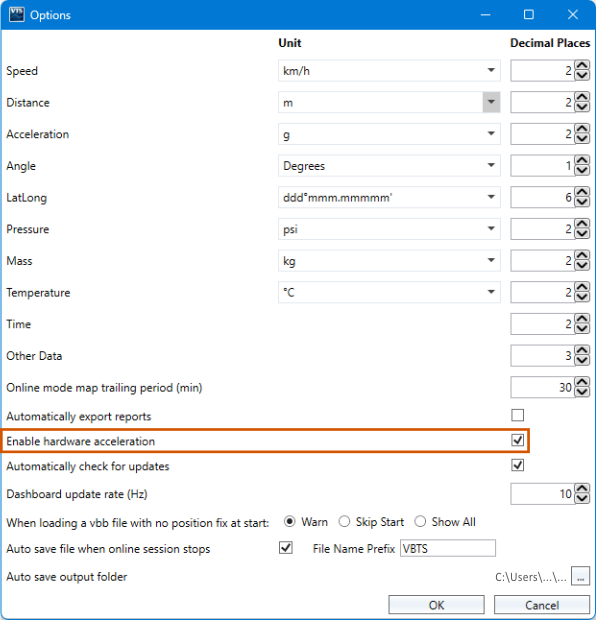
If you cannot update the graphics drivers, disabling hardware acceleration in VBOX Test Suite may improve UI behaviour.
Steps:
- Open VBOX Test Suite
- Select the Home tab
- Click Options in the Settings section
- Untick Enable hardware acceleration
Symptoms
Dashboard gauges update in bursts rather than smoothly.
Cause
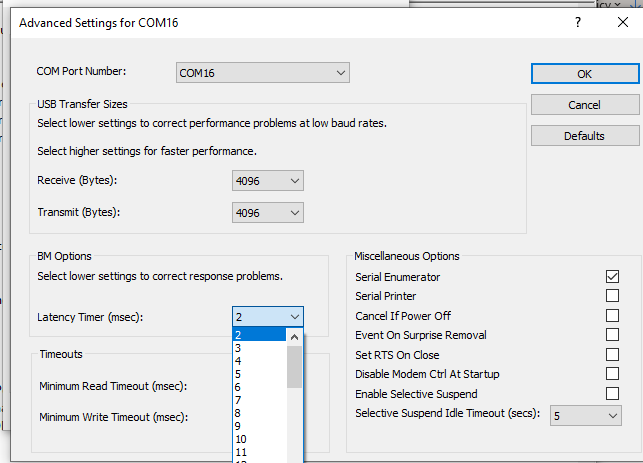
This can occur if the Windows COM port latency timer is configured incorrectly.
Resolution
To improve dashboard update performance:
- Open Device Manager.
- Expand Ports.
- Right-click the VB3i COM port and select Properties.
- Open the Port Settings tab.
- Select Advanced.
- Make sure the Latency Timer value is set to 2.