A coldstart may be required when:
- The GNSS engine has locked up
- VBOX unit is struggling to acquire satellite lock
A coldstart forces the GNSS engine to reset its downloaded almanac of current satellite positions. This can be useful if VBOX unit is having trouble locking onto satellites, which typically occurs if the speed sensor has not been used for several weeks or if it was last used a long distance (over one thousand miles) away from the current location.
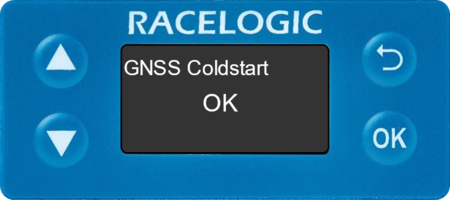
After performing a coldstart, leave the VBOX unit powered up in a static location where the antenna has an unobstructed view of the sky until the display reads OK.
Once your VBOX unit has downloaded the new almanac, it will reacquire satellites in noisy situations (such as near trees, buildings and under bridges) much quicker. It will also acquire satellites much quicker on power-up.
The VBOX unit can be coldstarted via the VBOX Setup Software, the Front Panel of the unit or using the VBOX Manager. All GNSS settings are retained after the process.
- Ensure VBOX Speed Sensor is powered.
- Connect the VBOX Speed Sensor to a computer using the supplied loom, and connect the serial plug labelled Config to the computer's serial port, this can be done via a serial > USB converter if required.
- Open VBOX Setup and connect to the VBOX unit by selecting the correct COM Port.
- Select the GNSS menu and then the Settings tab.
- Select GNSS coldstart from the GPS information section.

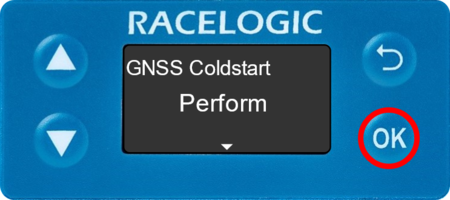
- Press the OK button to enter the menu, navigate to GNSS and press the OK button.

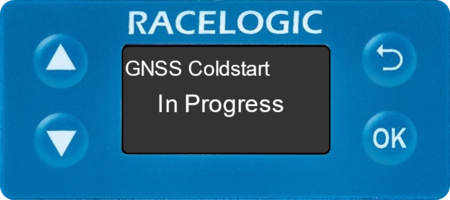
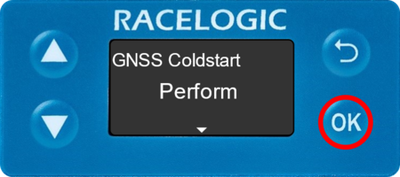
- Navigate to GNSS Coldstart and press the OK button. In Progress will be displayed, showing that the coldstart has been performed and the GNSS engine is now not locked onto any satellites.
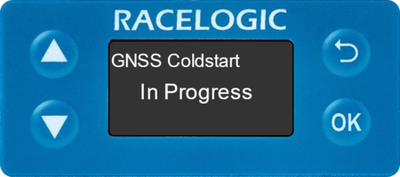
- After approximately 30 – 45 seconds, the display will read OK.