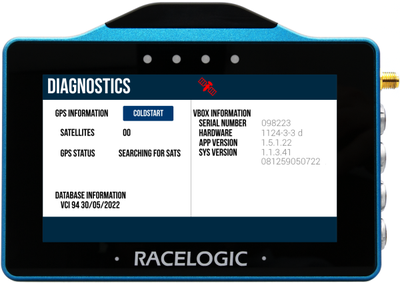
If you are not sure which version of VBOX Touch you have, we explain how to find your product version here.
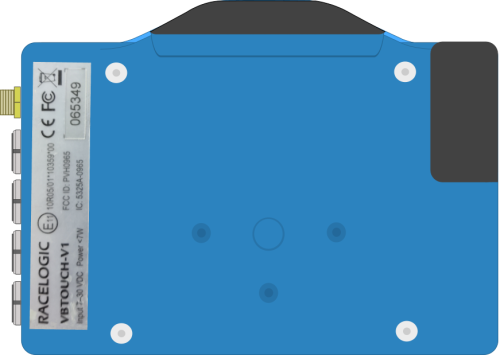
You can find the sticker with the product code/version number and the serial number for your VBOX Touch at the back of the unit.
NOTE
If you are using the rubber case you will have to remove this to see the sticker.
Alternatively, you can power up your VBOX Touch and go to the Diagnostics Screen by tapping Settings → Diagnostics.
Look at the Satellites information on your unit and compare it with the images below.
VBOX Touch RTK
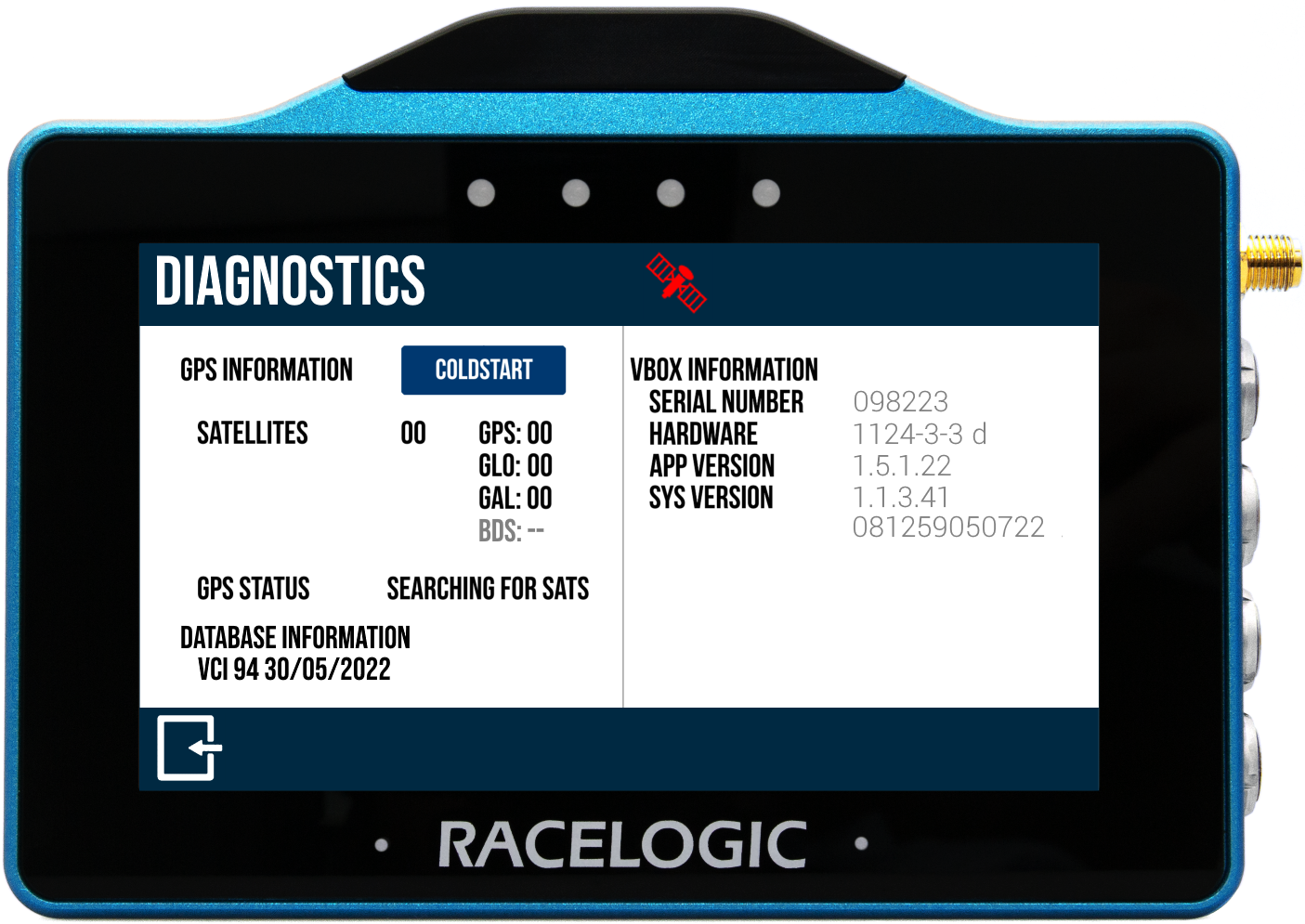
On VBOX Touch RTK units, the Diagnostics screen will display the number of satellites per constellation the unit is currently receiving signals from.
As RTK units can only utilise the signals from 3 constellations simultaneously, one of the constellations will be greyed out.
The unutilised constellation will depend on the selected 3rd constellation in the GNSS Selection option on the General Settings screen.
VBOX Touch RTK
On VBOX Touch RTK units, the Diagnostics screen will display the number of satellites per constellation the unit is currently receiving signals from.
As RTK units can only utilise the signals from 3 constellations simultaneously, one of the constellations will be greyed out.
The unutilised constellation will depend on the selected 3rd constellation in the GNSS Selection option on the General Settings screen.
VBOX Touch V2/V3
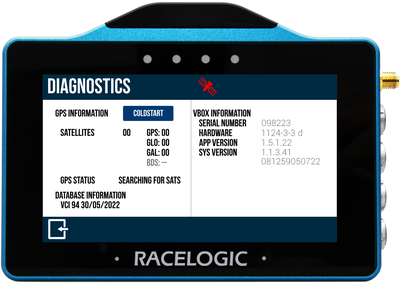
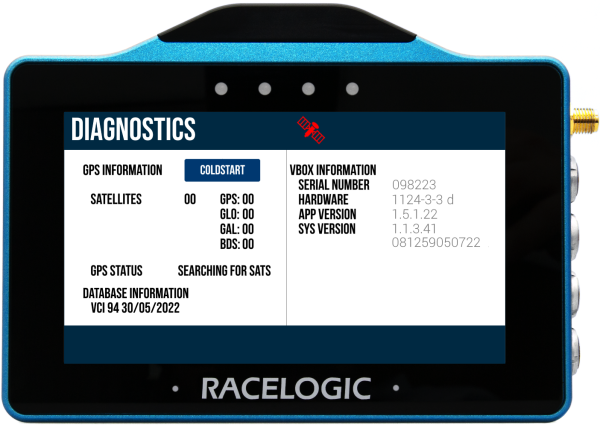
On VBOX Touch V2 units, the Diagnostics screen will display the number of satellites per constellation the unit is currently receiving signals from.
VBOX Touch V2/V3
On VBOX Touch V2 units, the Diagnostics screen will display the number of satellites per constellation the unit is currently receiving signals from.
VBOX Touch V1
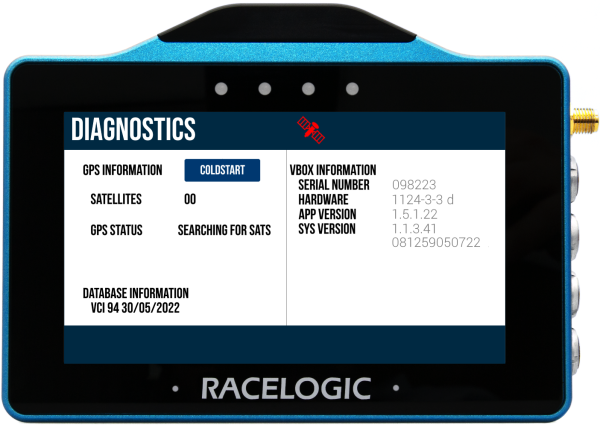
On VBOX Touch V1 units, the Diagnostics screen will display the total number of satellites the unit is currently receiving signals from.
VBOX Touch V1
On VBOX Touch V1 units, the Diagnostics screen will display the total number of satellites the unit is currently receiving signals from.