
This app works with the VBOX Precision Ranging System (VPRS) from Racelogic Positioning. It displays and stores the distance between two beacons.
The display can be zeroed and reset at any time, allowing any offsets to be easily accounted for. The current range can be stored at the press of a button, and then all results can be displayed and saved to a text file.
Download the app from the VBOX Automotive website.
For installation instructions, refer to the Installing or Updating an App article.
Compatible Products: VBOX Touch and VBOX Touch RTK
Power the VBOX Unit by connecting it to the Rover unit. Use an RLCAB120 cable and connect from the Power/CAN Data port on the Rover to one of the CAN/SERIAL ports on VBOX Touch.
The app consist of two display screens; the range screen and the results screen which can be navigated between by selecting the Forward or Back arrows on the bottom right of the screen, or by swiping the screen left or right.
The range display is a live distance measurement in metres between the Beacon and the Rover unit. It is calculated from CAN data outputted by the VPRS rover on ID 6F1.
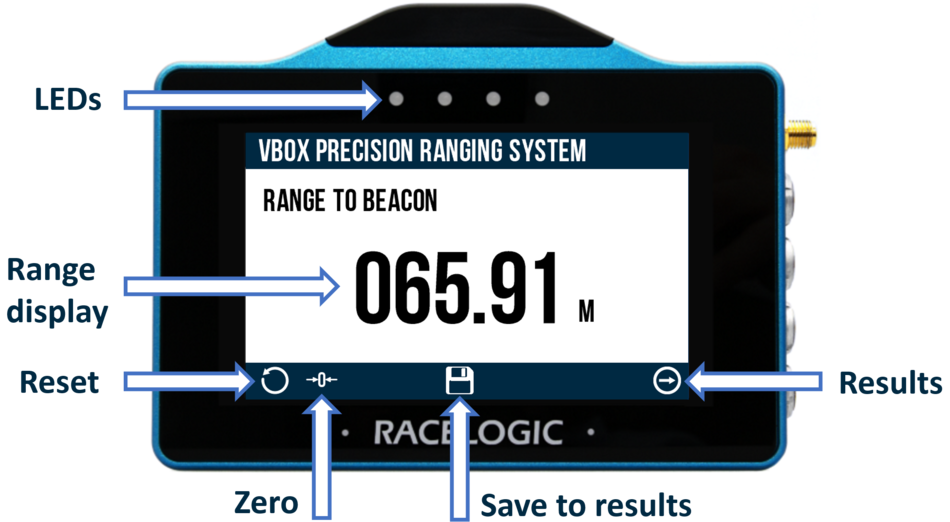

Tap the Reset button on the bottom of the screen to clear any applied offset.

Tap the Reset button on the bottom of the screen to clear any applied offset.

Tap the Zero Button on the bottom of the screen to zero the distance between the Beacon and the Rover unit (by adding an offset equal to the current distance).

Tap the Zero Button on the bottom of the screen to zero the distance between the Beacon and the Rover unit (by adding an offset equal to the current distance).

Tap the Save Button on the bottom of the screen to save the current measurement to a temporary stored result, viewable on the next page.

Tap the Save Button on the bottom of the screen to save the current measurement to a temporary stored result, viewable on the next page.


When available, use the navigation arrows in the bottom right corner to move between the available screens.
Alternatively, you can also swipe left and right on the screen to move between the available screens.


When available, use the navigation arrows in the bottom right corner to move between the available screens.
Alternatively, you can also swipe left and right on the screen to move between the available screens.
The 4 LEDs at the top of the unit provide visual feedback depending on what process is being performed:
- Reset: The LEDs will flash yellow when the offset has been reset.
- Zero: The LEDs will flash blue when the beacon distance has been zeroed.
- Save to Results: The LEDs will flash green when the current measurement has been saved to results.
Whenever you save a result on the Display Screen, it will be added to the list on the Results screen.
The Results screen can contain a maximum of 10 results. If more than 10 results have been saved, the results will be displayed over multiple screens.
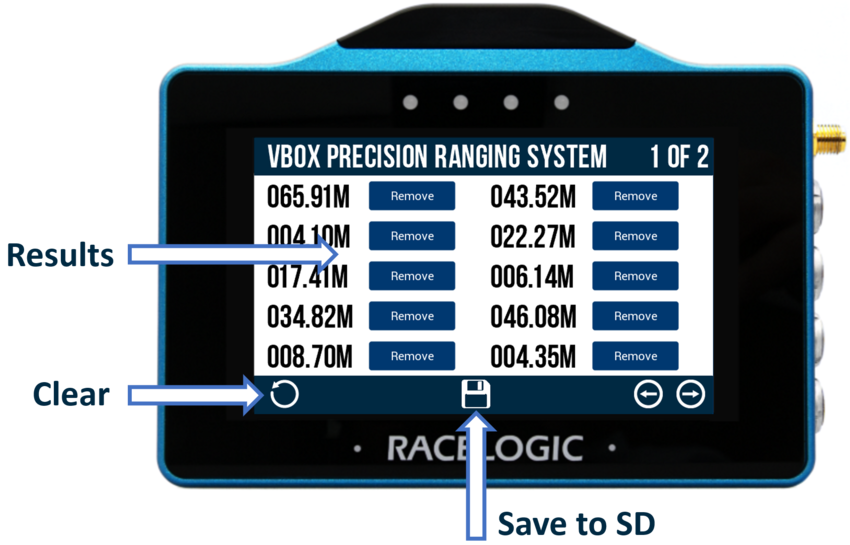
Use the navigation buttons or swipe on the screen to navigate between the available Results pages.
Use the navigation buttons or swipe on the screen to navigate between the available Results pages.
Tap the Clear button in the bottom left corner of the screen to delete all results on the current page.
Tap the Clear button in the bottom left corner of the screen to delete all results on the current page.
Tap the Save button at the bottom of the screen to export the saved results as a .txt file to the SD card.
Tap the Save button at the bottom of the screen to export the saved results as a .txt file to the SD card.
The 4 LEDs at the top of the unit provide visual feedback dependent on what process is being performed:
- Clear: The LEDs will flash yellow twice when all displayed results have been cleared.
- Save to SD: The LEDs will flash green twice when the results have been saved to the SD card.
- Save Error: If, for some reason, the unit is unable to save the results (e.g. full SD card, improperly inserted SD card, improperly formatted SD card), the LEDs will flash red twice.