
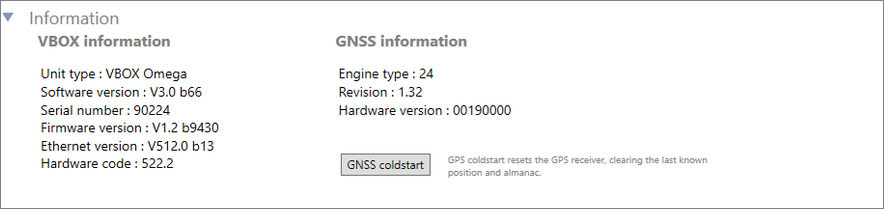
The GNSS menu in VBOX Setup contains GNSS receiver information and provides the ability to set the DGNSS rate, leap second, elevation mask and to perform a GNSS coldstart.
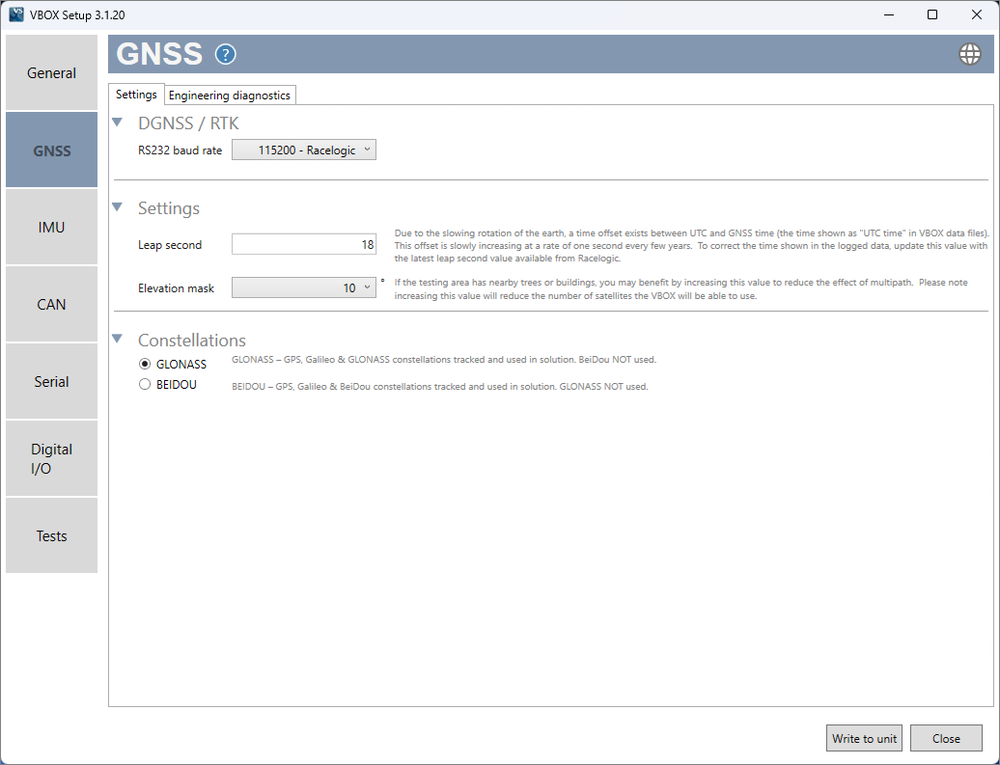
VBOX Omega is enabled to receive DGNSS correction (RTCM v3) messages and to output GGA data at 0.2 Hz.
To ensure that VBOX Omega receives the DGNSS correction signal, the correct RS232 baud rate must be set. All Racelogic blue-boxed radios use 115200 kbit/s, Satel grey-boxed radios use either 19200 kbit/s or 38400 kbit/s.
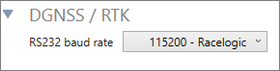
VBOX Omega is enabled to receive DGNSS correction (RTCM v3) messages and to output GGA data at 0.2 Hz.
To ensure that VBOX Omega receives the DGNSS correction signal, the correct RS232 baud rate must be set. All Racelogic blue-boxed radios use 115200 kbit/s, Satel grey-boxed radios use either 19200 kbit/s or 38400 kbit/s.
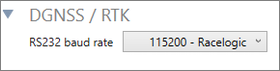

The leap second value can be changed if required. This was increased to 18 seconds as of December 2016 - more information on this is available here.
Allows you to change the elevation mask, selectable from 10 – 25° (10° by default). If the testing area has nearby trees or buildings, you may benefit from increasing this value to reduce the effect of multipath. More information on this is available here.
Note: Increasing this value will reduce the number of satellites VBOX Omega will be able to use.
VBOX Omega can track three satellite constellations simultaneously.
You can choose between the following combinations:
- GPS, Galileo and GLONASS
- GPS, Galileo and BeiDou

VBOX Omega can track three satellite constellations simultaneously.
You can choose between the following combinations:
- GPS, Galileo and GLONASS
- GPS, Galileo and BeiDou

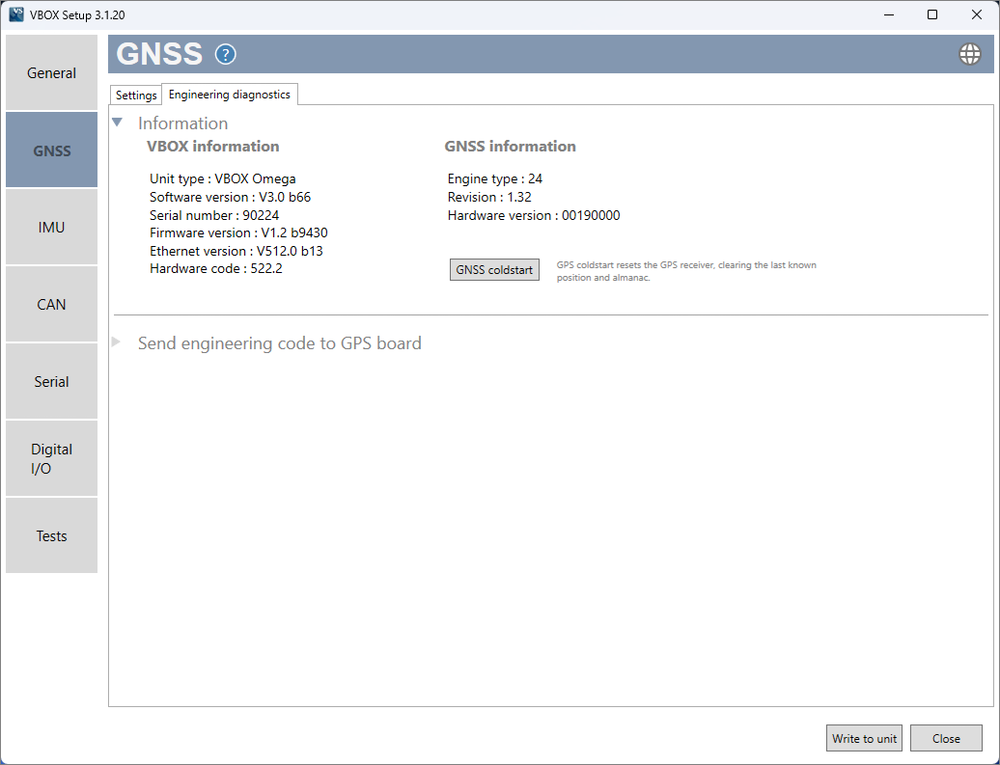
This area is used to set non-standard settings in the GNSS engine. This should only be used under advice from a Racelogic Support Technician.