
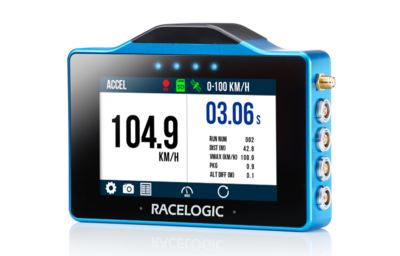
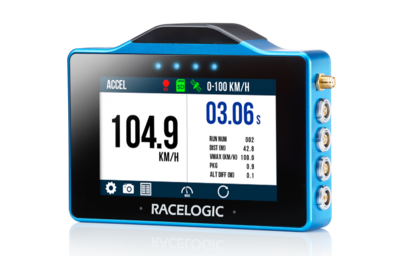
VBOX Touch features a 10 Hz GNSS receiver and a responsive colour touchscreen. The Accel Mode allows you to perform 4 concurrent acceleration tests using specified values.
Please register your VBOX Touch so that Racelogic can continue to provide you with notifications about the latest software releases and firmware upgrades for your Racelogic product, and offer technical support.
Register your device here.
Please register your VBOX Touch so that Racelogic can continue to provide you with notifications about the latest software releases and firmware upgrades for your Racelogic product, and offer technical support.
Register your device here.
When you purchase a VBOX Touch Motorsport (v1) (RLVBTOUCH-M), you will find the following items when you open the box:
| Product Code | Quantity | Description |
|---|---|---|
| VBTOUCH-V1 | 1 | VBOX Touch Unit |
| MECH0298SD | 1 | Rubber Overmould - Black |
| RLCAB014LE | 1 | Lemo 2-way plug - 2-wire unterminated - 2m cable |
| RLACS313 | 1 | 8 GB SD Ultima Pro UHS-1 Memory Card |
| RLACS262 | 1 | GNSS Antenna (3 m) |
| ACS318MOUNT | 1 | Suction Cup Windscreen Mount |
| Product Code | Description |
|---|---|
| RLVBACS004 | Brake Pedal Trigger |
| RLVBACS010 | Hand Held Start/Stop Logging Switch |
| RLCAB001 | VBOX PC Serial Cable |
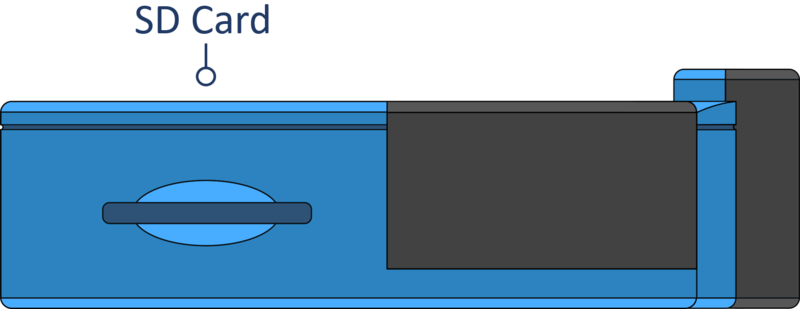
VBOX Touch logs data to an SD card. Depending on the Logging Strategy that is set in the General Settings area, the unit will either log continuously or when movement is detected (default).
VBOX Touch is supplied with an 8 GB SDHC card in a FAT32 file format, which is the only file format supported.
If you are looking to purchase a new SD card, it is recommended that any card used has a write speed of above 7 MB/s (4 MB/s absolute minimum) and a speed class of 10 (4 absolute minimum). Racelogic recommends SD cards from quality brands such as Transcend, SanDisk, Kingston or Lexar to ensure the best results.
IMPORTANT
If an SD card is formatted in the exFAT or NTFS file formats, it will need to be reformatted into a FAT32 file system before it will work with a VBOX Touch unit.
Supplied or purchased SDHC cards are formatted in the FAT32 file format. This format is supported by VBOX Touch.
Purchased SDXC cards will be formatted in exFAT or NTFS file formats; these formats are not supported by VBOX Touch (please reformat as per instructions below).
- FAT32 reformatting for media with sizes up to 32 GB can be done directly within Windows by right-clicking on the media and selecting 'Format'.
- If you would like to format media with sizes above 32 GB into a FAT32 file system, this isn't something that can be done directly within Windows as it is not the standard formatting for the file. However, many third-party software programs can be used to reformat media to allow them to work correctly with our products - we can recommend This Tool as a free option from the SD card organisation.
The VBOX Touch unit is powered by a power cable that is unterminated so that you can make a bare-wire connection to a power supply. The cable terminates in a 2-way connector that mates with the Power socket on VBOX Touch.
On boot-up, the VBOX Touch will display a splash screen and automatically look for satellites and media.
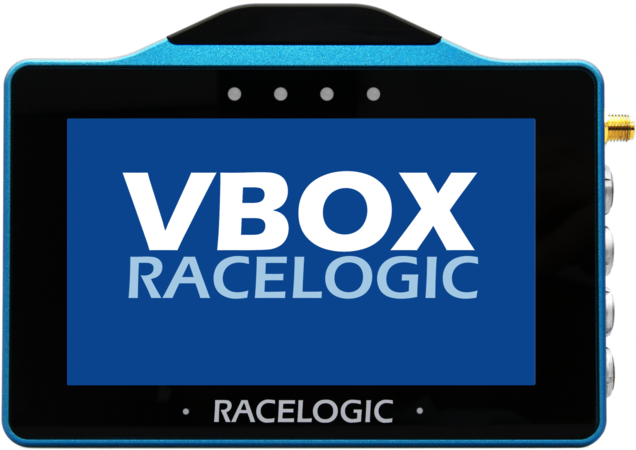
The first time that the unit is booted up, the Display Mode screen will be presented. Every time after this, the last used display mode will be opened.
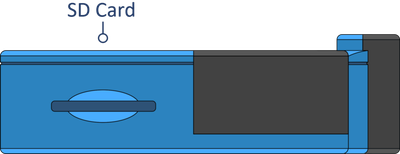
VBOX Touch logs data via an SD card inserted into the side of the unit. Depending on the Logging Strategy selected within the General Settings area, the unit will either log continuously or when movement is detected (default).
Tapping on the SD Card Icon when green will manually start or stop logging data, overriding the Configured Logging Strategy.
The Record Icon will show when the unit is logging data to the SD card.
If you have come to a stop, but the Record Icon is still on, press the SD Card Icon to stop the logging before removing the card.
Sometimes, due to poor satellite visibility in a garage or close to a building, the box may start recording, even if the car is stationary. Always check the Record Icon before ejecting the card.
IMPORTANT
Do not remove the SD card when the Record Icon is on as you may lose data.
Note: If for some reason the SD card is removed while the unit is still recording, it may need to be repaired using a PC before it can be reused.
You can also control the logging by using an RLVBACS010 hand-held latching trigger switch (unlatched for logging/ latched for not logging). Continuous Logging Mode should be selected when using the switch. It is connected to the 3-pin Digital In and PPS Connector on the side of the VBOX Touch.
When the trigger switch is connected and latched, it is not possible to use the SD Card Icon to manually start or stop logging data.
VBOX Touch logs channels to an inserted SD card within a .vbo file, channel information is available below:
- Satellites: This is the number of satellites in use.
- Time: This is UTC since midnight in the form HHMMSS.SS.
- Latitude: Latitude in minutes MMMM.MMMMMMMM +ve = North e.g. 3169.30644410M = 52D, 49M, 18.4S.
- Longitude: Longitude in minutes MMMMM.MMMMMMMM +ve = West e.g. 00040.18164742M = 00D, 40M, 10.9S.
- Velocity: Velocity in km/h.
- Heading: Heading in degrees concerning North.
- Height: Height above sea level in meters based on the model of the earth used by VBOX GNSS engines.
- Vertical velocity: Vertical velocity in km/h. +ve velocity uphill, -ve velocity downhill.
- Long accel: Longitudinal acceleration in g, +ve for forward acceleration.
- Lat accel: Lateral acceleration in g, +ve for acceleration to the left.
- Solution type: Indicator for what the unit is currently using to derive position: 0 = No sats; 1 = Standalone using GNSS only; 2 = DGNSS.
- Event 1 time: This is the digital input oversample timer used to interpolate the trigger event time between captured samples.
Antenna
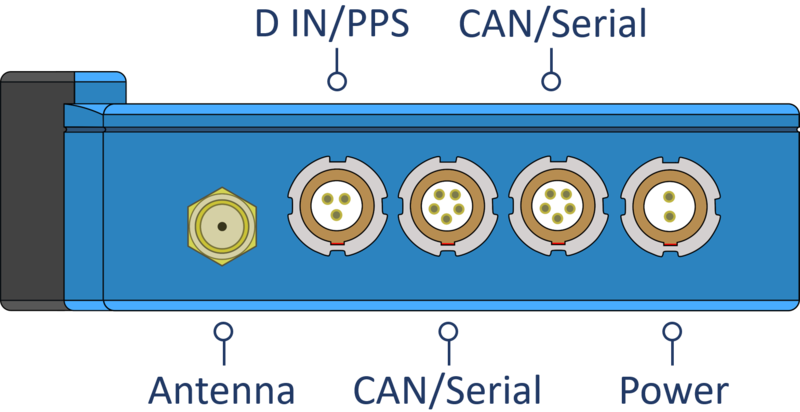
If you struggle to maintain a stable satellite lock, you can connect the supplied external antenna (RLACS262) to the antenna socket. The external antenna is also required when you are doing Brake Trigger Tests. You can find more information about the external antenna further down on the page.
Antenna
If you struggle to maintain a stable satellite lock, you can connect the supplied external antenna (RLACS262) to the antenna socket. The external antenna is also required when you are doing Brake Trigger Tests. You can find more information about the external antenna further down on the page.
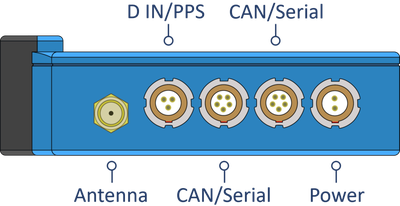
The Digital In and PPS port can be used to connect to the VBOX Brake Pedal Trigger to provide brake trigger deceleration tests. You can find more information about this under Decel Mode in the relevant user guide.
The port can also be used to connect a Hand Held Start/Stop Logging Switch (RLVBACS010) to control the logging of the unit.
CAN/Serial
The top CAN/Serial port can be used to output serial information, allowing you to either connect VBOX Touch to VBOX Test Suite via an RLCAB001 and conduct live testing, or output lap timing parameters. You can find more information about the Serial Output settings in the Serial Output section in the relevant user guide.
CAN/Serial
The top CAN/Serial port can be used to output serial information, allowing you to either connect VBOX Touch to VBOX Test Suite via an RLCAB001 and conduct live testing, or output lap timing parameters. You can find more information about the Serial Output settings in the Serial Output section in the relevant user guide.
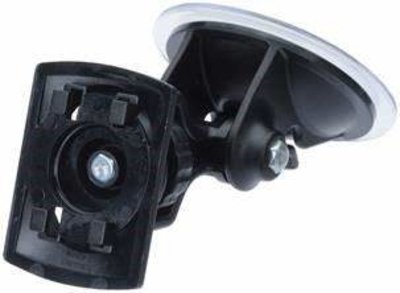
VBOX Touch is supplied with a Swivel Neck Richter Suction Mount (RLACS277) for mounting onto a vehicle windscreen. It can also be secured using the ¼ 20 TPI UNC screw thread on the back of the unit.
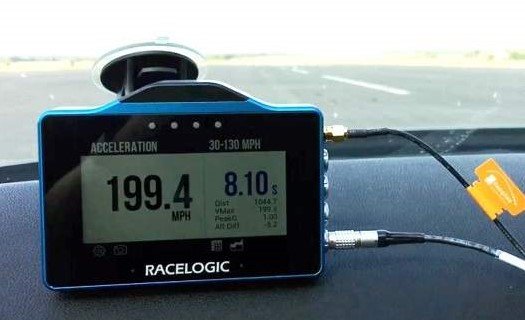
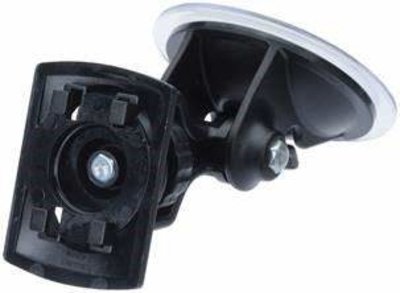
VBOX Touch has an internal patch antenna. This means that in most circumstances where the unit has a clear view of the sky and no interference, you do not need an additional external antenna. However, if you are struggling to maintain a stable satellite lock (indicated by a flashing red satellite icon), you can use the external antenna (RLACS262) supplied with the unit.
IMPORTANT
- If you are conducting Brake Trigger Deceleration Tests, you should use the external antenna.
- The first time that the unit is used, it may take up to 10–15 minutes to fully acquire satellites. After this, it will usually take 1–2 minutes to acquire satellites.
The placement of the GNSS antenna is crucial to the quality of the data recorded by VBOX Touch. Any metal close to a GNSS antenna can unpredictably disturb the signal due to interference from reflections of weak GNSS signals.
You can read more about external antenna placement here.
To perform a coldstart, press the COLDSTART button within the Diagnostics Settings menu.
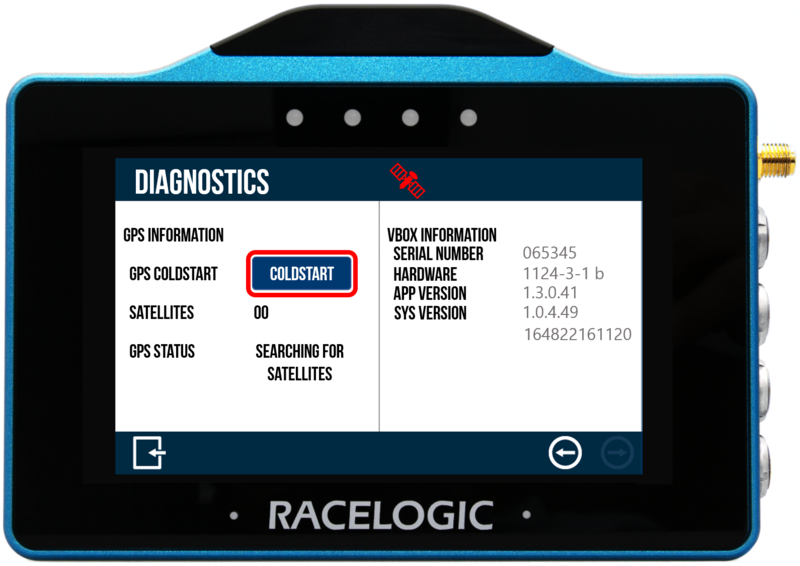
When the button has been pressed, the unit will make an audible sound and a ‘PLEASE WAIT’ message will be displayed on the screen which will count down from 3. The number of satellites will then be displayed as '00' and GPS status will show ‘SEARCHING FOR SATELLITES’ until the satellite lock has been acquired. It will take approximately 25 to 30 seconds for the unit to reacquire the satellite lock.
The 4 LEDs at the top of the unit provide visual feedback dependent on what process is being performed:
| Function | Behaviour | Colour |
|---|---|---|
| Accel/Decel Mode | IfAlert at Endis enabled, the LEDs will flashgreenfor 0.5 s once the test end criteria are met. | |
| Lap Timing Mode | The LEDs provide a live reference lap speed comparison (Delta-V). | |
| The current lap is > 5 km/h quicker than the reference lap The current lap is 2.5 km/h quicker than the reference lap The current lap is the same speed as the reference lap The current lap is 2.5 km/h slower than the reference lap The current lap is > 5 km/h slower than the reference lap | ||
| The LEDs will illuminateblueduring the process of creating aReference Lap. | ||
| When loading aTrack Databasefile, the progress of the track database update is displayed via the LEDs; each lit LED will represent 25% of the process with all LEDs extinguishing when the process is complete. | ||
| When aTrack Layoutis changed, the LEDs will briefly flashgreentwice. | ||
| When aFinish Lineis cleared, the LEDs will briefly flashgreentwice. | ||
| When aStanding Startis Enabled or Disabled, the LEDs will briefly flashgreentwice. | ||
| Speed Mode | If aTarget Speed LED Alerthas been set, the LEDs will flashgreenwhen the value is reached. | |
| Screenshot | If a screenshot has been saved successfully, the LEDs will illuminateyellowin sequence from left to right to display the progress of writing to the SD card. | |
| Reset | The LEDs will briefly flashgreentwice when a screen has been reset. |
- Connect the power via the Power socket.
- Insert the SD card into the Side of the Unit. The SD Card Icon should display as green as long as the card has free space.
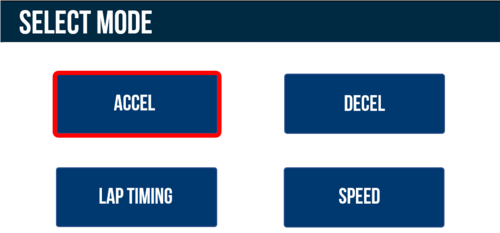
- When the unit has booted, select the Mode Button and press ACCEL if it is not already selected.
- Select which Accel screen you would like to be shown (Primary, Secondary or Best Result) by selecting the Forward and Back arrows on the bottom right of the screen or by swiping the screen left or right.
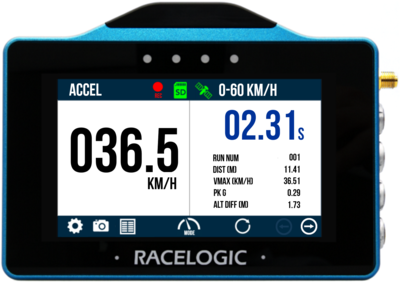
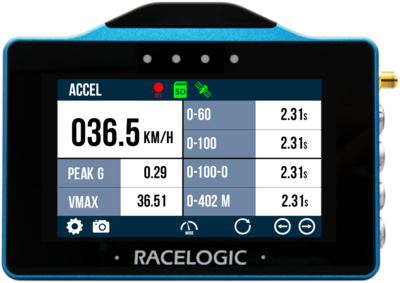
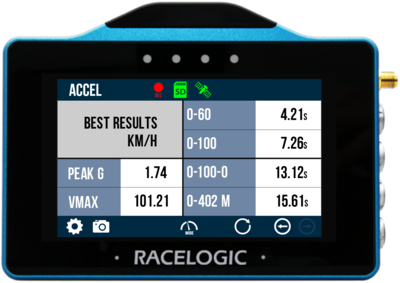
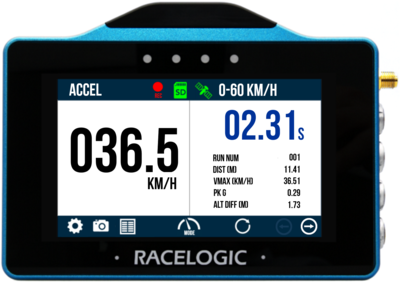
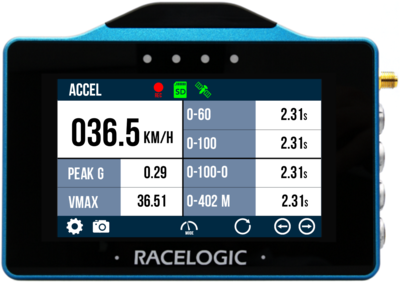
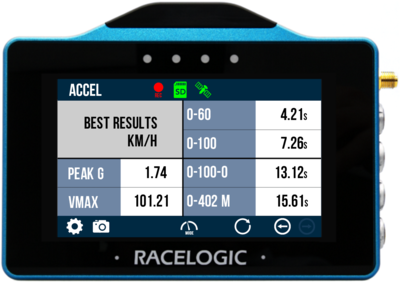
- Select the Settings Button, then the Accel option and choose the Start and End Parameters of the 4 concurrent tests, by default these are 0–60, 0–100, 0–100–0 and 0–¼ mile.
- If you would like an audible and visual alert when the Primary test is completed or the target speed is met within a 0-Speed-0 test, enable Alert at End/Target within the Settings.

- If you would like the tests to start once 1 ft or 0.305 m distance has been covered, enable One Foot Rollout within the Settings.
Note: Cannot be used in conjunction with Slope Correction.

- If you would like to apply DB Scanner slope correction method to the tests, enable Slope Correct within the Settings.
Note: Cannot be used in conjunction with One foot rollout.

- If you are intending to use the serial output from the top CAN/Serial port to conduct Online Testing with VBOX Test Suite or output lap timing parameters, go to Serial Output within the Serial Port Settings and change the Output Mode to either VBOX Stream (live testing with VBOX Test Suite) or Lap Timing.
Note: Ensure correct hardware connections are made.
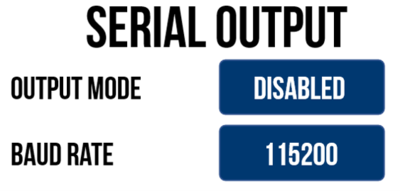
- Press the Exit Button to return to the Accel Test screen.
- Take the vehicle outside and wait for the VBOX Touch to gain satellite lock.
Note: The first time that the unit is used, it may take up to 15 minutes to fully acquire satellites. After this, it will usually take 1 to 2 minutes to acquire satellites.
- The unit is now ready to display live Accel Test results.
- By default, VBOX Touch will automatically start recording when travelling over 0.5 km/h, this can be changed within the General Settings.
- Tapping on the SD Card Icon when green will manually start or stop logging data, overriding the Configured Logging Strategy.
-
The Record Icon will show when the unit is logging data to the SD card.
If you have come to a stop, but the Record Icon is still on, press the SD Card Icon to stop the logging before removing the card.
Sometimes, due to poor satellite visibility in a garage or close to a building, the box may start recording, even if the car is stationary. Always check the Record Icon before ejecting the card.
IMPORTANT – The SD card shouldn't be removed when the Record Icon is on as you may lose data.Note: If for some reason the SD card is removed whilst still recording, it may need to be repaired using a PC before it can be reused.
-
A screenshot of what is displayed on the screen can be taken at any time by pressing the Screenshot Button.
-
To reset all test results shown on the current screen, press the Reset Button.
-
When you have finished your testing, completed test results can be viewed by pressing the Results Button.
More information on Accel Mode testing can be found here.
A recorded session will be saved within the SD card as a .vbo file. This can be later analysed using our next generation of data analysis software VBOX Test Suite.
Image missing
VBOX Touch features a 10 Hz GNSS receiver and a responsive colour touchscreen. The Decel Mode allows you to perform deceleration tests using pre-defined configurations, using your own specified values or by using a VBOX Brake Pedal Trigger.
Please register your VBOX Touch so that Racelogic can continue to provide you with notifications about the latest software releases and firmware upgrades for your Racelogic product, and offer technical support.
Register your device here.
Please register your VBOX Touch so that Racelogic can continue to provide you with notifications about the latest software releases and firmware upgrades for your Racelogic product, and offer technical support.
Register your device here.
When you purchase a VBOX Touch Motorsport (v1) (RLVBTOUCH-M), you will find the following items when you open the box:
| Product Code | Quantity | Description |
|---|---|---|
| VBTOUCH-V1 | 1 | VBOX Touch Unit |
| MECH0298SD | 1 | Rubber Overmould - Black |
| RLCAB014LE | 1 | Lemo 2-way plug - 2-wire unterminated - 2m cable |
| RLACS313 | 1 | 8 GB SD Ultima Pro UHS-1 Memory Card |
| RLACS262 | 1 | GNSS Antenna (3 m) |
| ACS318MOUNT | 1 | Suction Cup Windscreen Mount |
| Product Code | Description |
|---|---|
| RLVBACS004 | Brake Pedal Trigger |
| RLVBACS010 | Hand Held Start/Stop Logging Switch |
| RLCAB001 | VBOX PC Serial Cable |
VBOX Touch logs data to an SD card. Depending on the Logging Strategy that is set in the General Settings area, the unit will either log continuously or when movement is detected (default).
VBOX Touch is supplied with an 8 GB SDHC card in a FAT32 file format, which is the only file format supported.
If you are looking to purchase a new SD card, it is recommended that any card used has a write speed of above 7 MB/s (4 MB/s absolute minimum) and a speed class of 10 (4 absolute minimum). Racelogic recommends SD cards from quality brands such as Transcend, SanDisk, Kingston or Lexar to ensure the best results.
IMPORTANT
If an SD card is formatted in the exFAT or NTFS file formats, it will need to be reformatted into a FAT32 file system before it will work with a VBOX Touch unit.
Supplied or purchased SDHC cards are formatted in the FAT32 file format. This format is supported by VBOX Touch.
Purchased SDXC cards will be formatted in exFAT or NTFS file formats; these formats are not supported by VBOX Touch (please reformat as per instructions below).
- FAT32 reformatting for media with sizes up to 32 GB can be done directly within Windows by right-clicking on the media and selecting 'Format'.
- If you would like to format media with sizes above 32 GB into a FAT32 file system, this isn't something that can be done directly within Windows as it is not the standard formatting for the file. However, many third-party software programs can be used to reformat media to allow them to work correctly with our products - we can recommend This Tool as a free option from the SD card organisation.
The VBOX Touch unit is powered by a power cable that is unterminated so that you can make a bare-wire connection to a power supply. The cable terminates in a 2-way connector that mates with the Power socket on VBOX Touch.
On boot-up, the VBOX Touch will display a splash screen and automatically look for satellites and media.
The first time that the unit is booted up, the Display Mode screen will be presented. Every time after this, the last used display mode will be opened.
VBOX Touch logs data via an SD card inserted into the side of the unit. Depending on the Logging Strategy selected within the General Settings area, the unit will either log continuously or when movement is detected (default).
Tapping on the SD Card Icon when green will manually start or stop logging data, overriding the Configured Logging Strategy.
The Record Icon will show when the unit is logging data to the SD card.
If you have come to a stop, but the Record Icon is still on, press the SD Card Icon to stop the logging before removing the card.
Sometimes, due to poor satellite visibility in a garage or close to a building, the box may start recording, even if the car is stationary. Always check the Record Icon before ejecting the card.
IMPORTANT
Do not remove the SD card when the Record Icon is on as you may lose data.
Note: If for some reason the SD card is removed while the unit is still recording, it may need to be repaired using a PC before it can be reused.
You can also control the logging by using an RLVBACS010 hand-held latching trigger switch (unlatched for logging/ latched for not logging). Continuous Logging Mode should be selected when using the switch. It is connected to the 3-pin Digital In and PPS Connector on the side of the VBOX Touch.
When the trigger switch is connected and latched, it is not possible to use the SD Card Icon to manually start or stop logging data.
VBOX Touch logs channels to an inserted SD card within a .vbo file, channel information is available below:
- Satellites: This is the number of satellites in use.
- Time: This is UTC since midnight in the form HHMMSS.SS.
- Latitude: Latitude in minutes MMMM.MMMMMMMM +ve = North e.g. 3169.30644410M = 52D, 49M, 18.4S.
- Longitude: Longitude in minutes MMMMM.MMMMMMMM +ve = West e.g. 00040.18164742M = 00D, 40M, 10.9S.
- Velocity: Velocity in km/h.
- Heading: Heading in degrees concerning North.
- Height: Height above sea level in meters based on the model of the earth used by VBOX GNSS engines.
- Vertical velocity: Vertical velocity in km/h. +ve velocity uphill, -ve velocity downhill.
- Long accel: Longitudinal acceleration in g, +ve for forward acceleration.
- Lat accel: Lateral acceleration in g, +ve for acceleration to the left.
- Solution type: Indicator for what the unit is currently using to derive position: 0 = No sats; 1 = Standalone using GNSS only; 2 = DGNSS.
- Event 1 time: This is the digital input oversample timer used to interpolate the trigger event time between captured samples.
Antenna
If you struggle to maintain a stable satellite lock, you can connect the supplied external antenna (RLACS262) to the antenna socket. The external antenna is also required when you are doing Brake Trigger Tests. You can find more information about the external antenna further down on the page.
Antenna
If you struggle to maintain a stable satellite lock, you can connect the supplied external antenna (RLACS262) to the antenna socket. The external antenna is also required when you are doing Brake Trigger Tests. You can find more information about the external antenna further down on the page.
The Digital In and PPS port can be used to connect to the VBOX Brake Pedal Trigger to provide brake trigger deceleration tests. You can find more information about this under Decel Mode in the relevant user guide.
The port can also be used to connect a Hand Held Start/Stop Logging Switch (RLVBACS010) to control the logging of the unit.
CAN/Serial
The top CAN/Serial port can be used to output serial information, allowing you to either connect VBOX Touch to VBOX Test Suite via an RLCAB001 and conduct live testing, or output lap timing parameters. You can find more information about the Serial Output settings in the Serial Output section in the relevant user guide.
CAN/Serial
The top CAN/Serial port can be used to output serial information, allowing you to either connect VBOX Touch to VBOX Test Suite via an RLCAB001 and conduct live testing, or output lap timing parameters. You can find more information about the Serial Output settings in the Serial Output section in the relevant user guide.
VBOX Touch is supplied with a Swivel Neck Richter Suction Mount (RLACS277) for mounting onto a vehicle windscreen. It can also be secured using the ¼ 20 TPI UNC screw thread on the back of the unit.
VBOX Touch has an internal patch antenna. This means that in most circumstances where the unit has a clear view of the sky and no interference, you do not need an additional external antenna. However, if you are struggling to maintain a stable satellite lock (indicated by a flashing red satellite icon), you can use the external antenna (RLACS262) supplied with the unit.
IMPORTANT
- If you are conducting Brake Trigger Deceleration Tests, you should use the external antenna.
- The first time that the unit is used, it may take up to 10–15 minutes to fully acquire satellites. After this, it will usually take 1–2 minutes to acquire satellites.
The placement of the GNSS antenna is crucial to the quality of the data recorded by VBOX Touch. Any metal close to a GNSS antenna can unpredictably disturb the signal due to interference from reflections of weak GNSS signals.
You can read more about external antenna placement here.
To perform a coldstart, press the COLDSTART button within the Diagnostics Settings menu.
When the button has been pressed, the unit will make an audible sound and a ‘PLEASE WAIT’ message will be displayed on the screen which will count down from 3. The number of satellites will then be displayed as '00' and GPS status will show ‘SEARCHING FOR SATELLITES’ until the satellite lock has been acquired. It will take approximately 25 to 30 seconds for the unit to reacquire the satellite lock.
The 4 LEDs at the top of the unit provide visual feedback dependent on what process is being performed:
| Function | Behaviour | Colour |
|---|---|---|
| Accel/Decel Mode | IfAlert at Endis enabled, the LEDs will flashgreenfor 0.5 s once the test end criteria are met. | |
| Lap Timing Mode | The LEDs provide a live reference lap speed comparison (Delta-V). | |
| The current lap is > 5 km/h quicker than the reference lap The current lap is 2.5 km/h quicker than the reference lap The current lap is the same speed as the reference lap The current lap is 2.5 km/h slower than the reference lap The current lap is > 5 km/h slower than the reference lap | ||
| The LEDs will illuminateblueduring the process of creating aReference Lap. | ||
| When loading aTrack Databasefile, the progress of the track database update is displayed via the LEDs; each lit LED will represent 25% of the process with all LEDs extinguishing when the process is complete. | ||
| When aTrack Layoutis changed, the LEDs will briefly flashgreentwice. | ||
| When aFinish Lineis cleared, the LEDs will briefly flashgreentwice. | ||
| When aStanding Startis Enabled or Disabled, the LEDs will briefly flashgreentwice. | ||
| Speed Mode | If aTarget Speed LED Alerthas been set, the LEDs will flashgreenwhen the value is reached. | |
| Screenshot | If a screenshot has been saved successfully, the LEDs will illuminateyellowin sequence from left to right to display the progress of writing to the SD card. | |
| Reset | The LEDs will briefly flashgreentwice when a screen has been reset. |
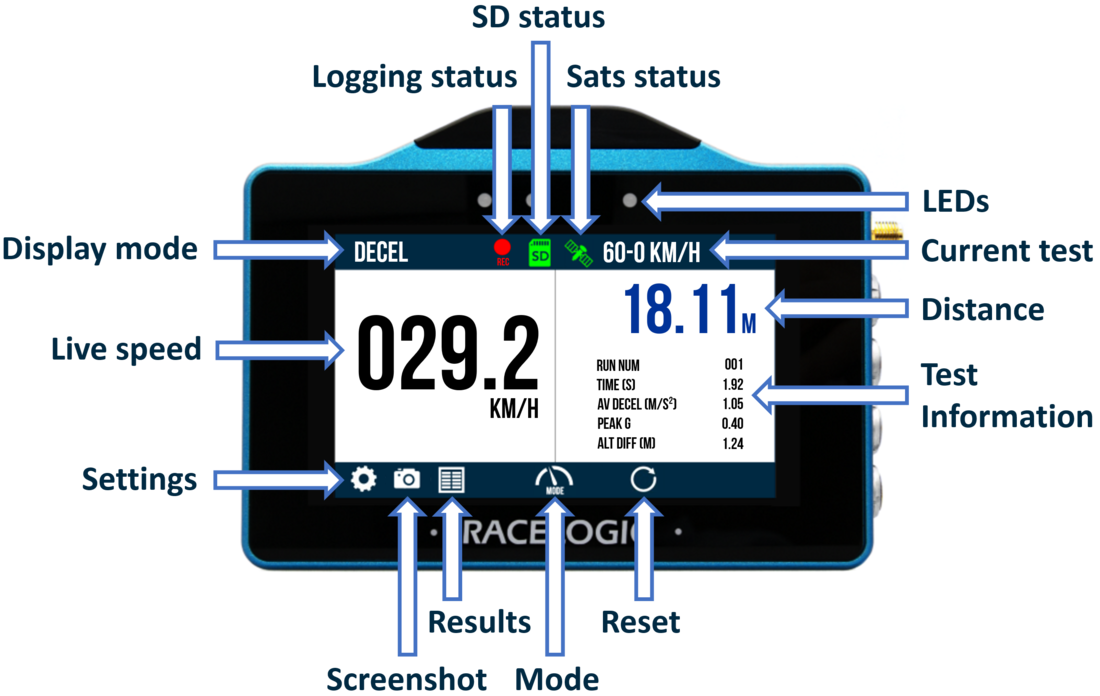
- Connect the power via the Power socket.
- Insert the SD card into the Side of the Unit. The SD Card Icon should display as green as long as the card has free space.
- When the unit has booted, select the Mode Button and press DECEL if not it is already selected.
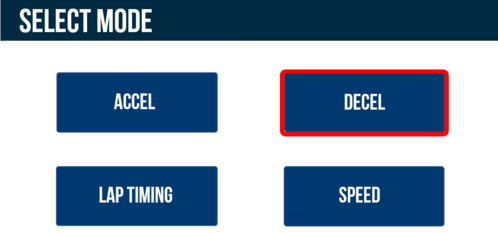
- Select the Settings Button then the Decel option and choose from either starting the test from a specific speed or by using a VBOX Brake Pedal Trigger.
- If you have chosen speed, select a Preset Test or use Custom Start and End Parameters.
- If you have chosen Trigger, select the Minimum Trigger Speed and enter MFDD settings.
Note: The external antenna should be used when conducting a brake trigger test.
- If you would like an audible and visual alert when the test is completed, enable Alert at End within the Settings.
- If you are intending to use the serial output from the top CAN/Serial port to conduct Online Testing with VBOX Test Suite or output lap timing parameters, go to Serial Output within the Serial Port Settings and change the Output Mode to either VBOX Stream (live testing with VBOX Test Suite) or Lap Timing.
Note: Ensure correct hardware connections are made.
- Press the Exit Button to return to the Decel Test screen.
- Take the vehicle outside and wait for the VBOX Touch to gain satellite lock. The Satellite Icon should display as solid green.
Note: The first time that the unit is used, it may take up to 15 minutes to fully acquire satellites. After this, it will usually take 1 – 2 minutes to acquire satellites.
- The unit is now ready to display live Decel Test results.
- By default, VBOX Touch will automatically start recording when travelling over 0.5 km/h, this can be changed within the General Settings.
- Tapping on the SD Card Icon when green will manually start or stop logging data, overriding the Configured Logging Strategy.
-
The Record Icon will show when the unit is logging data to the SD card.
If you have come to a stop, but the Record Icon is still on, press the SD Card Icon to stop the logging before removing the card.
Sometimes, due to poor satellite visibility in a garage or close to a building, the box may start recording, even if the car is stationary. Always check the Record Icon before ejecting the card.
IMPORTANT – The SD card shouldn't be removed when the Record Icon is on as you may lose data.Note: If for some reason the SD card is removed whilst still recording, it may need to be repaired using a PC before it can be reused.
-
A screenshot of what is displayed on the screen can be taken at any time by pressing the Screenshot Button.
-
To reset all test results shown on the current screen, press the Reset Button.
-
When you have finished your testing, completed test results can be viewed by pressing the Results Button.
More information on Decel Mode testing can be found here.
VBOX Touch features a 10 Hz GNSS receiver and a responsive colour touchscreen. The Lap Timing Mode allows you to view live Lap Timing information in relation to a set Start/Finish line.
Two Lap Timing screens are available; the Main Screen, which contains live reference lap speed comparison (Delta-V), live reference lap time comparison (Delta-T), current reference lap time, last lap time, last lap time difference to best, session time and completed lap count. The Basic Screen contains either just a rolling lap time or a static previous lap time.
Please register your VBOX Touch so that Racelogic can continue to provide you with notifications about the latest software releases and firmware upgrades for your Racelogic product, and offer technical support.
Register your device here.
Please register your VBOX Touch so that Racelogic can continue to provide you with notifications about the latest software releases and firmware upgrades for your Racelogic product, and offer technical support.
Register your device here.
When you purchase a VBOX Touch Motorsport (v1) (RLVBTOUCH-M), you will find the following items when you open the box:
| Product Code | Quantity | Description |
|---|---|---|
| VBTOUCH-V1 | 1 | VBOX Touch Unit |
| MECH0298SD | 1 | Rubber Overmould - Black |
| RLCAB014LE | 1 | Lemo 2-way plug - 2-wire unterminated - 2m cable |
| RLACS313 | 1 | 8 GB SD Ultima Pro UHS-1 Memory Card |
| RLACS262 | 1 | GNSS Antenna (3 m) |
| ACS318MOUNT | 1 | Suction Cup Windscreen Mount |
| Product Code | Description |
|---|---|
| RLVBACS004 | Brake Pedal Trigger |
| RLVBACS010 | Hand Held Start/Stop Logging Switch |
| RLCAB001 | VBOX PC Serial Cable |
VBOX Touch logs data to an SD card. Depending on the Logging Strategy that is set in the General Settings area, the unit will either log continuously or when movement is detected (default).
VBOX Touch is supplied with an 8 GB SDHC card in a FAT32 file format, which is the only file format supported.
If you are looking to purchase a new SD card, it is recommended that any card used has a write speed of above 7 MB/s (4 MB/s absolute minimum) and a speed class of 10 (4 absolute minimum). Racelogic recommends SD cards from quality brands such as Transcend, SanDisk, Kingston or Lexar to ensure the best results.
IMPORTANT
If an SD card is formatted in the exFAT or NTFS file formats, it will need to be reformatted into a FAT32 file system before it will work with a VBOX Touch unit.
Supplied or purchased SDHC cards are formatted in the FAT32 file format. This format is supported by VBOX Touch.
Purchased SDXC cards will be formatted in exFAT or NTFS file formats; these formats are not supported by VBOX Touch (please reformat as per instructions below).
- FAT32 reformatting for media with sizes up to 32 GB can be done directly within Windows by right-clicking on the media and selecting 'Format'.
- If you would like to format media with sizes above 32 GB into a FAT32 file system, this isn't something that can be done directly within Windows as it is not the standard formatting for the file. However, many third-party software programs can be used to reformat media to allow them to work correctly with our products - we can recommend This Tool as a free option from the SD card organisation.
The VBOX Touch unit is powered by a power cable that is unterminated so that you can make a bare-wire connection to a power supply. The cable terminates in a 2-way connector that mates with the Power socket on VBOX Touch.
On boot-up, the VBOX Touch will display a splash screen and automatically look for satellites and media.
The first time that the unit is booted up, the Display Mode screen will be presented. Every time after this, the last used display mode will be opened.
VBOX Touch logs data via an SD card inserted into the side of the unit. Depending on the Logging Strategy selected within the General Settings area, the unit will either log continuously or when movement is detected (default).
Tapping on the SD Card Icon when green will manually start or stop logging data, overriding the Configured Logging Strategy.
The Record Icon will show when the unit is logging data to the SD card.
If you have come to a stop, but the Record Icon is still on, press the SD Card Icon to stop the logging before removing the card.
Sometimes, due to poor satellite visibility in a garage or close to a building, the box may start recording, even if the car is stationary. Always check the Record Icon before ejecting the card.
IMPORTANT
Do not remove the SD card when the Record Icon is on as you may lose data.
Note: If for some reason the SD card is removed while the unit is still recording, it may need to be repaired using a PC before it can be reused.
You can also control the logging by using an RLVBACS010 hand-held latching trigger switch (unlatched for logging/ latched for not logging). Continuous Logging Mode should be selected when using the switch. It is connected to the 3-pin Digital In and PPS Connector on the side of the VBOX Touch.
When the trigger switch is connected and latched, it is not possible to use the SD Card Icon to manually start or stop logging data.
VBOX Touch logs channels to an inserted SD card within a .vbo file, channel information is available below:
- Satellites: This is the number of satellites in use.
- Time: This is UTC since midnight in the form HHMMSS.SS.
- Latitude: Latitude in minutes MMMM.MMMMMMMM +ve = North e.g. 3169.30644410M = 52D, 49M, 18.4S.
- Longitude: Longitude in minutes MMMMM.MMMMMMMM +ve = West e.g. 00040.18164742M = 00D, 40M, 10.9S.
- Velocity: Velocity in km/h.
- Heading: Heading in degrees concerning North.
- Height: Height above sea level in meters based on the model of the earth used by VBOX GNSS engines.
- Vertical velocity: Vertical velocity in km/h. +ve velocity uphill, -ve velocity downhill.
- Long accel: Longitudinal acceleration in g, +ve for forward acceleration.
- Lat accel: Lateral acceleration in g, +ve for acceleration to the left.
- Solution type: Indicator for what the unit is currently using to derive position: 0 = No sats; 1 = Standalone using GNSS only; 2 = DGNSS.
- Event 1 time: This is the digital input oversample timer used to interpolate the trigger event time between captured samples.
Antenna
If you struggle to maintain a stable satellite lock, you can connect the supplied external antenna (RLACS262) to the antenna socket. The external antenna is also required when you are doing Brake Trigger Tests. You can find more information about the external antenna further down on the page.
Antenna
If you struggle to maintain a stable satellite lock, you can connect the supplied external antenna (RLACS262) to the antenna socket. The external antenna is also required when you are doing Brake Trigger Tests. You can find more information about the external antenna further down on the page.
The Digital In and PPS port can be used to connect to the VBOX Brake Pedal Trigger to provide brake trigger deceleration tests. You can find more information about this under Decel Mode in the relevant user guide.
The port can also be used to connect a Hand Held Start/Stop Logging Switch (RLVBACS010) to control the logging of the unit.
CAN/Serial
The top CAN/Serial port can be used to output serial information, allowing you to either connect VBOX Touch to VBOX Test Suite via an RLCAB001 and conduct live testing, or output lap timing parameters. You can find more information about the Serial Output settings in the Serial Output section in the relevant user guide.
CAN/Serial
The top CAN/Serial port can be used to output serial information, allowing you to either connect VBOX Touch to VBOX Test Suite via an RLCAB001 and conduct live testing, or output lap timing parameters. You can find more information about the Serial Output settings in the Serial Output section in the relevant user guide.
VBOX Touch is supplied with a Swivel Neck Richter Suction Mount (RLACS277) for mounting onto a vehicle windscreen. It can also be secured using the ¼ 20 TPI UNC screw thread on the back of the unit.
VBOX Touch has an internal patch antenna. This means that in most circumstances where the unit has a clear view of the sky and no interference, you do not need an additional external antenna. However, if you are struggling to maintain a stable satellite lock (indicated by a flashing red satellite icon), you can use the external antenna (RLACS262) supplied with the unit.
IMPORTANT
- If you are conducting Brake Trigger Deceleration Tests, you should use the external antenna.
- The first time that the unit is used, it may take up to 10–15 minutes to fully acquire satellites. After this, it will usually take 1–2 minutes to acquire satellites.
The placement of the GNSS antenna is crucial to the quality of the data recorded by VBOX Touch. Any metal close to a GNSS antenna can unpredictably disturb the signal due to interference from reflections of weak GNSS signals.
You can read more about external antenna placement here.
To perform a coldstart, press the COLDSTART button within the Diagnostics Settings menu.
When the button has been pressed, the unit will make an audible sound and a ‘PLEASE WAIT’ message will be displayed on the screen which will count down from 3. The number of satellites will then be displayed as '00' and GPS status will show ‘SEARCHING FOR SATELLITES’ until the satellite lock has been acquired. It will take approximately 25 to 30 seconds for the unit to reacquire the satellite lock.
The 4 LEDs at the top of the unit provide visual feedback dependent on what process is being performed:
| Function | Behaviour | Colour |
|---|---|---|
| Accel/Decel Mode | IfAlert at Endis enabled, the LEDs will flashgreenfor 0.5 s once the test end criteria are met. | |
| Lap Timing Mode | The LEDs provide a live reference lap speed comparison (Delta-V). | |
| The current lap is > 5 km/h quicker than the reference lap The current lap is 2.5 km/h quicker than the reference lap The current lap is the same speed as the reference lap The current lap is 2.5 km/h slower than the reference lap The current lap is > 5 km/h slower than the reference lap | ||
| The LEDs will illuminateblueduring the process of creating aReference Lap. | ||
| When loading aTrack Databasefile, the progress of the track database update is displayed via the LEDs; each lit LED will represent 25% of the process with all LEDs extinguishing when the process is complete. | ||
| When aTrack Layoutis changed, the LEDs will briefly flashgreentwice. | ||
| When aFinish Lineis cleared, the LEDs will briefly flashgreentwice. | ||
| When aStanding Startis Enabled or Disabled, the LEDs will briefly flashgreentwice. | ||
| Speed Mode | If aTarget Speed LED Alerthas been set, the LEDs will flashgreenwhen the value is reached. | |
| Screenshot | If a screenshot has been saved successfully, the LEDs will illuminateyellowin sequence from left to right to display the progress of writing to the SD card. | |
| Reset | The LEDs will briefly flashgreentwice when a screen has been reset. |
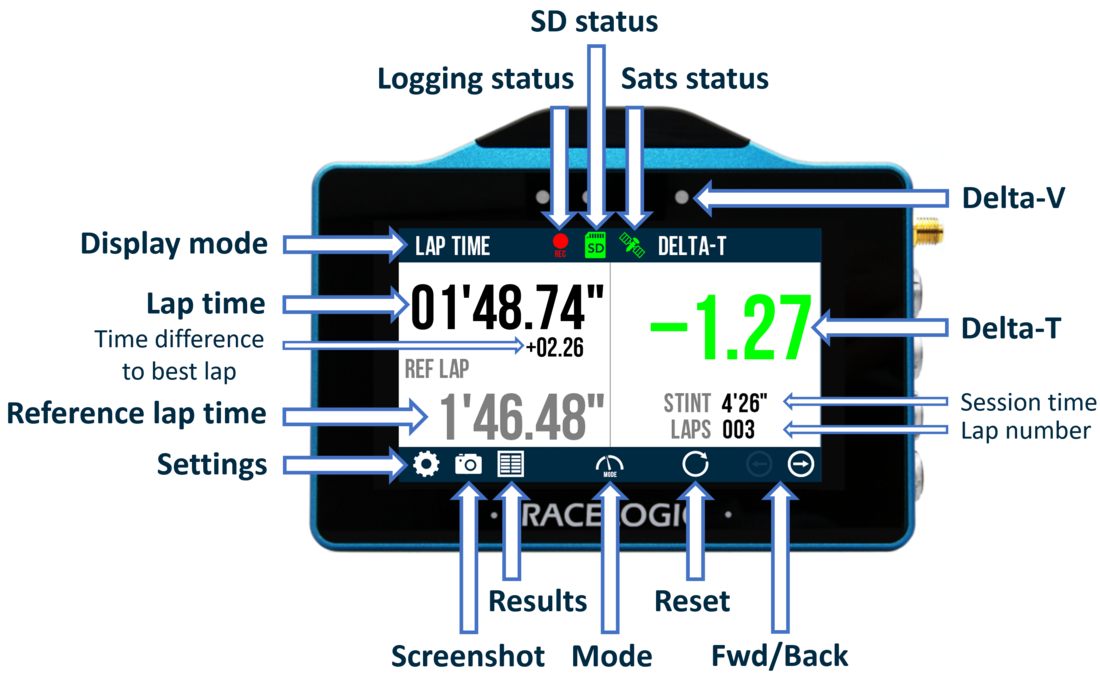
Main screen example
- Connect the power via the Power socket.
- Insert the SD card into the Side of the Unit. The SD Card Icon should display as green as long as the card has free space.
- When the unit has booted, select the Mode Button and press LAP TIMING if it is not already selected.

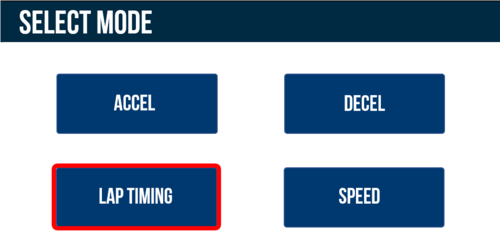
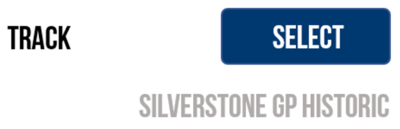
- Select the Settings Button , then the Lap Timing option and navigate to the Track Settings. The unit will display the currently selected track based on the GPS location. If multiple layouts are available, you can press the Select button to scroll through the different options. Ensure that the correct circuit is selected!

- If you are intending to use the serial output from the top CAN/Serial port to conduct Online Testing with VBOX Test Suite or output lap timing parameters, go to Serial Output within the Serial Port Settings and change the Output Mode to either VBOX Stream (live testing with VBOX Test Suite) or Lap Timing.
Note: Ensure correct hardware connections are made.
- Press the Exit Button to return to the Lap Timing screen.
- Take the vehicle outside and wait for the VBOX Touch to gain satellite lock. The Satellite Icon should display as solid green.
Note: The first time that the unit is used, it may take up to 15 minutes to fully acquire satellites. After this, it will usually take 1 to 2 minutes to acquire satellites.
- Select which Lap Timing display you would like to be shown (Main or Basic) by selecting the Forward and Back arrows on the bottom right of the screen or by swiping the screen left or right.
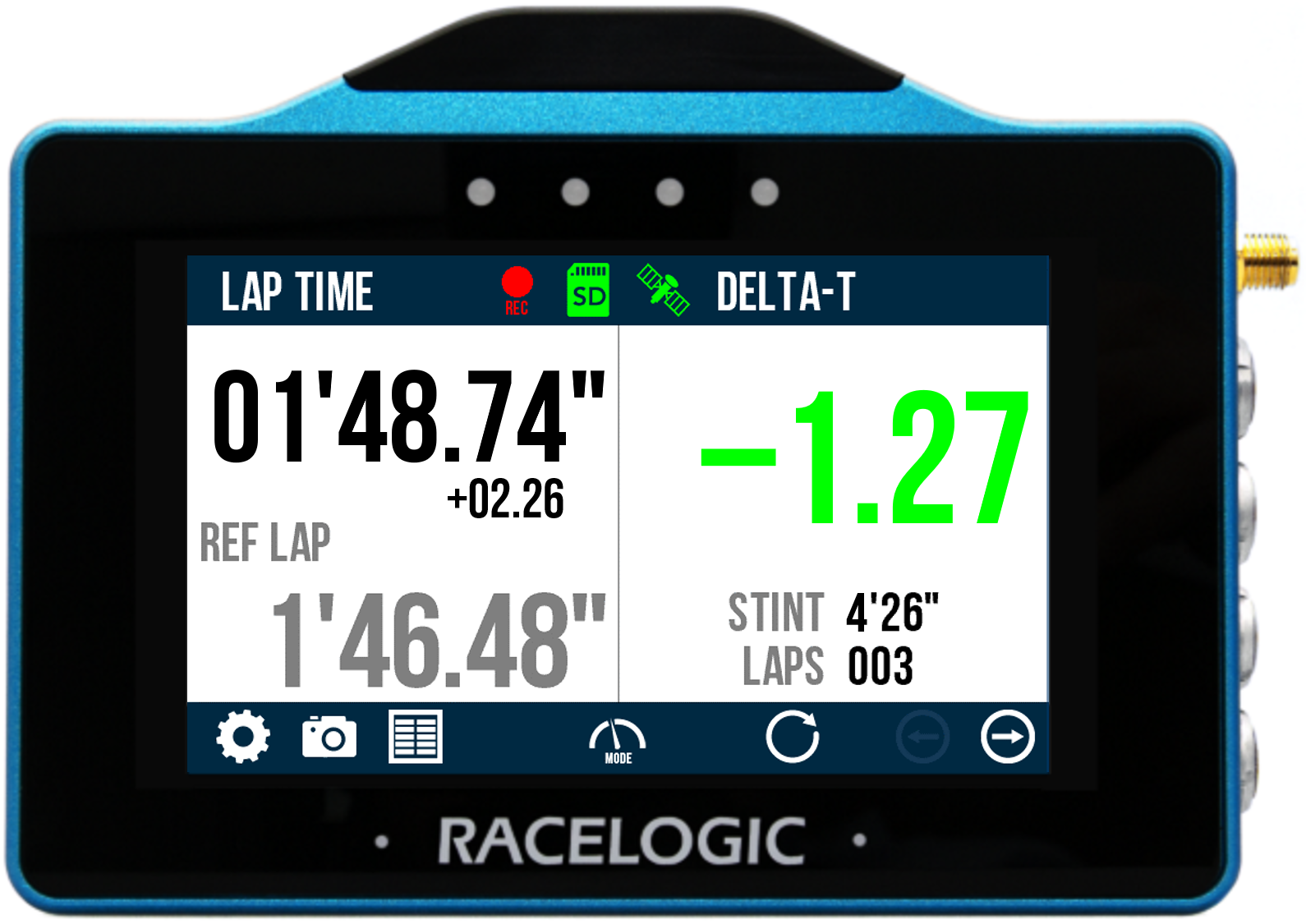
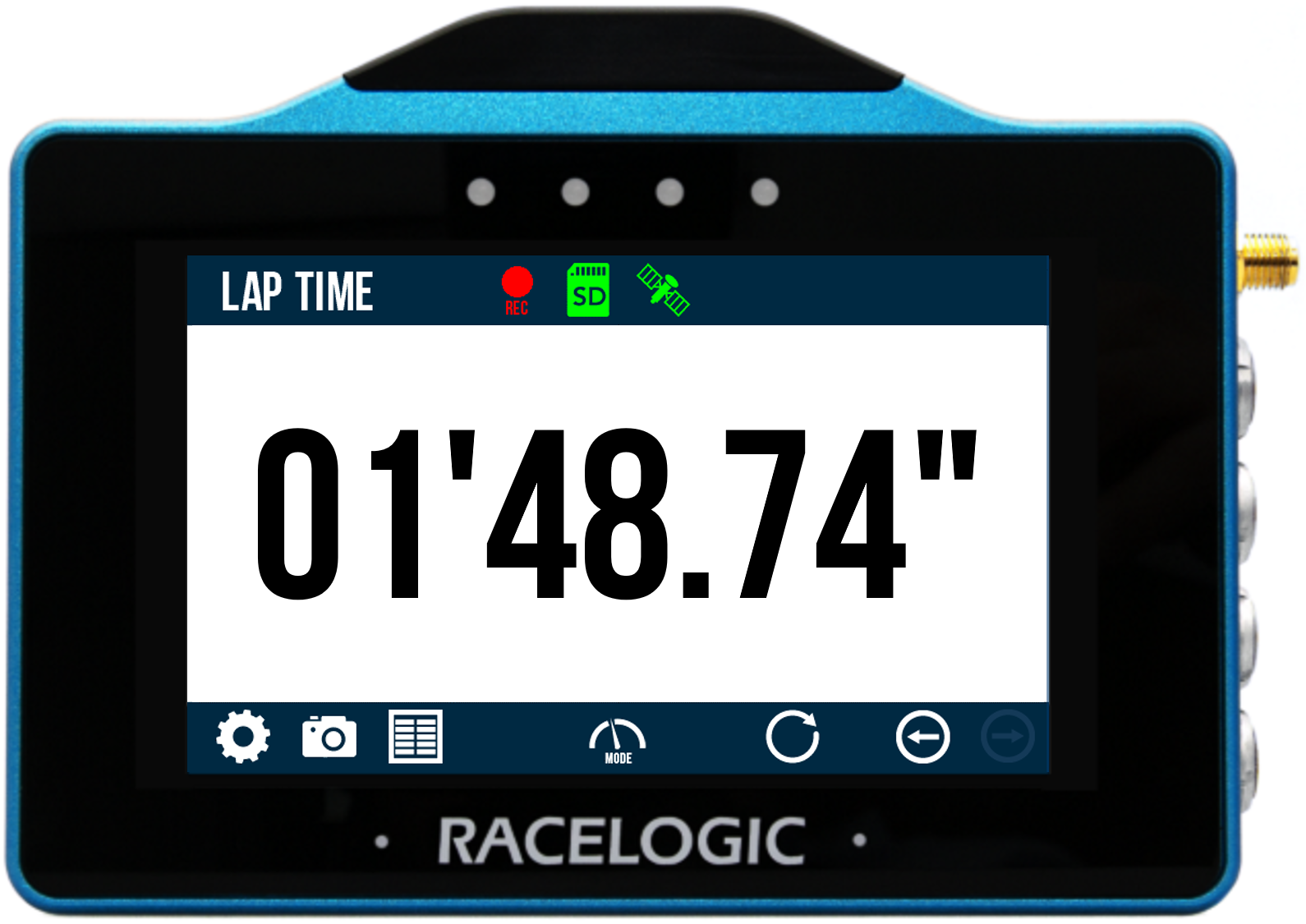
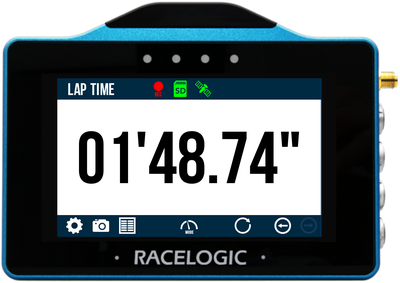
- The unit is now ready to display live Lap Timing values.
Main Screen:
- Once the start/finish line is crossed, VBOX Touch will automatically begin to create a reference lap. When a reference lap is being created, a 'Creating a Reference Lap' message is displayed within the Delta-T section and the reference lap section will show a rolling lap time. The LEDs will also illuminate blue during the creation process. The reference lap will update if a faster lap is achieved unless the Reference Lap has been Fixed within the Settings.
- Once a reference lap has been created, the unit presents a live difference in lap time (Delta-T) between the current lap time and the stored and active reference lap at the current location on the track.
- The 4 LEDs at the top of the screen provide a live reference lap speed comparison (Delta-V), varying in colour between green and red depending on whether you are travelling faster or slower than the reference lap at the current location on track. The settings for this can be changed within the Delta-V Range settings.
Basic Screen:
- VBOX Touch will display the current live lap time and when a new lap starts, the previous lap time will be displayed for 3 seconds before reverting to displaying the current live lap time. It is possible to just display the previous lap time by Disabling the Rolling Lap Time.
- It is possible to override the detected start/finish line by manually setting a Start/Finish Line or just a Finish Line.
- VBOX Touch can also start lap timing from a Standing Start if a separate a Finish Line has been set, this is particularly suitable for sprint style events.
- By default, VBOX Touch will automatically start recording when travelling over 0.5 km/h, this can be changed within the General Settings.
- Tapping on the SD Card Icon when green will manually start or stop logging data, overriding the Configured Logging Strategy.
-
The Record Icon will show when the unit is logging data to the SD card.
If you have come to a stop, but the Record Icon is still on, press the SD Card Icon to stop the logging before removing the card.
Sometimes, due to poor satellite visibility in a garage or close to a building, the box may start recording, even if the car is stationary. Always check the Record Icon before ejecting the card.
IMPORTANT – The SD card shouldn't be removed when the Record Icon is on as you may lose data.Note: If for some reason the SD card is removed whilst still recording, it may need to be repaired using a PC before it can be reused.
-
A screenshot of what is displayed on the screen can be taken at any time by pressing the Screenshot Button.
-
To reset lap timing data, lap time history and the reference lap, press the Reset Button.
-
When you have finished, a history of the lap results can be viewed by pressing the Results Button.
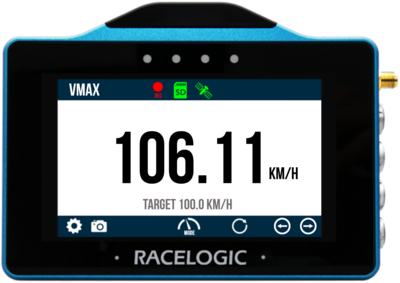
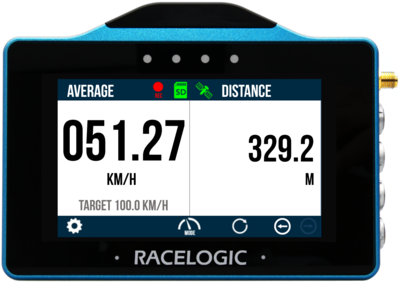
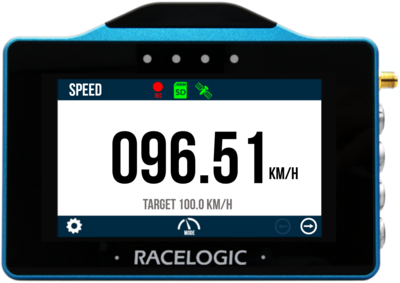
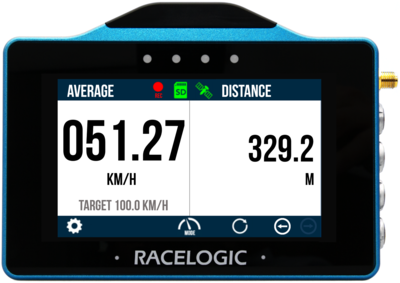
VBOX Touch features a 10 Hz GNSS receiver and a responsive colour touchscreen. The Speed Mode allows you to view live speed data, selectable via 3 screens; Speed, VMAX and Average Speed.
Please register your VBOX Touch so that Racelogic can continue to provide you with notifications about the latest software releases and firmware upgrades for your Racelogic product, and offer technical support.
Register your device here.
Please register your VBOX Touch so that Racelogic can continue to provide you with notifications about the latest software releases and firmware upgrades for your Racelogic product, and offer technical support.
Register your device here.
When you purchase a VBOX Touch Motorsport (v1) (RLVBTOUCH-M), you will find the following items when you open the box:
| Product Code | Quantity | Description |
|---|---|---|
| VBTOUCH-V1 | 1 | VBOX Touch Unit |
| MECH0298SD | 1 | Rubber Overmould - Black |
| RLCAB014LE | 1 | Lemo 2-way plug - 2-wire unterminated - 2m cable |
| RLACS313 | 1 | 8 GB SD Ultima Pro UHS-1 Memory Card |
| RLACS262 | 1 | GNSS Antenna (3 m) |
| ACS318MOUNT | 1 | Suction Cup Windscreen Mount |
| Product Code | Description |
|---|---|
| RLVBACS004 | Brake Pedal Trigger |
| RLVBACS010 | Hand Held Start/Stop Logging Switch |
| RLCAB001 | VBOX PC Serial Cable |
VBOX Touch logs data to an SD card. Depending on the Logging Strategy that is set in the General Settings area, the unit will either log continuously or when movement is detected (default).
VBOX Touch is supplied with an 8 GB SDHC card in a FAT32 file format, which is the only file format supported.
If you are looking to purchase a new SD card, it is recommended that any card used has a write speed of above 7 MB/s (4 MB/s absolute minimum) and a speed class of 10 (4 absolute minimum). Racelogic recommends SD cards from quality brands such as Transcend, SanDisk, Kingston or Lexar to ensure the best results.
IMPORTANT
If an SD card is formatted in the exFAT or NTFS file formats, it will need to be reformatted into a FAT32 file system before it will work with a VBOX Touch unit.
Supplied or purchased SDHC cards are formatted in the FAT32 file format. This format is supported by VBOX Touch.
Purchased SDXC cards will be formatted in exFAT or NTFS file formats; these formats are not supported by VBOX Touch (please reformat as per instructions below).
- FAT32 reformatting for media with sizes up to 32 GB can be done directly within Windows by right-clicking on the media and selecting 'Format'.
- If you would like to format media with sizes above 32 GB into a FAT32 file system, this isn't something that can be done directly within Windows as it is not the standard formatting for the file. However, many third-party software programs can be used to reformat media to allow them to work correctly with our products - we can recommend This Tool as a free option from the SD card organisation.
The VBOX Touch unit is powered by a power cable that is unterminated so that you can make a bare-wire connection to a power supply. The cable terminates in a 2-way connector that mates with the Power socket on VBOX Touch.
On boot-up, the VBOX Touch will display a splash screen and automatically look for satellites and media.
The first time that the unit is booted up, the Display Mode screen will be presented. Every time after this, the last used display mode will be opened.
VBOX Touch logs data via an SD card inserted into the side of the unit. Depending on the Logging Strategy selected within the General Settings area, the unit will either log continuously or when movement is detected (default).
Tapping on the SD Card Icon when green will manually start or stop logging data, overriding the Configured Logging Strategy.
The Record Icon will show when the unit is logging data to the SD card.
If you have come to a stop, but the Record Icon is still on, press the SD Card Icon to stop the logging before removing the card.
Sometimes, due to poor satellite visibility in a garage or close to a building, the box may start recording, even if the car is stationary. Always check the Record Icon before ejecting the card.
IMPORTANT
Do not remove the SD card when the Record Icon is on as you may lose data.
Note: If for some reason the SD card is removed while the unit is still recording, it may need to be repaired using a PC before it can be reused.
You can also control the logging by using an RLVBACS010 hand-held latching trigger switch (unlatched for logging/ latched for not logging). Continuous Logging Mode should be selected when using the switch. It is connected to the 3-pin Digital In and PPS Connector on the side of the VBOX Touch.
When the trigger switch is connected and latched, it is not possible to use the SD Card Icon to manually start or stop logging data.
VBOX Touch logs channels to an inserted SD card within a .vbo file, channel information is available below:
- Satellites: This is the number of satellites in use.
- Time: This is UTC since midnight in the form HHMMSS.SS.
- Latitude: Latitude in minutes MMMM.MMMMMMMM +ve = North e.g. 3169.30644410M = 52D, 49M, 18.4S.
- Longitude: Longitude in minutes MMMMM.MMMMMMMM +ve = West e.g. 00040.18164742M = 00D, 40M, 10.9S.
- Velocity: Velocity in km/h.
- Heading: Heading in degrees concerning North.
- Height: Height above sea level in meters based on the model of the earth used by VBOX GNSS engines.
- Vertical velocity: Vertical velocity in km/h. +ve velocity uphill, -ve velocity downhill.
- Long accel: Longitudinal acceleration in g, +ve for forward acceleration.
- Lat accel: Lateral acceleration in g, +ve for acceleration to the left.
- Solution type: Indicator for what the unit is currently using to derive position: 0 = No sats; 1 = Standalone using GNSS only; 2 = DGNSS.
- Event 1 time: This is the digital input oversample timer used to interpolate the trigger event time between captured samples.
Antenna
If you struggle to maintain a stable satellite lock, you can connect the supplied external antenna (RLACS262) to the antenna socket. The external antenna is also required when you are doing Brake Trigger Tests. You can find more information about the external antenna further down on the page.
Antenna
If you struggle to maintain a stable satellite lock, you can connect the supplied external antenna (RLACS262) to the antenna socket. The external antenna is also required when you are doing Brake Trigger Tests. You can find more information about the external antenna further down on the page.
The Digital In and PPS port can be used to connect to the VBOX Brake Pedal Trigger to provide brake trigger deceleration tests. You can find more information about this under Decel Mode in the relevant user guide.
The port can also be used to connect a Hand Held Start/Stop Logging Switch (RLVBACS010) to control the logging of the unit.
CAN/Serial
The top CAN/Serial port can be used to output serial information, allowing you to either connect VBOX Touch to VBOX Test Suite via an RLCAB001 and conduct live testing, or output lap timing parameters. You can find more information about the Serial Output settings in the Serial Output section in the relevant user guide.
CAN/Serial
The top CAN/Serial port can be used to output serial information, allowing you to either connect VBOX Touch to VBOX Test Suite via an RLCAB001 and conduct live testing, or output lap timing parameters. You can find more information about the Serial Output settings in the Serial Output section in the relevant user guide.
VBOX Touch is supplied with a Swivel Neck Richter Suction Mount (RLACS277) for mounting onto a vehicle windscreen. It can also be secured using the ¼ 20 TPI UNC screw thread on the back of the unit.
VBOX Touch has an internal patch antenna. This means that in most circumstances where the unit has a clear view of the sky and no interference, you do not need an additional external antenna. However, if you are struggling to maintain a stable satellite lock (indicated by a flashing red satellite icon), you can use the external antenna (RLACS262) supplied with the unit.
IMPORTANT
- If you are conducting Brake Trigger Deceleration Tests, you should use the external antenna.
- The first time that the unit is used, it may take up to 10–15 minutes to fully acquire satellites. After this, it will usually take 1–2 minutes to acquire satellites.
The placement of the GNSS antenna is crucial to the quality of the data recorded by VBOX Touch. Any metal close to a GNSS antenna can unpredictably disturb the signal due to interference from reflections of weak GNSS signals.
You can read more about external antenna placement here.
To perform a coldstart, press the COLDSTART button within the Diagnostics Settings menu.
When the button has been pressed, the unit will make an audible sound and a ‘PLEASE WAIT’ message will be displayed on the screen which will count down from 3. The number of satellites will then be displayed as '00' and GPS status will show ‘SEARCHING FOR SATELLITES’ until the satellite lock has been acquired. It will take approximately 25 to 30 seconds for the unit to reacquire the satellite lock.
The 4 LEDs at the top of the unit provide visual feedback dependent on what process is being performed:
| Function | Behaviour | Colour |
|---|---|---|
| Accel/Decel Mode | IfAlert at Endis enabled, the LEDs will flashgreenfor 0.5 s once the test end criteria are met. | |
| Lap Timing Mode | The LEDs provide a live reference lap speed comparison (Delta-V). | |
| The current lap is > 5 km/h quicker than the reference lap The current lap is 2.5 km/h quicker than the reference lap The current lap is the same speed as the reference lap The current lap is 2.5 km/h slower than the reference lap The current lap is > 5 km/h slower than the reference lap | ||
| The LEDs will illuminateblueduring the process of creating aReference Lap. | ||
| When loading aTrack Databasefile, the progress of the track database update is displayed via the LEDs; each lit LED will represent 25% of the process with all LEDs extinguishing when the process is complete. | ||
| When aTrack Layoutis changed, the LEDs will briefly flashgreentwice. | ||
| When aFinish Lineis cleared, the LEDs will briefly flashgreentwice. | ||
| When aStanding Startis Enabled or Disabled, the LEDs will briefly flashgreentwice. | ||
| Speed Mode | If aTarget Speed LED Alerthas been set, the LEDs will flashgreenwhen the value is reached. | |
| Screenshot | If a screenshot has been saved successfully, the LEDs will illuminateyellowin sequence from left to right to display the progress of writing to the SD card. | |
| Reset | The LEDs will briefly flashgreentwice when a screen has been reset. |
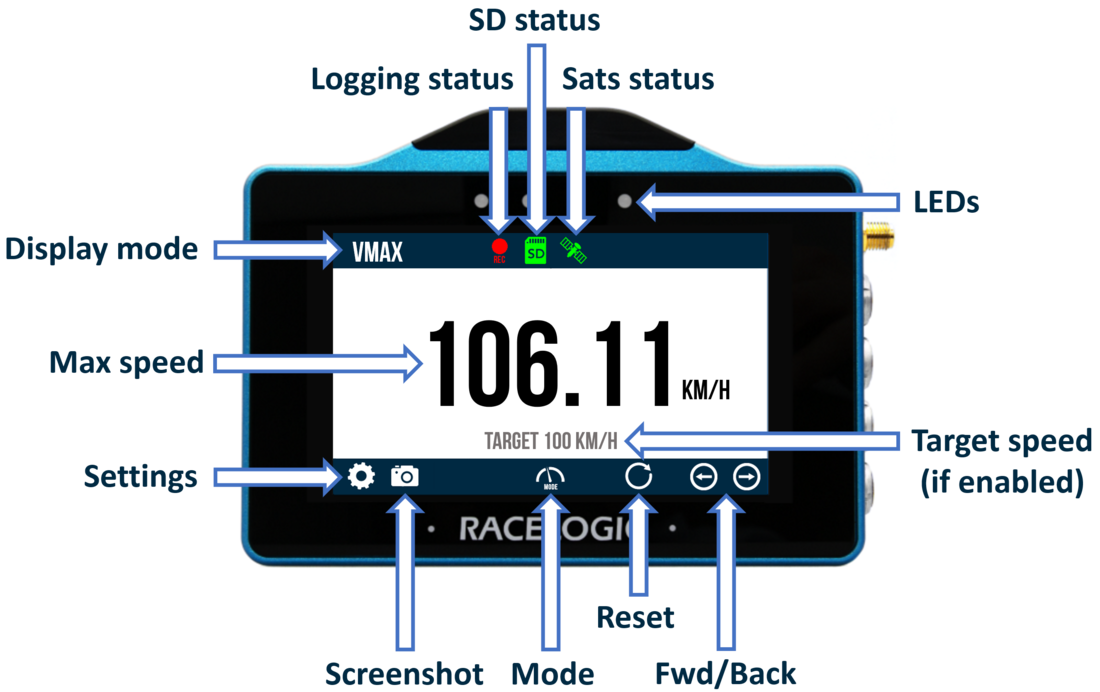
Vmax screen example
- Connect the power via the Power socket.
- Insert the SD card into the Side of the Unit. The SD Card Icon should display as green as long as the card has free space.
- When the unit has booted, select the Mode Button and press SPEED if it is not already selected.
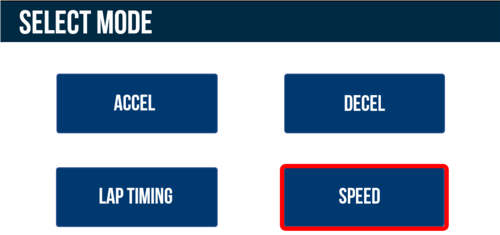
- Select which Speed display you would like to be shown (Speed, VMAX or Average Speed) by selecting the Forward and Back arrows on the bottom right of the screen or by swiping the screen left or right.
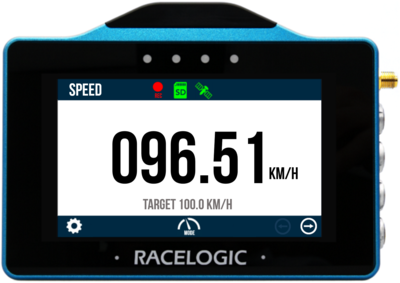
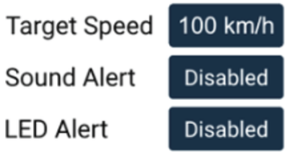
- If you would like to set a Target Speed which will display on the screen and give an audible and/or visual alert when the speed is met, select the Settings Button, then the Speed option and enter the required value within the Settings.
- If you are intending to use the serial output from the top CAN/Serial port to conduct Online Testing with VBOX Test Suite or output lap timing parameters, go to Serial Output within the Serial Port Settings and change the Output Mode to either VBOX Stream (live testing with VBOX Test Suite) or Lap Timing.
Note: Ensure correct hardware connections are made.
- Press the Exit Button to return to the Speed screen.
- Take the vehicle outside and wait for the VBOX Touch to gain satellite lock. The Satellite Icon should display as solid green.
Note: The first time that the unit is used, it may take up to 15 minutes to fully acquire satellites. After this, it will usually take 1 – 2 minutes to acquire satellites.
- The unit is now ready to display live Speed values.
- By default, VBOX Touch will automatically start recording when travelling over 0.5 km/h, this can be changed within the General Settings.
- Tapping on the SD Card Icon when green will manually start or stop logging data, overriding the Configured Logging Strategy.
-
The Record Icon will show when the unit is logging data to the SD card.
If you have come to a stop, but the Record Icon is still on, press the SD Card Icon to stop the logging before removing the card.
Sometimes, due to poor satellite visibility in a garage or close to a building, the box may start recording, even if the car is stationary. Always check the Record Icon before ejecting the card.
IMPORTANT – The SD card shouldn't be removed when the Record Icon is on as you may lose data.Note: If for some reason the SD card is removed whilst still recording, it may need to be repaired using a PC before it can be reused.
-
A screenshot of what is displayed on the screen can be taken at any time by pressing the Screenshot Button.
-
To reset all results shown on the current screen, press the Reset Button.
More information on the Speed Mode can be found here.