
To add an image (e.g. Sponsor’s Logo) to the scene, select the Elements tab -> Static Image –> New. A file selection window will then appear.
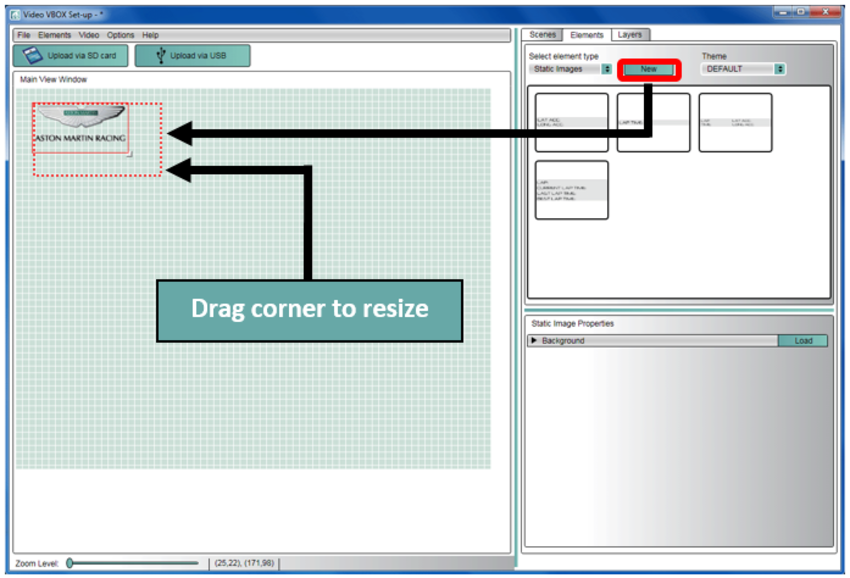
To move the image, select it, then click and drag on the body of the image.
To re-size this image, click and drag the bottom right hand corner. To maintain the original aspect ratio, hold down the SHIFT key.
Note that if you make the image larger than the original, then the quality will suffer.
You can load in .jpg, .png, .gif or .bmp files. If you want transparent parts of the image, use a .png or a .gif.