In the IMU menu in VBOX Setup, you can configure the IMU offset position and orientation, as well as the wheel speed inputs.
Configure the IMU offset position.
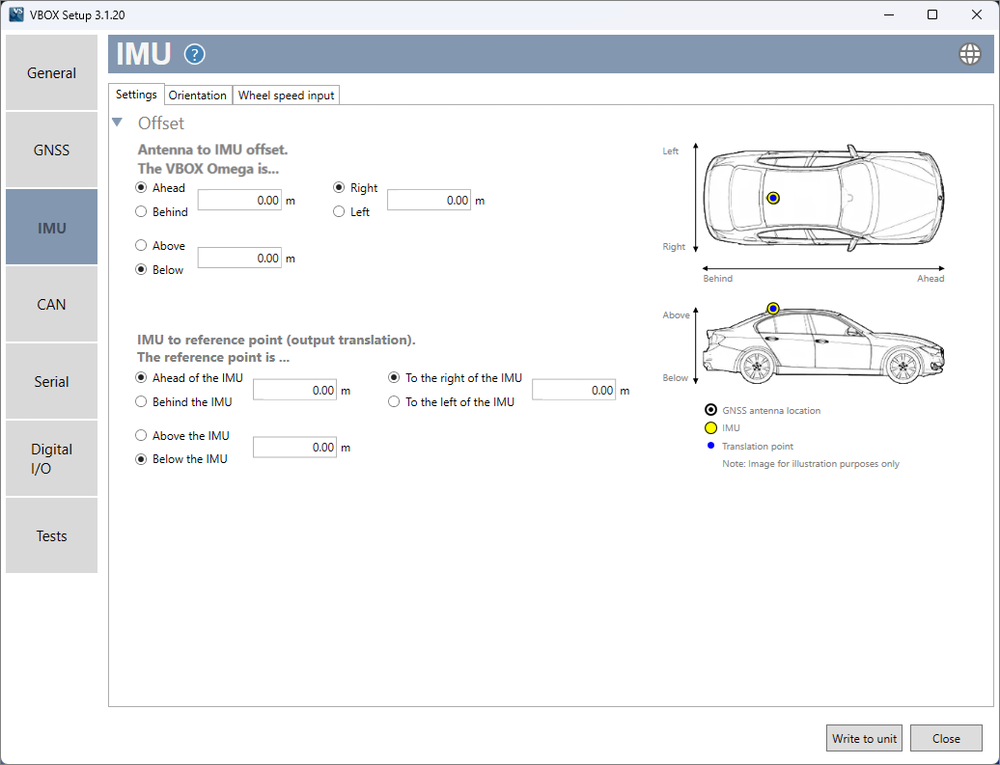
This is where you can add offset values to let VBOX Omega know where the antenna is positioned relative to its own position within the vehicle.
This is where you can add offset values to let VBOX Omega know where the reference point is relative to its own position in the vehicle,
The IMU orientation dictates which way the unit is facing and therefore dictates how the raw IMU channels are presented.
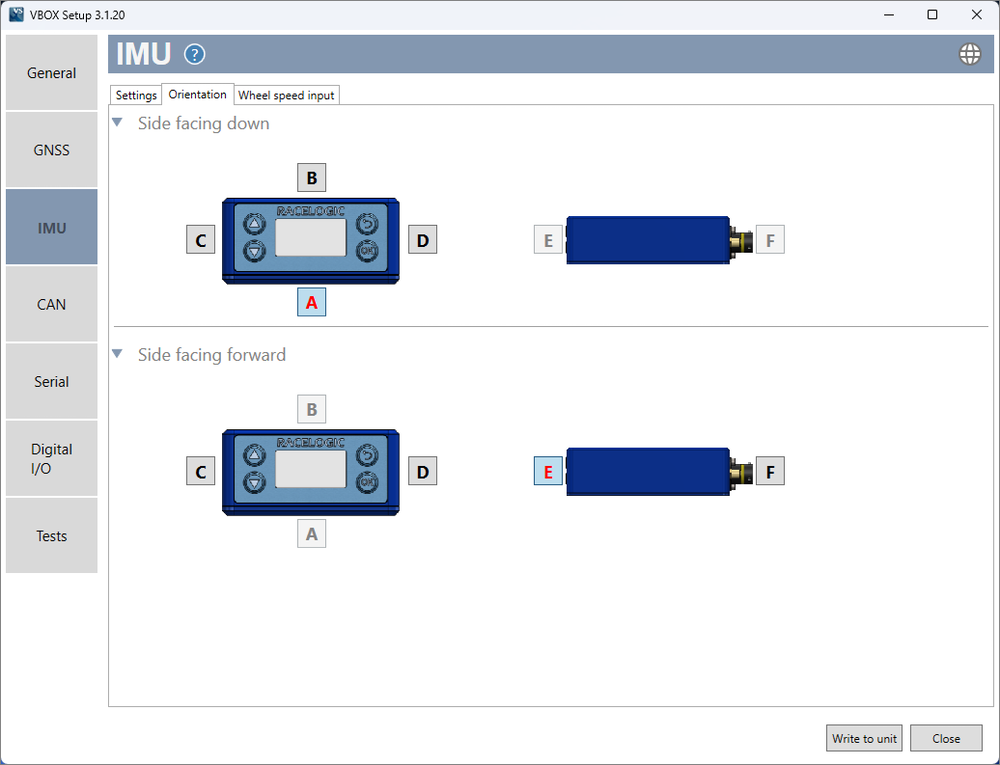
Select the appropriate letter for the side of VBOX Omega that is facing down.
Select the appropriate letter for the side of VBOX Omega that is facing forward.
The wheel speed input options can be used to configure the wheel speed input channels and the reference location.
Combining wheel speed information in the Kalman Filter can improve positioning in locations that are subject to obstacles. In areas where there is no view of the sky at all, such as tunnels, inertial sensors and wheel speeds can fill in the gaps for periods of up to 5 minutes. You can find more information about this here.
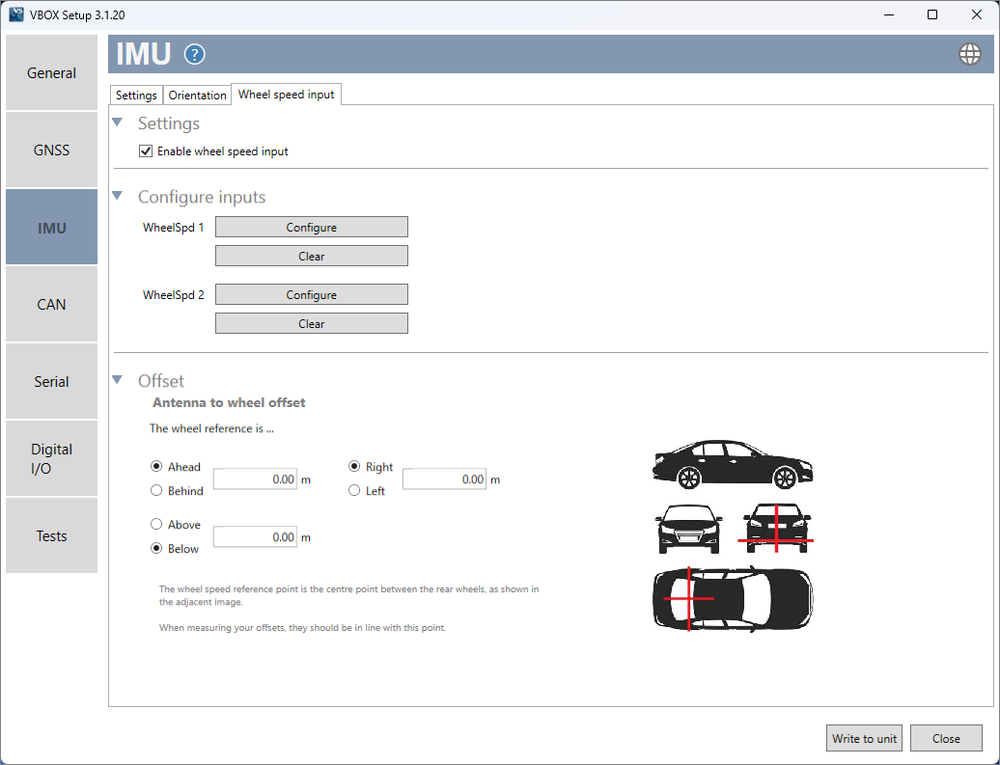
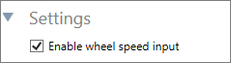
Enables the wheel speeds to be passed into the Kalman Filter. Adds Wheel Speeds channel to CAN ID 31D.
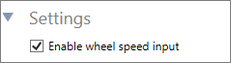
Enables the wheel speeds to be passed into the Kalman Filter. Adds Wheel Speeds channel to CAN ID 31D.
Note: The following options are only presented when Wheel speed input is Enabled.
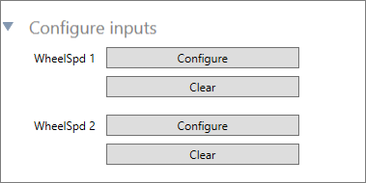
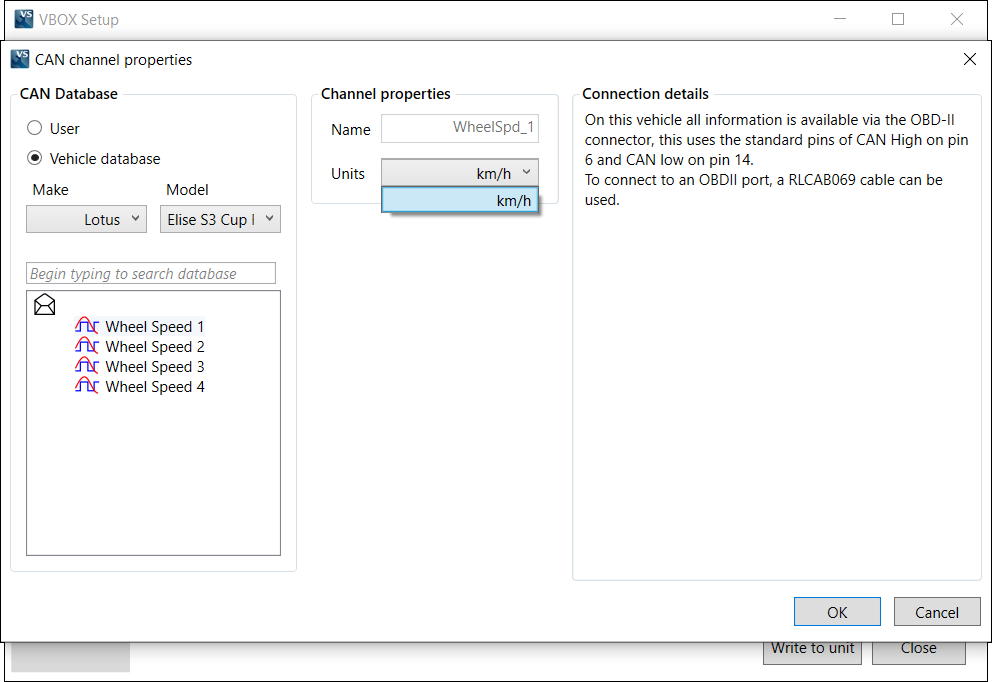
Wheel Speed 1 and 2 Configure buttons open up the CAN setup area where you can load in a .dbc file or manually set up the CAN parameters by selecting the User option.
Alternatively, selecting Vehicle database enables you to browse the Racelogic Vehicle CAN database within the software and select your vehicle.
Once selected, CAN channels specific to your vehicle will appear on the left. If available, CAN connection information for the vehicle will also appear on the right of the window.
Click on a wheel speed channel and click OK to save the configuration. Repeat for the other wheel speed channel.
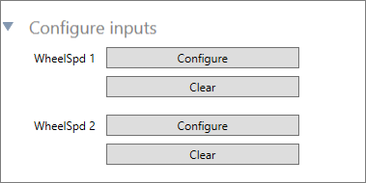
Wheel Speed 1 and 2 Configure buttons open up the CAN setup area where you can load in a .dbc file or manually set up the CAN parameters by selecting the User option.
Alternatively, selecting Vehicle database enables you to browse the Racelogic Vehicle CAN database within the software and select your vehicle.
Once selected, CAN channels specific to your vehicle will appear on the left. If available, CAN connection information for the vehicle will also appear on the right of the window.
Click on a wheel speed channel and click OK to save the configuration. Repeat for the other wheel speed channel.
Note: These options are only presented when Wheel speed input is Enabled .
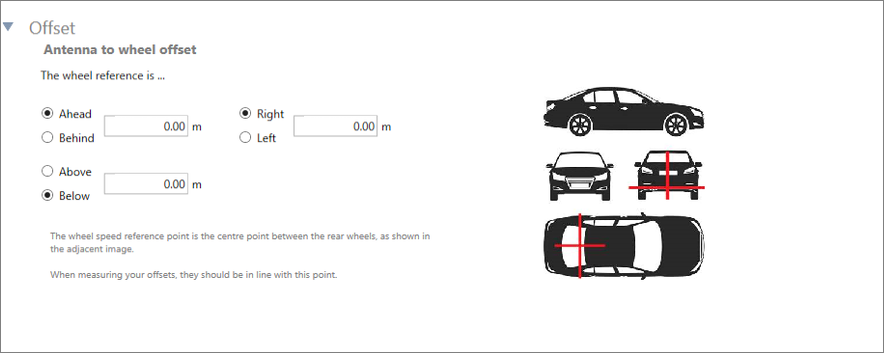
These offset values specify the x,y,z distances (m) between the wheel speed reference point and the antenna. The reference point is the centre point between the rear wheels, as shown in the image.