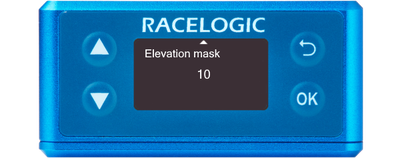
You can access the menu by pressing the OK button. Use the Up and Down arrows to navigate through the menu and press the OK button to enter a submenu or change a setting. When you edit a setting, the Up and Down buttons will let you scroll through the available options for that setting and the OK button will confirm your selection. Use the Back button to exit a setting.
You can use this menu to configure the GNSS settings.
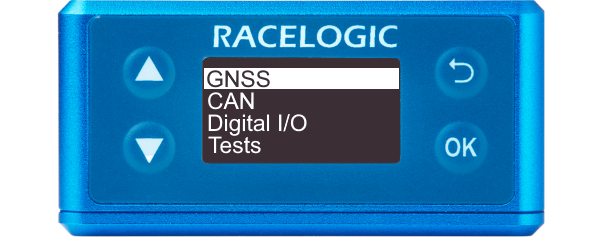
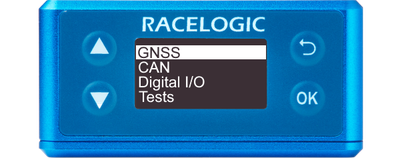
You can access the menu by pressing the OK button. Use the Up and Down arrows to navigate through the menu and press the OK button to enter a submenu or change a setting. When you edit a setting, the Up and Down buttons will let you scroll through the available options for that setting and the OK button will confirm your selection. Use the Back button to exit a setting.
You can use this menu to configure the GNSS settings.
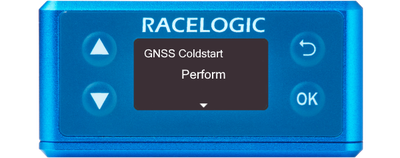
Model Limitation
This menu is not available on VBOX 25 Hz Speed Sensor (v2) units.
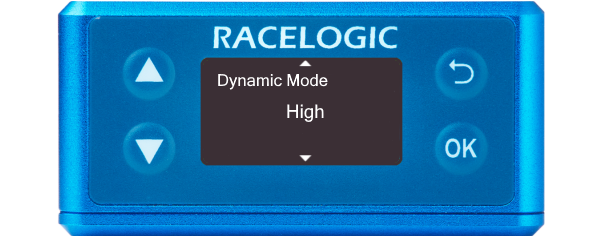
For high-dynamic applications such as brake stop testing.
Suitable for all other testing.
For less dynamic applications, such as steady-state speed measurement or coast-down testing.
Model Limitation
This menu is not available on VBOX 25 Hz Speed Sensor (v2) units.
Sets the DGNSS mode.
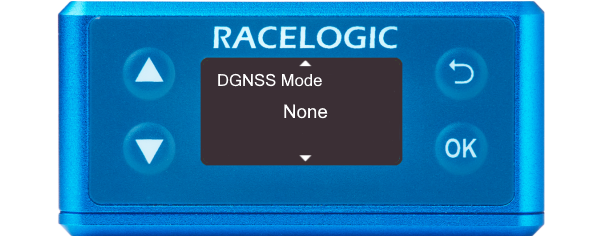
Sets the DGNSS mode.
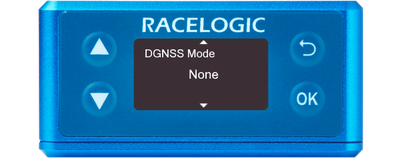
Available modes are:
- None (default) - Differential GNSS is off.
- CMR (2cm RTK) - 2 cm correction (Trimble standard message type).
- RTCMv3 (2cm RTK) - 2 cm correction (RTCM standard message type). This is the recommended setting.
- NTRIP - Internet-based subscription service, more information on this can be found here.
- MB-Base - Mode for use in Moving Base ADAS applications.
- MB-Rover - Mode for use in Moving Base ADAS applications.
- RTCM (40 cm) - The VBOX Speed Sensor receives RTCM corrections via a Racelogic telemetry module and a locally placed Base Station. Contact Racelogic or your local agent for more details.
- SBAS - SBAS differential corrections are received from the nearest Geo-stationary GPS-SBAS satellite.
Model Limitation
This menu is not available on VBOX 25 Hz Speed Sensor (v2) units.
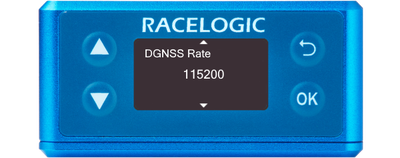
This setting configures the DGNSS baud rate.
To make sure that VBOX Speed Sensor receives the DGNSS correction signal, you must set the correct DGNSS rate.
All Racelogic blue boxed radios use 115200 kbit/s, and Satel grey boxed radios use either 19200 kbit/s or 38400 kbit/s.
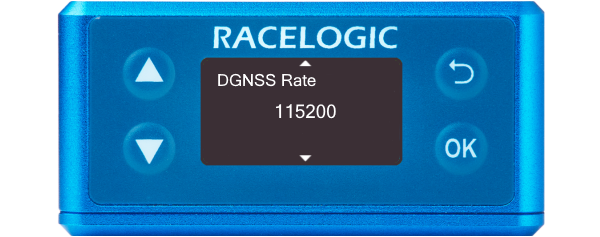
This setting configures the DGNSS baud rate.
To make sure that VBOX Speed Sensor receives the DGNSS correction signal, you must set the correct DGNSS rate.
All Racelogic blue boxed radios use 115200 kbit/s, and Satel grey boxed radios use either 19200 kbit/s or 38400 kbit/s.
This setting lets you change the elevation mask, which is selectable from 10 to 25°.
If the testing area has nearby trees or buildings, you may benefit from increasing this value to reduce the effect of multipath.
You can find more information here.
Options: 10 (default), 15, 20, 25
Note: Increasing this value will reduce the number of satellites the VBOX will be able to use.
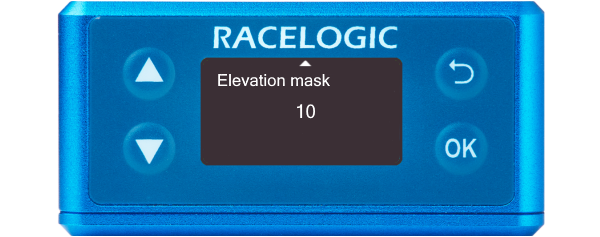
This setting lets you change the elevation mask, which is selectable from 10 to 25°.
If the testing area has nearby trees or buildings, you may benefit from increasing this value to reduce the effect of multipath.
You can find more information here.
Options: 10 (default), 15, 20, 25
Note: Increasing this value will reduce the number of satellites the VBOX will be able to use.