This page explains how to mount VBOX Touch units and connect the required components for operation.
Ensure all connections are secure before using the unit.
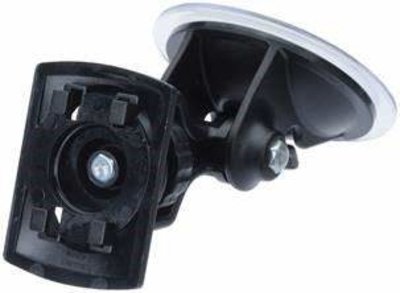
MFD Touch is supplied with a Swivel Neck Richter Suction Mount (RLACS331) for mounting on a window or windscreen.
Mount MFD Touch securely using the supplied mounting solution.
Position the unit so that:
- the screen is clearly visible
- it does not obstruct the driver’s view
- it remains stable during vehicle movement
Choose a mounting location that allows easy access to the touchscreen while keeping the unit securely in place.
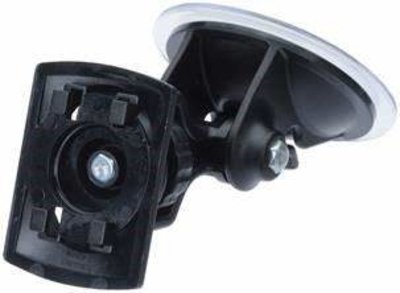
MFD Touch is supplied with a Swivel Neck Richter Suction Mount (RLACS331) for mounting on a window or windscreen.
Mount MFD Touch securely using the supplied mounting solution.
Position the unit so that:
- the screen is clearly visible
- it does not obstruct the driver’s view
- it remains stable during vehicle movement
Choose a mounting location that allows easy access to the touchscreen while keeping the unit securely in place.
NOTE
MFD Touch also has a ¼ 20 TPI UNC screw thread on the back of the unit for compatibility with alternative mounting solutions.
Connect the VBOX Touch to a suitable vehicle power supply using the supplied power cable.
The unit will power on automatically when connected.
Ensure the power connection is secure before use.
Insert the SD card into the SD card slot to be able to save results and take screenshots.
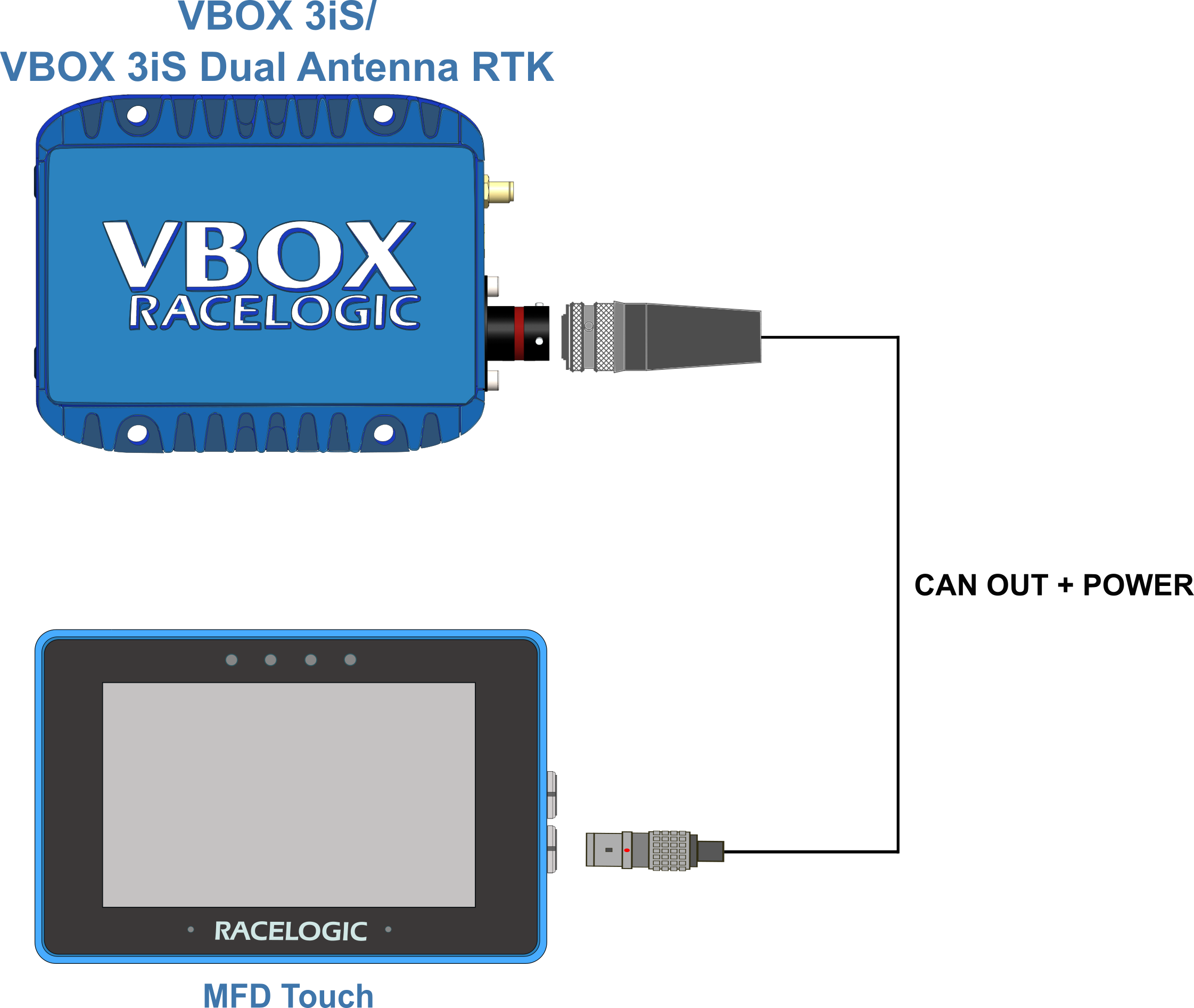
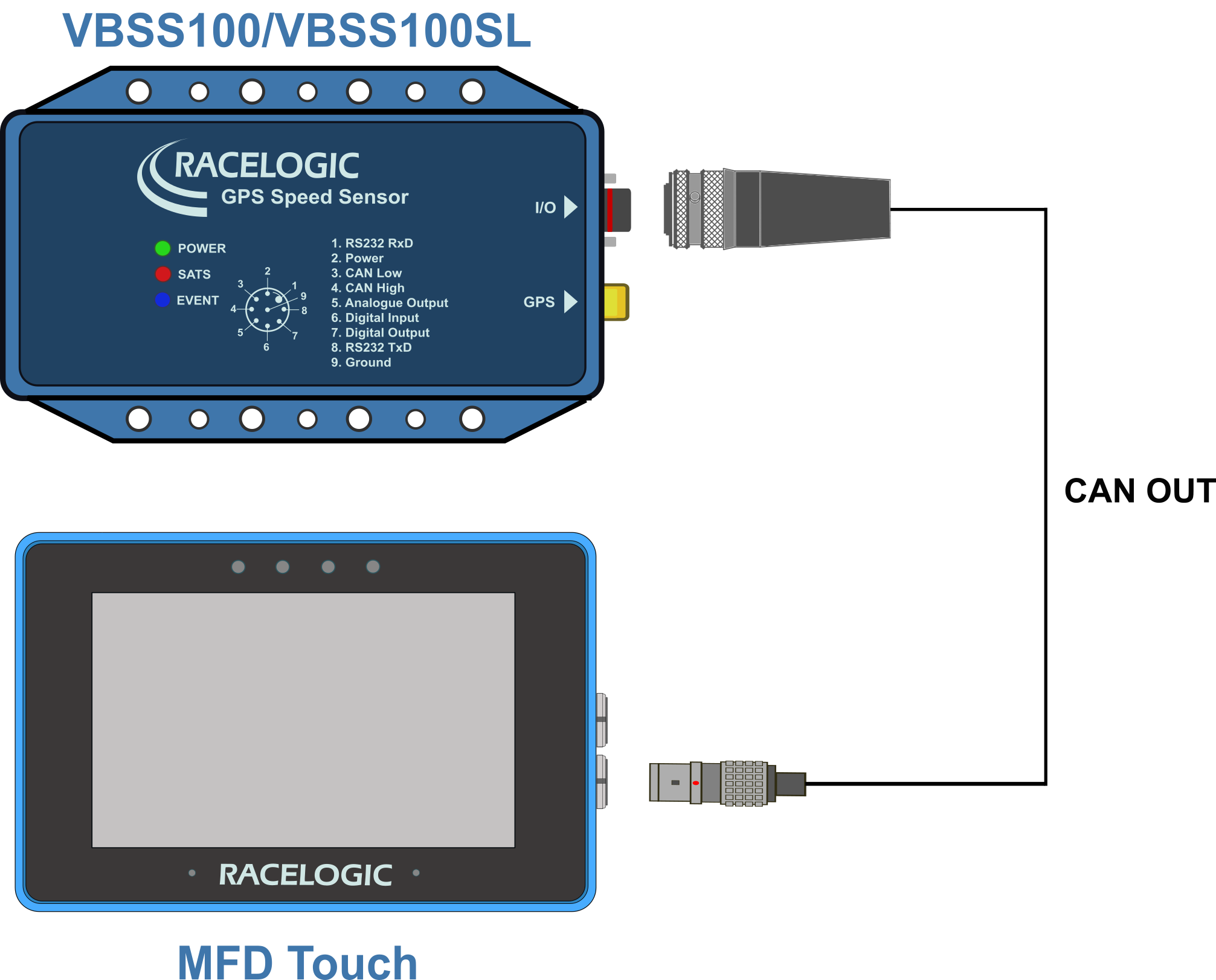
Connect MFD Touch to a compatible VBOX unit using the appropriate CAN connection. Once connected, the app will display data received from the VBOX unit.
NOTE
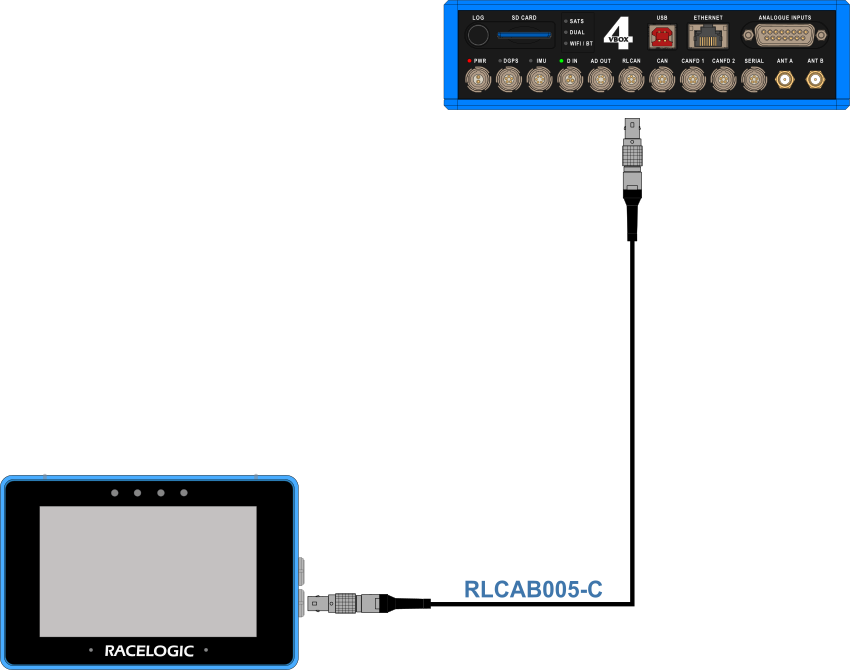
Connecting MFD Touch to a VBOX unit requires an RLCAB005-C cable.
Connect the RLCAB005-C cable between the Bottom CAN port on MFD Touch and the RLCAN port on VBOX 4.
As Part of a Daisy Chain
If you want to use MFD Touch as part of a daisy chain with a Racelogic module connected to VBOX 4, it must be connected at the end of the daisy chain.
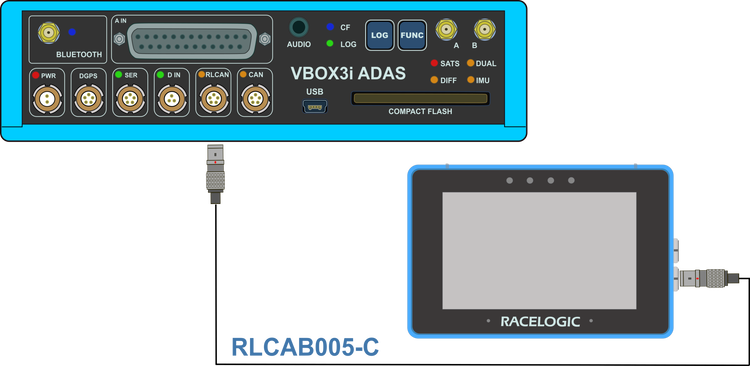
Connect the RLCAB005-C cable between the Bottom CAN port on MFD Touch and the RLCAN port on VBOX 3i ADAS.
Alternative Connection Options
Using VBOX CAN Hub
When using a VBOX CAN Hub with VBOX 3i ADAS, connect the RLCAB005-C cable between the Bottom CAN port on VBOX Touch and the MFD port on VBOX CAN Hub.
As Part of a Daisy Chain
If you want to use MFD Touch as part of a daisy chain with a Racelogic module connected to VBOX 3i ADAS, it must be connected at the end of the daisy chain.
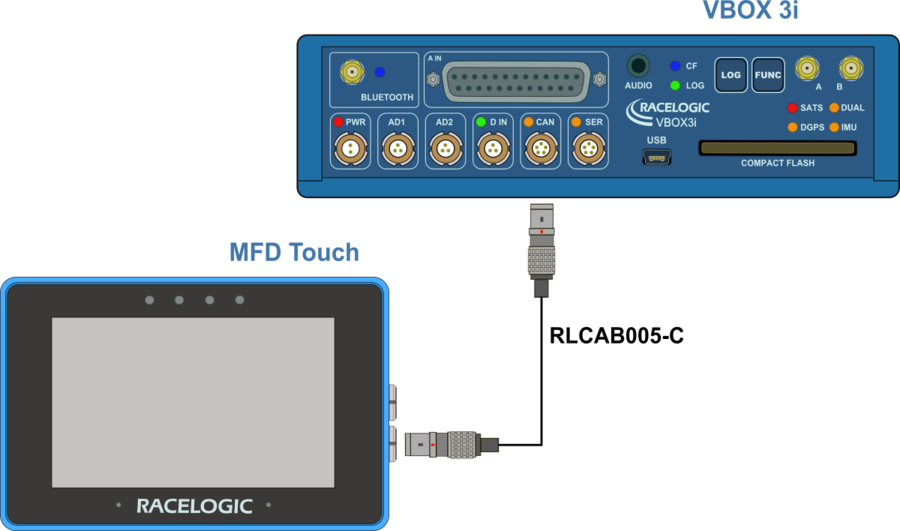
Connect the RLCAB005-C cable between the Bottom CAN port on MFD Touch and the CAN port on VBOX 3i.
Alternative Connection Options
Using VBOX CAN Hub
When using a VBOX CAN Hub with VBOX 3i, connect the RLCAB005-C cable between the Bottom CAN port on MFD Touch and the MFD port on VBOX CAN Hub.
As Part of a Daisy Chain
If you want to use MFD Touch as part of a daisy chain with a Racelogic module connected to VBOX 3i, it must be connected at the end of the daisy chain.
Connect the RLCAB005-C cable between the Bottom CAN port on MFD Touch and the CAN port on VBOX IISX.
Alternative Connection Options
Using VBOX CAN Hub
When using a VBOX CAN Hub with VBOX IISX, connect the RLCAB005-C cable between the Bottom CAN port on MFD Touch and the MFD port on VBOX CAN Hub.
As Part of a Daisy Chain
If you want to use MFD Touch as part of a daisy chain with a Racelogic module connected to VBOX IISX, it must be connected at the end of the daisy chain.