
To configure the Pedal Force Sensor for use with a VBOX 4, please follow the steps below:
- When you have wired the Pedal Force Sensor into the connector and connected it to the Analogue Input connector on VBOX 4, you must configure the relevant Analogue input channel.
- Open VBOX Setup and connect to the relevant COM port for your VBOX 4 unit.
- Go to the Channel Setup Menu and click on the Internal A/D section header.
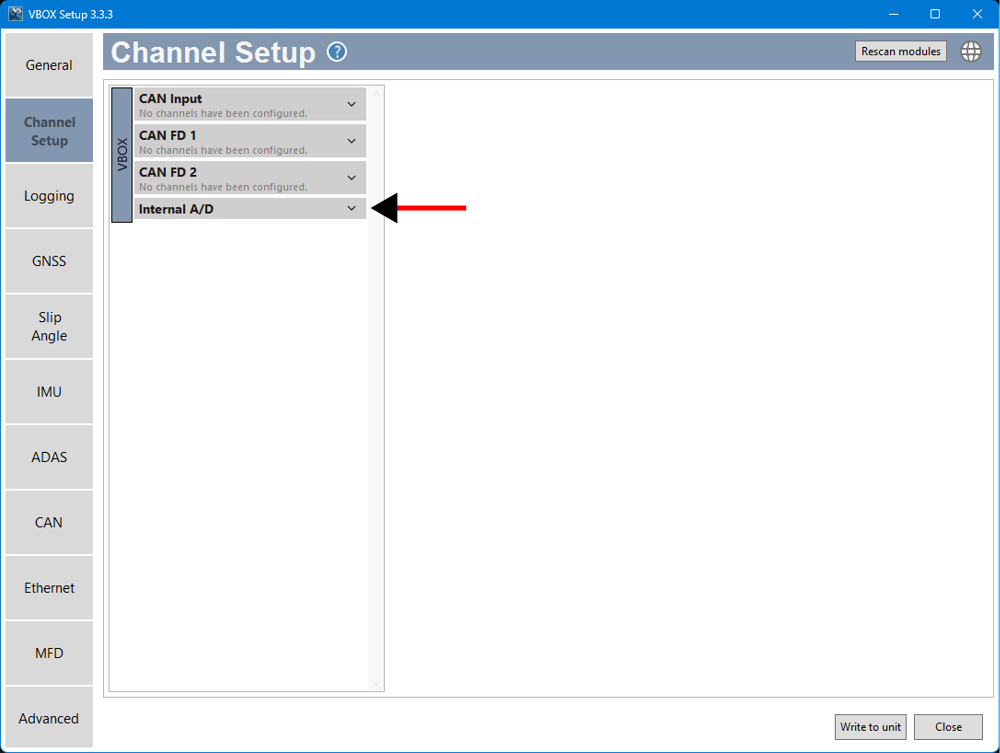
- Select the input channel the Pedal Force Sensor is connected to.
Take note of the channel number the sensor was wired into on the connector, or trigger the sensor to identify the active channel in the preview column.
- Update the channel settings as required.
The properties must be changed to match the calibration certificate supplied with the sensor.
- Name: Rename to something such as 'BrakeForce' so that you can easily identify the channel later
- Units: N
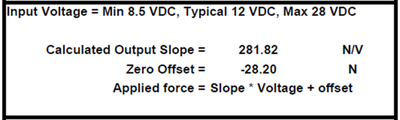
- Scale: Calculated Output Slope value from the calibration certificate
- Offset: Zero Offset value from the calibration certificate
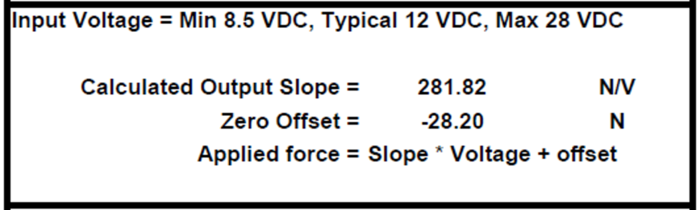
IMPORTANT
Each sensor is different and will require different scales and offsets.
- Trigger the sensor to confirm that it is connected and working.
You will see the signal in the graph at the bottom of the settings area.
- You can find more information about how to configure your VBOX 4 unit in your unit's user guide.
- Click the Write to unit button to save the settings to the VBOX.
The Pedal Force Sensor is now configured for use.
To configure the Pedal Force Sensor for use with a VBOX 3i, please follow the steps below:
- Ensure the Pedal Force Sensor is connected to the VBOX 3i, as described here.
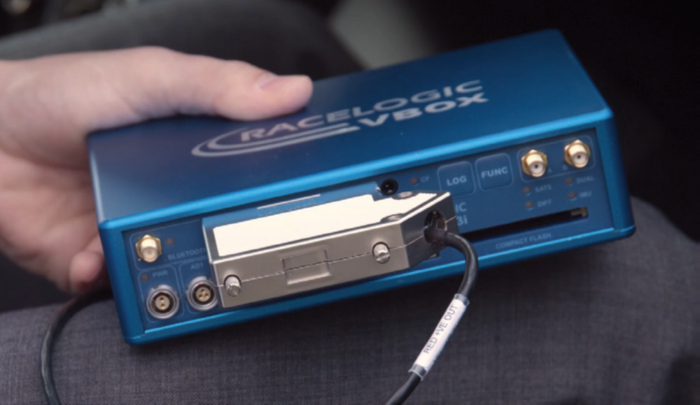
- Connect the VBOX to a PC and apply power.
- Using VBOX Setup Software, navigate to 'Channel Config' and then select 'Internal A/D'.
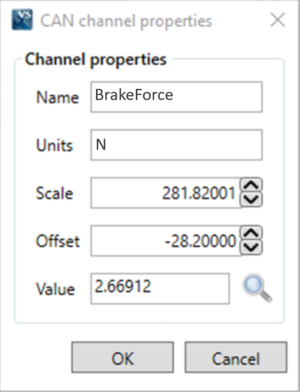
- Click on the channel 'VB3i_AD1' to bring up the channel properties menu.
- The properties will need to be changed to match the calibration certificate supplied with the sensor.
- Name: Rename to something such as 'BrakeForce' so that you can easily identify the channel later
- Units: N
- Scale: Calculated Output Slope value from the calibration certificate
- Offset: Zero Offset value from the calibration certificate
IMPORTANT
Each sensor is different and will require different scales and offsets.
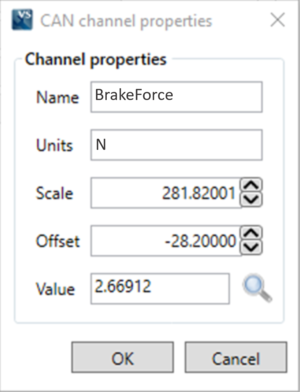
- Select 'OK' to close the properties menu and the click 'Write to unit' to save the settings to the VBOX 3i unit.
- The Pedal Force Sensor is now configured for use.