
To facilitate unit configuration, the VBOX Speed Sensor has an OLED display and four membrane buttons on the front panel.
Alternatively, you can use VBOX Setup to configure the VBOX unit.
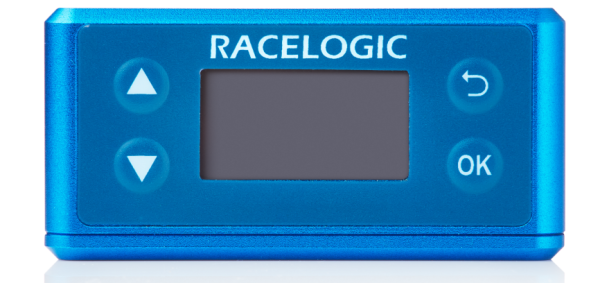
To facilitate unit configuration, the VBOX Speed Sensor has an OLED display and four membrane buttons on the front panel.
Alternatively, you can use VBOX Setup to configure the VBOX unit.
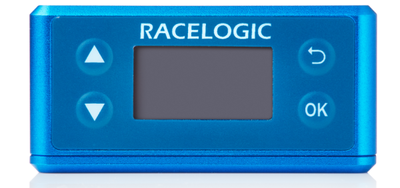

Menu up / Increase the value when editing a number.

Menu up / Increase the value when editing a number.

Menu down / Decrease the value when editing a number.

Menu down / Decrease the value when editing a number.

Move to the previous menu level.

Move to the previous menu level.

Enter the menu / select menu item for adjustment.

Enter the menu / select menu item for adjustment.
When the VBOX Speed Sensor is powered up, it will display the RACELOGIC logo along with hardware variant and the serial number of the unit. Next, it will change to display the firmware version of the unit.
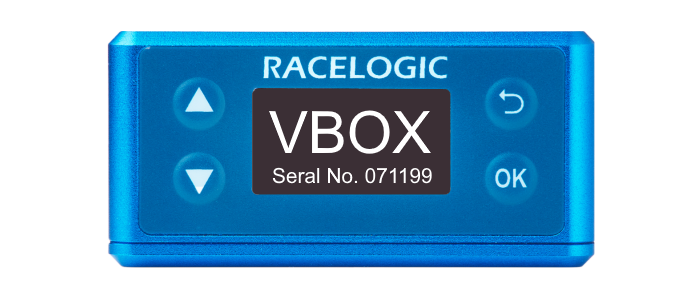
When the VBOX Speed Sensor is powered up, it will display the RACELOGIC logo along with hardware variant and the serial number of the unit. Next, it will change to display the firmware version of the unit.
When the unit has initialised and any warnings have been cleared, the number of satellites will be displayed.
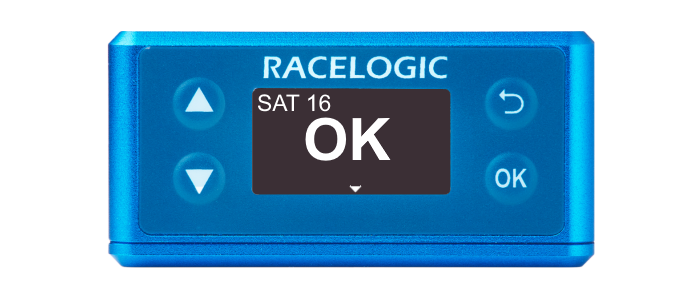
When the unit has initialised and any warnings have been cleared, the number of satellites will be displayed.
Press the Down arrow to open the status screen where you can view information about Speed, Satellite count, RTK Status and Wheel Speed.
Press the Up arrow to return to the main screen.
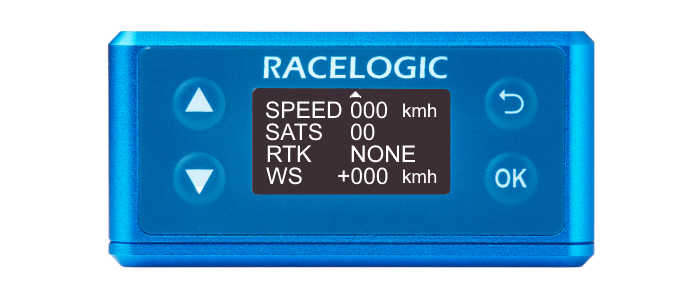
Press the Down arrow to open the status screen where you can view information about Speed, Satellite count, RTK Status and Wheel Speed.
Press the Up arrow to return to the main screen.
Model Limitations
- Wheel speed is not supported on the VBOX 100 Hz Speed Sensor (v5).
- RTK and wheel speed is not supported on the VBOX 25 Hz Speed Sensor (v2).
Non-supported values on the Status screen will be zeroes.
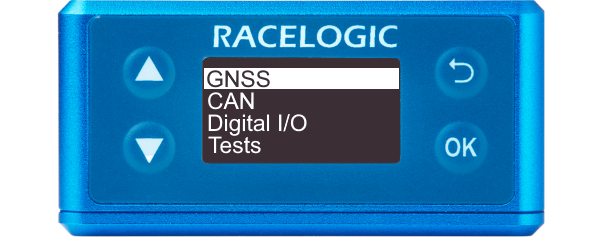
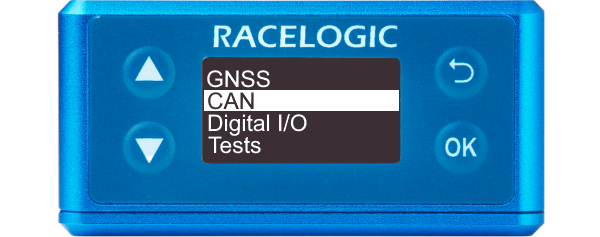
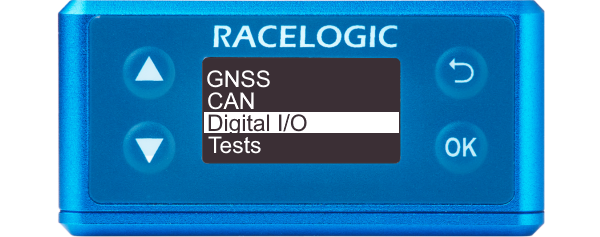
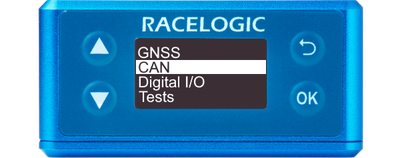
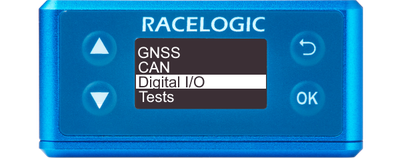
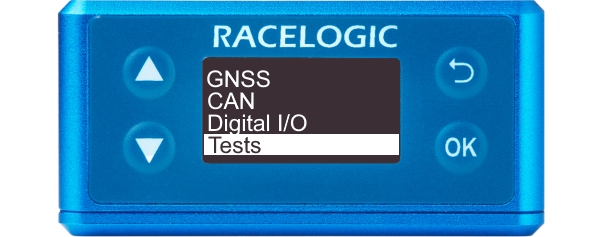
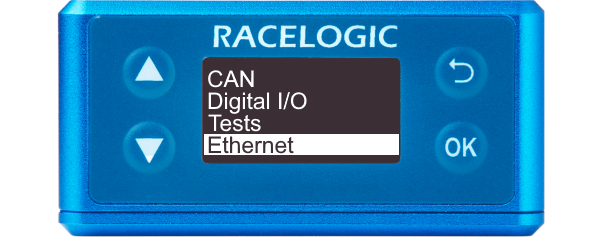
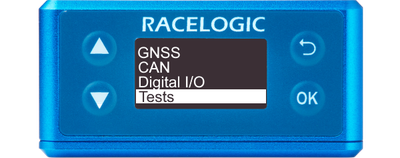
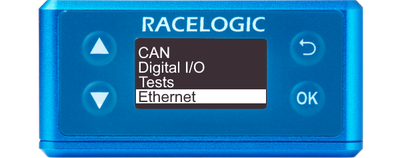
You can access the menu by pressing the OK button. Use the Up and Down arrows to navigate through the menu and press the OK button to enter a submenu.


Model Limitations
Ethernet options are only available on VBOX 100 Hz Speed Sensor (v5) units.
Ethernet settings can be found within the Serial Menu of VBOX Setup.
You can reset the unit to its factory settings by pressing the Up and Down arrow buttons simultaneously and holding them for 5 seconds. After this period, the unit will beep and it will play an audible confirmation signal when the reset is finished.
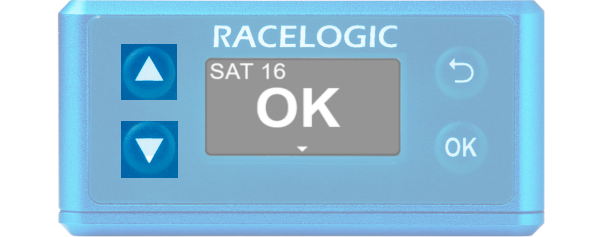
Note: Receiver settings (Dynamic Mode, DGNSS Mode, DGNSS Rate and Elevation mask) will not reset.