The display range element can be used to show changing text or images depending on the value of a parameter. One example use for this element is to display which Gear is being used. To create a new Display Range, use the Elements tab → Display Range → New. This will give you a blank element.
For a detailed step by step guide of setting up a gear display range element, click here.
Setting this up is a two stage process.
First, create a Maths channel to calculate Speed divided by RPM.
Add this to a text element on the video and record a short journey using every gear.
Review the video and identify ranges for each gear.
For example, you may find 1st gear gives a value of 0.1, 2nd gear gives a value of 0.2.
This defines the ranges to use for your gear selection.
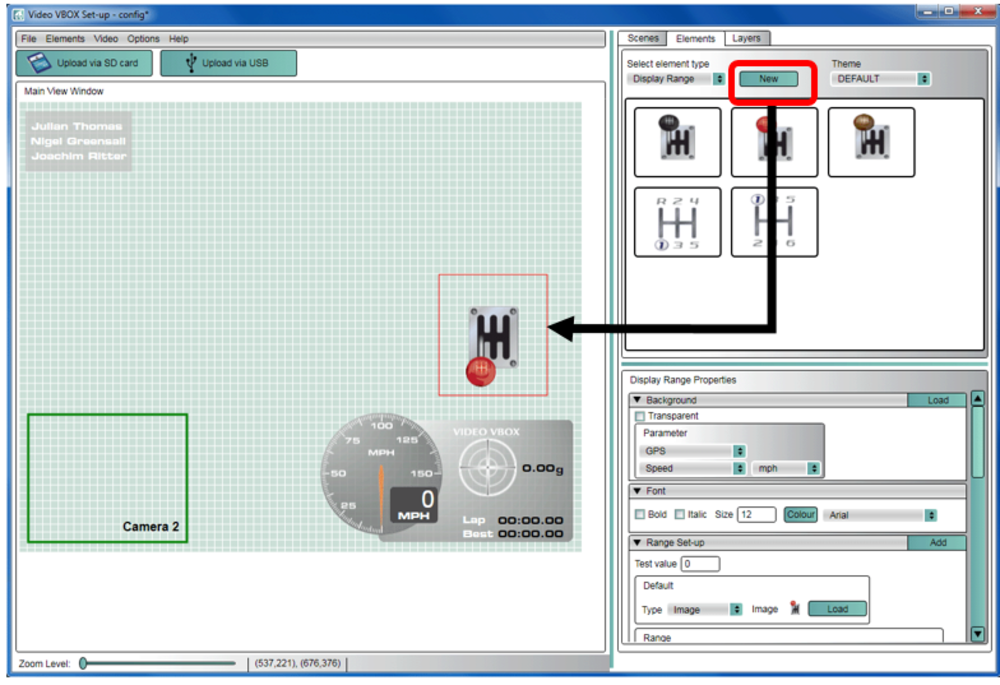
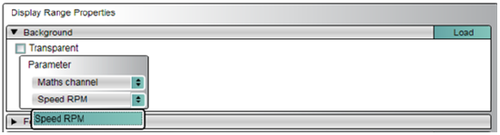
The maths channel must now be assigned to the display range element. This is done in the Background section and altering Parameter to the maths channel.
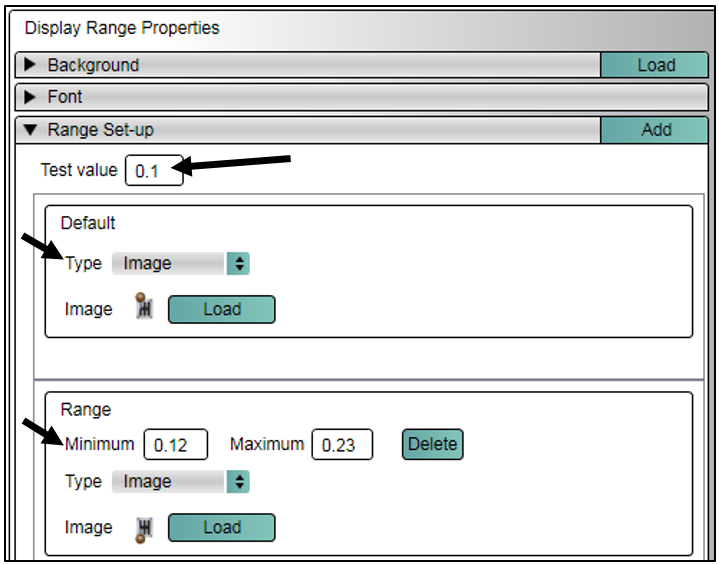
A value can be entered to test how the element will work.
Default image/text - this will display when none of the range values are true, e.g. neutral for a stationary vehicle.
The calculated range values for each gear must be entered here along with the image/text chosen to be shown when the specified range value is true.