
This article explains how to connect, configure, and perform deceleration tests on VBOX Touch using a VBOX Brake Pedal Trigger.
The VBOX Brake Pedal Trigger allows VBOX Touch to start a deceleration test at the exact moment the brake pedal is applied. This ensures consistent and repeatable braking measurements.
The brake pedal trigger connects to the D IN/PPS port on VBOX Touch.
IMPORTANT
You must use the external antenna when conducting brake trigger tests. The internal antenna is not suitable for this type of testing.
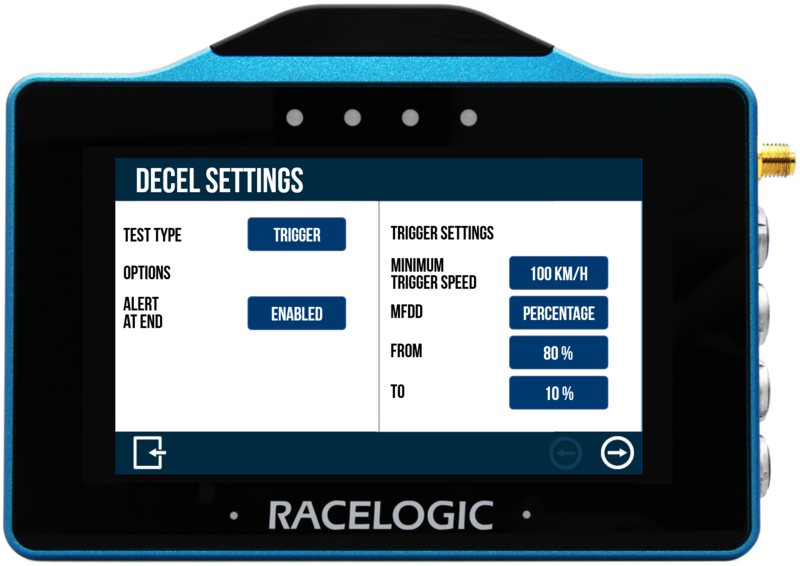
Before starting a test session, configure the deceleration test settings:
- Open the Deceleration Settings by tapping Settings → Decel.
- Select Trigger as the Test Type.
- The Trigger Settings panel will appear on the right-hand side of the Decel Settings screen.
- Set the Minimum Trigger Speed for your test.
- Select Percentage or Speed for the Mean Fully Developed Deceleration (MFDD).
- Enable/Disable Alert at end as required.
- Tap the Exit button to save the settings and exit the Decel Settings screen.
On-Screen Indicators
- When Trigger mode is selected, TRIGGER will be displayed in the top right corner of the Decel display screen.
- When the brake pedal trigger is activated, ON will be displayed next to the header.
Starting and Stopping a Test
A trigger test operates automatically based on speed and brake input:
- The test will start when the vehicle exceeds the set Minimum Trigger Speed, and the brake pedal trigger is activated.
- The test will stop when the vehicle speed drops below 2.5 km/h.
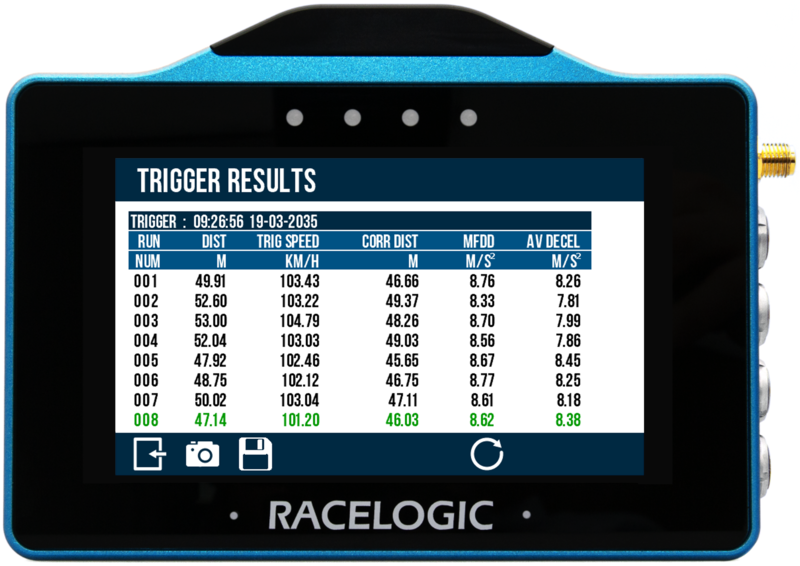
View the Trigger Test results by tapping the Results button at the bottom of the Decel display.
Results Display
Tests will be displayed in chronological order and the fastest will be highlighted. Use the scroll bar on the right-hand side of the screen to scroll through the results.
Session Grouping
Each session is grouped under a header.
The header shows:
- Test type
- Time of the first completed run
- Date of the first completed run
Recorded Data
Each trigger test includes the following information:
Session Header
- Test type
- Time of first completed run
- Date of first completed run
Per Test Run
- Test run number
- Test completion speed (km/h or mph)
- Speed at trigger event (km/h or mph)
- Corrected trigger test distance (m or ft)
- Mean Fully Developed Deceleration (MFDD) (g or m/s²)
- Average deceleration (g or m/s²)
NOTES
- A new session is created when:
- A different test type is selected, or
- The system is reset
- Results remain visible until a new test type is selected or results are cleared
Return to the main screen by selecting the Exit Button at the bottom left of the screen.