
VBOX Touch requires a start/finish line to calculate lap times in Lap Timing Mode. By default, it will use the start/finish gate(s) from the currently selected track based on the detected GPS location.
If there are no local tracks available, you can create a start/finish line manually on when you are on the track as described below.
Alternatively, you can create a start/finish line from a previously recorded VBOX file of the relevant track using the VBOX Test Suite Software.
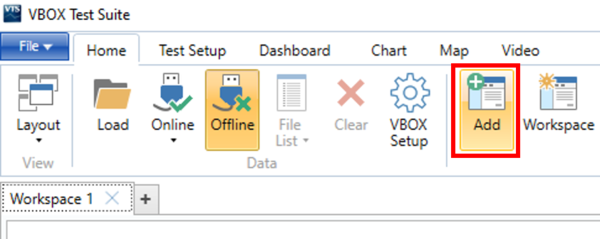
- Open the VBOX Test Suite Software and click the Add button in the Home tab.
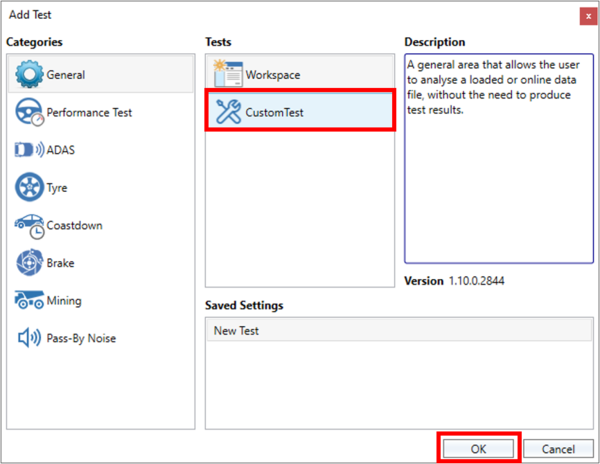
- Select Custom Test in the Add Test pop-up window and click OK to confirm.
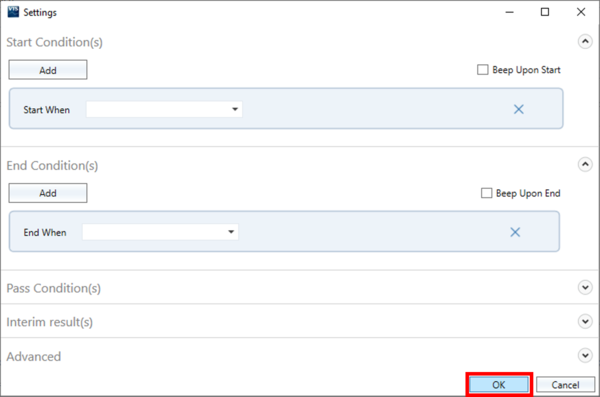
- Click OK in the following pop-up window to skip the test settings.
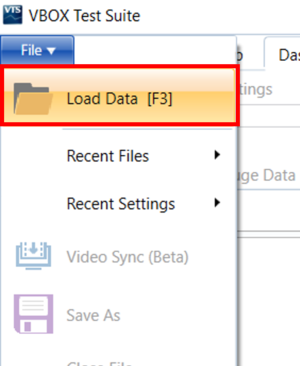
- Load a previously recorded VBOX file (.vbo) of the relevant track by clicking File → Load Data. Navigate to the required file on your computer and click Load.
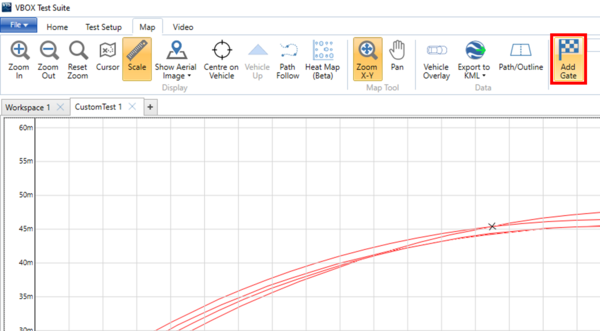
- When the file has been loaded, navigate to the desired gate location in the Map area and click on the track where you want to place the gate.
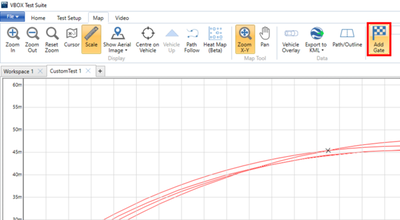
You can make the map larger if needed by clicking on the maximise button at the top of the area. - Select Add Gate from the ribbon menu to set that point as the start/finish line.
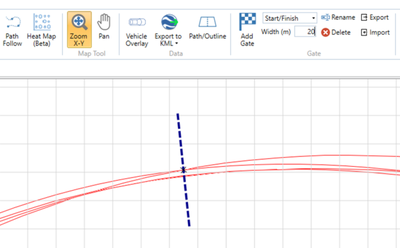
VBOX Test Suite will add a gate (line) to the location.
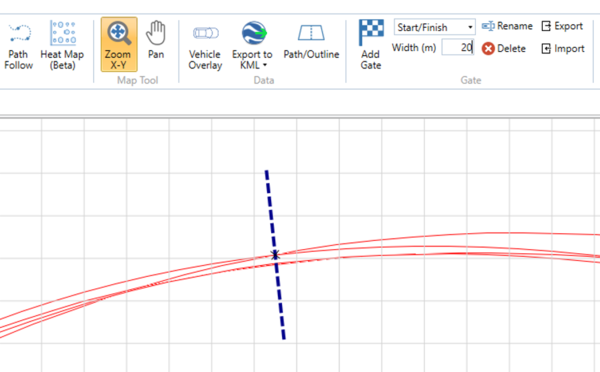
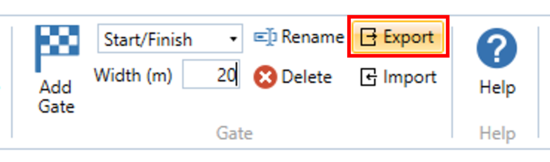
- Click the Export button in the Gate section of the ribbon to save the start/finish line file (.spl) to your local computer.
- Save the newly created .spl file in a folder named SF LINES on a VBOX Touch-compatible SD card and insert the card into the unit.
- Go to Mode → Lap Timing → Settings → Lap Timing and locate the Lap Timing Gates option on the right half of the screen.
- Tap the Load button.
If VBOX Touch finds a single .spl file on the SD card, it will automatically load the available file.
If VBOX Touch finds multiple .spl files on the SD card, it will display a list of the available files. Select the file you want to load and tap Confirm in the bottom right corner to load the file. - When the file has been loaded, VBOX Touch will display a success screen to confirm that the start/finish line was loaded successfully.