
Before troubleshooting, confirm the configuration on your unit.
Differences in hardware variant, firmware version, or the installed app can affect behaviour.
Check Hardware Variant
- Inspect the product label on the unit
- Identify whether the unit is:
- VBOX Touch V2
- VBOX Touch V3
- VBOX Touch RTK
NOTE
If your unit is a VBOX Touch V1, you can find relevant documentation in the Legacy Products Area.
Check Firmware Version
- Power on the unit
- Navigate to the System Information or About screen
- Note the firmware version number
Check Installed Application
- Identify which VBOX Touch application is installed
- Confirm whether the unit is running:
- The default Performance App, or
- An alternative application
Confirm Documentation Alignment
- Ensure the documentation being used matches:
- The hardware variant
- The firmware version
- The installed application
If Configuration is Unclear
- Reinstall the VBOX Touch firmware
- This restores the default Performance App and standard configuration
NOTES
- The unit behaviour may vary depending on firmware version and installed app.
- Always confirm configuration before troubleshooting feature behaviour.
Symptoms
- Screen remains off when power is applied
- No LED activity
- The unit does not respond to input
Possible Causes
- No power supplied to the unit
- Faulty power cable or connector
- Insufficient supply voltage
- Internal hardware fault
Resolution
- Verify that the power source is active
- Check all power connections are secure
- Inspect the power cable for damage
- Confirm the supply voltage meets requirements
- Try an alternative power source if available
- Remove the SD card and attempt to power on again
Applies To
- VBOX Touch V2
- VBOX Touch V3
- VBOX Touch RTK
NOTE
If the unit powers on but does not boot, see: The Unit is Stuck on the Startup Screen
Symptoms
- The unit powers off during operation
- The unit restarts without user input
Possible Causes
- Unstable power supply
- Loose power connection
- Overheating
- Internal fault
Resolution
- Check power connections are secure
- Verify the power source is stable
- Ensure the unit is not overheating
- Inspect installation environment for excessive heat
Applies To
- VBOX Touch V2
- VBOX Touch V3
- VBOX Touch RTK
Symptoms
- The unit powers on but does not progress past boot screen
- The screen remains static after startup
Possible Causes
- Corrupt SD card
- Firmware issue
- Internal system fault
Resolution
- Power off the unit
- Remove the SD card
- Power on the unit again
- If the unit boots as expected, replace or reformat the SD card
- Reinstall firmware if required
Applies To
- VBOX Touch V2
- VBOX Touch V3
- VBOX Touch RTK
Symptoms
- No satellites detected
- Speed remains at 0 when moving
- Position does not update
Possible Causes
- Antenna not connected
- Obstructed sky view
- Damaged antenna cable
- Poor installation location
Resolution
- Verify the GNSS antenna is connected correctly
- Ensure the antenna has a clear view of the sky
- Check the antenna cable for damage
- Reposition the antenna if necessary
- Allow sufficient time for satellite acquisition
Variant Notes
VBOX Touch RTK
GNSS lock must be achieved before RTK can function
Applies To
- VBOX Touch V2
- VBOX Touch V3
- VBOX Touch RTK
Symptoms
- The unit takes an unusually long time to obtain satellite lock
Possible Causes
- Poor antenna placement
- Obstructed sky view
- Environmental conditions
- Coldstart condition
Resolution
- Make sure that the antenna has an unobstructed sky view
- Avoid mounting the antenna near metallic obstructions
- Leave the unit powered on to allow acquisition
- Relocate the antenna if necessary
Applies To
- VBOX Touch V2
- VBOX Touch V3
- VBOX Touch RTK
Symptoms
- Reported speed does not match expected values
- Position data appears incorrect or inconsistent
Possible Causes
- Poor satellite signal
- Antenna placement issues
- Multipath interference
- Loss of RTK correction (VBOX Touch RTK only)
Resolution
- Check antenna placement and sky visibility
- Make sure the antenna is mounted securely
- Avoid reflective surfaces near the antenna
- Verify GNSS signal strength
Variant Notes
VBOX Touch RTK
If RTK correction is not active, accuracy will revert to standard GNSS.
Applies To
- VBOX Touch V2
- VBOX Touch V3
- VBOX Touch RTK
Symptoms
- Signal is lost during operation
- Data becomes inconsistent or interrupted
Possible Causes
- Obstructions blocking satellite view
- Loose antenna connection
- Cable damage
- Electrical interference
Resolution
- Check that the antenna connection is secure
- Inspect cable for damage
- Ensure the antenna has clear sky visibility
- Avoid routing cables near high-interference sources
Applies To
- VBOX Touch V2
- VBOX Touch V3
- VBOX Touch RTK
Symptoms
- RTK status not achieved
- Accuracy does not improve beyond standard GNSS
Possible Causes
- No correction data received
- Incorrect configuration
- Network or modem issue
- Base station unavailable
Resolution
- Verify correction data source is active
- Check network or modem connection
- Confirm RTK configuration settings
- Make sure that the antenna has a clear sky view
Applies To
VBOX Touch RTK only
NOTE
The unit will continue operating in standard GNSS mode without RTK
Symptoms
- RTK fix is lost during operation
- Accuracy decreases
Possible Causes
- Interruption in correction data
- Network instability
- Signal obstruction
Resolution
- Check network or radio connection
- Verify correction source availability
- Ensure antenna remains unobstructed
Applies To
- VBOX Touch RTK only
Symptoms
- The unit does not recognise the SD card
- Logging cannot start
Possible Causes
- SD card not inserted correctly
- Corrupt or incompatible SD card
- Card failure
Resolution
- Remove and reinsert the SD card
- Try a known working SD card
- Format the SD card if required
- Replace the SD card if faulty
Applies To
- VBOX Touch V2
- VBOX Touch V3
- VBOX Touch RTK
Symptoms
- The unit does not begin recording data
- No files created on SD card
Possible Causes
- No SD card detected
- Incorrect settings
- Storage full
Resolution
- Confirm SD card is installed and detected
- Check available storage space
- Verify logging settings
- Restart the unit
Applies To
- VBOX Touch V2
- VBOX Touch V3
- VBOX Touch RTK
Symptoms
- Data files cannot be opened
- Files are missing or incomplete
Possible Causes
- SD card corruption
- Improper shutdown
- Storage failure
Resolution
- Remove and inspect the SD card
- Try reading the card on another device
- Format or replace the SD card
Applies To
- VBOX Touch V2
- VBOX Touch V3
- VBOX Touch RTK
Symptoms
- Screen does not respond to input
- Display appears frozen
Possible Causes
- System error
- Firmware issue
- SD card issue
Resolution
- Power cycle the unit
- Remove the SD card and retry
- Reinstall firmware if required
Applies To
- VBOX Touch V2
- VBOX Touch V3
- VBOX Touch RTK
Symptoms
- No data received on CAN bus
Possible Causes
- Incorrect configuration
- Wiring issue
- CAN bus not active
Resolution
- Verify CAN wiring connections
- Check CAN configuration settings
- Ensure connected system is operational
Applies To
- VBOX Touch V2
- VBOX Touch V3
- VBOX Touch RTK
Symptoms
- Data values are incorrect or inconsistent
Possible Causes
- Incorrect configuration
- Scaling or mapping mismatch
Resolution
- Verify CAN configuration
- Check scaling and mapping settings
- Confirm compatibility with receiving system
Applies To
- VBOX Touch V2
- VBOX Touch V3
- VBOX Touch RTK
Symptoms
- Update does not complete
- The unit reports update error
Possible Causes
- Corrupt update file
- SD card issue
- Power interruption
Resolution
- Verify the integrity of the update file
- Use a known working SD card
- Ensure stable power during update
- Retry the update process
Applies To
- VBOX Touch V2
- VBOX Touch V3
- VBOX Touch RTK
Symptoms
- The unit behaves unexpectedly after update
- Features are missing or not working
Possible Causes
- Incomplete update
- Configuration reset required
Resolution
- Restart the unit
- Reapply configuration settings
- Reinstall firmware if necessary
Applies To
- VBOX Touch V2
- VBOX Touch V3
- VBOX Touch RTK
Symptoms
- You are unsure which hardware variant you are using
- The unit's behaviour does not match documentation
- You need to confirm compatibility or features
Possible Causes
- Multiple hardware variants exist (V2, V3, RTK)
- Firmware version may differ from documentation
Resolution
Identify hardware variant
- Check the product label on the unit, this typically includes the variant
- Confirm whether the unit is an RTK variant, RTK units will include additional GNSS/RTK hardware or configuration options
Check firmware version
- Power on the unit
- Navigate to the Diagnostics screen
- Note the firmware version number displayed
Compare with documentation
- Make sure that the firmware version matches the version referenced in the documentation
- If the firmware is older, some features or behaviour may differ
Applies To
- VBOX Touch V2
- VBOX Touch V3
- VBOX Touch RTK
NOTES
- Always verify firmware version before troubleshooting feature behaviour
- Documentation should reference firmware versions where behaviour changes
Symptoms
- Lap Timing mode shows no available track
- The unit cannot start lap timing
- Track list is empty or unavailable
Possible Causes
- No track database loaded
- GNSS position not established
- The unit is not within range of a known track
- SD card or database issue
Resolution
- Make sure that the unit has a valid GNSS lock
- Confirm that the unit is located at or near a recognised track
- Check that the track database is present and correctly loaded
- Verify that the SD card is installed and functioning
- Restart the unit
Applies To
- VBOX Touch V2
- VBOX Touch V3
- VBOX Touch RTK
NOTE
Lap timing requires both a valid GNSS position and track data
Symptoms
- Test stops before completion
- End conditions are not reached
- Run resets or cancels unexpectedly
Possible Causes
- GNSS signal instability
- Start or end conditions not maintained
- Test configuration incorrect
- Loss of speed or inconsistent input data
Resolution
- Ensure stable GNSS signal before starting the test
- Verify test configuration (start/end conditions)
- Maintain consistent vehicle motion throughout the test
- Avoid sudden interruptions or signal loss
- Repeat the test under stable conditions
Applies To
- VBOX Touch V2
- VBOX Touch V3
- VBOX Touch RTK
NOTE
Test completion depends on continuous, valid data input
Symptoms
- GNSS acquisition is unusually slow
- Position data appears incorrect after startup
- The unit has been moved a large distance while powered off
Possible Causes
- GNSS data is outdated
- The unit has not been used for an extended period
- The unit has changed location significantly
Resolution
- Place the unit in a location with a clear view of the sky
- Power on the unit
- Leave the unit stationary
- Allow sufficient time for full satellite acquisition
Applies To
- VBOX Touch V2
- VBOX Touch V3
- VBOX Touch RTK
NOTES
- A cold start may take longer than normal acquisition
- This is expected behaviour after relocation or long inactivity
Symptoms
- Satellite icon flashes red
- GNSS status indicates an issue
- Position or speed data may be unavailable
Possible Causes
- No GNSS lock
- Poor satellite signal
- Antenna issue
- Obstructed sky view
Resolution
- Check that the GNSS antenna is connected
- Ensure the antenna has a clear view of the sky
- Inspect antenna cable for damage
- Relocate the antenna if necessary
- Allow time for satellite acquisition
Applies To
- VBOX Touch V2
- VBOX Touch V3
- VBOX Touch RTK
NOTE
A flashing red icon indicates GNSS signal is not currently usable.
Symptoms
- LEDs do not illuminate
- No visual indication of unit status
Possible Causes
- LEDs disabled in settings
- Firmware issue
- Hardware fault
Resolution
- Check unit settings to ensure the LEDs are enabled
- Restart the unit
- Update or reinstall firmware if required
- If LEDs remain inactive, the unit may require service
Applies To
- VBOX Touch V2
- VBOX Touch V3
- VBOX Touch RTK
Symptoms
- No data recorded
- No files created on SD card
- Logging does not start
Possible Causes
- SD card not detected
- SD card full or corrupted
- Logging not enabled
- Incorrect configuration
Resolution
- Confirm the SD card is inserted correctly
- Check that the SD card is recognised by the unit
- Verify available storage space
- Ensure logging is enabled in settings
- Try a known working SD card
- Restart the unit
Applies To
- VBOX Touch V2
- VBOX Touch V3
- VBOX Touch RTK
Symptoms
- An error screen appears on the unit
- The unit operation is interrupted
- The unit may become unresponsive
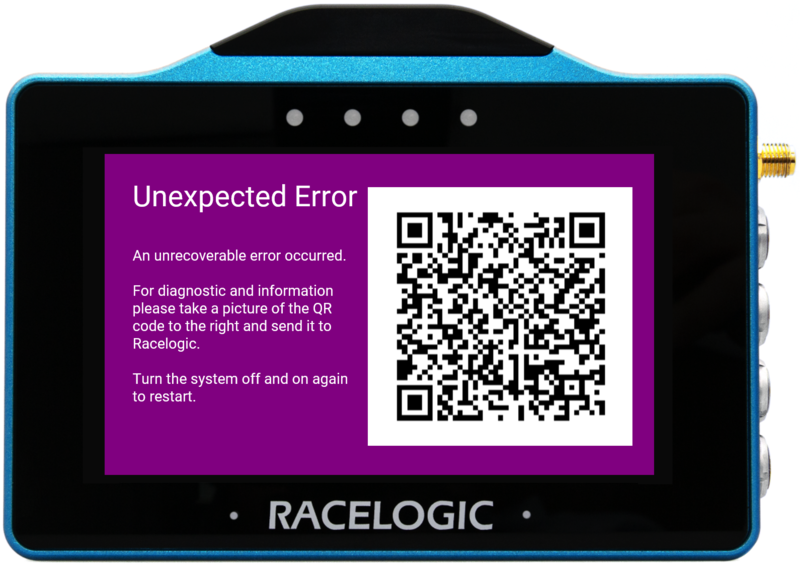
Possible Causes
- Internal system error
- Firmware issue
- SD card problem
- Unrecoverable system fault
Resolution
Restart the Unit
- Remove power from the VBOX Touch
- Reapply power to restart the unit
In most cases, this will return the unit to normal operation
Capture Error Information (Recommended)
To assist with diagnosing the issue:
- Make a note of the actions performed before the error occurred
For example: selected mode, settings changes, or operations performed - Take a picture of the error screen, ensure the QR code is clearly visible
- Provide this information to Racelogic for analysis, this helps identify the root cause of the error
Check SD Card
- Remove and reinsert the SD card
- If the issue persists, try a known working SD card
Reinstall Firmware
(if issue repeats)
- Reinstall the VBOX Touch firmware
- This restores the default app and configuration
Applies To
- VBOX Touch V2
- VBOX Touch V3
- VBOX Touch RTK
NOTES
- This error indicates an unrecoverable system fault at the time it occurred
- Restarting the unit typically resolves the issue
- If the error occurs repeatedly, further investigation or support may be required
Symptoms
- Features are missing or unavailable
- Settings or menu options do not match documentation
- The unit behaves differently to expected operation
Possible Causes
- Firmware version mismatch
- Documentation refers to a different firmware version
- A different VBOX Touch application is installed
- Configuration differences
Resolution
Check Firmware Version
- Navigate to the Diagnostics screen
- Note the firmware version
- Compare this with the version referenced in the documentation
Check Installed App (VBOX Touch App)
- Identify which application is currently installed on the unit
- Confirm whether it is the default Performance App or an alternative VBOX Touch app
Align With Correct Documentation
- If a different application is installed:
- Locate and use the documentation specific to that application
- If using the Performance App:
- Ensure documentation matches the installed firmware version
Restore Default Configuration (if required)
- Reinstall the VBOX Touch firmware
- This will restore the default Performance App
- Recheck behaviour against the documentation
Applies To
- VBOX Touch V2
- VBOX Touch V3
- VBOX Touch RTK
NOTES
- VBOX Touch functionality may vary depending on the installed app
- Documentation is typically written for a specific app and firmware combination
- Always confirm both firmware version and installed app when comparing behaviour
Symptoms
- Expected data is missing from CAN ID 0x305
- Data fields are incomplete or not updating
- Output does not match expected CAN specification
Possible Causes
- Known firmware issue affecting CAN output on ID 0x305
- Firmware version does not include the fix
Resolution
Check firmware version
- Navigate to the Diagnostics screen
- Note the installed firmware version
Install Beta firmware (recommended fix)
- Download the latest VBOX Touch Beta firmware
- Install the firmware following the standard update procedure
- Restart the device after installation
The Beta firmware includes a fix for this issue
Verify CAN output
- Recheck CAN output on ID 0x305
- Confirm that all expected data fields are present
Applies To
- VBOX Touch V2
- VBOX Touch V3
- VBOX Touch RTK
NOTES
- This issue is caused by a known firmware bug
- The fix is currently available in Beta firmware
- A future production firmware release may include this fix