
You can access the menu by pressing the OK button. Use the Up and Down arrows to navigate through the menu and press the OK button to enter a submenu or change a setting. When you edit a setting, the Up and Down buttons will let you scroll through the available options for that setting and the OK button will confirm your selection. Use the Back button to exit a setting.
You can use this menu to configure the digital input/output settings.
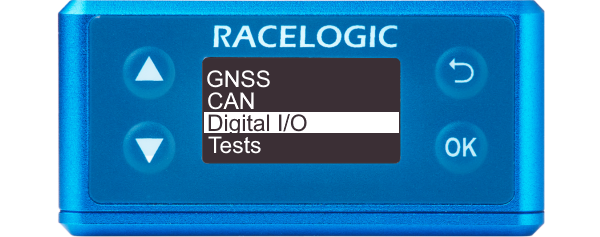
You can access the menu by pressing the OK button. Use the Up and Down arrows to navigate through the menu and press the OK button to enter a submenu or change a setting. When you edit a setting, the Up and Down buttons will let you scroll through the available options for that setting and the OK button will confirm your selection. Use the Back button to exit a setting.
You can use this menu to configure the digital input/output settings.
Defines what the digital input will be used for, either as a brake trigger or as a track marker.
Enabling this mode allows the Digital Input to be used with a brake trigger. Activation of the trigger will start the brake stop distance measurement, where the VBOX Speed Sensor unit will calculate a Time and Distance for a Brake Trigger to 0 km/h test.
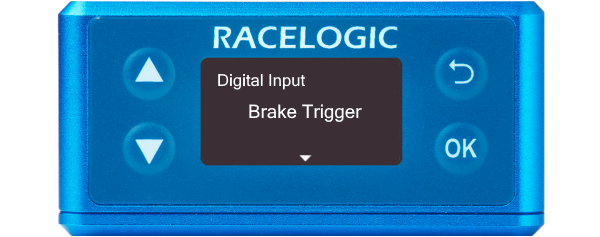
Enabling this mode allows the Digital Input to be used with a brake trigger. Activation of the trigger will start the brake stop distance measurement, where the VBOX Speed Sensor unit will calculate a Time and Distance for a Brake Trigger to 0 km/h test.
When this mode is enabled, you can use the digital input to configure track features for lap timing.
You can use the input switch to:
- set a start/ finish line
- set a separate finish line
- set a split line
- clear all virtual lines
- perform a coldstart
Further information on this can be found here.
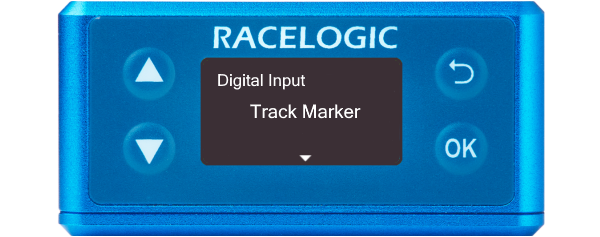
When this mode is enabled, you can use the digital input to configure track features for lap timing.
You can use the input switch to:
- set a start/ finish line
- set a separate finish line
- set a split line
- clear all virtual lines
- perform a coldstart
Further information on this can be found here.
Defines the digital output of the Speed Sensor.
Sends a configured number of pulses per metre. This setting will apply the default configuration: 90 pulses/m = 25 Hz per km/h.
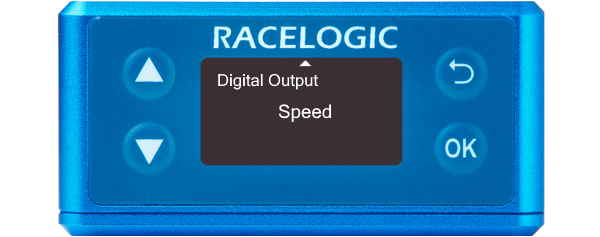
Sends a configured number of pulses per metre. This setting will apply the default configuration: 90 pulses/m = 25 Hz per km/h.
Note: If you need a different configuration for this feature, you will need to configure it in VBOX Setup.
Sends a pulse every time the start/finish line is crossed. This setting will apply the default configuration: 5 V pulse for 1 second.
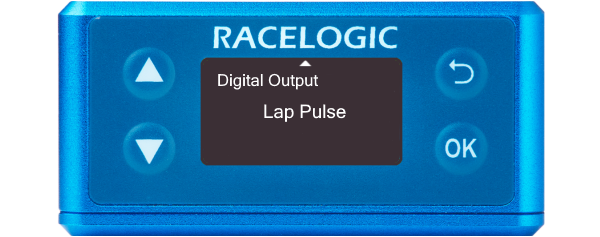
Sends a pulse every time the start/finish line is crossed. This setting will apply the default configuration: 5 V pulse for 1 second.
Note: If you need to apply a different polarity or pulse duration to this feature, you will need to configure it in VBOX Setup.