There are a number of additional parameters in the Scene Properties tab which are described below.
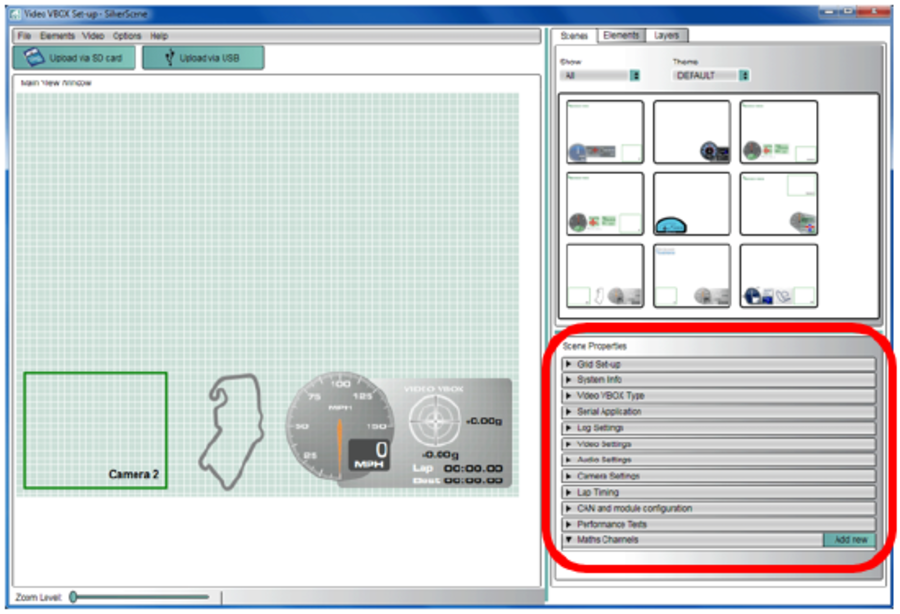
This allows you to change the spacing on the grid shown in the main view window.
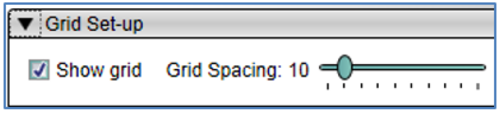
By default, the Video VBOX uses UTC time which is Greenwich Mean Time. You can adjust for your local time by changing the Local time offset. Values can be +ve or –ve, and this applies to the file time, displayed local time and filename (if you use time and date for naming of your files).
Here you can set levels of smoothing to selected channels to help reduce noise. This smoothing is applied to the channels before they are logged to the VBO data file or displayed in the scene.

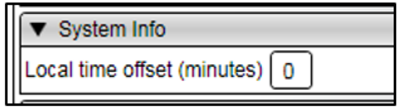
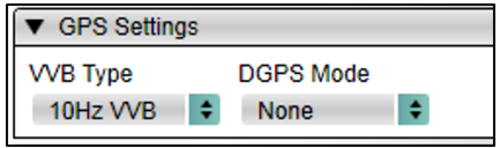
These are the correct settings when using a standard 10 Hz VVB unit.
NOTE
To use DGPS modes, 20 Hz VVB Pro hardware is required.
To use the setting for 40 cm accuracy, a Base Station is required.
To use the setting for 20 cm accuracy, a firmware upgrade is required as well as a Base Station.
If the SBAS setting is selected, the VVB unit will use GPS and SBAS. No additional hardware is required.
Setting the DGPS mode to ‘None’ will set the VVB to use GPS signals only.
If any of the incorrect settings are entered, or a Base Station is not detected when required, only GPS signals will be used.
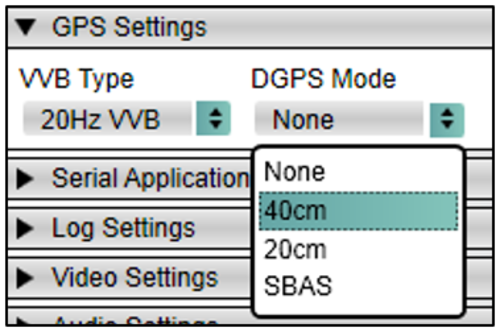
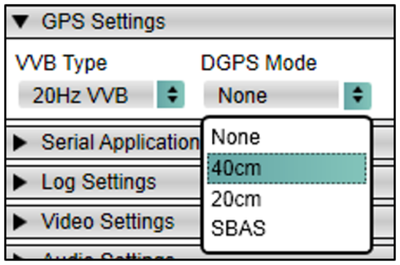
To use the setting for 40 cm accuracy, a Base Station is required.
To use the setting for 20 cm accuracy, a firmware upgrade is required as well as a Base Station.
If the SBAS setting is selected, the VVB unit will use GPS and SBAS. No additional hardware is required.
Setting the DGPS mode to ‘None’ will set the VVB to use GPS signals only.
If any of the incorrect settings are entered, or a Base Station is not detected when required, only GPS signals will be used.
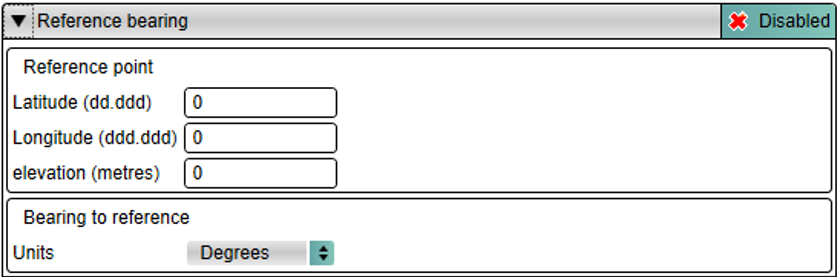
When the GPS Settings tab is selected, an additional 'Reference bearing' option is presented, which allows you to enter the location of a point to be used as a reference. This can then be selected as a 'Bearing to reference' channel within the software.
If No camera no video is enabled, disconnecting all cameras stops the ‘.avi’ video file from being created, but the ‘.vbo’ data-logging file is still written.
This tab also allows you to change between NTSC and PAL (default) and also set the Video Quality (default high).
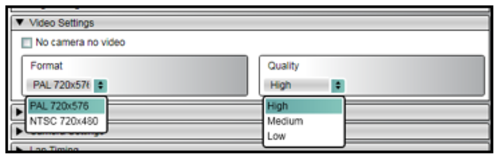
High: ~2 GB per hour
Medium: ~1.8 GB per hour
Low: ~1 GB per hour
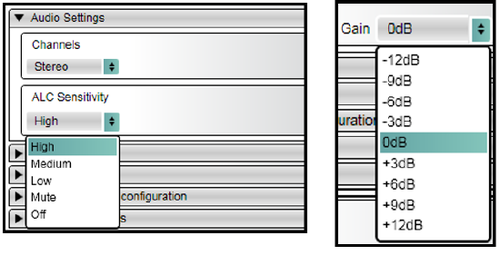
By default two channels are enabled for Audio, but if you only have one microphone, then set audio to Mono, and the sound will then be recorded on both channels.
ALC Sensitivity, this is the Auto Level Control and by default it is set to high. By setting to Off you can then manually adjust the gain, which is useful for more precise line input control.
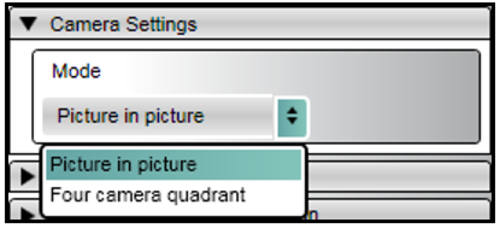
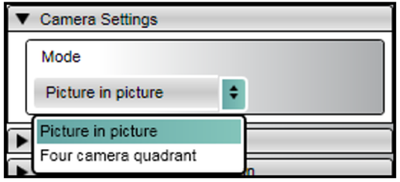
By default the unit works with Camera 1 as the main picture, and additional cameras appear as picture in pictures.
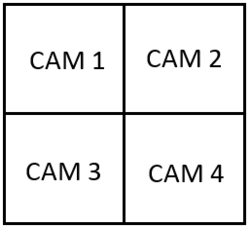
By setting Four camera quadrant mode, all four cameras are divided up equally in a square.