
When you have connected a CAN Hub to your VBOX unit, the VBOX Setup software will update to let you see and configure the relevant CAN Hub ports.
- Open the VBOX Setup software.
- Connect the relevant COM port.
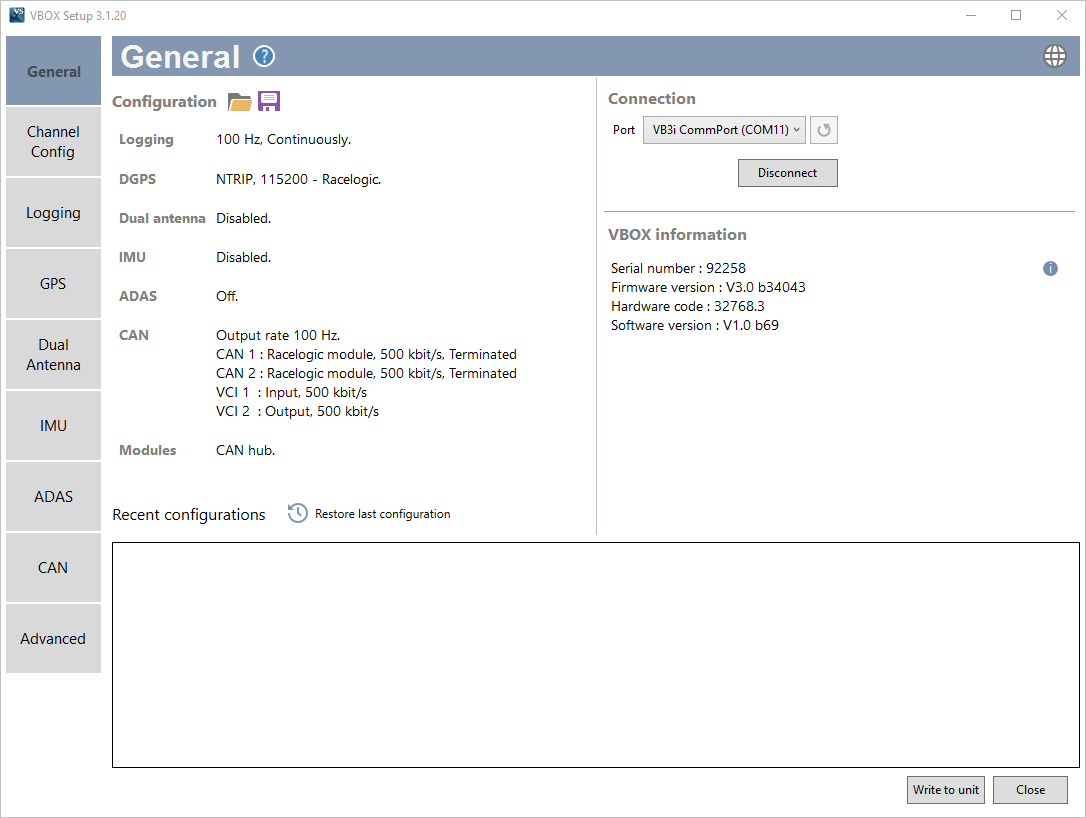
The software will open in the General menu and you will see a list of CAN ports and connected modules in the Configuration area.
- Open the CAN menu.
The Settings section on the Settings tab will show you the available CAN ports for your VBOX unit.
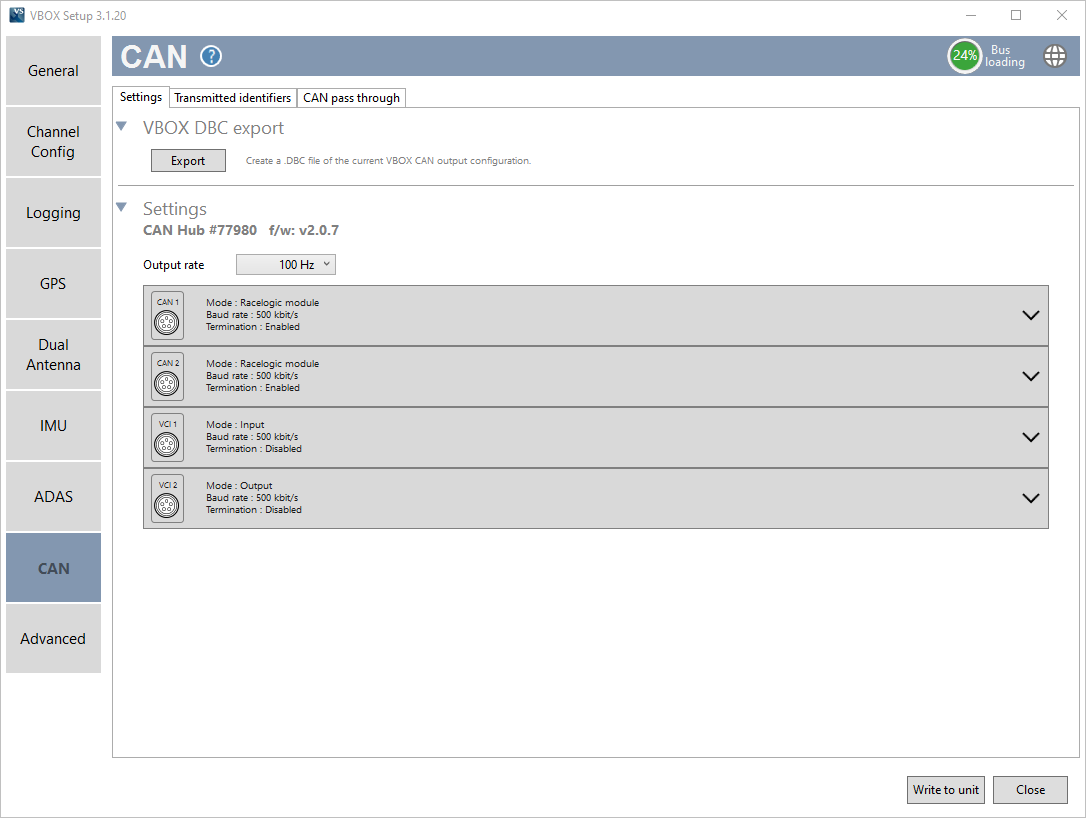
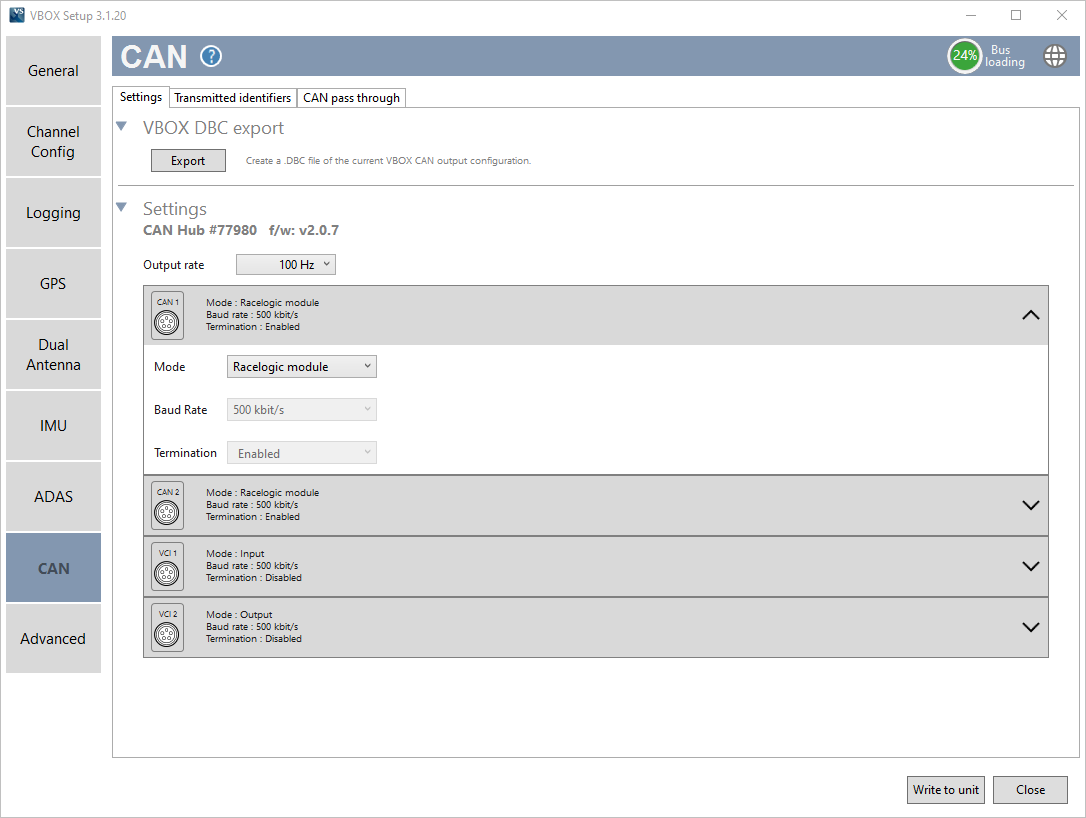
- Click on a port to expand the settings for it. You will get configuration options for the mode, baud rate and termination for each channel.
The CAN 1 and CAN 2 ports can be set to Racelogic module mode or CAN output mode. The default mode is the Racelogic module, which includes a fixed baud rate of 500 kbit/s and the termination is fixed to Enabled.
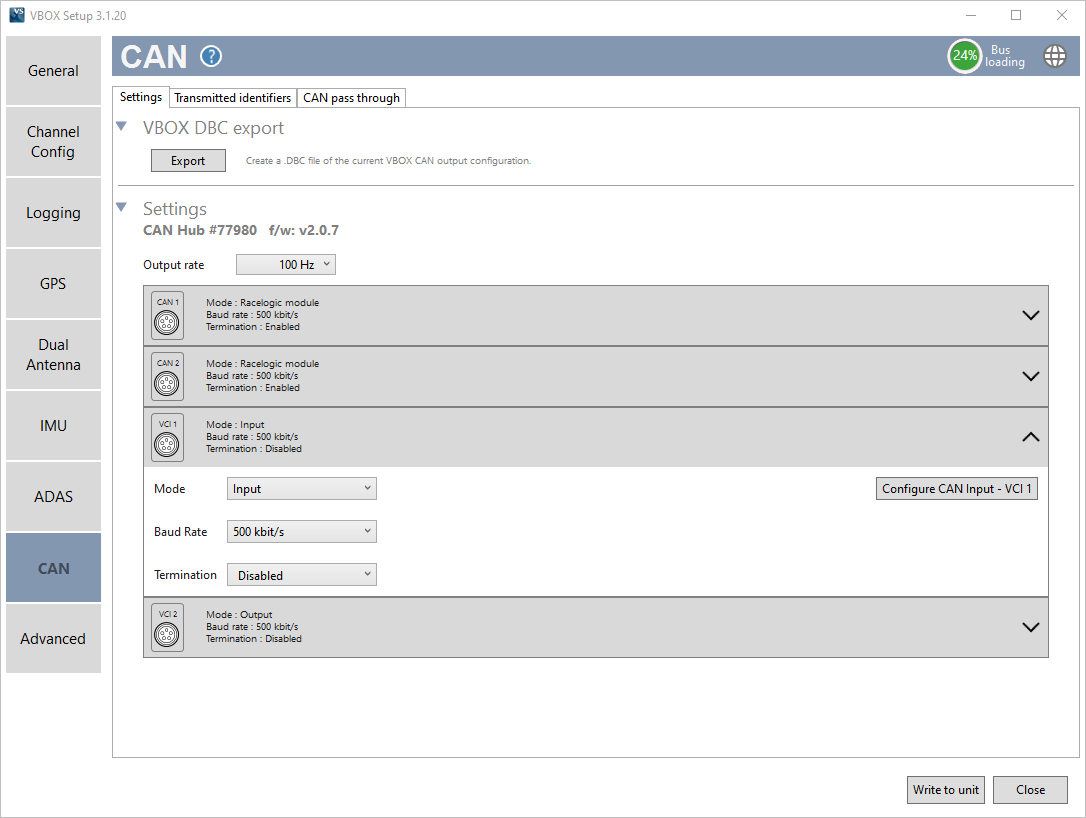
The VCI 1 and VCI 2 ports can be set to either Input or Output mode.
Output Mode
When you set a port to Output mode, you will see a button in the right corner called Configure CAN Output. Click this button to see the relevant area in the Transmitted Identifiers Tab. When more than one port is set to CAN Output, the output configuration applies to all CAN output ports.
Input Mode
When you set a port to Input mode, you will see a button in the right corner called Configure CAN Input - VCI 1 or Configure CAN Input - VCI 2 depending on the port. When you click this button, the software will open the Channel Config menu with the relevant channel group expanded.
If the selected Mode has not been written to the unit yet, the Write to unit process will be triggered when you click the Configure CAN Input button and navigate away from the CAN menu.
NOTES
- Your VBOX 3i unit will remember the CAN Hub configurations written to it. The next time you power it on, it will notify you if the setup is different than the remembered configuration.
- When VCI 2 has been configured, the unit should be power-cycled in order to update the changes. If a power-cycle is not performed, VCI 2 will not accept data from its input source.
- A CAN Hub will remember the latest VCI 2 configuration if it is connected to a VBOX 3i unit without a CAN Hub configuration.
- If you have already configured channels on the VBOX 3i unit's CAN Input, these channels will in turn be configured on the VCI 1 port on a connected CAN Hub.