
VBOX Video HD2 (v6) is a dual camera, 1080p, 30 or 60 fps video system including 10 Hz GPS data-logging and a live graphical overlay. The HD2 is compatible with OLED systems, as well as Racelogic modules, such as the Micro Input Module and Mini Input Module.
It has an HDMI port that enables streaming of real-time video from the HD2 to an HDMI-compatible monitor, recorder or streaming device.
The HD2 works straight out of the box with no need for configuration. Click here for a step-by-step quick start guide.
Included on the SD card are two software programs:
- VBOX Video Software allows you to configure and customise all areas of your VBOX Video system.
- Circuit Tools Software can be used to analyse video and data files, allowing customers to shave seconds off lap times in a single session.
Both of these software programs can be downloaded from here.
So that Racelogic can continue to provide you with notifications of the latest software releases and firmware upgrades and offer technical support, please register your VBOX Video unit.
Please register your unit here.
Software installers for both Circuit Tools and VBOX Video Setup are both found on the SD card included with the HD2.
To install the software, insert the SD card into the SD card reader of your computer or download the software from the above link. Double-click the setup.exe file and follow the steps until the software is successfully installed.
Microsoft Windows 7 SP1 and VBOX Video HD2 Firmware version V1.3.72 or newer is required.
Throughout this guide, we will be referring to the following:
A Scene is the setup file (‘.VVHSN’ file) which defines the layout of the graphical overlay and sets the system parameters such as logging conditions, CAN channels, lap-timing information etc. There is a default scene included within the HD2 firmware - shown in the image below. This will always remain stored on the unit's memory and can be loaded at any time using an OLED display.
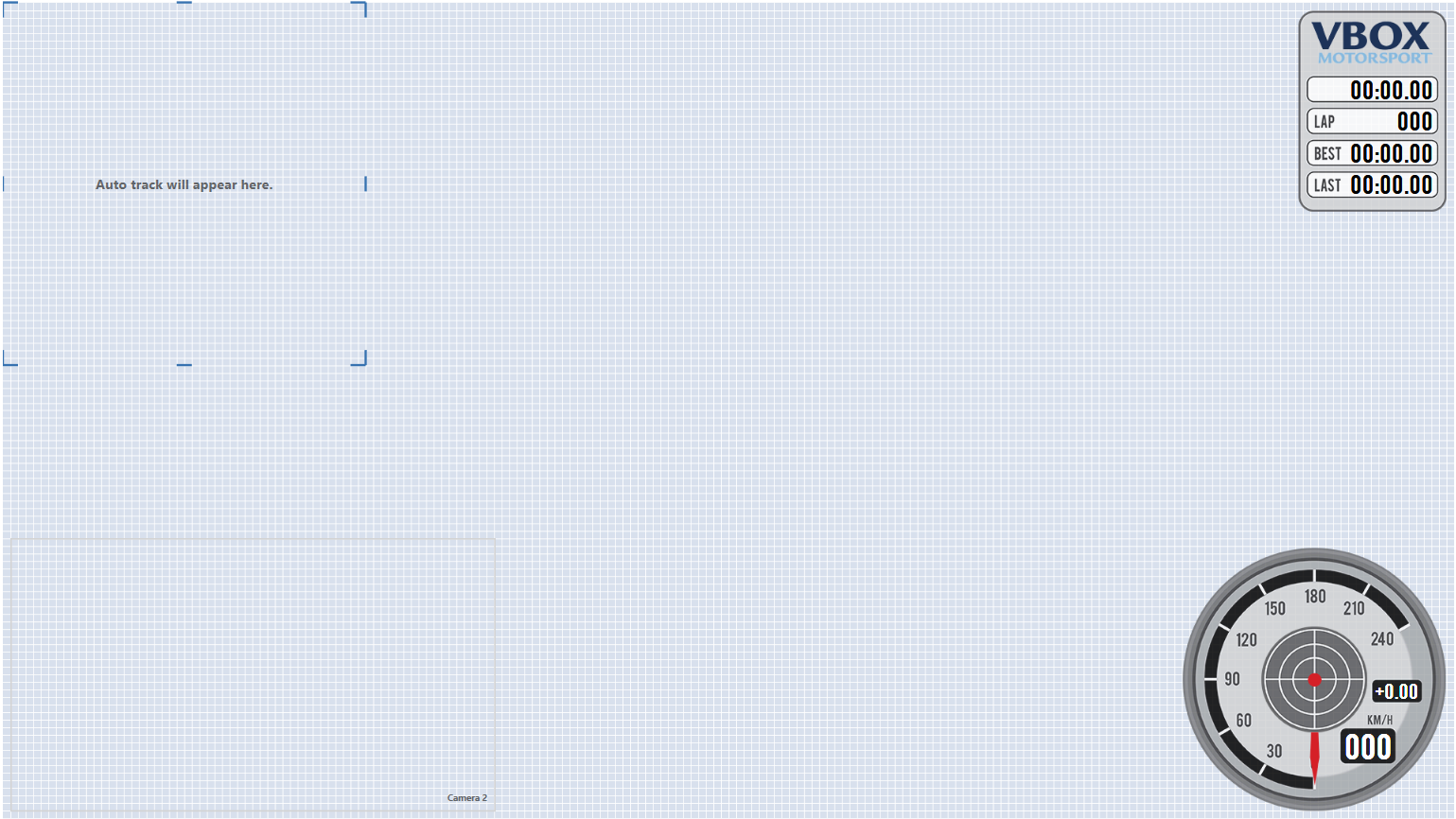
This default scene has a speed gauge, g-ball, on-screen lap timing elements and a track map all included, allowing the unit to be used straight out of the box at any circuit in our database - there is no need to change anything.
If you would like to quickly create a different simplistic scene without using Setup Software, an Online Scene Wizard is available, which enables you to quickly choose from a selection of template designs containing the elements included within the default scene. You can select specific car parameters from our CAN database and also add your own logo. The scene can then be uploaded onto the unit by saving it to an SD card and inserting it into the powered VBOX.
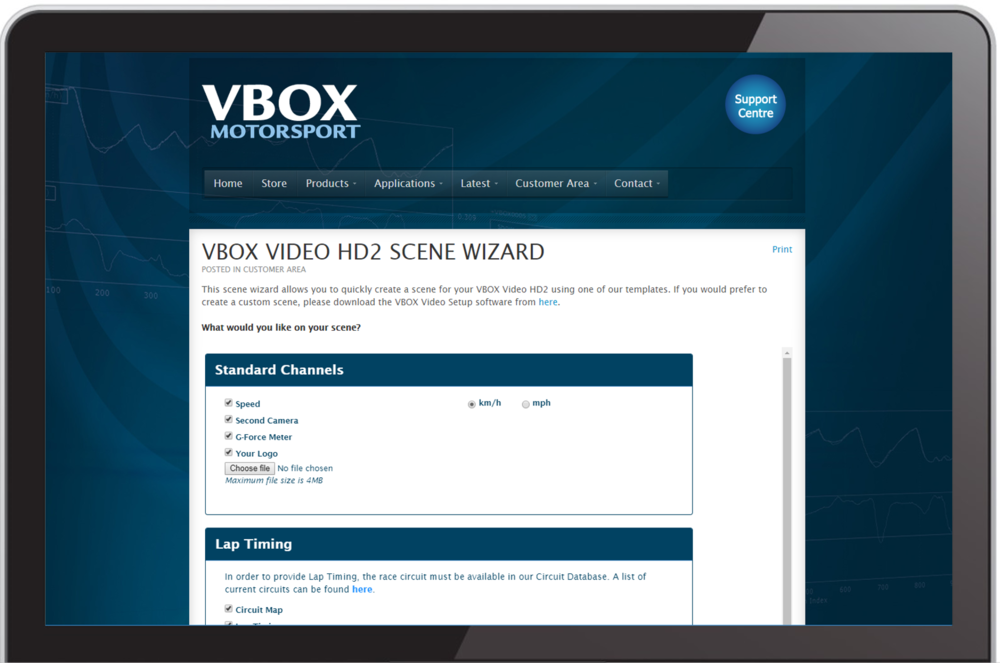
Instructions on how to use the Online Scene Wizard can be found here.
As well as having the ability to adjust settings within the HD2 unit, VBOX Video Setup Software provides full graphical overlay user configurability. For example, you can create custom dials (Windows, macOS), choose how large/ where you would like your logo (Windows, macOS) to be and also change where the second camera is located (Windows, macOS).
To upload a new scene file (.vvhsn) to a VBOX Video HD2 unit, please follow the instructions below:
- Power up the VBOX Video HD2 unit with the cameras connected and without the SD card or USB stick inserted.
- Ensure the .vvhsn file(s) is located within the root directory of the SD card or USB stick (not in the media or any other folder).
- Load the SD card or USB stick into the front panel - the OK LED will flash green fast as the scene is loaded.
- The HD2 will double beep when the upgrade is complete - the OK LED will change to solid green.
- The new scene file will now be installed within your VBOX Video HD2 unit.
- To preview the new scene, the easiest method is to use the Camera Preview App.
Notes:
- It is possible to load up to 8 scene files to the unit for selection with an OLED Display. If more than 1 scene file is loaded and you don't have access to a display, the first scene alphabetically will be used by the unit. More information on this is available here.
- The scene file(s) will be removed from the memory storage when installed to the unit.
IMPORTANT
Scenes cannot be named as 'default'.
These are graphical items in the scene, such as gauges, text, picture-in-picture, bar graphs, track maps etc.
The standard inventory and optional extras available for the VBOX Video HD2 are listed below.
| Product Code | Quantity | Description |
|---|---|---|
| VBVDHD2 | 1 | VBOX Video HD2 Unit |
| RLACS222orRLACS329 | 1 or 2 (dependent on package) | VBOX Video 1080p Camera (3 m) IP65 Rated |
| RLACS221 | 1 | Mono Microphone (2.5 m) |
| RLACS287 | 2 | Lightweight Windscreen Suction Mount |
| RLCAB010LE | 1 | Cigar Plug Power Supply (2 m) |
| RLACS262 | 1 | GPS/GLONASS/Galileo Low Profile Antenna (3 m) |
| RLACS231 | 1 | 32 GB SD Card - Including VBOX Video Software |
| RLACS269 | 2 | Camera Clamp |
| RLCAB141 | 1 | HDMI cable with locking screws (0.9 m) |
| Product Code | Description | Product Code | Description |
|---|---|---|---|
| RLCAB014LE | Unterminated Power Supply (2 m) | RLACS267 | Roll Cage Bracket |
| RLCAB081 | CAN / Serial Splitter | RLACS273 | Camera Mount Extension Bar |
| RLCAB073 | USB Logging Cable | DBSUCSETX3 | Mounting Cradle Suction Cups |
| RLCAB132 | Dual Microphone Splitter | RLACS112 | Li-ion Battery Pack |
| RLACS133 | Mono Microphone (for use with RLCAB132) | RLACS227 | Bluetooth Heart Rate Monitor |
| RLVBDSP05 / 04 | OLED Display | RLACS228 | Bluetooth OBD Module |
| RLVBDSP06 | Mini OLED Display | RLACS258 | Quick Release Unit Mounting Bracket |
| RLVBMICIN01L | Micro Input Module | RLACS268 | Roll Cage Unit Mount |
| RLVBMIM01 | Mini Input Module | RLACS247 | Harsh Environment Fan |
| RLVBCGW01 | CAN Gateway | RLACS274 | Second Car Kit |
| RLCAB069L/RLCAB015L | CAN Cables – OBD/Unterminated | RLACS272 | Tyre Temperature Monitoring System |
| RLACS182-L | Clip on CAN bus Interface | RLACS182L | Clip-on CAN bus Interface |
| RLACS224 | Bluetooth Remote Start/Stop Logging Switch | RLACS298 | LIVEU Solo HDMI |
| RLACS270 | Heavy-Duty Camera Clamp | RLACS333-L | Battery Pack |
| RLACS286 | Roll Cage Mount |
Image missing
Image missing
Image missing
If two solid green LEDs are shown, the system is ready to record.
If the system is permanently fitted to a vehicle, it should be possible to view the front panel when it is mounted. A brief overview of the LED behaviour is below.
| OK LED | |
|---|---|
| Green – Fast Flash | System powering up or updating firmware/ scene |
| Green – Slow Flash | Fully powered - No SD Card/USB Memory |
| Green – Solid | SD Card/USB MemoryOK –READY TO LOG |
| Orange – Slow Flash | Requires reboot |
| Red – Solid | System ErrorThe unit will automatically power cycle after approximately 30 seconds |
| GPS LED | |
|---|---|
| Green – Slow Flash | Searching for Satellites |
| Green – Solid | GPS Lock OK –READY TO LOG |
| REC LED | |
|---|---|
| Blue – Solid | Recording–DO NOT REMOVE MEDIA |
| Blue – Fast Flash | Closing Files–DO NOT REMOVE MEDIA |
There is a fourth LED on the rear of the system. If the mounting solution only allows the back panel to be visible, this status LED works on a simple ‘traffic light’ style system.
| Status LED | |
|---|---|
| Red | System Error |
| Orange | Not ready to record (either no GPS or no SD CardUSB Memory) |
| Green | Ready to record – system all OK |
| Blue | Recording–DO NOT REMOVE MEDIA |
To easily check and fine tune camera mounting positions and to pair bluetooth devices, the VBOX Video application can be downloaded from the Apple App Store or the Google Play Store. Search for 'VBOX Video'.
Once you have downloaded the application to your phone, you will be able to pair with the HD2 unit’s wifi connection, and see a live camera preview. Note: - password is the serial number of the HD2 - VVH[******].
The VBOX Video system is ready to use straight out of the box.

The VBOX Video HD2 is designed to disperse heat from internal components through the lid of the box, as such the unit will become hot to the touch when running.
The enclosure is designed to use airflow to cool the unit down, so do ensure that the top of the HD2 is left open to the air.
If VBOX Video HD2 is being used in extreme ambient temperatures (cabin temperature exceeding 50°C), the Harsh Environment Fan Accessory can be used to reduce the temperature of the unit.
IMPORTANT
If the HD2 is being used in conjunction with a driver communication radio system, ensure that there is a minimum separation distance of 20 cm between the radio system and the camera units and cables to avoid any video interference problems.
- Mount the GPS antenna in the centre of the roof of the vehicle, away from roof bars and other antennas. For more information on antenna mounting positions, click here.
Image missing
- Connect the GPS antenna to the VBOX Video HD2.
Image missing
- Attach one of the cameras to the windscreen using the forward facing camera mount. Keep the camera level by ensuring ‘Racelogic’ faces upwards.
Image missing
Image missing
Image missing
Image missing
- Connect this camera to ‘CAM1’
Image missing
- Connect the second camera to the window, or desired mounting position.
Image missing
- Connect this camera to ‘CAM2’.
Image missing
- Connect the microphone to the ‘MIC’ input.
Image missing
- Connect the power via the 'POWER' socket, the HD2 takes about 45 seconds to fully boot.
IMPORTANT
The HD2 will draw an initial current of approximately 2 A on start-up, for the unit to function correctly, please ensure that your power supply can provide this.
Image missing
- Insert the SD card into the SD card slot – the OK LED should show solid Green. If a scene file has been saved to the card, the scene will be uploaded onto the unit, more information can be found here.
Image missing
- Connect your iOS or android device to the HD2 unit via WiFi. The Wi-Fi name (SSID) of the VBOX Video will be 'VVH' followed by the serial number, eg. 'VVH00063'. The password will also be 'VVH' followed by the serial number.
For customers not on the latest version of Firmware (V 1.2.45 onwards), the SSID of the unit will be 'VBoxVideo' followed by the serial number and the password is ‘racelogic’.
Note: We recommend that customers update to the latest firmware version as the Apps are not fully backwards compatible.
Open the VBOX Video camera preview app on your phone and fine-tune the setup of the two camera positions.
Image missing
- Take the car outside and wait for the VBOX Video HD2 to gain satellite lock. The GPS LED should show solid Green.
Image missing
- Now, the system is ready to record. VBOX Video HD2 will start recording when travelling over 15 km/h, and stop recording once the vehicle has been under 15 km/h for 10 seconds.
Note: There is a 10 second pre-buffer, so video data will be captured for 10 seconds before recording is triggered.
- The Blue Record LED will be on when recording video. When you come to a stop, it will then flash as the file is closed and will go out when it is safe to remove the SD card.
IMPORTANT
NEVER remove the SD card when the Blue Record LED is on or flashing - you will lose data/video!
Note: If for some reason the SD card is removed whilst still recording, it may need to be repaired using a PC before it can be reused.
If you have come to a stop, but the LED is on, press the 'RECORD' button to stop the video before removing the card.
Sometimes, due to poor satellite visibility in a garage or close to a building, the box may start recording, even if the car is stationary. Always check the Blue LED before ejecting the card.
Image missing
Image missing
Image missing
Image missing
It is recommended that any logging media used with a VBOX Video HD2 has a write speed of above 7 MB/s (4 MB/s absolute minimum) and a speed class of 10 (4 absolute minimum). We recommend good-quality logging media to ensure best results. More information can be found here.
VBOX Video HD2 is supplied with a 32 GB SDHC card in a FAT32 file format. VBOX Video HD2 supports both FAT32 and exFAT file formats, meaning that there should be no requirement to format any cards before recording (unless supplied in NTFS format). More information can be found here.
If data is to be logged to a USB storage device, the optional RLCAB073 cable or the RLACS237 start/stop logging switch with a USB port is required. USB memory with a good chipset is essential. As with SD Cards, VBOX Video HD2 supports both FAT32 and exFAT file formats, meaning that there should be no requirement to format any USB media before recording (unless supplied in NTFS format). More information can be found here.