
To give you the opportunity to use Performance Box Touch without connecting it to a power source, we have an optional battery (RLACS290) available.
This battery comes supplied in the Performance Box Touch V2 Bundle (RLPBT/B) kit and can also be purchased separately.
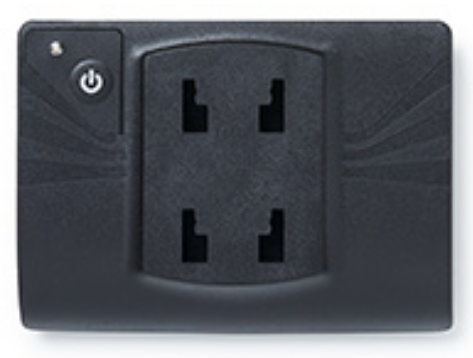
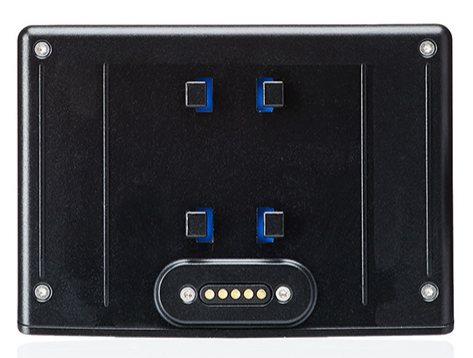
The Performance Box Touch Battery is installed on the rear of the Performance Box Touch unit with a Richter mounting system.
Insert the prongs from the back of the battery into the rear of the Performance Box Touch unit and push upwards to secure it in place.
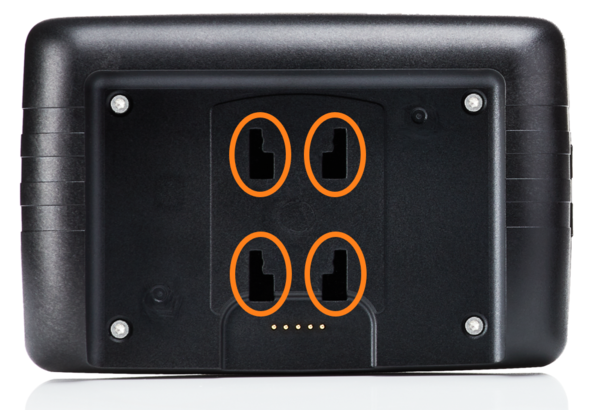
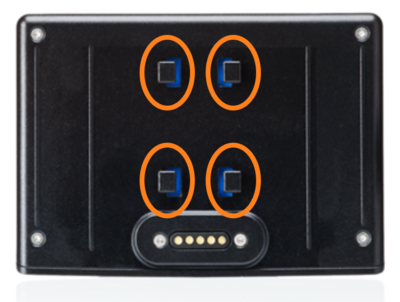
When the battery is installed, press and hold the Power button on the battery for a few seconds to turn the unit on or off.
If you plug the power cable into the unit when the battery is already installed in the unit, the unit will automatically turn on.
The battery has a minimum of 6 hours of battery life, depending on configuration and use.
When Performance Box Touch is turned on, you will see a Battery Status Indicator on the right-hand side of the screen header.
This provides a visual representation of the remaining battery charge. The indicator is split into 10 bars, each representing 10% of the charge.
TIP
You can increase the battery life up to 9 hours by using the lowest brightness settings on the Performance Box Touch unit.
If the battery has less than a 10% charge left, a warning screen will appear on the display and remain there for 10 seconds.
Cancel the warning by tapping the screen.
If the battery has run out of charge, the LEDs will flash red five times before the unit turns off.
If you connect Performance Box Touch to a power supply while the battery is installed, the battery will charge while the unit is powered. When the battery is charging, a charging symbol will appear over the Battery Status Indicator on the screen.
You can also charge the battery when it is not installed in Performance Box Touch. Use the supplied USB cable (USB2-007241) and connect it to the USB port on the battery, located above the Power button.
The battery needs approximately 3.5 hours to charge.
If you are experiencing issues when charging the battery, take a look at our troubleshooting page.
TIP
Shorten the charging time by uninstalling it from the Performance Box Touch unit and charging it from a mains power source.
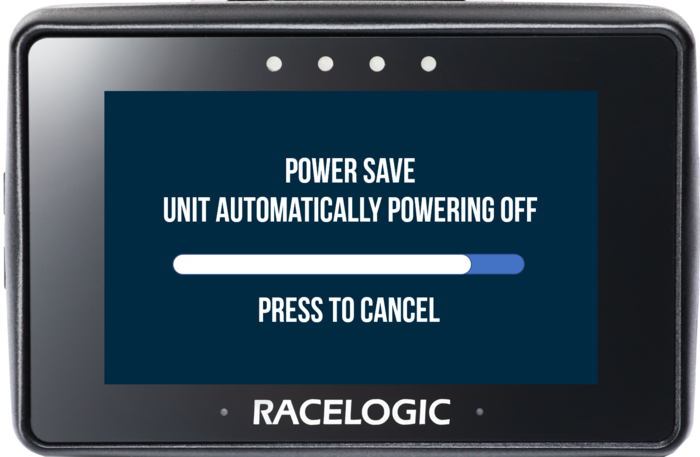
When Performance Box Touch is 'idle' (tracking zero satellites, not logging and has no screen interactions for 5 consecutive minutes), it will automatically power off to preserve the battery.
Before it powers off, it will display a warning screen. If you do not want it to power off, you can cancel the process by tapping anywhere on the screen within the 10-second time limit.
The battery has an LED indicator next to the Power button that indicates the current battery status.


| LED Colour | Behaviour | Meaning | Notes |
|---|---|---|---|
| Green | Solid | > 20% charge | Not charging |
| Flashing | Between 20% and 90% charge | Charging | |
| Orange | Solid | 10–20% charge | Not charging |
| Flashing | 10–20% charge | Charging | |
| Red | Solid | 0–10% charge | Not charging |
| Flashing | 0–10% charge | Charging | |
| Flash 5 times before turning off | 0% charge | Not Charging |
You can find the specifications for the battery in the Performance Box Touch Technical Specifications.