This area displays the selected COM port that is currently connecting the VBOX unit to the software. You also have a Disconnect button that you can use to disconnect the unit from the software.
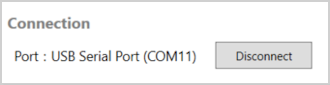
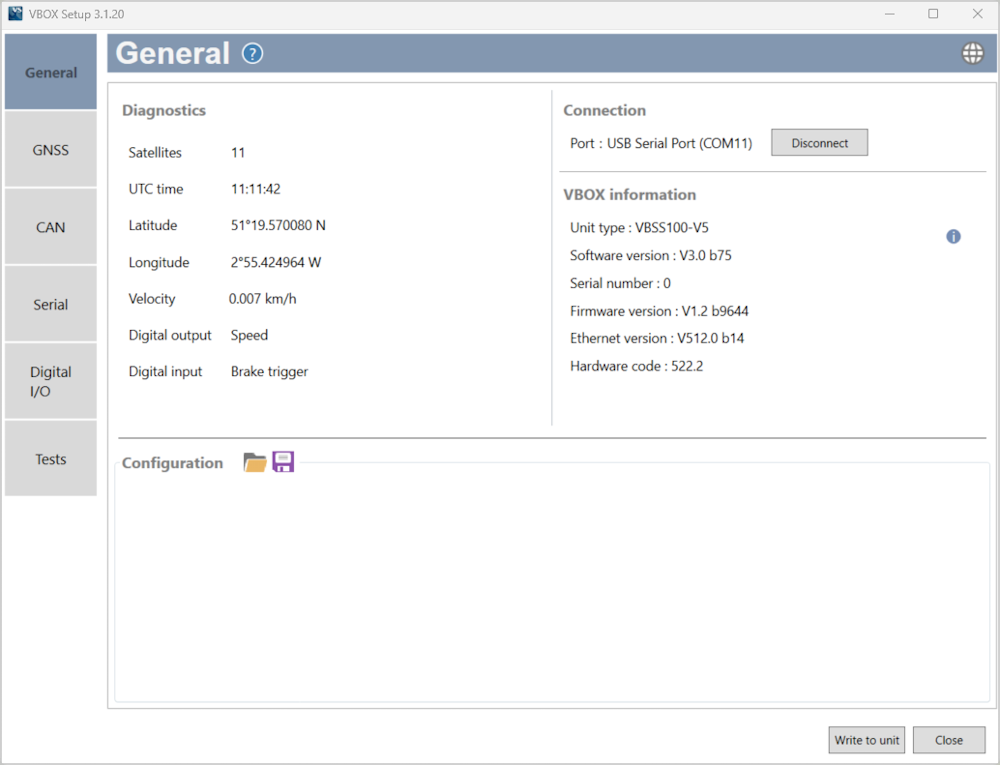
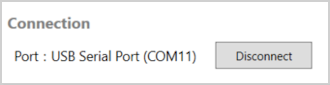
This area displays the selected COM port that is currently connecting the VBOX unit to the software. You also have a Disconnect button that you can use to disconnect the unit from the software.
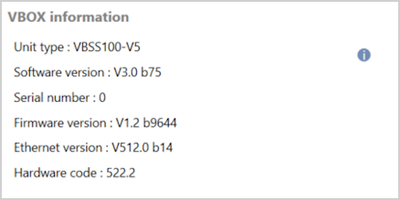
This area displays the serial number and installed firmware version of the connected VBOX Speed Sensor unit, as well as the current software version.
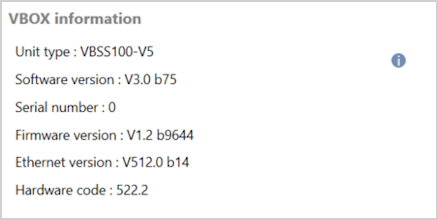
This area displays the serial number and installed firmware version of the connected VBOX Speed Sensor unit, as well as the current software version.
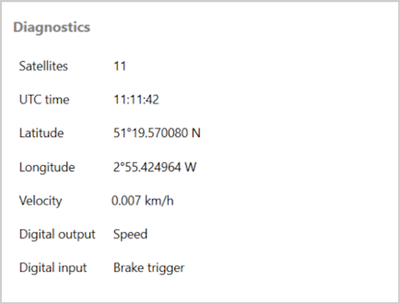
This area displays live GNSS data and the current setup. This area will be updates when you change the configuration on your VBOX Speed Sensor.
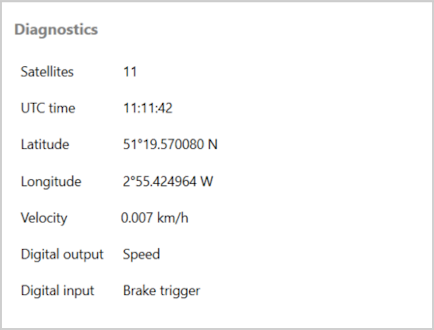
This area displays live GNSS data and the current setup. This area will be updates when you change the configuration on your VBOX Speed Sensor.
This area will display recent configurations and you can use the Load and Save buttons to import or export configurations from/to your connected computer.
This area will display recent configurations and you can use the Load and Save buttons to import or export configurations from/to your connected computer.