
This page provides step-by-step instructions for using module configuration files to configure modules you want to use with VBOX Touch.
- Go to the Automotive website.
- Click Owners Area → Downloads (FW/SW) →Firmware Updates → Modules, and locate the Module Configuration Files for VBOX Touch ADC, FIM, IMU, YAW, MIM, TC8 option.
- Click Download.
The files will be downloaded to your computer.
NOTE
The images below are screenshots from the IMU04 configuration in VBOX Setup. All the modules are generally configured with the settings you see here, but the options may be slightly different depending on the module you have connected.
- Connect the required module to the PC, you can find connection information in the User Guide for each respective module.
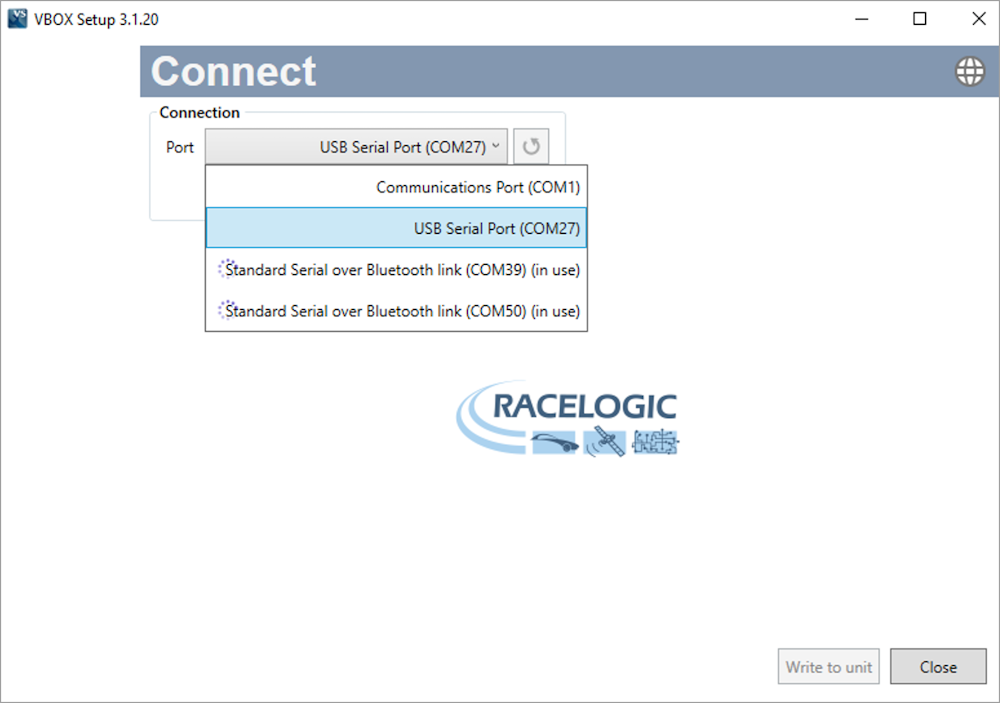
- Open VBOX Setup and connect to the COM port for the module.
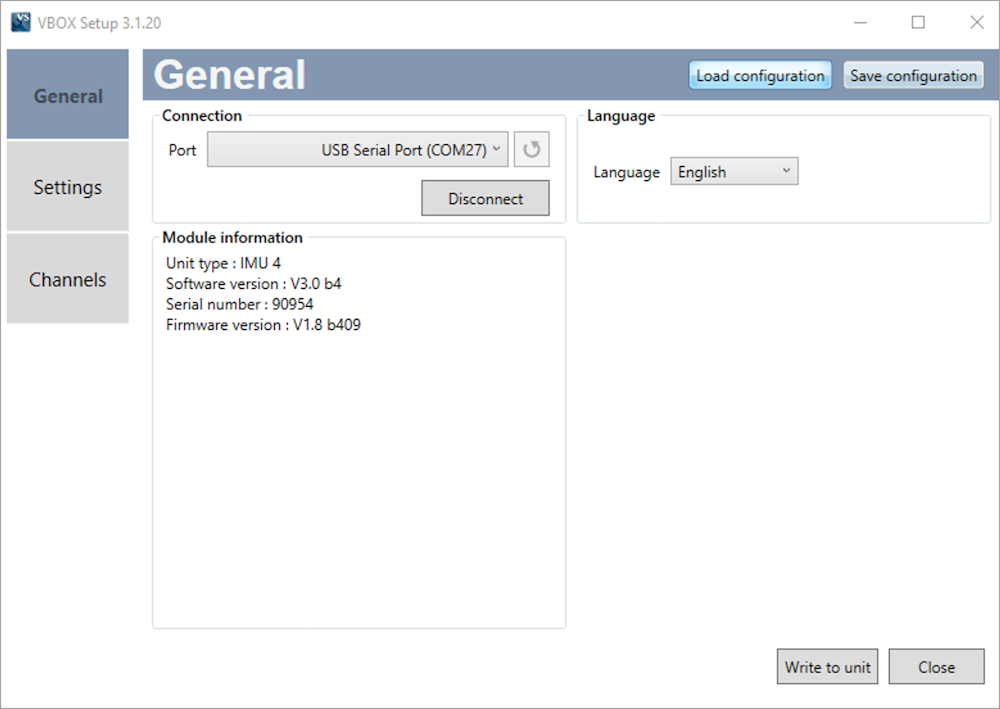
VBOX Setup will complete the connection and open the main user interface.
- Click on the Load Configuration button in the top right corner.
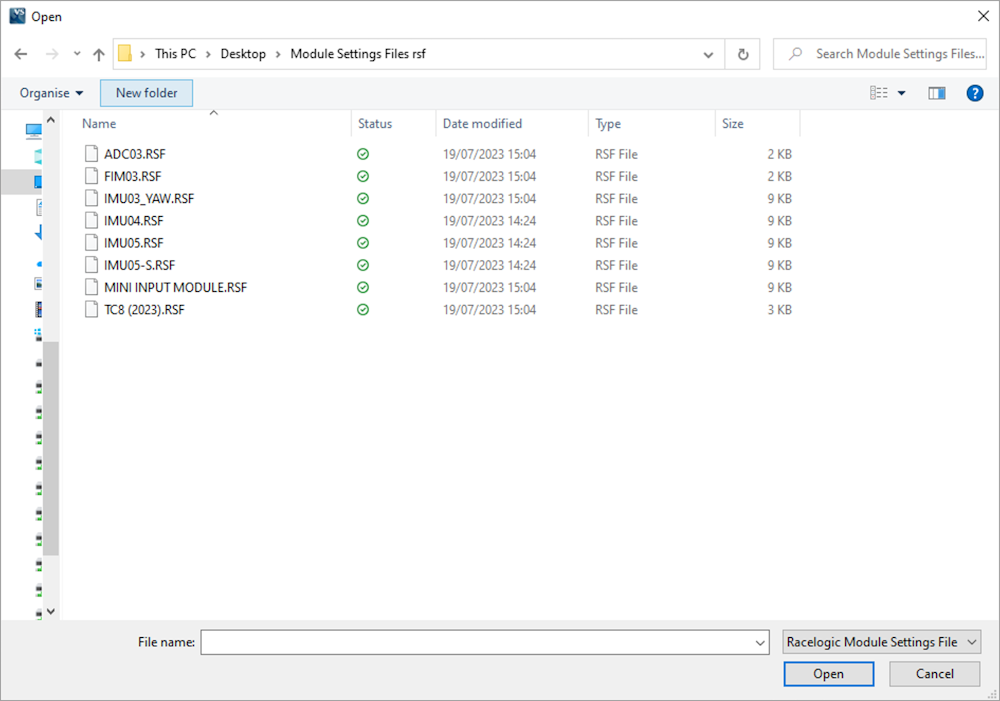
- Navigate to the downloaded configuration files and select the relevant *.RSF configuration file for the required module.
For example, select IMU04.RSF for IMU04, Mini Input Module.RSF for MIM01, etc.
IMPORTANT
You will not receive feedback that a file has been loaded—the result is immediate.
- Once a file has been loaded and you have returned to the software, open the Settings menu to confirm that the module has been configured to Timed Mode.
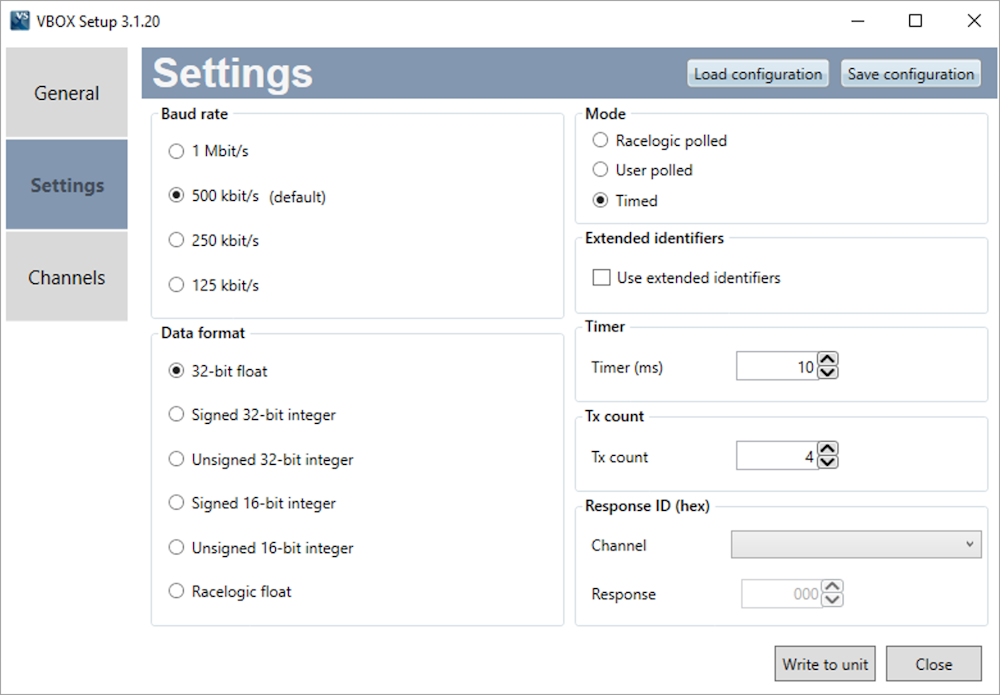
- When you have confirmed that the configuration file has been loaded, click Write to unit in the bottom right corner.
- Disconnect the module from VBOX Setup.
- Power-cycle the module.
The module should now be configured to work with VBOX Touch.