Once power is applied to the unit, it will display VBOX and Racelogic logos along with the serial number and firmware version of the unit.
When you use the NTRIP Modem for the first time, it becomes a Wi-Fi access point. You can then configure the settings by logging into this access point using your phone or a computer. A webpage is then used to configure the unit to use the internal GSM modem or an external Wi-Fi hotspot to connect to your chosen correction service. Settings are retained after a power cycle.
If the unit is configured to use both the internal GSM modem and an external Wi-Fi hotspot, it will attempt to auto-connect to the Wi-Fi hotspot first on power up.

Once power is applied to the unit, it will display VBOX and Racelogic logos along with the serial number and firmware version of the unit.
When you use the NTRIP Modem for the first time, it becomes a Wi-Fi access point. You can then configure the settings by logging into this access point using your phone or a computer. A webpage is then used to configure the unit to use the internal GSM modem or an external Wi-Fi hotspot to connect to your chosen correction service. Settings are retained after a power cycle.
If the unit is configured to use both the internal GSM modem and an external Wi-Fi hotspot, it will attempt to auto-connect to the Wi-Fi hotspot first on power up.

The modem screen will display a Wi-Fi hotspot name and IP address which you must use to configure the unit.
- Using a mobile phone or a computer with Wi-Fi.
- Navigate to the Wi-Fi settings on the device and select the NTRIP Modem's hotspot (this is the serial number of the unit you wish to connect to, RL-4C11AEDBDCE9 in the example below).
- Enter the Wi-Fi password: racelogic
- Use a phone or computer to open an internet browser and enter the IP address in the address bar to log in to the modem’s access point.
- Press the Change settings button next to the Modem heading.
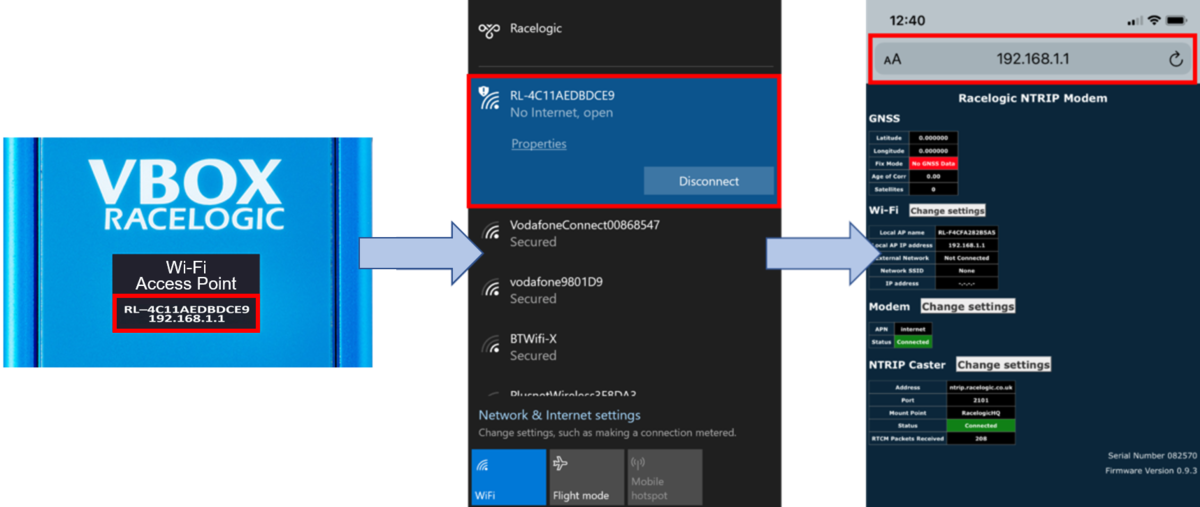
The NTRIP Modem setup page is then displayed, which includes Wi-Fi, modem and NTRIP caster settings and status information and GNSS engine status. The top area of the setup page displays connected GNSS engine status information including the latitude, longitude, GNSS fix status, RTK age in seconds and satellite count. The bottom right of the page displays the serial number and the firmware version of the unit.
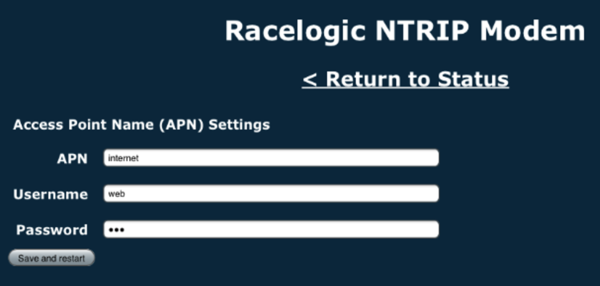
- Enter the APN, Username and Password associated with your network provider.
- Press the Save and restart button.
NOTE
Settings are retained after power cycles.
When it has connected to the network provider, the unit will briefly display a Connected (mobile data supplier) message.
The NTRIP modem will reboot and attempt to connect to the internal modem you have configured. The settings page will be updated with the new settings and provide a connection status indication.
The modem screen will display a Wi-Fi hotspot name and IP address which you must use to configure the unit.
- Using a mobile phone or a computer with Wi-Fi.
- Navigate to the Wi-Fi settings on the device and select the NTRIP Modem's hotspot (this is the serial number of the unit you wish to connect to, RL-4C11AEDBDCE9 in the example below).
- Enter the Wi-Fi password: racelogic
- Use a phone or computer to open an internet browser and enter the IP address in the address bar to log in to the modem’s access point.
- Press the Change settings button next to the Wi-Fi heading.
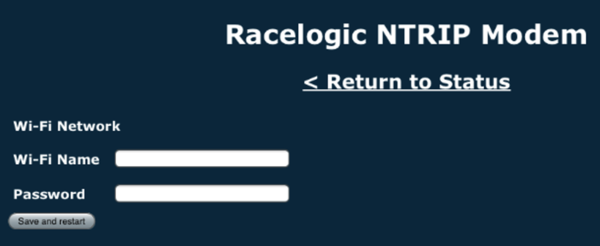
- Enter the name and password of the hotspot you want to use.
- Press the Save and restart button.
NOTE
The settings are retained after power cycles and the modem will always attempt to auto-connect to a configured Wi-Fi hotspot when it powers up.
The modem will reboot and connect. When it is connected, the unit will briefly display Wi-Fi Connected.
If it cannot connect to the configured Wi-Fi hotspot on power-up, it will automatically restart and become a configuration access point.
NOTE
Only a 2.4 GHz Wi-Fi signal is supported, 5 GHz is not supported.
If you need to connect your phone/ PC to the NTRIP modem again, you can use the same hotspot and enter the new IP address (displayed at the bottom of the screen). The page will update with the new settings and provide a connection status indication. If the NTRIP Modem cannot connect to the configured Wi-Fi hotspot on power up, it will automatically restart and become a configuration access point.
NOTE
If you have configured the internal modem, it will attempt to connect to this first.
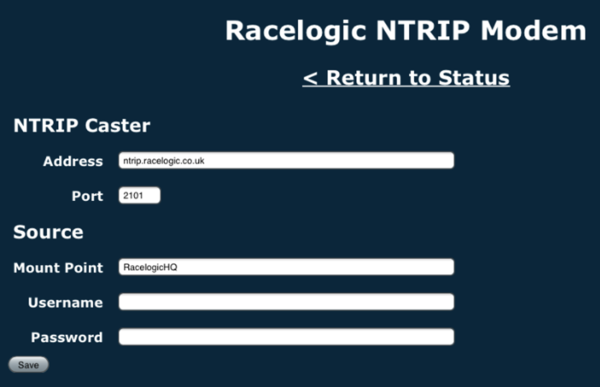
To configure the NTRIP correction service details, you must add the relevant information in the NTRIP Caster Settings.
- Press the Change settings button next to the NTRIP Caster heading to configure the NTRIP correction service details.
- Enter the Server Name/IP Address, Port, Mount Point (correction data stream), Username and Password information (if required).
NOTE
These details will be provided by your NTRIP service provider.
- Press the Save button.
The NTRIP modem will then attempt to connect to the NTRIP server using the provided details.
- If there is a problem with the server details, the unit will briefly display an Invalid Caster Credentials message.
- When it has connected to the NTRIP server, the unit will briefly display the RTCM Streaming message.
- The settings page will be updated with the new settings and a connection status indication along with the number of data bytes received from the NTRIP server. The front display will also provide this information.
- Check that the relevant LED on your connected VBOX unit (if relevant) indicates that the unit is receiving DGPS/DGNSS corrections.