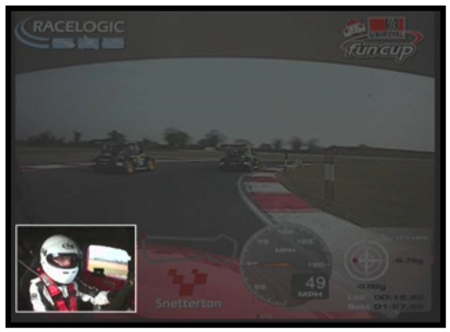
A second camera can be used to display an additional image, in this example on the left, the driver is shown. To add a Picture-in-Picture element to the scene, use Elements tab → Picture in Picture → New
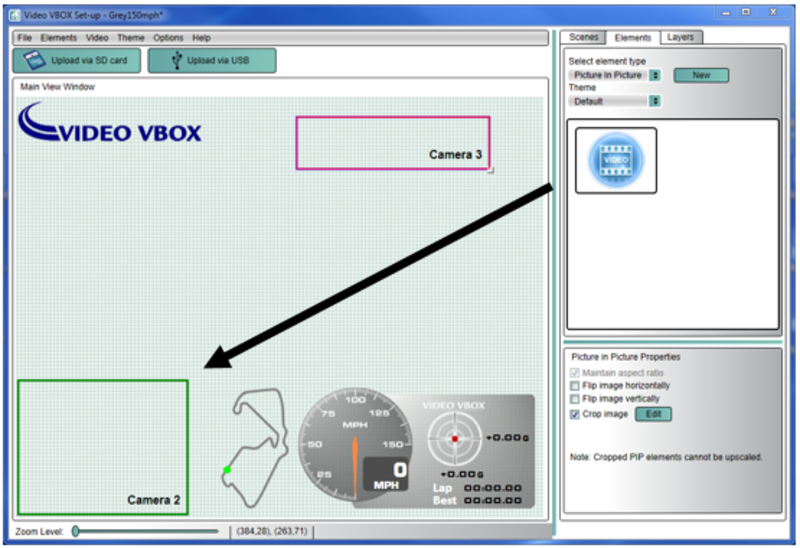
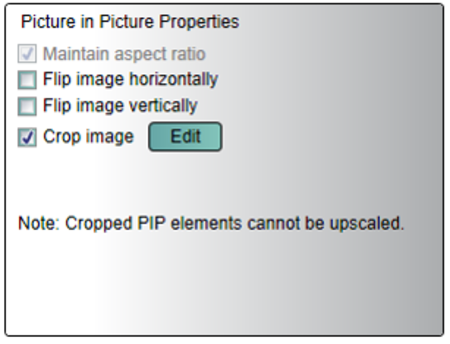
To adjust the size of the element, click and drag the corners. To change position, click and drag the whole element. To keep the aspect ratio correct, either mark the tick box under PIP properties, or hold down the SHIFT key whilst re-sizing the window.
Connect the Video VBOX via USB to the PC.
Select the PiP Element to be cropped and check the Crop Image box in PiP Properties.
Connect the camera that feeds the PiP to CAM1 port on the Video VBOX and select EDIT.
An Output Preview window will launch with the image feed from the camera. Drag a box across the area to be cropped and click OK.
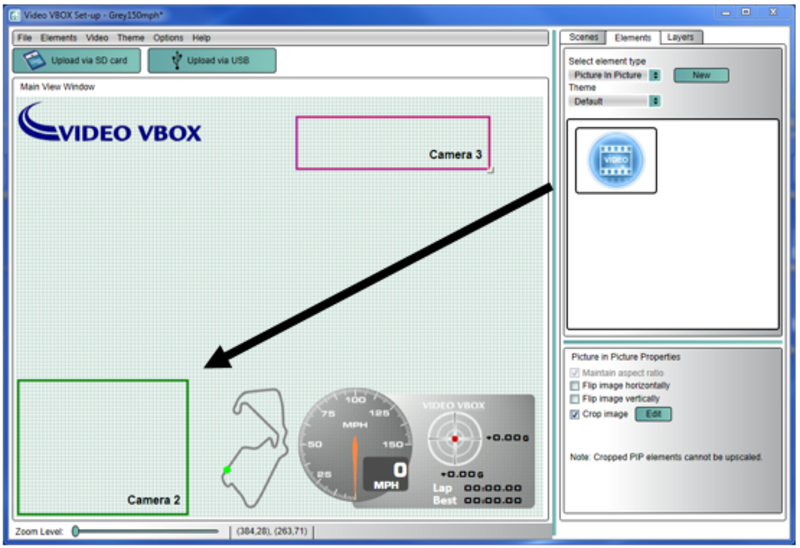
To flip a PiP element select the element and click the relevant checkbox in Picture in Picture Properties.