
Antenna
Attach the supplied antenna (ANTMSTUBSMAM) to the SMA connector on the top of the unit.
SIM Card
The NTRIP Modem can either use the internal 4G modem via a Standard SIM card or a Wi-Fi connection to acquire the NTRIP correction messages from the server. If you want to use the internal 4G modem, you must use your own Standard data SIM card.
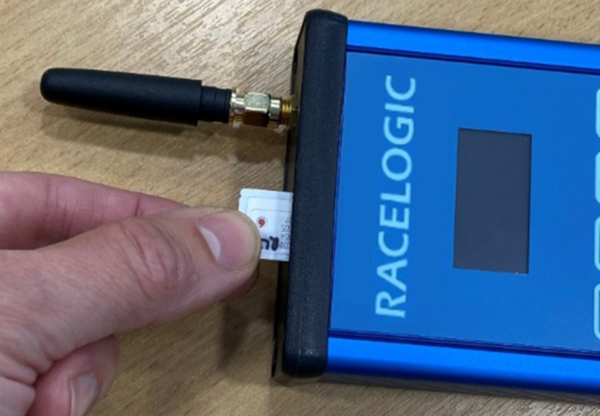
Insert the SIM card into the slot at the top of the unit.
The logo on the SIM card must face the front of the modem and the end with the cut corner must be inserted first.
The NTRIP Modem can either use the internal 4G modem via a Standard SIM card or a Wi-Fi connection to acquire the NTRIP correction messages from the server. If you want to use the internal 4G modem, you must use your own Standard data SIM card.
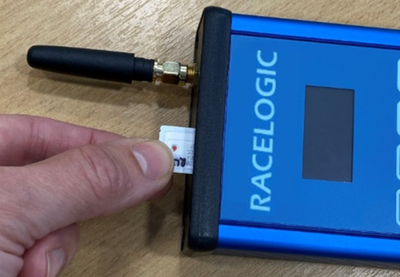
Insert the SIM card into the slot at the top of the unit.
The logo on the SIM card must face the front of the modem and the end with the cut corner must be inserted first.
NOTE
Make sure that the SIM card has been activated before you insert it into the modem. The easiest way to activate it is to put it into a USB 4G dongle and go through the steps to activate it on a computer before you insert it into the modem.
IMPORTANT
If the SIM card can be broken down into a Micro/Nano SIM, make sure that it is stable when you insert it into the modem as the Micro/Nano SIM could become detached from the card inside the modem.
Connection and Power
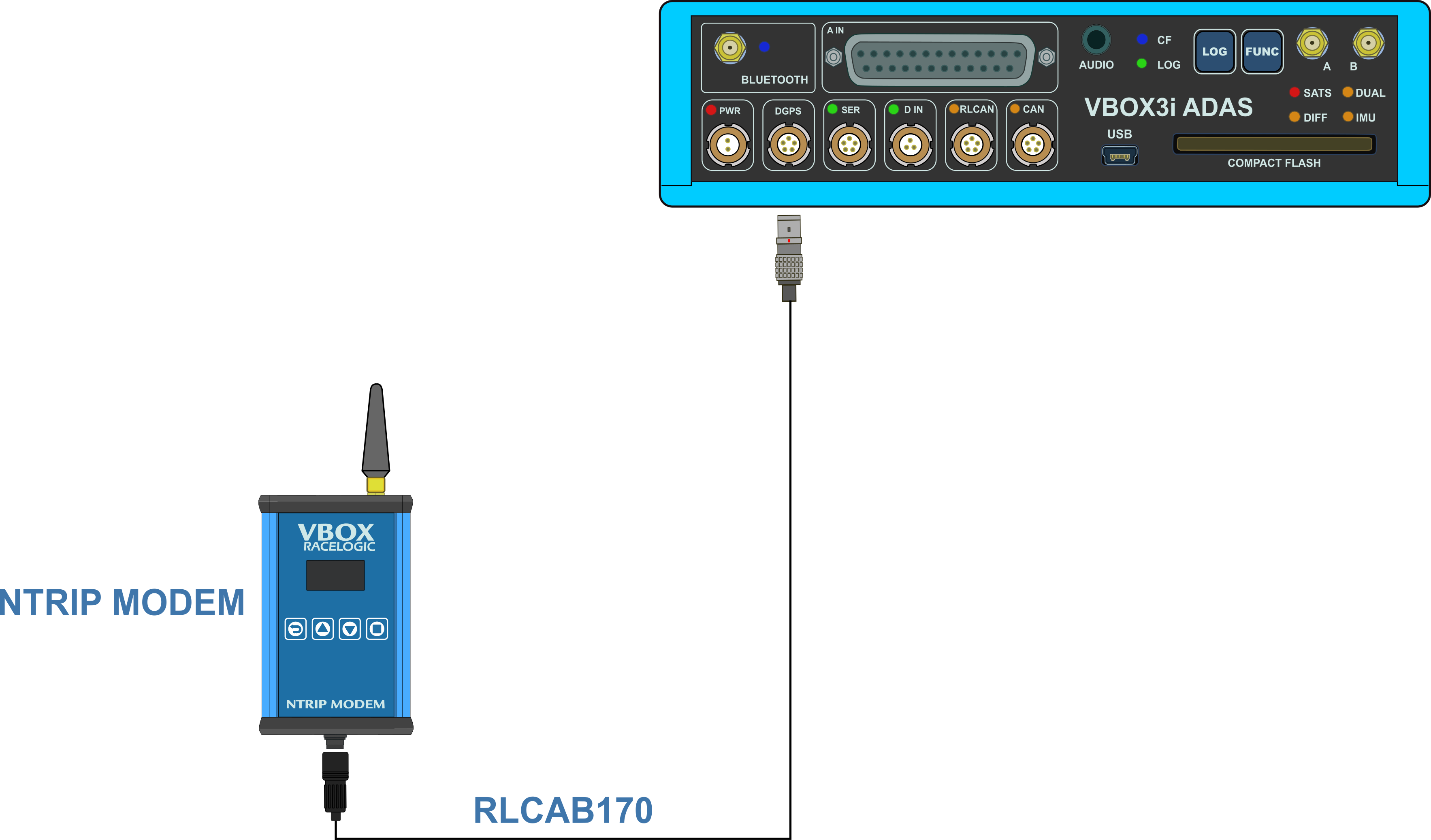
- Connect the Hirose end of the RLCAB170 to the Hirose connector at the bottom of the NTRIP modem.
- Connect the other end of the RLCAB170 cable to the DGPS port on the VBOX 3i ADAS.
This cable provides power to the modem from the VBOX unit.
NOTE
You can use a CAN Splitter RLVBACS024 or CAN Hub to facilitate the connection of the NTRIP Modem and VBOX Manager at the same time if necessary.
Enable NTRIP on your VBOX 3i ADAS
Make sure that your VBOX 3i ADAS has the correct DGPS mode enabled. You can do this in VBOX Setup or VBOX Manager.
VBOX Setup
- Run the latest VBOX Setup software.
- Go to the GPS menu on the left-hand side of the screen.
- Tick the Enable NTRIP box in the DGPS / RTK section.
- Make sure that the RS232 baud rate is set to 115200 - Racelogic.
- Select Write to unit.
VBOX Manager
- Connect VBOX Manager.
- Enter the Setup Settings and go to the VBOX menu.
- Go to the NTRIP settings.
- Select Display Current Status and set it to Enabled.
- Select Back.
- Select the DGPS Rate setting and make sure it is set to 115200.
- Select Back.
Configuration
At this point, your NTRIP Modem is ready to be configured. You can either use the internal modem alongside your own SIM Card or you can use a Wi-Fi hotspot connection.
Antenna
Attach the supplied antenna (ANTMSTUBSMAM) to the SMA connector on the top of the unit.
SIM Card
The NTRIP Modem can either use the internal 4G modem via a Standard SIM card or a Wi-Fi connection to acquire the NTRIP correction messages from the server. If you want to use the internal 4G modem, you must use your own Standard data SIM card.
Insert the SIM card into the slot at the top of the unit.
The logo on the SIM card must face the front of the modem and the end with the cut corner must be inserted first.
The NTRIP Modem can either use the internal 4G modem via a Standard SIM card or a Wi-Fi connection to acquire the NTRIP correction messages from the server. If you want to use the internal 4G modem, you must use your own Standard data SIM card.
Insert the SIM card into the slot at the top of the unit.
The logo on the SIM card must face the front of the modem and the end with the cut corner must be inserted first.
NOTE
Make sure that the SIM card has been activated before you insert it into the modem. The easiest way to activate it is to put it into a USB 4G dongle and go through the steps to activate it on a computer before you insert it into the modem.
IMPORTANT
If the SIM card can be broken down into a Micro/Nano SIM, make sure that it is stable when you insert it into the modem as the Micro/Nano SIM could become detached from the card inside the modem.
Connection and Power
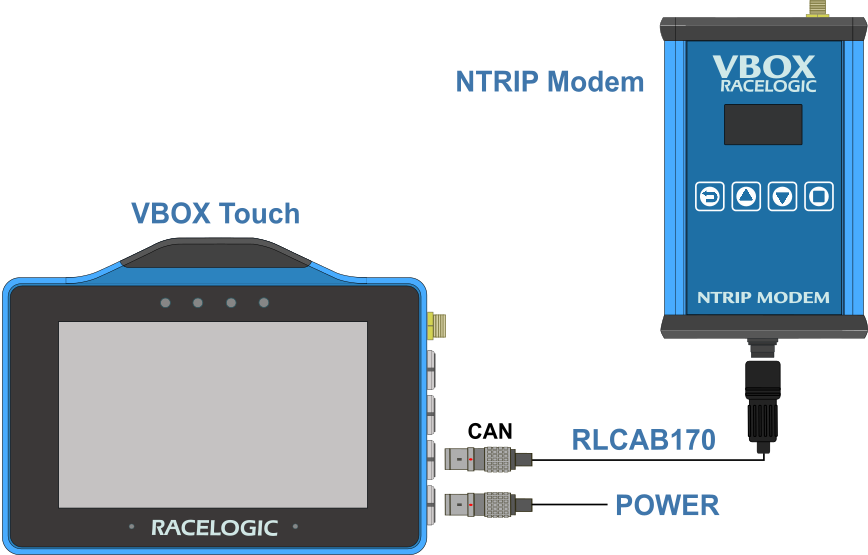
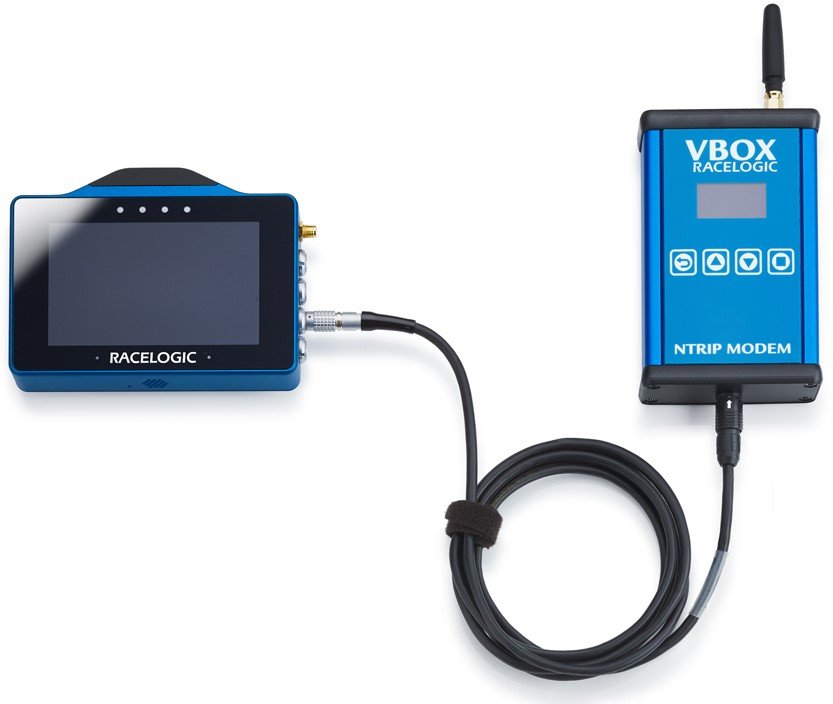
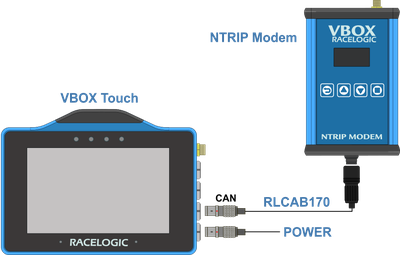
- Connect the Hirose end of the RLCAB170 to the Hirose connector at the bottom of the NTRIP modem.
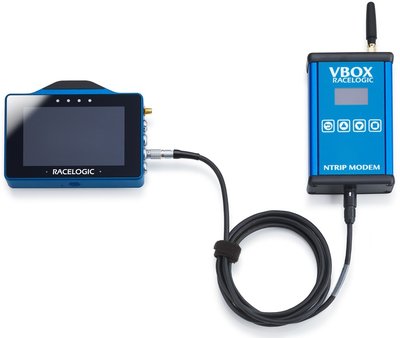
- Connect the other end of the RLCAB170 cable to the bottom CAN/Serial port of the VBOX Touch RTK.
This cable provides power to the modem from the VBOX Touch unit.
IMPORTANT
The external antenna must be connected your VBOX Touch unit, or select the internal antenna, before the unit can receive NTRIP RTK corrections.
Enable NTRIP on your VBOX Touch
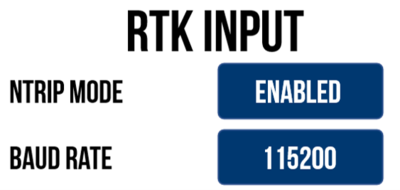
VBOX Touch must have the NTRIP Mode enabled before it can receive and use the DGNSS correction information transmitted by the Network RTK Service Provider.
- Apply power to the unit and then go to the Settings menu by selecting the Settings button on the bottom left of the screen.
- Press the Serial Port settings button.
- Under RTK Input, enable NTRIP Mode and make sure that the DGPS Baud Rate is 115200.
NOTE
You can also change the 3rd tracked constellation (Beidou or Glonass) in the GNSS Selection on the General Settings screen. You can find more information on this here.

Configuration
At this point, your NTRIP Modem is ready to be configured. You can either use the internal modem alongside your own SIM Card or you can use a Wi-Fi hotspot connection.
Antenna
Attach the supplied antenna (ANTMSTUBSMAM) to the SMA connector on the top of the unit.
SIM Card
The NTRIP Modem can either use the internal 4G modem via a Standard SIM card or a Wi-Fi connection to acquire the NTRIP correction messages from the server. If you want to use the internal 4G modem, you must use your own Standard data SIM card.
Insert the SIM card into the slot at the top of the unit.
The logo on the SIM card must face the front of the modem and the end with the cut corner must be inserted first.
The NTRIP Modem can either use the internal 4G modem via a Standard SIM card or a Wi-Fi connection to acquire the NTRIP correction messages from the server. If you want to use the internal 4G modem, you must use your own Standard data SIM card.
Insert the SIM card into the slot at the top of the unit.
The logo on the SIM card must face the front of the modem and the end with the cut corner must be inserted first.
NOTE
Make sure that the SIM card has been activated before you insert it into the modem. The easiest way to activate it is to put it into a USB 4G dongle and go through the steps to activate it on a computer before you insert it into the modem.
IMPORTANT
If the SIM card can be broken down into a Micro/Nano SIM, make sure that it is stable when you insert it into the modem as the Micro/Nano SIM could become detached from the card inside the modem.
Connection and Power
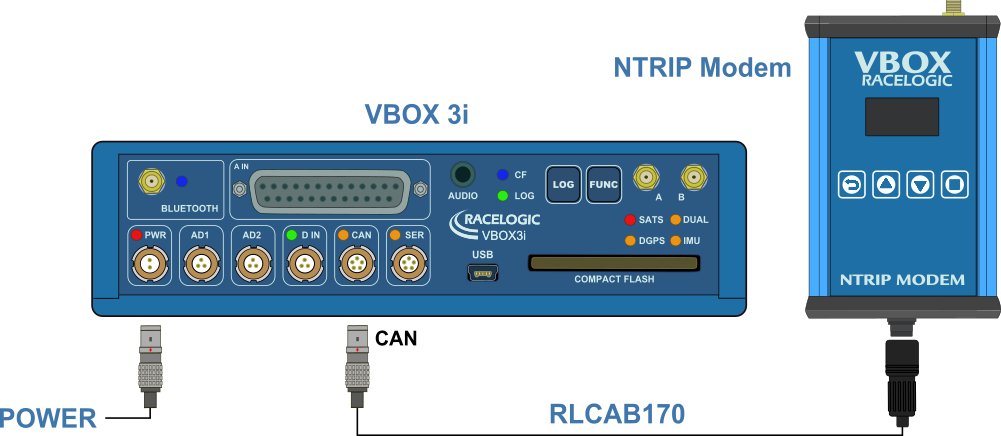
- Connect the Hirose end of the RLCAB170 to the Hirose connector at the bottom of the NTRIP modem.
- Connect the other end of the RLCAB170 cable to the CAN port of the VBOX 3i RTK.
This cable provides power to the modem from the VBOX unit.
NOTE
You can use a CAN Splitter RLVBACS024 or CAN Hub to facilitate the connection of the NTRIP Modem and VBOX Manager at the same time if necessary.
Enable NTRIP on your VBOX 3i RTK
VBOX 3i RTK must have the correct DGPS mode enabled in VBOX Setup or VBOX Manager before it is capable of receiving and using the DGPS correction information transmitted by the Network RTK Service Provider.
VBOX Setup
- Run the latest VBOX Setup software.
- Go to the GPS menu on the left-hand side of the screen.
- Tick the Enable NTRIP box in the DGPS / RTK section.
- Make sure that the RS232 baud rate is set to 115200 - Racelogic.
- Select Write to unit.
VBOX Manager
- Connect VBOX Manager.
- Enter SETUP menu and go to VBOX.
- Enter DGPS Mode and select NTRIP from the available options.
- Select Back.
- Enter DGPS Rate and select 115200.
- Exit out of the Setup Menu.
Configuration
At this point, your NTRIP Modem is ready to be configured. You can use the internal modem alongside your own SIM Card or a Wi-Fi hotspot connection.