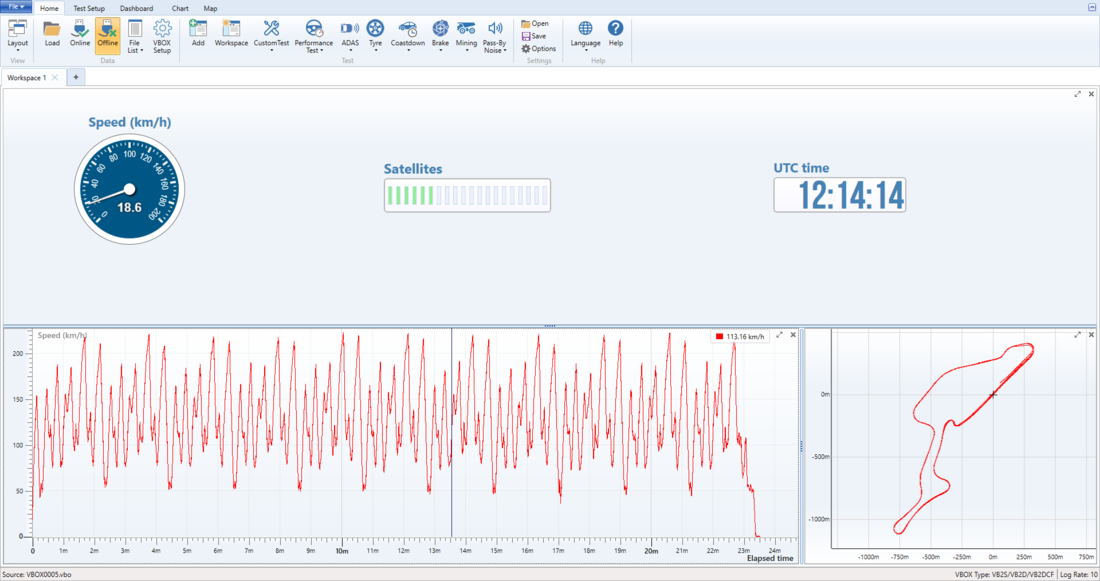
Use the VBOX Test Suite software to view live and recorded VBOX data.
Connect VBOX Touch directly to a computer that is running VBOX Test Suite, to view live data and perform tests.
Load recorded test files into VBOX Test Suite to review and analyse test data after the test(s) have been completed.
- VBOX Touch unit.
- Computer with VBOX Test Suite installed.
- RLCAB001 cable (VBOX to Serial).
NOTE
The latest version of VBOX Test Suite is available to download from the VBOX Automotive Website.
Follow the steps below to connect VBOX Touch to VBOX Test Suite:
- Connect the Lemo connector on RLCAB001 to the top CAN/Serial port on the VBOX Touch.
- Connect the 9-way D-type connector on RLCAB001 to the computer's serial port (you may need a USB-serial adapter).
- Make sure that the SD card is inserted into your VBOX Touch and connect the power cable to the unit.
- Tap the Settings button in the bottom left of the VBOX Touch screen and select Serial Port to open the Serial Port Settings.
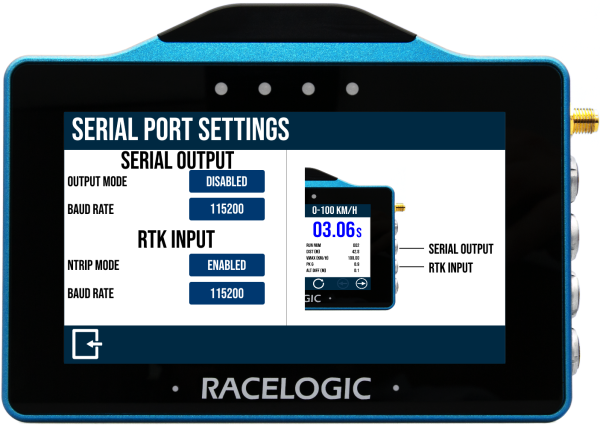
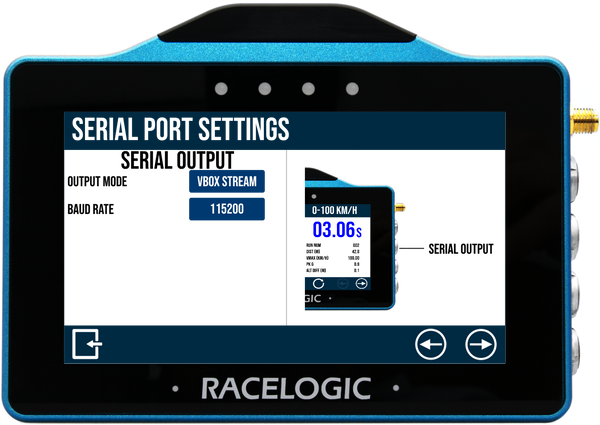
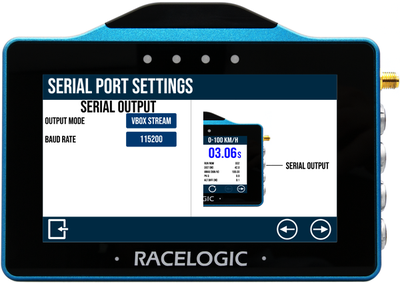
- Select VBOX Stream as the Output Mode in the Serial Output section by tapping the button to cycle through the available options.
- Open the VBOX Test Suite software on the computer.
- Open the Home tab, and click the Online button.
- Select the relevant COM port for your VBOX Touch from the drop-down menu.
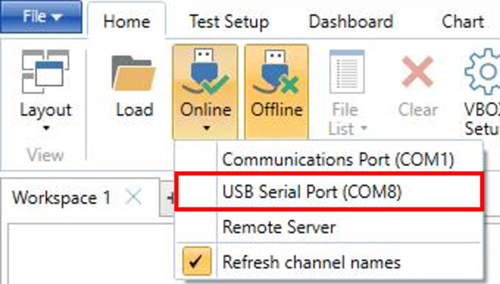
The software will connect to the VBOX Touch unit.
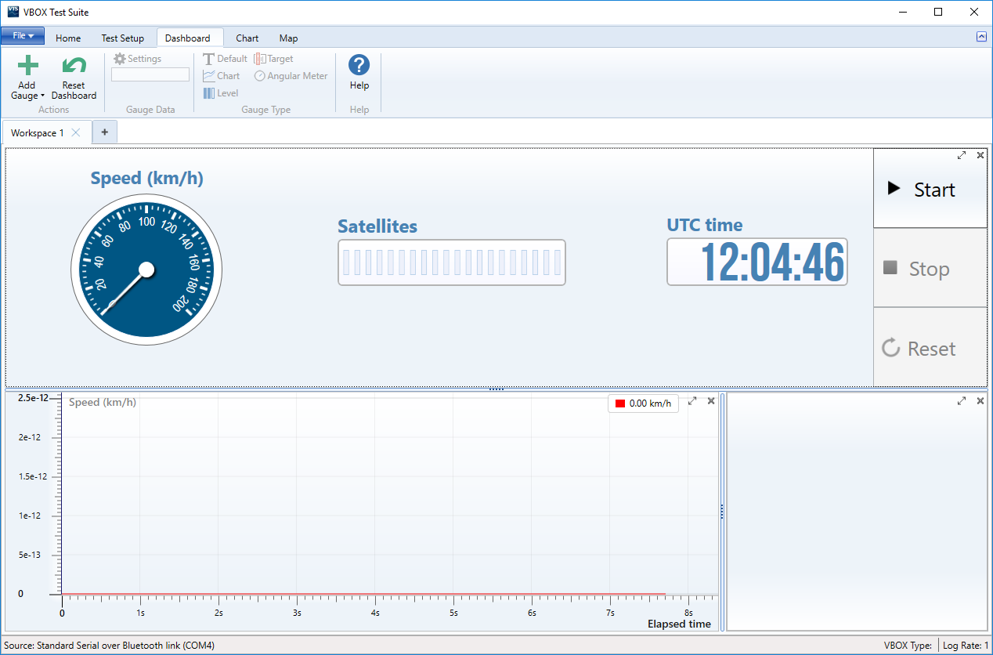
When the connection has been established, the dashboard gauges will automatically start to display the data that is sent live over the serial stream.
NOTE
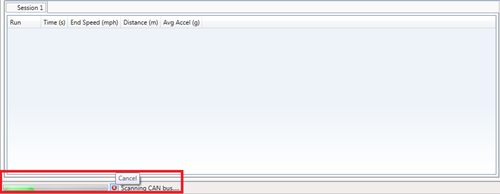
If needed, you can cancel the COM port connection before the software has fully opened the online communications, by clicking the X button in the left corner of the bottom of the software window, as illustrated below.#
Running Tests in VBOX Test Suite
Start, Stop and Reset buttons will appear on the dashboard. Use these buttons to start, stop and reset open tests.
When in Online mode, a newly-created session will be populated with session data from the previous session (if entered).
Lost Connection
If the connection between VBOX Touch and VBOX Test Suite is lost, Test Suite will display a Disconnected message. Click the Try Reconnect option if you want to reestablish the connection.
Refer to the User Guide for VBOX Test Suite for more information on viewing live data and performing tests in the software.
Save live VBOX data as a .vbo, .vbb or .csv file after completing a test.
Save Manually
- Click File → Save As.
- If you have multiple sessions, select the required session from the Session to save dropdown list.
- Select the channels you want to include in the file and click OK.
- Enter a name for the file and select the save location on the local PC.
Auto Save
When auto save has been enabled, VBOX Test Suite will automatically save a .vbo file when you stop an online test.
- Click Home → Settings → Options.
- Tick the Auto save file when online session stops option.
- Enter a file name prefix and select the output folder for the saved files.
The saved files will contain all data recorded between clicking the Start button and clicking the Stop button.
The first file name will include the suffix 000. The suffix on following files will increase by one based on the highest number in the existing file names in the output folder.
If you do not need to conduct live testing, a recorded session will be saved on the SD card as a .vbo file, which you can load into VBOX Test Suite to analyse later.
If a loaded does not contain a valid satellite fix at the start of the file, the VBOX Test Suite will temporarily hide the first 20 seconds of the file to avoid a potentially large time while the GNSS engine established the correct time.
Refer to the VBOX Test Suite User Guide for more information about reviewing and analysing VBOX test files.