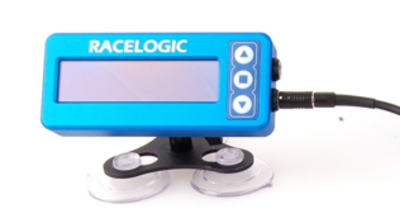
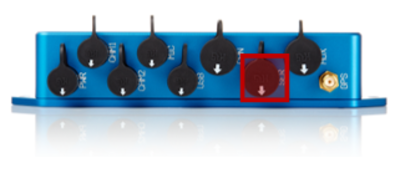
When setting up the DSP04 OLED display with a Video VBOX, it is important to connect to the correct port of the OLED display. The OLED display only has a serial connection on the lower connector, with the buttons on the right hand side - as shown in this picture.
The configuration is indicated on a label on the rear of the OLED display.
When setting up the DSP04 OLED display with a Video VBOX, it is important to connect to the correct port of the OLED display. The OLED display only has a serial connection on the lower connector, with the buttons on the right hand side - as shown in this picture.
The configuration is indicated on a label on the rear of the OLED display.
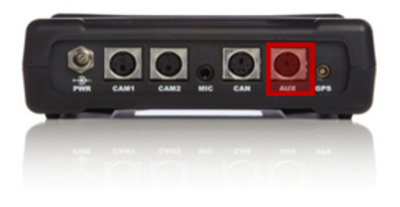
To connect to a Video VBOX Lite, you should connect the cable into the ‘AUX’ port.
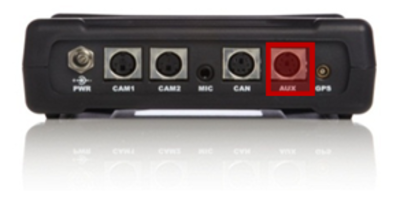
To connect to a Video VBOX Lite, you should connect the cable into the ‘AUX’ port.
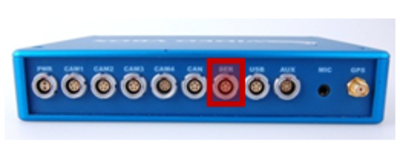
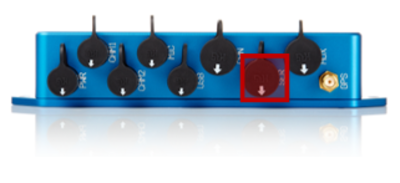
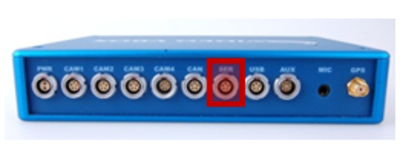
To connect to a Video VBOX Pro or Waterproof, you should connect the cable into the ‘SER’ port.
If an Auto Track Map element has been added to the scene currently loaded in the Video VBOX, the OLED can be used to specify which track layout to display.
Once a GPS location is detected, the VideoVBOX will display a circuit layout for that location –
e.g. If Silverstone location detected, Silverstone GP, National and International layouts will be displayed.
Click here for more info on setting up and using auto map elements.
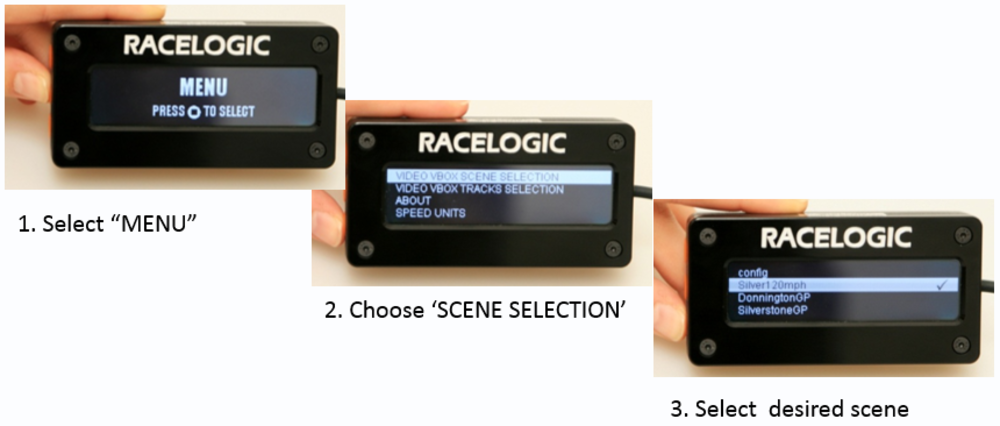
The Video VBOX can store up to eight scenes. They are loaded by placing all files in the root folder of an SD card and inserting them into a VVB. The user can select the scene using an OLED display as shown below.
NOTES
- If the user tries to load more than eight scenes, the Video VBOX will reject all the scene files and write an error message to the SD card.
- Scene selections cannot be added to with single scene files. The whole group of scenes must be loaded at a single time.
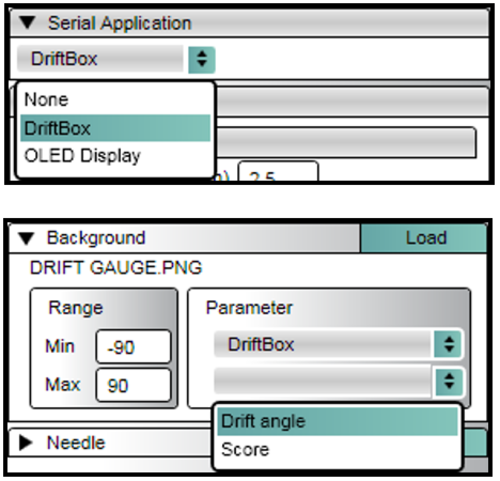
By default, the Video VBOX is setup to communicate with the OLED display via the Serial Port. You can change this to work with the DriftBox using this option.
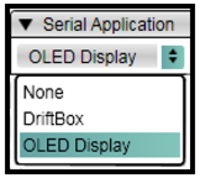
By default, the Video VBOX is setup to communicate with the OLED display via the Serial Port. You can change this to work with the DriftBox using this option.
The Video VBOX does not produce Drift Angle or Score, you must have a Racelogic DriftBox.
There are specific conditions which need to be met in order for this to work properly.
A RLCAB045 (Pro) or RLCAB098 (Lite) serial-to LEMO cable must be used to connect the Video VBOX and DriftBox together.
Note: If connecting to VVB Lite, the RLCAB098 must be connected: 5 PIN end in AUX on VVB and 6 PIN end in AUX on DB unit.
The DriftBox must have sectors NOT ticked and must be set in drift telemetry coms mode.
The DriftBox unit must have satellite lock - and also must have a speed value.
The VVB Lite must have DriftBox set under serial application, and must also have an element assigned to show drift angle/score.
To select either Drift Angle or Score for use as an Element data source, follow the steps below.
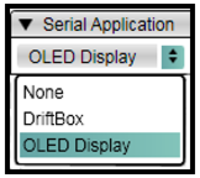
- First select DriftBox in the Serial Application dropdown under Scene properties
- Select the relevant element in the scene
- In the Parameter Selection dropdown select DriftBox
- Select Angle or Score