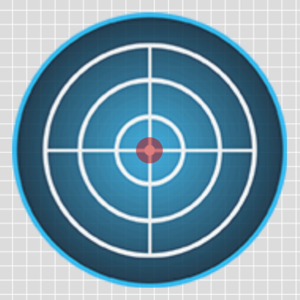
VBOX Video HD2 software comes supplied with a library of g-ball elements. The user also has the option to create their own G-Ball using PNG, JPEG or BMP image files.
Open the image library by clicking the ‘G-Ball’ icon from the top panel buttons menu.

A G-Ball library will then appear in the settings panel to the right. Clicking on a chosen G-Ball will load it into the scene. Once a G-Ball has been added to the scene, it can be clicked and dragged to the desired location.
NOTE
Hovering over any of the G-Ball thumbnails will cause a larger preview of the image to appear.
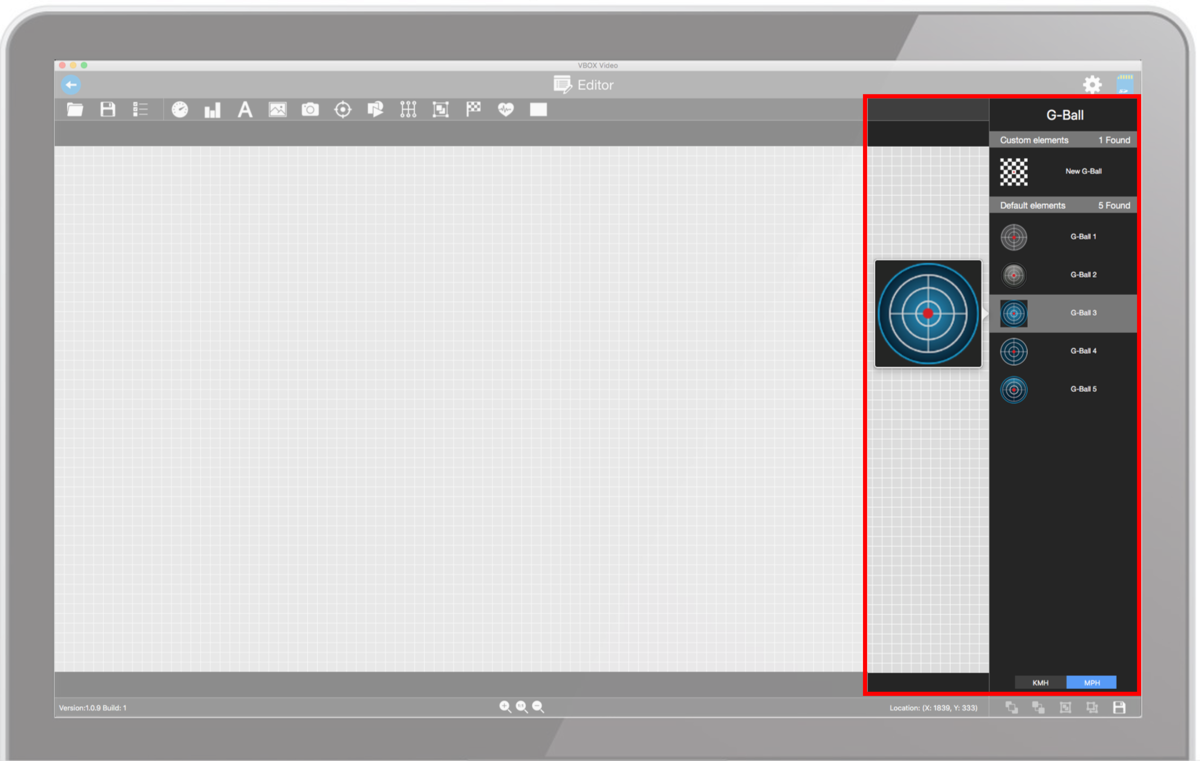
You can toggle between G-Balls using mph or km/h units by using the buttons at the bottom of the library.

G-Balls within the library will have pre-defined settings.
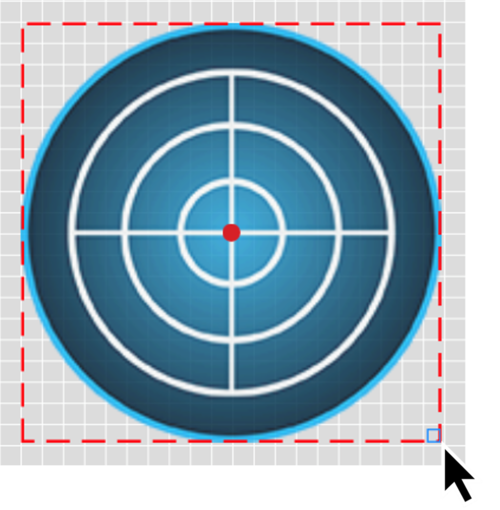
The G-Ball element can be resized using the icon in the bottom right hand corner.
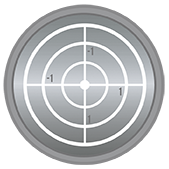
When creating a new G-Ball element, an image can be used for the G-Ball background. A recommended size for a G-Ball image is 170 x 170 pixels – however, do note that images can be resized within HD2 software. A G-Ball marker image can also be uploaded, although a default marker is provided.
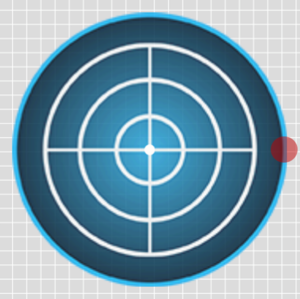
Example images are shown below:

Open the G-Ball library by clicking the ‘G-Ball’ icon from the top panel buttons menu.
Within the G-Ball library, selecting the 'New G-Ball' option will add a new G-Ball element to the scene.
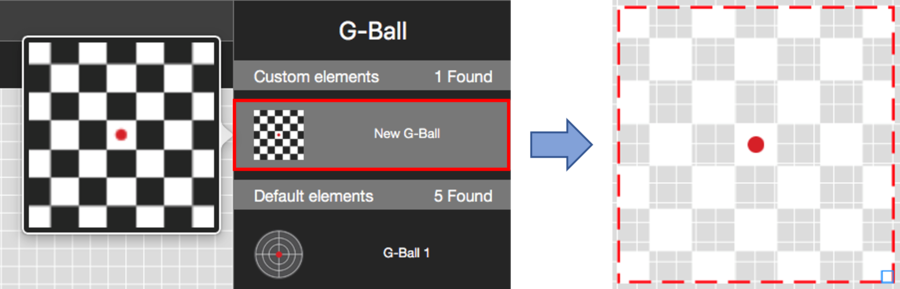
To upload background and marker images use the search icon buttons within the background and marker settings area.
When a G-Ball is selected, its settings are shown in the right-hand panel.
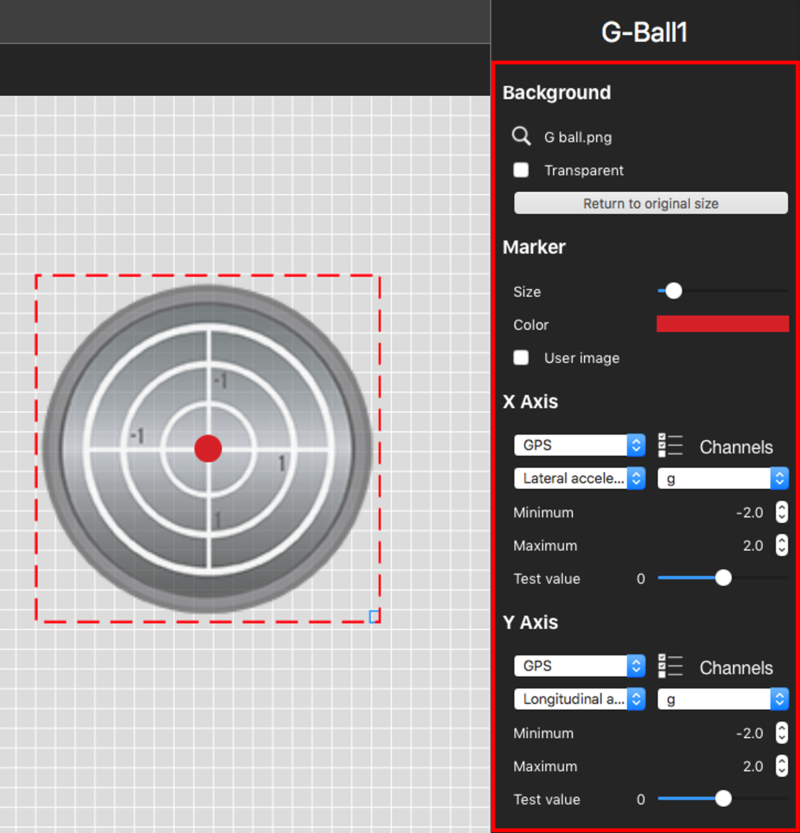
If you are creating a new G-Ball rather than using one from the G-Ball library, or wanting to change the image, the background can be set by clicking on the search icon.
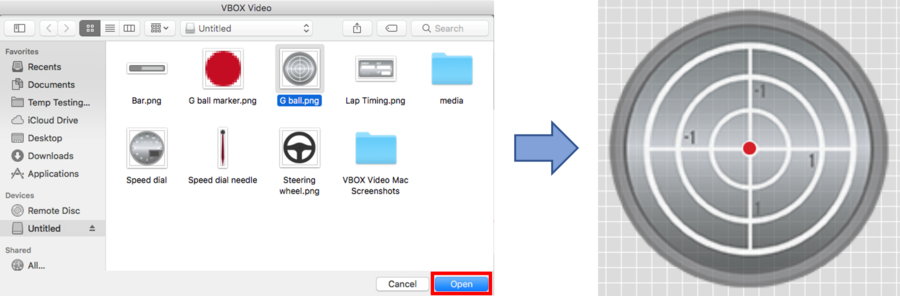
G-Ball backgrounds can be made transparent by ticking the ‘Transparent’ option within the G-Ball background area.
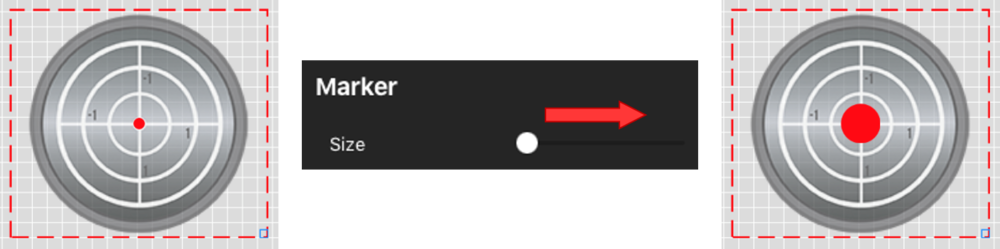
The size of the G-Ball marker can be adjusted using the size slider.
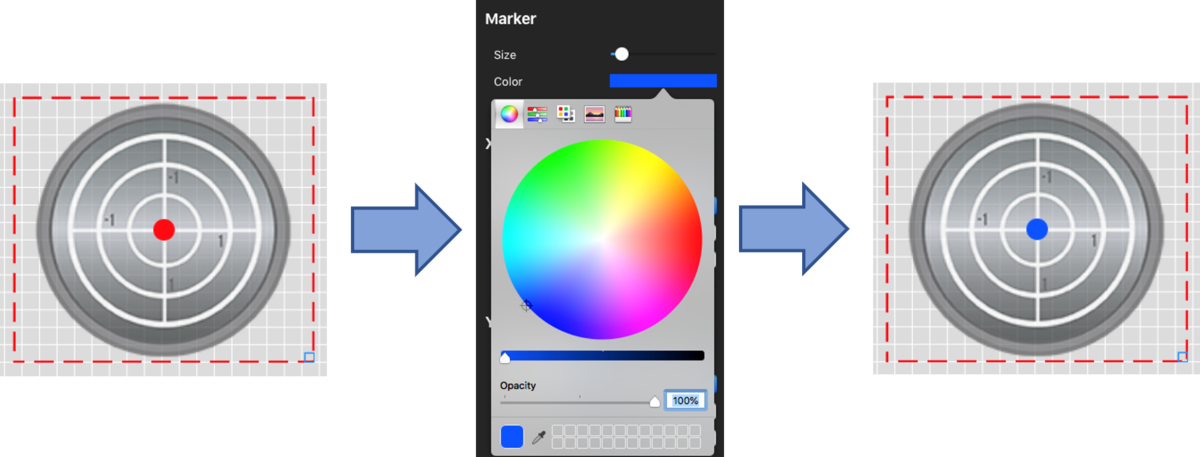
All G-Ball elements from the library include a red marker image. To change the colour, select the existing colour and choose from the colour wheel. The opacity of the colour can also be changed here.
To set a specific RGB value, click on ‘Color sliders’.
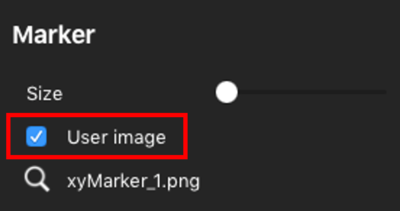
Custom user images can be loaded by ticking the ‘User image’ box and then clicking on the search icon.
Although the standard use of G-Ball elements is to show lateral and longitudinal acceleration, the X and Y data set to display on the G-Ball can be changed using the two drop down menus within the 'Axis' sections.
The first drop down menu defines the source. Select either GPS, CAN or OBD.
NOTE
CAN and OBD options will only appear if they have been set up by the user.
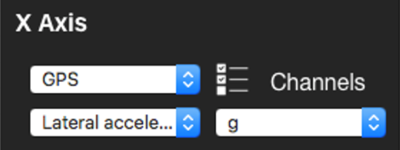
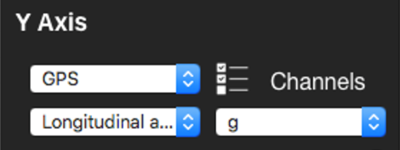
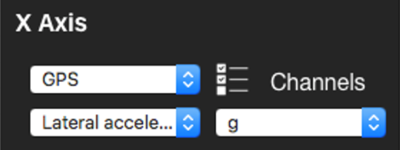
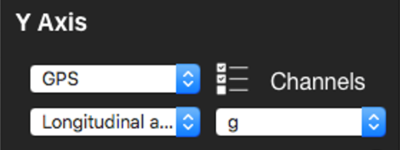
The second drop-down list defines the channel to be shown. In the example above, GPS Speed is set to display in km/h.
Selecting the Channel Settings button opens up a Channel Settings window where you can configure CAN and OBD channels.
A number of GPS parameters are available to choose from, such as the following:
- Satellites
- UTC time
- Latitude
- Longitude
- Speed
- Heading
- Height
- Longitudinal acceleration
- Lateral acceleration
- Combined acceleration
- Vertical speed
- Local time
- Day of month
- Month
- Year
- Distance since power-up
- Distance since stationary
- Time stationary
- Time moving
- Radius of turn
- Gradient (%)
- Solution type
More information on the parameters can be found here.
Within the parameter section, speed, acceleration or distance channels can be set to display in different units.
The options available are:
- Speed – km/h, mph, kts, m/s, ft/s
- Acceleration – g, m/s², ft/s²
- Distance – m, ft, km, mi, nmi
The values set here will define the minimum and maximum values to be shown on the G-Ball element.
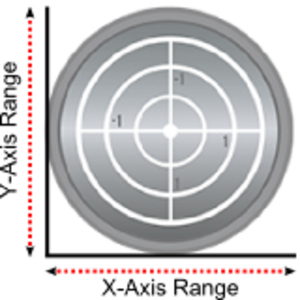
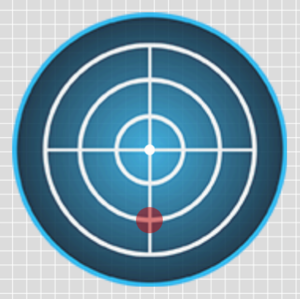
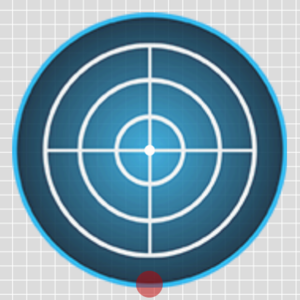
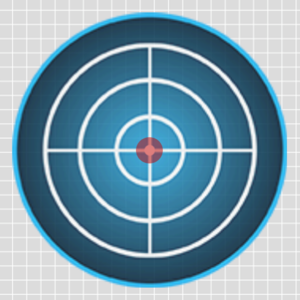
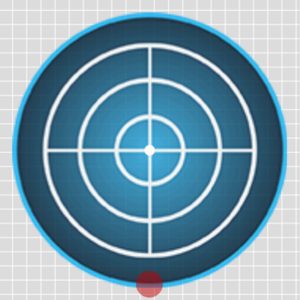
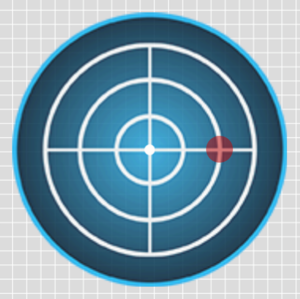
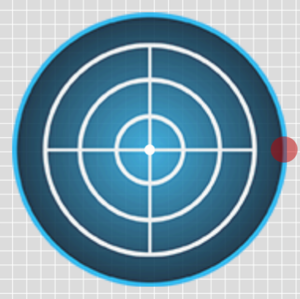
The default settings of library G-Balls is +/- 1.5 g in either direction. To test what will be shown on the G-Ball, adjust the enter ‘Test value’ slider.
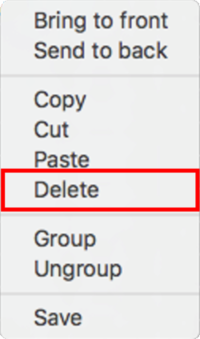
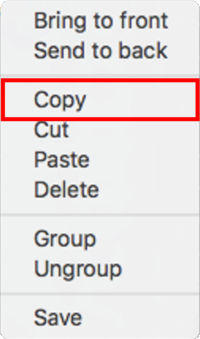
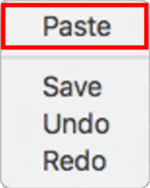
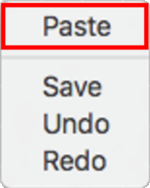
Elements and their associated settings can be duplicated within a scene by either right-clicking on the element, selecting 'Copy' from the dropdown then right-clicking in an empty area and selecting 'Paste' from the dropdown, or by using keyboard shortcuts 'Command + C' (Copy) and 'Command + V' (Paste).
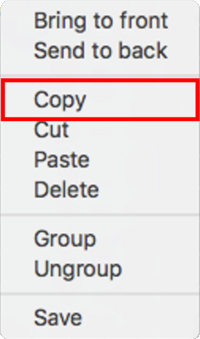
Elements can be removed from the scene in two ways; either by right-clicking on the element, selecting 'Delete' from the dropdown and confirming the prompt, or by pressing the 'Backspace' key on a keyboard, and again, confirming the prompt.