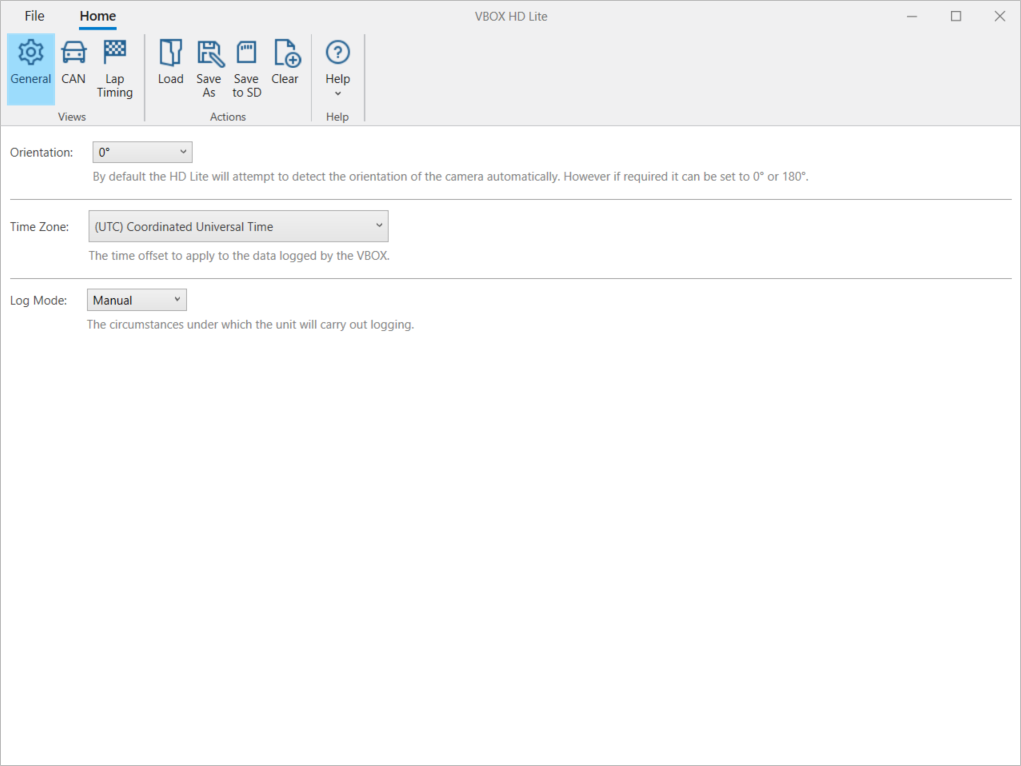
The VBOX HD Lite setup software will help you configure your VBOX HD Lite for your vehicle and event.
When you open the software, it will open the Home tab by default. You will see a toolbar with three menus; General, CAN, and Lap Timing, as well as load and save buttons, a button to clear all configurations and a Help button. The General menu will also be opened by default.
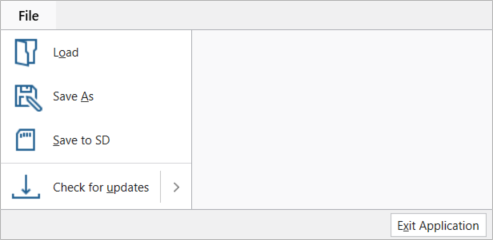
The file menu has the following options:
- Load
- Save As
- Save to SD
- Check for updates
These options have the same functionality as the equivalent buttons on the toolbar, where applicable. See below for the full description of each.
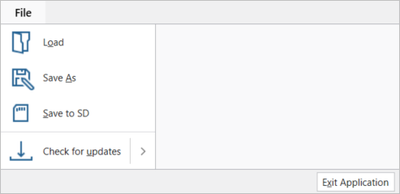
The file menu has the following options:
- Load
- Save As
- Save to SD
- Check for updates
These options have the same functionality as the equivalent buttons on the toolbar, where applicable. See below for the full description of each.
Click Check for updates to run a check to see if there are any available updates.
Click Automatic updates to the feature off or on. This is enabled by default.
When this is enabled, the software updates automatically when Racelogic releases new versions.
The update will include an update of the main application, the vehicle CAN database and the circuit database.
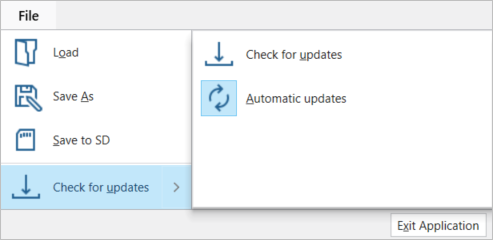
Click Check for updates to run a check to see if there are any available updates.
Click Automatic updates to the feature off or on. This is enabled by default.
When this is enabled, the software updates automatically when Racelogic releases new versions.
The update will include an update of the main application, the vehicle CAN database and the circuit database.
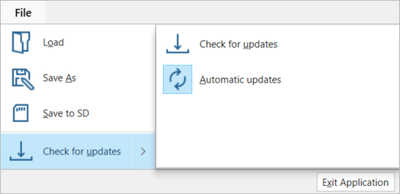
Clicking on the Load button will open a File Explorer pop-up. Navigate to the location of the config file (RLC file) you wish to load and select to open it. The settings in the RLC file will be populated in the VBOX HD Lite setup software.
Clicking on the Save As button will launch a File Explorer pop-up. Navigate to the location on your device in which you want to save a config file (RLC) of the current configuration. Give your config file a name and click Save.
NOTE
The name of the config file cannot have more than 20 characters. If the file has more than 20 characters, the HD Lite unit will not be able to load the file.
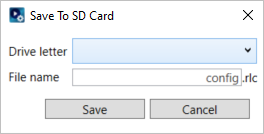
Clicking the Save to SD button will open an pop-up window in the software in which you can navigate to the applicable SD card that you want to save the file to and name your config file.
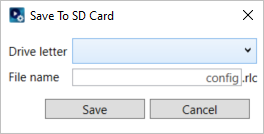
Clicking the Save to SD button will open an pop-up window in the software in which you can navigate to the applicable SD card that you want to save the file to and name your config file.
NOTE
The name of the config file cannot have more than 20 characters. If the file has more than 20 characters, the HD Lite unit will not be able to load the file.
Clicking the Clear button will reset all options and settings to their default values
Click Yes to confirm the reset or click No to close the pop-up without resetting.
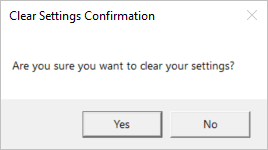
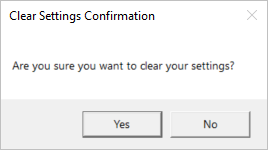
Clicking the Clear button will reset all options and settings to their default values
Click Yes to confirm the reset or click No to close the pop-up without resetting.
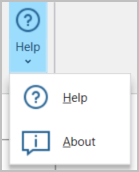
Help
Clicking the Help option will launch a browser window with the user guide for VBOX HD Lite.
About
Clicking the About option will launch a pop-up window with information about the current versions of the HD Lite setup software, the Vehicle CAN Database and the Circuit Database.
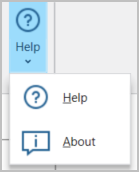
Help
Clicking the Help option will launch a browser window with the user guide for VBOX HD Lite.
About
Clicking the About option will launch a pop-up window with information about the current versions of the HD Lite setup software, the Vehicle CAN Database and the Circuit Database.