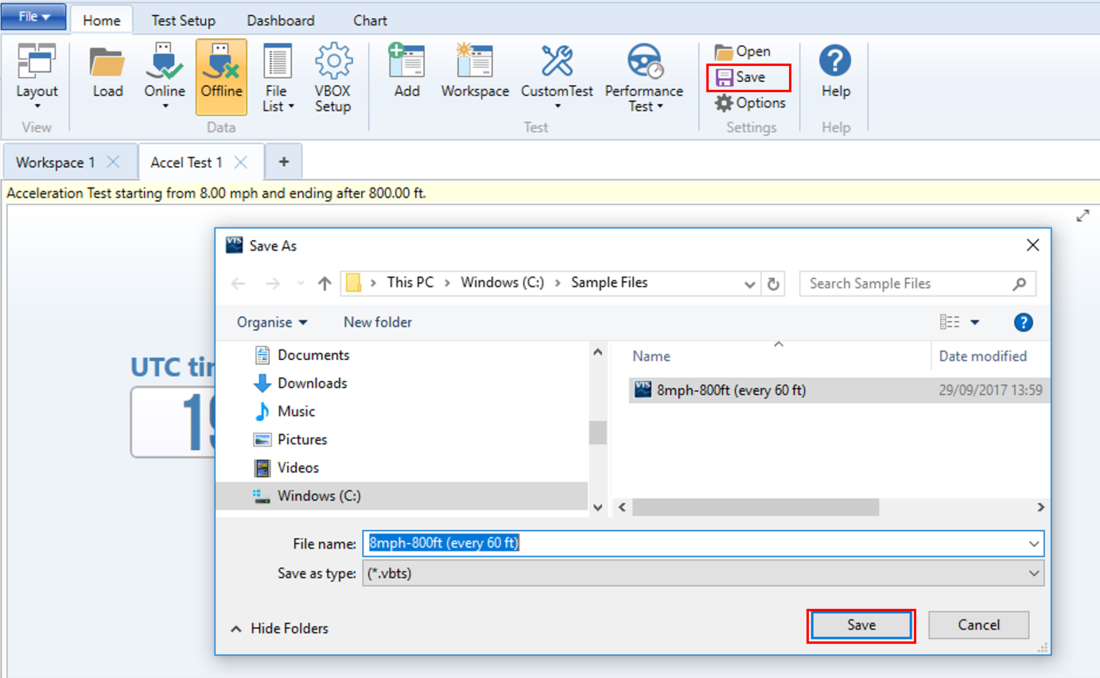
Once the conditions of a test have been defined within the Configure dialogue in VBOX Test Suite, you can save the test setup for future use. This means that previously defined tests can be ready to run at the click of a button.
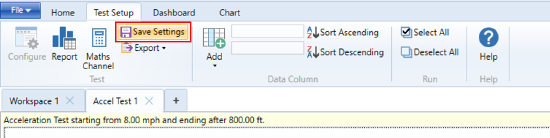
There are two ways to save a test configuration.
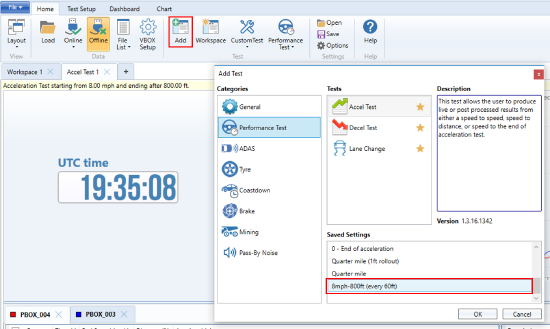
This option saves the setup in VBOX Test Suite. After launching the software, locate the test in the Add Test section and click it to open the test with all saved settings applied.
Save a VBOX Test Suite settings file (.vbts) to your local PC and launch it from your desktop.
- Click Home → Save and navigate to your Desktop in File Explorer.
- Give the file a recognisable name.
- Click Save.
- Double-click the file on your Desktop to open the configured test plugin in VBOX Test Suite next time you want to use it.