
This page contains an introduction and overview of the Racelogic VBOX Pit Lane Timers and what you need to know before you start using one to:
- Avoid pit stop penalties
- Get prompts when to leave the pit box
- Receive warnings before crossing the line too early
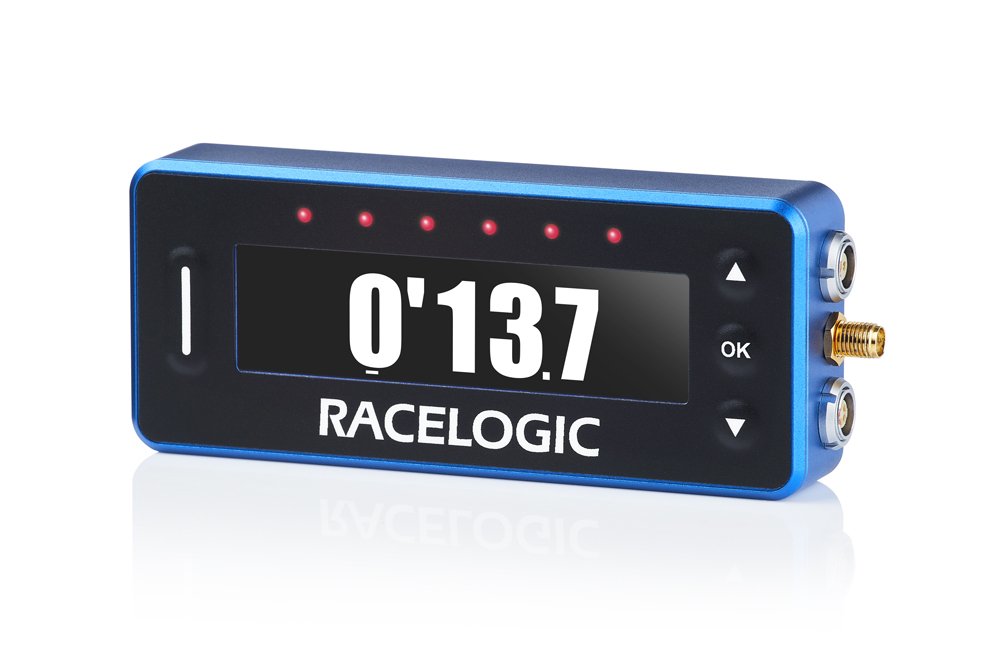
This page contains an introduction and overview of the Racelogic VBOX Pit Lane Timers and what you need to know before you start using one to:
- Avoid pit stop penalties
- Get prompts when to leave the pit box
- Receive warnings before crossing the line too early
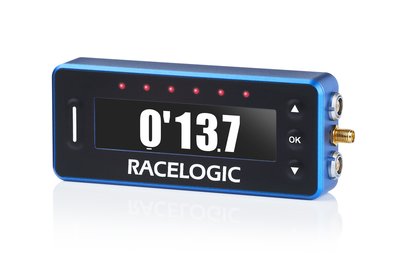
Register your Racelogic product so that we can provide you with notifications about the latest software and firmware releases, and offer technical support.
When you purchase a VBOX Pit Lane Timer (RLVBPIT-S or RLVBPIT-R), you will find the following items when you open the box:
| Product Code | Description |
|---|---|
| RLVBPITDSP | OLED Pit Display |
Refer to the Using with OLED Pit Display page for more information about required connections and configurations when using it with a VBOX Pit Lane Timer.
Connect the GNSS antenna to the unit and place it with a clear view of the sky. Avoid placing the antenna under metal surfaces, as this can significantly reduce signal quality.
You can find more information about best practices in the GNSS Antenna Placement article.
VBOX Pit Lane Timers can record to MMC, SD, SDHC and SDXC media cards that are formatted in a FAT or FAT32 format.
SDXC cards will be formatted as exFAT by default, which is not a format type that is supported by VBOX Pit Lane Timer units. You can still use an SDXC card, but you will have to reformat it to FAT32.
SDXC cards and cards that are bigger than 32 GB cannot be formatted to FAT32 using Windows standard formatting. There are various free third-party applications available online to format these cards, we recommend This Tool as a free option from the SD card organisation.
NOTE
Many newer 64 GB and larger SDXC cards are now formatted to exFAT during manufacture and some third-party programs, such as GUI format, will display an error message when you try to format these cards to FAT32.
If you see this message, you can work around it by using Windows Explorer to format the card to NTFS. You can then use GUI format to change the formatting from NTFS to FAT32.
This issue only affects brand-new cards that have not previously been formatted.

If the SD card in the unit has less than 10 MB of space remaining, the unit will periodically display a flashing warning symbol that indicates the amount of memory remaining.

If the SD card in the unit has less than 10 MB of space remaining, the unit will periodically display a flashing warning symbol that indicates the amount of memory remaining.
Any suitable 12 V supply powers the Pit Lane Timer.
You must wire the unterminated end of the RLCAB014LE cable directly to a compatible power supply or to a connector that you can use with a compatible power supply.
The power port is the top Lemo port on the unit.
The unit will automatically power on when connected to power.
The LEDs will turn on, light up in white and sweep through the LED array to indicate that the unit is powered and initialising.
On start-up, the unit:
- Searches for satellites
- Detects the SD card
- Prepares for logging

Up Arrow
The function of this button is to navigate down through menu options and settings.

Up Arrow
The function of this button is to navigate down through menu options and settings.

Down Arrow
The function of this button is to navigate up through menu options and settings.

Down Arrow
The function of this button is to navigate up through menu options and settings.

OK
The function of this button is to select options and settings.

OK
The function of this button is to select options and settings.

Shortcut Button
The function of this button is to act as a shortcut to exit the settings and go back to the display modes.
It is also a shortcut to the relevant settings from the display modes.
For example, if you are in the Pit Timing display mode, you can press the Shortcut button to go to the Pit Lane Timing menu in the settings.

Shortcut Button
The function of this button is to act as a shortcut to exit the settings and go back to the display modes.
It is also a shortcut to the relevant settings from the display modes.
For example, if you are in the Pit Timing display mode, you can press the Shortcut button to go to the Pit Lane Timing menu in the settings.