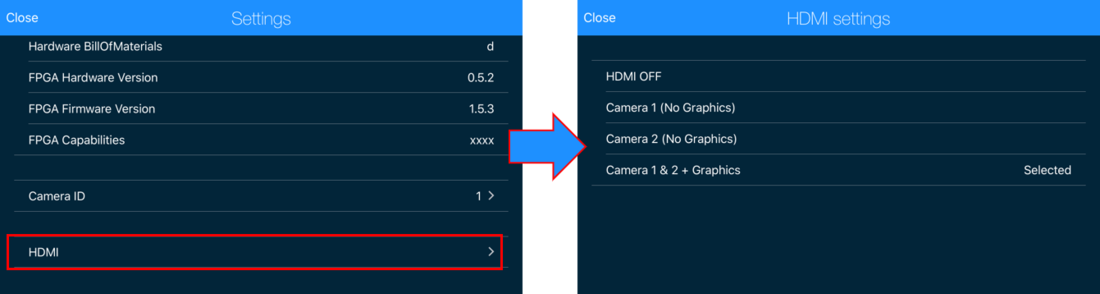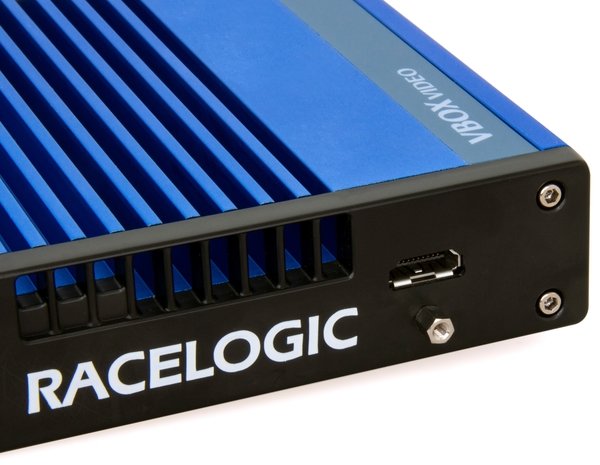
VBOX Video HD2 is available with an HDMI video/audio output, located on the side of the unit, which allows users to stream real-time video from the HD2 to an HDMI compatible monitor, recorder or streaming device.
VBOX Video HDMI can be used to give live coverage of motorsport events for TV or social media, provide race teams with the ability to give instant driver feedback, or act as a rear-view camera.
The system (RLVBVDHD2-H) comes with an HDMI port and locking pin to make sure the provided cable (RLCAB141) has a secure connection.
VBOX Video HDMI will only run with the latest version of HD2 firmware (1.3.76 and higher) and setup software (1.4.259 and higher).
To output video via the HDMI port, the setting must be enabled within VBOX Video Setup Software or the VBOX Video App.
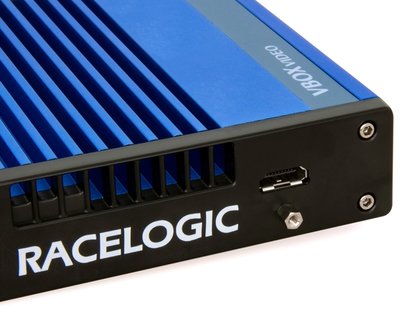
VBOX Video HD2 is available with an HDMI video/audio output, located on the side of the unit, which allows users to stream real-time video from the HD2 to an HDMI compatible monitor, recorder or streaming device.
VBOX Video HDMI can be used to give live coverage of motorsport events for TV or social media, provide race teams with the ability to give instant driver feedback, or act as a rear-view camera.
The system (RLVBVDHD2-H) comes with an HDMI port and locking pin to make sure the provided cable (RLCAB141) has a secure connection.
VBOX Video HDMI will only run with the latest version of HD2 firmware (1.3.76 and higher) and setup software (1.4.259 and higher).
To output video via the HDMI port, the setting must be enabled within VBOX Video Setup Software or the VBOX Video App.
If you are connecting to an HDMI compatible monitor, it must be able to support an input timing of 1920 x 1080, 30 Hz to display the video stream. HDMI specification information is available here.
The HDMI video output settings are accessible within the VBOX Video Setup Software via the Settings button at the top left of the screen.
This menu enables the VBOX Video HD2 HDMI variant to stream real time video and audio from the HD2 to an HDMI compatible monitor, recorder or streaming device.
NOTE
HDMI output is only available on VBOX Video HD2 units that are version 6 or later.
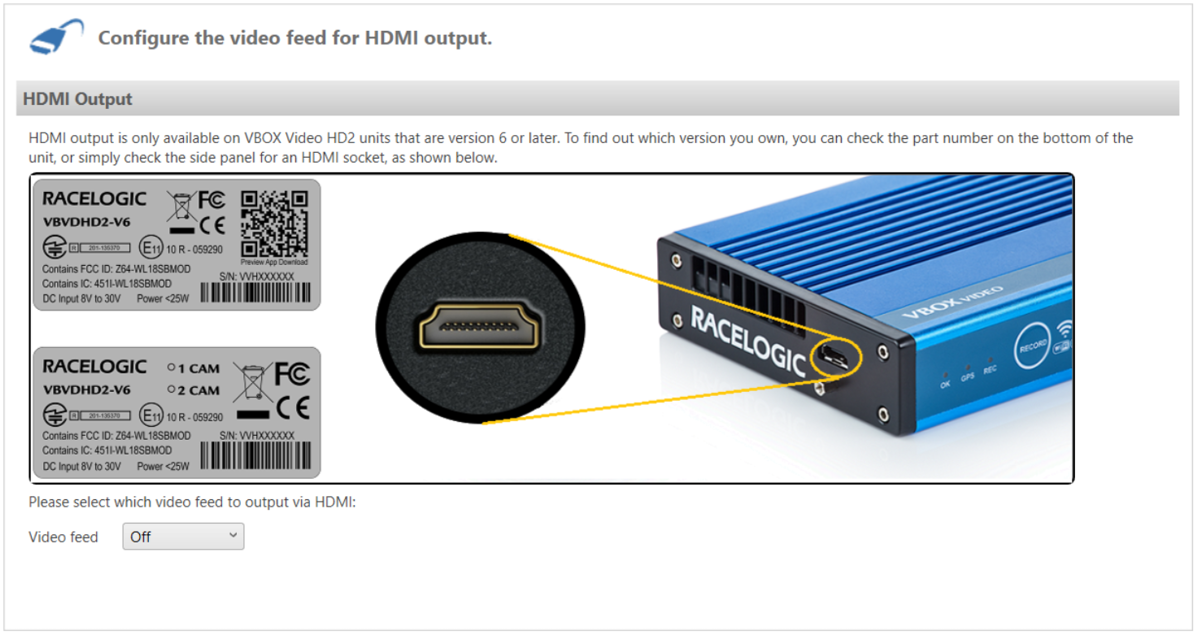
The dropdown menu at the bottom of the screen allows you to choose the video feed output for the connection:
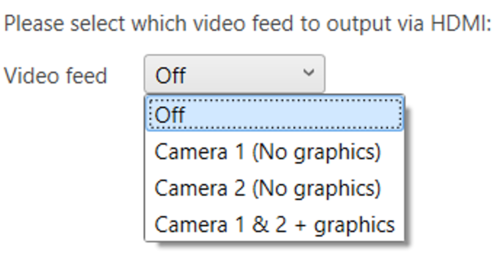
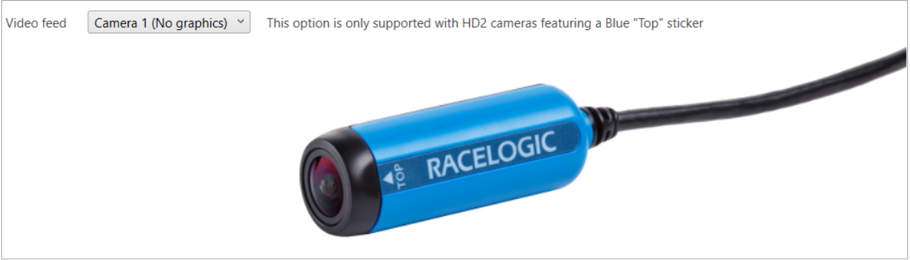
Output Camera 1 video feed without graphics.
NOTE
This option is only supported by HD2 cameras with the blue top sticker (RLACS222).
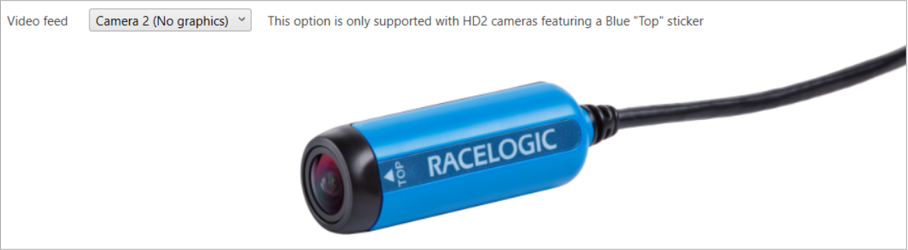
Output Camera 2 video feed without graphics.
NOTE
This option is only supported by HD2 cameras with the blue top sticker (RLACS222).
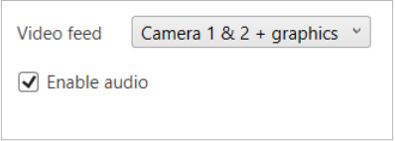
Output Camera 1 and 2 video feed with graphics.
Enable/disable the audio output by ticking/unticking the Enable audio box. This option will be enabled by default.
IMPORTANT
HDMI output is only available when frame rate is selected as 30 fps within the Video Settings.
The HDMI video output settings are accessible within the VBOX Video App via the Settings button at the top left of the screen.
This menu enables the VBOX Video HD2 v10 to stream real time video and audio from the HD2 to an HDMI compatible monitor, recorder or streaming device. Selecting enables you to choose to output from Camera 1 (without graphics), Camera 2 (without graphics) or Camera 1 and 2 (with graphics).