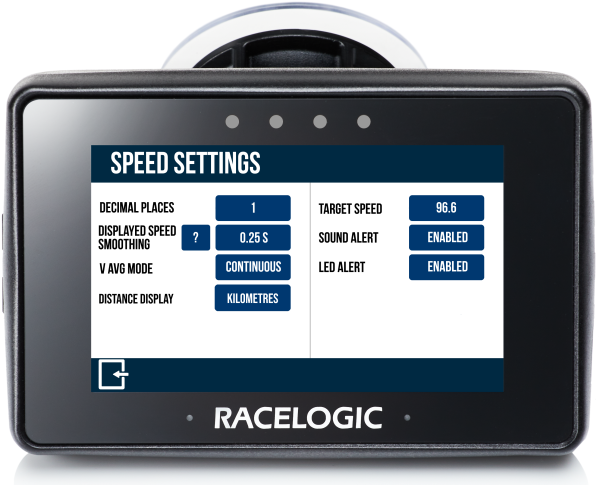
This page explains how to configure Performance Box Touch for use.
Configuration includes preparing the unit for different applications, adjusting system behaviour, and enabling additional functionality where required.
IMPORTANT
The functionality described on this page applies to the default Performance App.
Behaviour may differ if a different app is installed.
Access configuration settings via the touchscreen interface.
The majority of the configuration is performed in the active display mode using the on-screen settings menu.
Refer to the User Interface page for more information about how to access the different settings and what and where the available options are.
Before using the unit, make sure that the basic system configuration has been completed.
This typically includes:
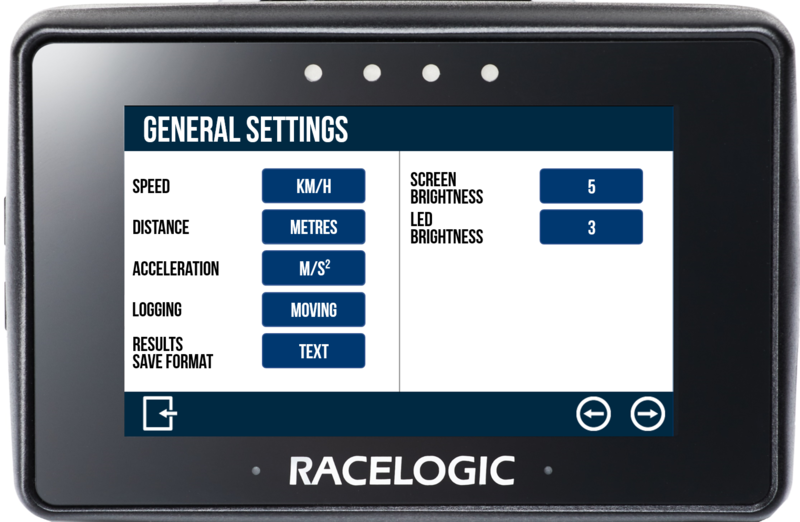
- Selecting preferred units (e.g. mph or km/h).
- Making sure that the screen and LED brightness levels are set as required.
- Confirming logging behaviour.
- Ensuring system settings match your application.
These settings are sufficient for standard acceleration, deceleration, lap timing and speed tests.
Once configured, the unit is ready for use with any display mode.
- Go to Settings → General.
- Change the required settings options by tapping on the respective buttons to cycle through the available options.
- Tap the Exit button to save the settings and exit the General Settings screen.
Each application requires configuration in its corresponding display mode.
Use the sections below to understand the type of configuration required before starting a test.
General Acceleration Test Configuration
Acceleration tests on Performance Box Touch require configuration before use.
Before starting a session:
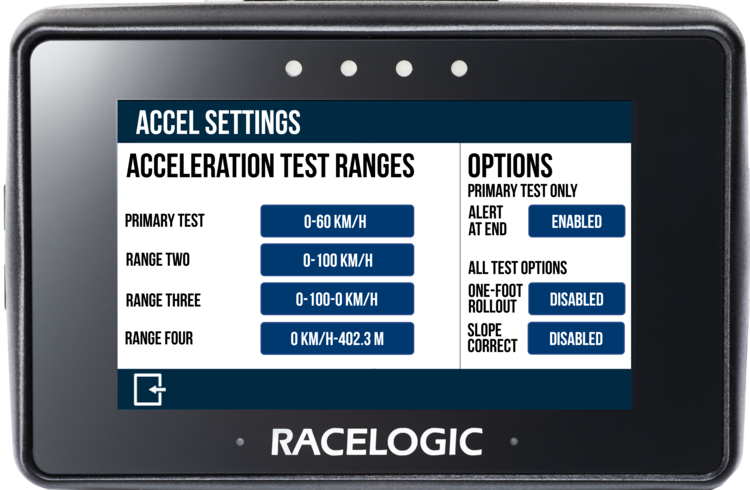
Open the Acceleration Settings and:
- Make sure that the required tests are selected.
- Confirm the correct start and end speeds are defined.
Additional Options
In addition to the General Configuration and the required settings described above, you can adjust the Acceleration Settings to suit your requirements by configuring:
- How results are displayed.
- If you want to be alerted when the test ends.
- If you want to use One-Foot Rollout or Slope Correct.
General Deceleration Test Configuration
Deceleration tests on Performance Box Touch require configuration before use.
Before starting a session:
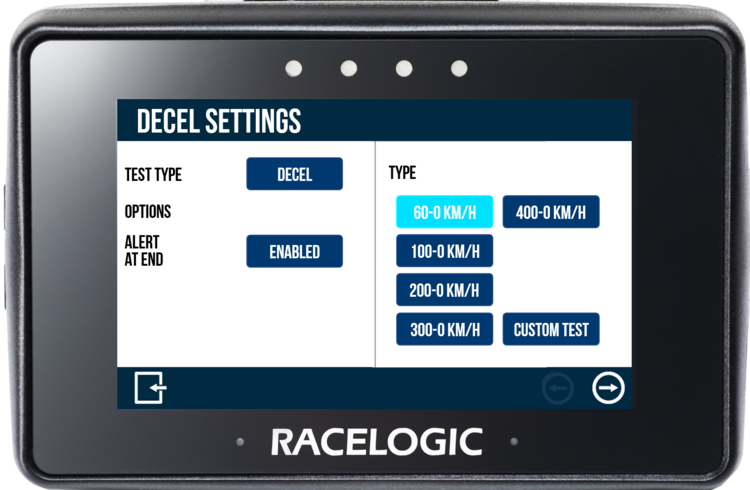
Open the Deceleration Settings and configure the test.
Additional Options
In addition to the General Configuration and the required settings described above, you can adjust the Decel Settings to suit your requirements by configuring:
- If you want to be alerted when the test ends.
General Lap Timing Configuration
Lap Timing on Performance Box Touch requires configuration before use.
Before starting a session:
Open the Lap Timing Settings and:
- Confirm that the correct track layout is selected.
- Make sure that the start/finish line has been defined as required.
Lap timing will not function correctly without a valid track or start/finish reference.
Additional Options
In addition to the General Configuration and the required settings described above, you can adjust the Lap Timing to suit your requirements by configuring:
- The start/finish line, required gates and track options.
- The use of rolling lap time.
- The use of standing start.
- The speed range used for Delta-V.
- The reference lap.
- If any laps should be ignored.
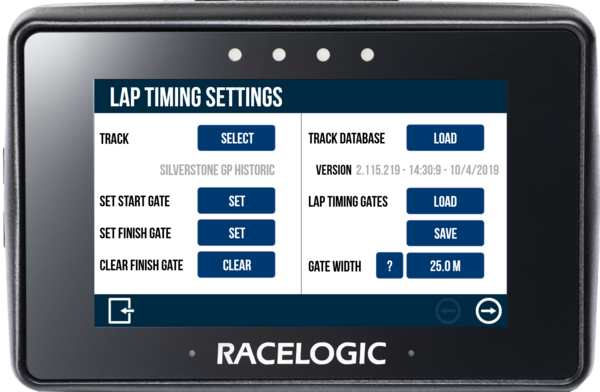
Confirm the Selected Track
Performance Box Touch has an inbuilt track database containing a vast number of circuits throughout the world.
The unit will display the currently selected track based on the GPS location.
If a location has multiple available track layouts, you can change the selected track in the Lap Timing Settings as explained below.
If there are no local tracks available, you can create a start/finish line manually on when you are on the track as described below.
How to Change the Track Layout
- Make sure that the Display Mode is Lap Timing.
- Tap Settings → Lap Timing to open the Lap Timing Settings screen.
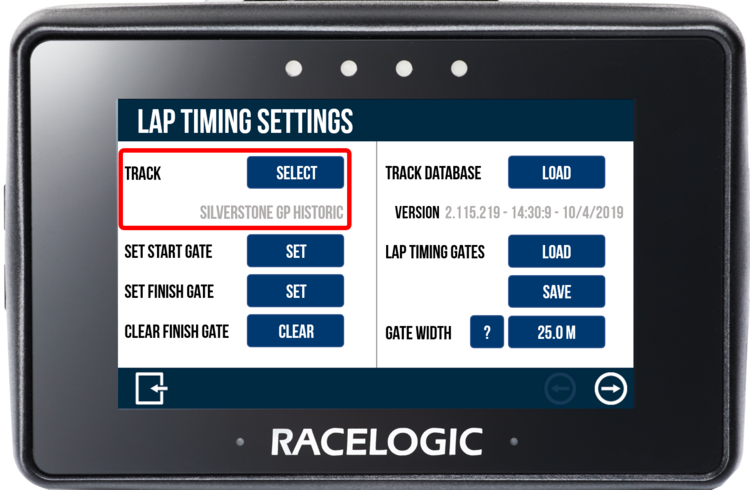
- Tap Select in the Track section to view a list of available track options based on the detected location and tap on the required track layout to select it.
NOTE
If you are not in the vicinity of a known track, you will not be able to select a track layout.
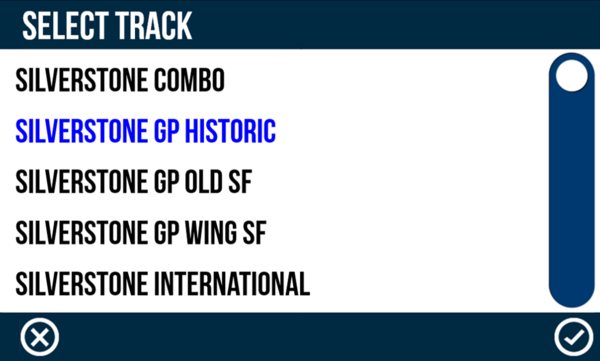
- Tap the Confirm button in the bottom right corner to confirm your selection and return to the Lap Timing Settings screen.
Refer to the Lap Timing Settings page for more information.
IMPORTANT
When the selected track is changed, all existing lap timing values will be cleared and new lap timing gates will be used.
How to Update the Track Database
Occasionally, Racelogic will release new versions of the Track Map Database to introduce new circuit maps, new start/finish lines, and to update older tracks with new layouts.
The Track Database installed in Performance Box Touch will be updated whenever you upload a new firmware file onto the unit.
You can, however, update the Track Database manually in the Lap Timing Settings.
- Download the latest Track Map Database file (.tbd or .bdb) from the VBOX Motorsport Website.
- Place the file on the root directory of the SD card (not in the media or any other folder).
- Power up the Performance Box Touch unit.
- Insert the SD card into the card slot on the left-hand side of the unit.
- Wait for the unit to boot and go to Mode → Lap Timing → Settings → Lap Timing → Track Database.
- The unit will load the file.
This will update the tracks list but not overwrite any existing track information.
The progress of the update process will be displayed via the LEDs; each lit LED will represent 25% of the process with all LEDs extinguishing when the process is complete.
When you see 'Database Loaded' on the screen, the file has been loaded successfully.
How to Manually Set a Start/Finish Gate
Performance Box Touch will by default use the start and finish gates from the selected track layout.
You can manually set a new Start Gate at a required location while driving on the track.
The manual start gate will override the start gate saved in the selected track layout and will function as the only active start or start/finish gate until you either reload the track layout or select a different track layout. Reloading the track layout will restore the original default start/finish gates from the track database.
There are two ways to set a new Start Gate on Performance Box Touch:
- With the Secondary Lap Timing Screen (basic lap timing) displayed on Performance Box Touch, tap the screen once when you are in the required location.
- Open the primary Lap Timing Settings screen, drive to the required location on the track and tap the Set button in the Set Start Gate option.
IMPORTANT
To set a new Gate, the vehicle must be moving > 0.8 km/h and Performance Box Touch must have satellite lock.
Performance Box Touch will display a New Start Line Set progress screen.
Complete the Process
Wait for progress screen to close, and follow the on-screen instructions to complete the process.
When you have set a manual start gate, this will function as both the start and the finish gate until you set a separate finish gate.
Refer to the Lap Timing Settings for more information about the manual start gate option.
How to Manually Set a Separate Finish Gate
Performance Box Touch will by default use the start and finish gates from the selected track layout.
You can manually set a new Finish Gate at a required location while driving on the track.
The manual finish gate will override the finish gate saved in the selected track layout and will function as the only active finish gate until it is deleted or the track layout is re-loaded or changed.
There are two ways to set a new Finish Gate on Performance Box Touch:
- When the Standing Start option has been enabled in the Lap Timing Settings, you can set a new finish gate directly from the Secondary Lap Timing Screen (basic lap timing) by tapping the screen once when you are in the required location.
- Open the Primary Lap Timing Settings screen, drive to the required location on the track and tap the Set button in the Set Finish Gate option.
IMPORTANT
To set a new Gate, the vehicle must be moving > 0.8 km/h and Performance Box Touch must have satellite lock.
Performance Box Touch will display a New Finish Line Set progress screen.
Complete the Process
Wait for progress screen to close, and follow the on-screen instructions to complete the process.
Refer to the Lap Timing Settings for more information about the manual finish gate option.
IMPORTANT
If you cancel the setting of a start/finish, the live lap prediction for the current lap will be lost and unavailable for use.
Load Start/Finish or Finish Line Gates
In addition to using the start/finish gates set in the track or manually setting new gates, you can also load previously saved gates.
- Copy the required gate file(s) to an SF LINES folder on the SD card.
- Insert the SD card into the Performance Box Touch unit.
- Go to Settings → Lap Timing → Lap Timing Gates.
- Tap Load.
If there is only one file in the folder, the unit will automatically load it.
If there a more than one file in the folder, select the required file from the list and tap the Confirm button.
When the new file is loaded, all existing lap timing values will be cleared and the new lap timing gates will be used.
How to Create a Reference Lap
Performance Box Touch needs a reference lap to calculate Delta-T and Delta-V lap timing values for Lap Timing Mode.
By default, Performance Box Touch will automatically begin the process of creating a reference lap once it detects that it is crossing the set Start Gate on the selected track.
If it has been configured to use Standing Start mode, it will begin the process of creating the reference lap when it detects movement.
The reference lap will be completed when Performance Box Touch detects that it is crossing the set Finish Line (the set Start/Finish Line or a Separate Finish Line).
Lap requirements to qualify as a reference lap:
- The lap time must be longer than 20 seconds.
- The lap distance must be greater than 100 m.
- The maximum speed achieved must be greater than 40 km/h.
- The lap distance must be longer than half of the stored reference lap distance.
- The lap time must not exceed 43'40.00".
NOTE
You can configure Performance Box Touch to ignore short laps when creating the reference lap by using the Ignore Short Laps option in the Lap Timing Settings.
When Performance Box Touch creates a reference lap, it will display a 'Creating a Reference Lap' message in the Delta-T section on the Primary Lap Timing Screen, and the reference lap section will show a rolling lap time. The LEDs will also be illuminated in blue during the creation process.
The reference lap will be retained after each power cycle.
Updated Reference Lap
Performance Box Touch will automatically update the reference lap in the following situations:
- If it logs a faster lap.
- If the lap distance is more than double the stored reference lap
(unless the Reference Lap has been fixed in the Lap Timing Settings).
NOTE
You can stop Performance Box Touch from updating the reference lap when it logs a faster lap by fixing the current reference lap in the Lap Timing Settings or by triple-tapping on the Primary Lap Timing Screen.
You can unfix the reference lap using the same methods.
When triple-tapping, you will see a cancel timeout screen, allowing you to cancel the reference lap fixing by tapping the screen within 5 seconds.
If there is no currently stored reference lap, the next completed lap will be used as the fixed reference lap.
Load a Reference Lap
In addition to creating the reference lap on the track, you can load a previously saved reference lap into Performance Box Touch in the Lap Timing Settings.
IMPORTANT
To load a reference lap, you must first make sure that Performance Box Touch is not logging and that the vehicle is stationary.
- Make sure that the required reference lap (.ref) file is saved in the REF LAPS folder on the SD card.
- Insert the SD card with the .ref file into Performance Box Touch.
- Go to Lap Timing Mode → Settings → Lap Timing and swipe left to move to the secondary Lap Timing Settings screen.
- Locate the Reference Lap option on the right half of the screen and tap the Load button.
Performance Box Touch will display a list of all .ref files found in the relevant folder. - Select the required file and tap the Confirm button in the bottom right corner.
Refer to the Lap Timing Settings page for more detailed information about the available settings.
NOTE
When you load a new reference lap, the Start/Finish gate(s) stored in the .ref file will be applied as the active gate if it is different to the currently used gate(s). If a gate is changed, all existing lap timing values will be cleared.
General Speed Display Configuration
Speed Display requires minimal configuration.
In addition to the General Configuration, you can configure the speed display to suit your requirements.
Open the Speed Settings to configure:
- The number of decimal places shown in speed values.
- The level of smoothing applied to live speed data.
- How average speed is calculated.
- The target speed and associated alerts.