
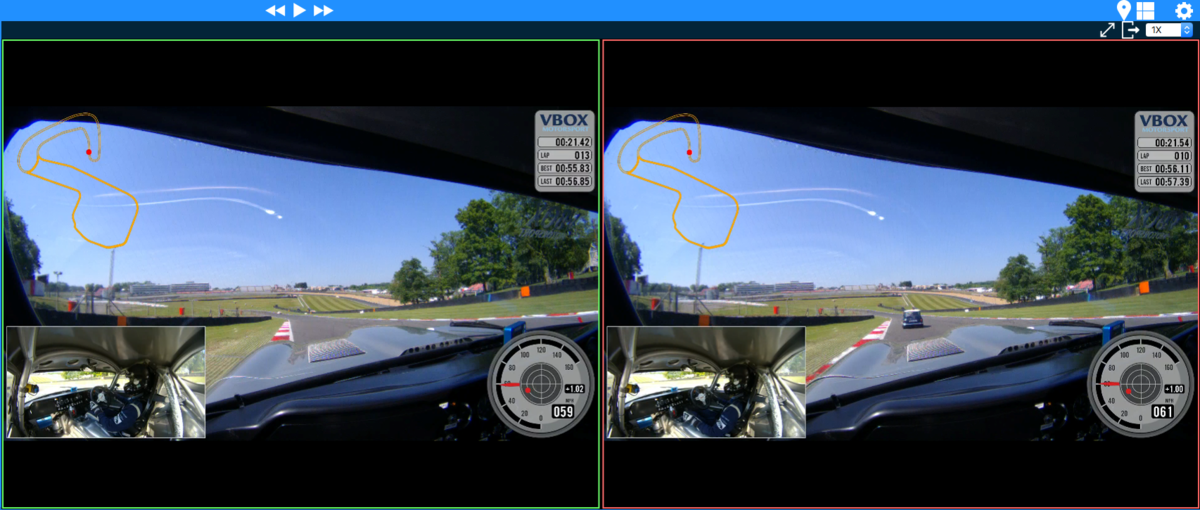
In the Video window, you can compare two laps, selected for comparison in the Laps area, side by side. The video of the faster lap has a green border while the video f the slower lap has a red border.
NOTE
Video playback is automatically synced with the graph cursor position.
With the playback control buttons on the toolbar you can play, pause, step backwards and step forwards in the video.
Click the Expand button to show a full-screen video.

Click the Expand button to show a full-screen video.

Click the Export lap button to save the single selected lap.

Click the Export lap button to save the single selected lap.

You can change the playback speed with the speed dropdown. You can also change the playback speed by using the '-' and '=' keys.

You can change the playback speed with the speed dropdown. You can also change the playback speed by using the '-' and '=' keys.

Play / Pause
- You can start/pause the playback by pressing the spacebar or clicking on a video.
Forward / Backward
- Magic Mouse/Trackpad: Can be used to move playback forwards or backwards in small increments by using a single finger or two-finger swipe respectively.
- Keyboard: Left/Right arrow keys for large increments, Alt + Left/Right arrow keys for smaller increments.