
You can create a track map for your Video VBOX and VBOX Video unit in Google Earth Pro.
To do this you must first find your track location.
With the track located, click on the Add Path button in the toolbar.

This will open an Edit Path pop-up window that will remain open while you trace the track outline.
TIP
You can move this window to the edge of the screen to make sure that you can still see the track image. This will simplify the process.
Now you can start creating your path. Right-click on the map image to set the first sample point. Any subsequent points will be connected in the order they are drawn in.
NOTES
- You can select any point by clicking on it. When you have selected a point you can add more points, slotting them in between existing points.
- You can delete a point by selecting it and pressing the delete key or right-clicking with the mouse.
- Click on a location before the start/finish line and drag to draw a line down the track leading up to, and crossing the start line in the direction you intend to drive across it.
Keep the line as straight as possible to get the best possible heading values calculated and release the mouse button when you have crossed the start line by at least 10 points. - Add three separate points that create a line along the start/finish line – see the example below.
NOTE
Ensure the third point overlaps with the centre line.
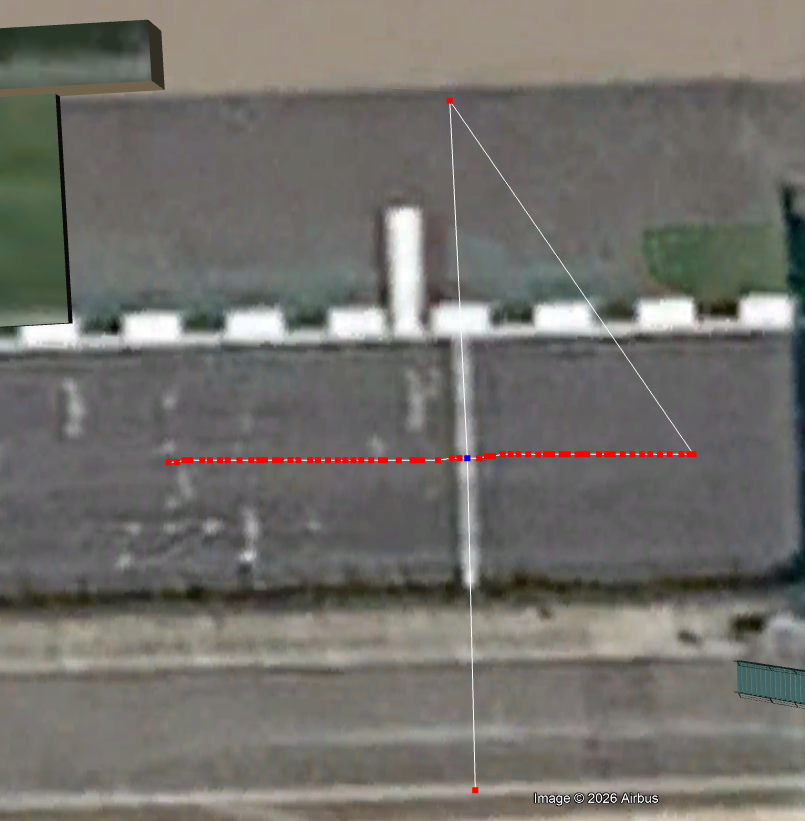
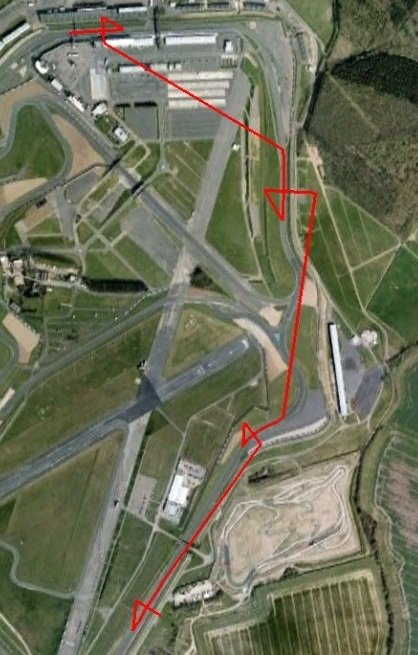
- You can add a separate finish line or split points by adding more lines across the track in the desired positions. Repeat steps 1 and 2 for each line. You should add crossovers for each point to make it easily identifiable.
The following image shows a start line, two split points and a separate finish line.
- When you are happy with your lines, go to the Edit Path pop-up window that appeared when you clicked the Add Path button.
- Give your path a name in the Name: field.
- Click OK.
- The path file should now appear in the left-hand toolbar on Google Earth under Places.
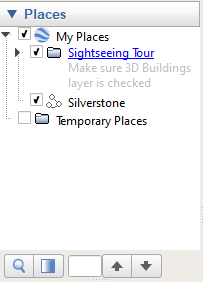
- Select the track/path you wish to export un der Places.
- Right-click it and select Save Place As...
- Save it to the required location.
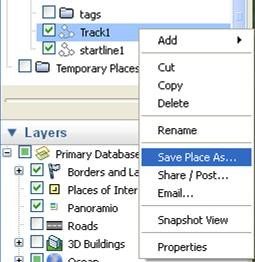
- Make sure to change the file type to .kml in the dropdown list.
You can use VBOX Tools to convert the KML file into a SPL/DSF start/finish line file.

- Open the VBOX Tools software.
- Select File → Import → From Google Earth.
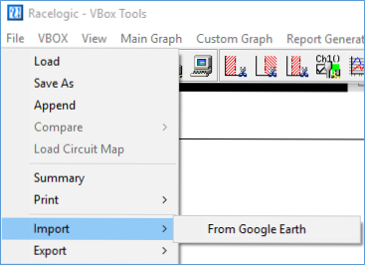
- Now you must set the start point. Click on the data graph to locate the cursor.
- Move the cursor to the crossover point on the path.
NOTE
Using ALT + Arrow keys moves the cursor sample by sample. Once your cursor is sitting at the start point, click the Flag with green cursor icon.
- A window will appear to show that the start line has been set and you will see a green dot on your map graph.
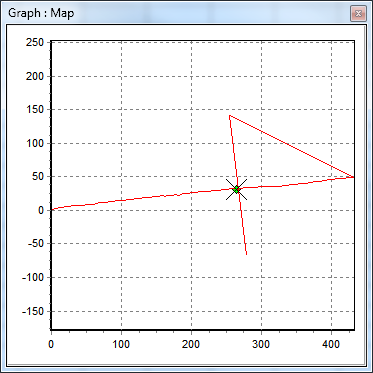
- If you need to add split points or a separate finish point, position the cursor in the next desired crossover position.
NOTE
Press S to set split points and press Shift + Spacebar to set a separate finish.
- When you have set all the required points, click on Main Graph.
- Select Start / Finish / Split Lines and Save from the drop down lists.
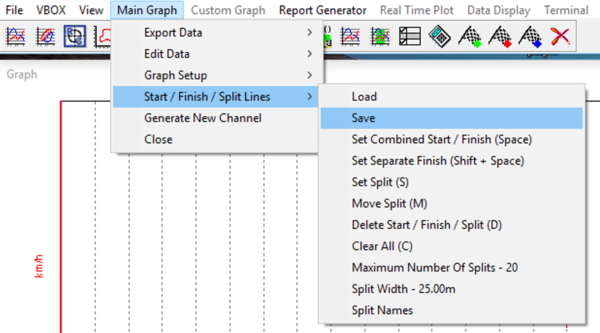
- In the following pop-up window you can choose whether to save the file as a .SPL file or a .DSF file.
NOTE
Video VBOX or VBOX Video units will accept either of these file types when they are loaded into a scene, but they can only accept a .DSF file on an SD card. PerformanceBox or DriftBox units can only use .DSF files.

- You can now load the file you created into VBOX Video/ Video VBOX Setup or directly in to a VBOX unit.
- You can load the file by ticking Override auto start/finish line under Gates in the Lap Timing menu and selecting Add. You can see the Start/Finish line has been loaded by the visible lateral and longitudinal values under the Lap Timing menu.
- Click Save to complete it.
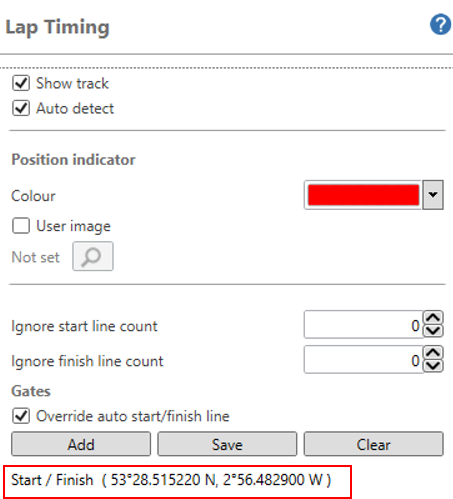
You can load the file into a scene under Start/Finish + Splits in the Lap Timing Menu in Scene Properties. You can see that the Start/Finish line has been loaded by the visible lateral and longitudinal values under the Scene Properties.
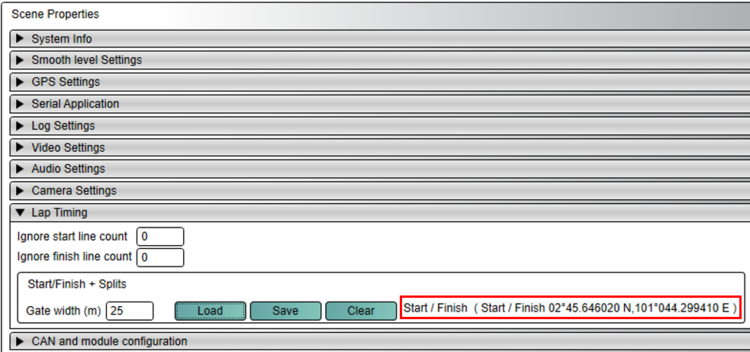
Save the .DSF file onto the root of an SD card and put the card into the unit.
- Save the .SPL file into a folder named SF LINES on an SD card and insert the card into the unit.
- Press the Load Lap Timing Gates button in the Lap Timing Settings.
If only one file is located on the SD card, the file will be loaded immediately. If multiple files are located on the SD card, the unit will display all available files. - If you have multiple files, you need to select the relevant file and press the Confirm button at the bottom right of the screen.
- When loaded, a success screen will briefly display to show that the start/finish line was loaded successfully.
- Save the .DSF file into a folder named DATA on an SD card and insert the card into the unit.
- Select Load Splits from the Lap timing menu.
NOTE
The file must be named ‘DBOX.DSF’ for the unit to be able to detect it.