Symptoms
- Test stops before completion
- Run is aborted with no result
Cause
Loss or drop in GNSS satellite signal during the test.
Performance Box Touch will abort a run if signal quality drops, to ensure only accurate data is recorded.
Resolution
1. Move to a better environment
Avoid:
- Tree-lined roads
- Tall buildings
Use:
- Open areas with clear sky view
2. Wait for stable satellite lock
Before starting a test:
- Ensure satellites are locked
- Do not start while the unit is still searching
3. Perform a GPS coldstart (if needed)
Use if:
- The unit hasn’t been used recently
- The location has changed significantly
Steps:
- Go to Diagnostics Settings
- Press COLDSTART
Wait ~25–30 seconds for satellite lock.
Additional information
- Aborted runs do not produce results
- Previous runs are still saved to the SD card
Symptoms
- Battery does not charge
- Rear LED is not flashing
- Battery icon is not visible when connected
Cause
The battery may have discharged below its internal cut-off voltage.
Resolution
1. Charge the battery directly
- Remove the battery from the unit
- Connect the USB cable to the battery’s micro-B port
- Use a charger rated ≥ 1 A
- Leave charging for at least 30 minutes
2. Force battery recovery (if no LED activity)
If the LED is still not flashing:
- Keep the charger connected
- Press and hold the Power button for 10 seconds
- Release the button
Expected result:
- LED glows faint red, then begins flashing (charging)
3. Continue charging
- Leave the battery connected until the LED flashes green
- This indicates at least ~20% charge
Still not working?
If the battery does not respond after these steps, contact Racelogic Support.
Symptoms
- LEDs do not illuminate during operation
- No LED feedback is visible in any mode
Cause
LED brightness may be set to Off in settings.
Resolution
Turn LEDs back on
- Press Settings
- Navigate to General Settings
- Locate LED Brightness
- Select a brightness level (not Off)
The LEDs will preview the selected brightness as you change it.
Still not working?
If the LEDs remain off after adjusting brightness, contact Racelogic Support.
This issue is usually caused by a poor satellite signal or being outside a supported track area.
Symptoms
- “NO LIST AVAILABLE” shown in Track Select
- No tracks or layouts displayed in Lap Timing Mode
Cause
This can occur if:
- The unit does not have a valid satellite lock
- You are not near a supported track
- The track database is outdated
Resolution
1. Check satellite signal
- Ensure the unit has a valid GPS lock
- Minimum 4 satellites required
If signal is weak:
- Move to an open area
- Wait for stable satellite lock
2. Confirm your location
Tracks are selected based on GPS position.
- The unit will only show tracks near your current location
- If you are not near a supported circuit, no tracks will appear
3. Update the track database
If you are at a supported track but it is not detected:
- Download the latest Track Map Database
- Open Lap Timing Settings
- Press LOAD under Track Database
4. Create your own start/finish line (optional)
If no track is available, you can still use Lap Timing Mode by:
- Creating a start/finish line on the device
- Importing one from a VBOX file
- Creating one in Google Earth
Still not working?
If tracks are not displayed despite a valid satellite lock and updated database, contact Racelogic Support.
Symptoms
- No data is recorded
- No logging indicator shown
- SD card icon may be red or green
Cause
This can occur if:
- No SD card is detected or the card is full
- The SD card is not supported or incorrectly formatted
- Logging conditions are not met
Resolution
1. Check SD card status (icon at top of screen)
Red icon:
- No SD card detected, or card is full
Fix:
- Insert SD card fully
- Ensure card has available space
2. Check SD card installation
- Remove and reinsert the SD card
- Ensure it clicks into place (spring-loaded slot)
- Check the slot for obstruction
3. Confirm SD card compatibility
- Must be FAT32 format
- Supported sizes: 2 GB to 32 GB (SDHC)
If using larger cards (64 GB+):
- Reformat to FAT32 before use
4. Check logging behaviour
- Logging may be set to Moving (default)
- Device only logs when speed exceeds 0.5 km/h
If not logging:
- Ensure the unit is moving
- Or manually start logging via the SD card icon
5. Check satellite lock
Logging requires a valid GPS signal.
- Confirm solid green satellite icon
- If signal is weak, move to an open area
Still not working?
If the unit is not logging after completing these checks, contact Racelogic Support.
Symptoms
- Flashing red satellite icon
- Low or no satellite count
- Slow or no GPS lock
Cause
This can occur if:
- The unit does not have a clear view of the sky
- The mounting location is unsuitable
- The signal is blocked or weakened (e.g. windscreen, environment)
- The antenna or connection is faulty
- The unit needs a GPS coldstart
Resolution
1. Allow time for initial lock
- First use: may take 10–15 minutes
- Normal use: typically 1–2 minutes
2. Move to an open environment
- Avoid:
- Buildings
- Trees
- Use:
- Open areas with clear sky view
3. Check mounting location
- Mount on the windscreen with clear sky visibility
- Avoid obstruction from:
- Roof bars
- Wipers
4. Check for athermic windscreen
Athermic (UV-coated) windscreens can reduce GNSS signal.
Quick check:
- Compare satellite count outside vs inside the vehicle
- A drop of 2–4 satellites suggests signal interference
5. Check external antenna (if used)
- Ensure secure connection
- Check for dirt in connector
- Inspect cable for damage
- Avoid tight bends in cable
- Try a known working antenna if possible
6. Perform a GPS coldstart
Use if:
- The unit hasn’t been used recently
- The location has changed significantly
Steps:
- Open Diagnostics Settings
- Press COLDSTART
- Wait ~25–30 seconds for reacquisition
Still not working?
If the unit cannot achieve a stable satellite lock after these checks, contact Racelogic Support.
Symptoms
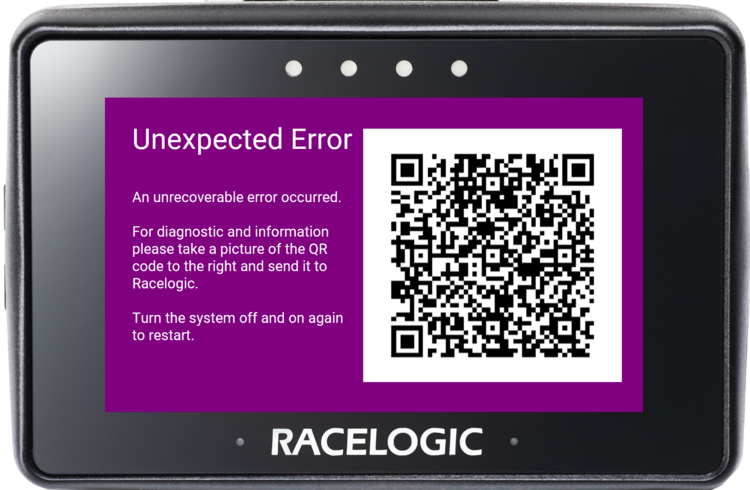
- An “Unexpected Error” message appears on screen
- The unit becomes unresponsive
Cause
An unrecoverable system error has occurred.
Resolution
Restart the unit
- Disconnect the power supply
- Reconnect the power supply
This should restore normal operation.
Additional information (for support)
If the issue occurs again, collect the following before contacting Racelogic Support:
- Actions performed before the error (mode, settings, etc.)
- A photo of the QR code shown on the error screen
Still not working?
If the unit does not recover after restarting, contact Racelogic Support and provide the information above.