
If you would like to quickly create a simplistic scene which is different to the default one installed on the HD2 unit but don't want to use the Setup Software, the Online Scene Wizard can be used.
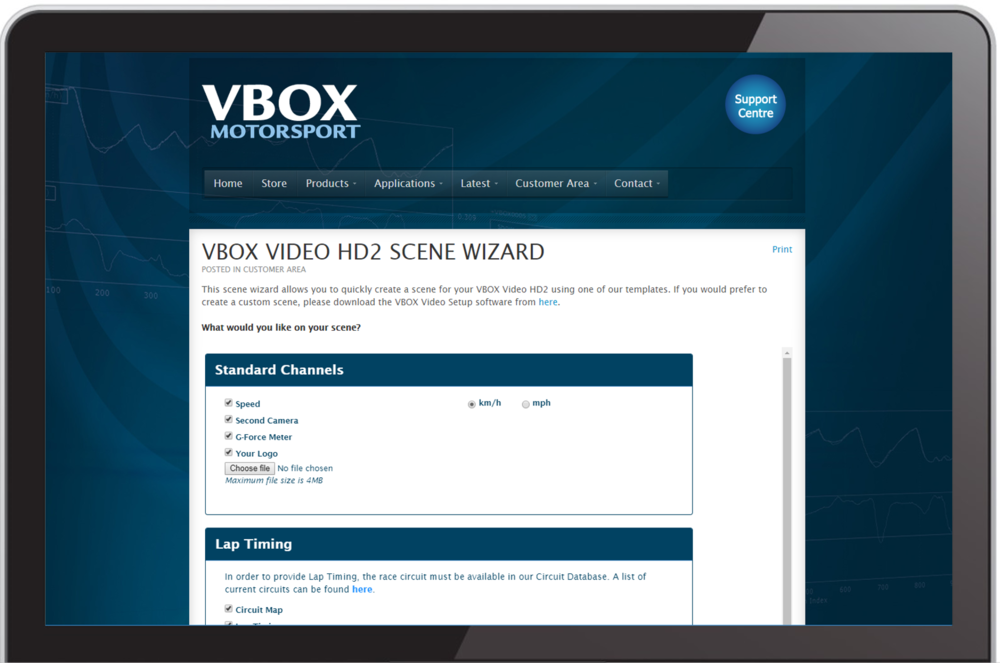
It lets you choose from a selection of template designs containing a number of standard channels. You can also select car specific parameters from our Vehicle CAN Database and add your own logo. The scene can then be uploaded on to the unit by saving to an SD card and inserting into the powered VBOX Video HD2.
NOTE
The scene wizard is website based so will require internet access.
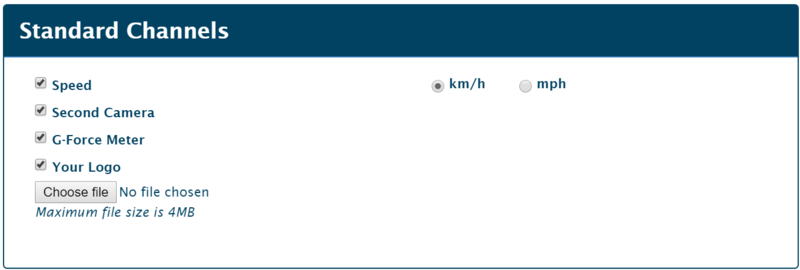
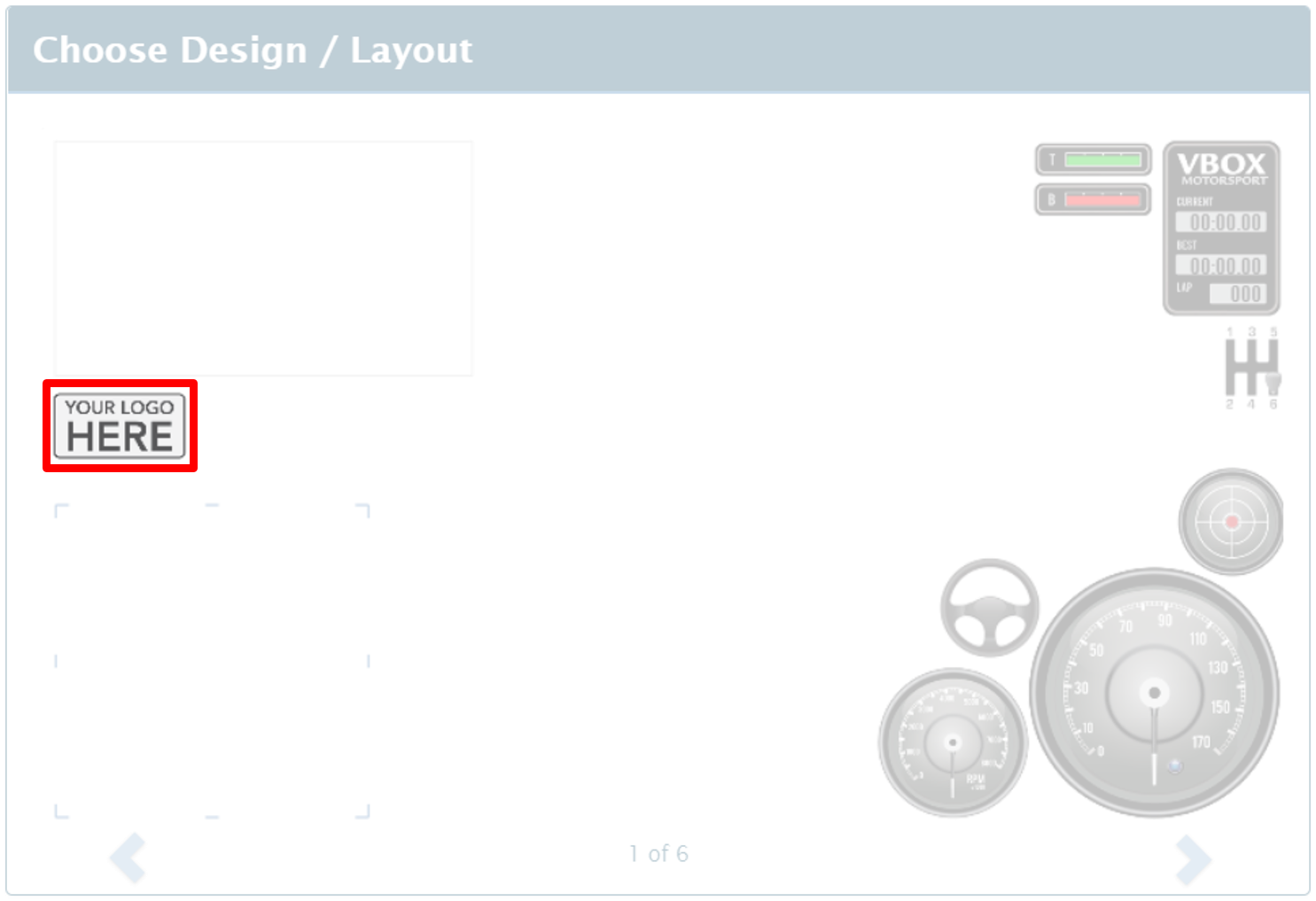
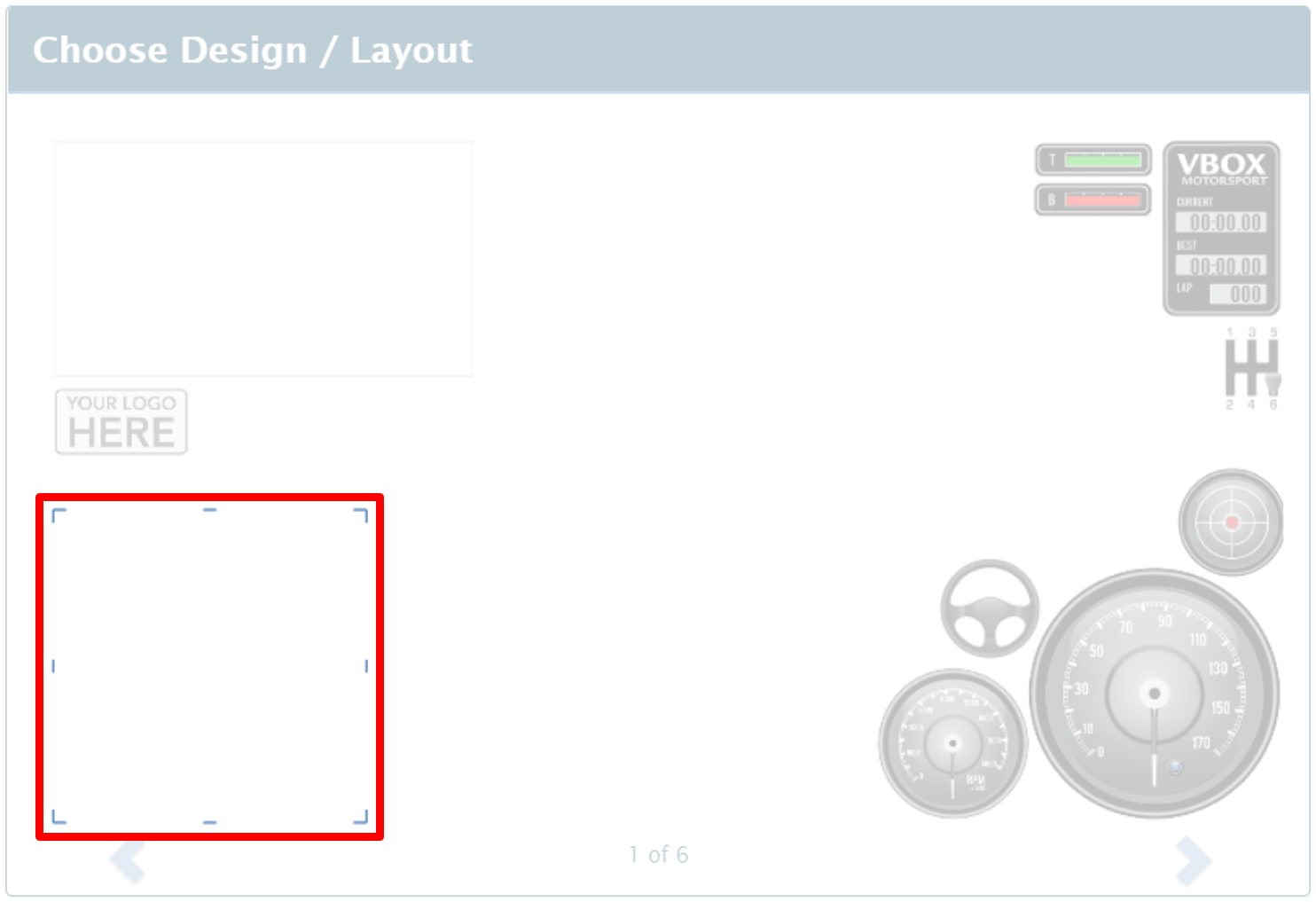
This section enables you to select which standard channels will appear within the scene and in the recorded file, speed units can be changed between km/h and mph. A second camera area can be added if you are using two cameras, as well as a G-Force meter which will illustrate the lateral and longitudinal acceleration forces. It also allows you to upload a custom logo from a saved file.
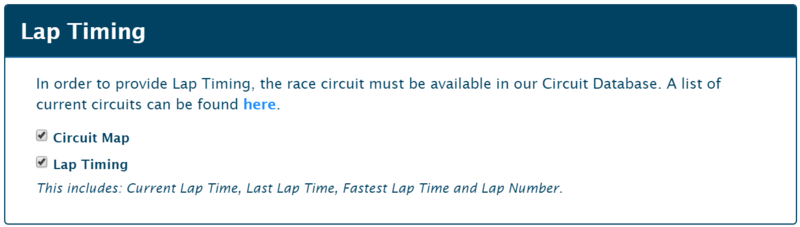
This section enables you to select which lap timing elements will appear within the scene and in the recorded file. 'Circuit Map' adds an auto track map element which will update depending on where you are racing. The 'Lap timing' element incudes Current Lap Time, Last Lap Time, Fastest Lap Time and Lap Number.
Both elements require the track you are driving at to be included within our Circuit Database, a list of current circuits can be found here.
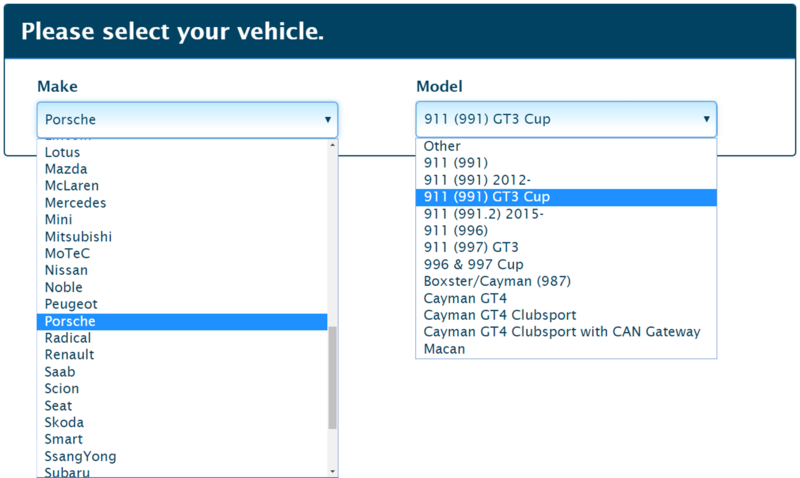
This section allows you to browse and select your vehicle in our Vehicle CAN Database, enabling you to select vehicle-specific channels to appear within the scene and in the recorded file.
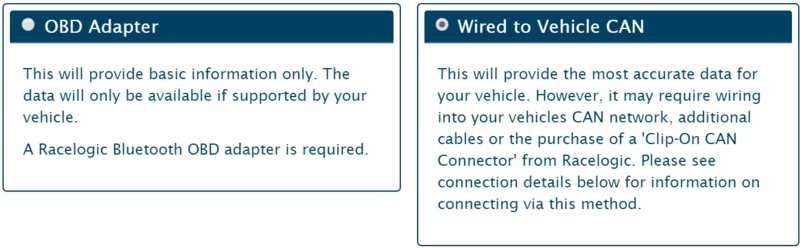
The scene can be configured to obtain vehicle CAN data by using either a Bluetooth OBD Adapter, which is plugged in to the OBD port on the vehicle, or by using CAN interface cables RLCAB015L, RLCAB069L or RLACS182L connected to the vehicle CAN Bus.
More information on connection to the vehicle CAN Bus can be found here.
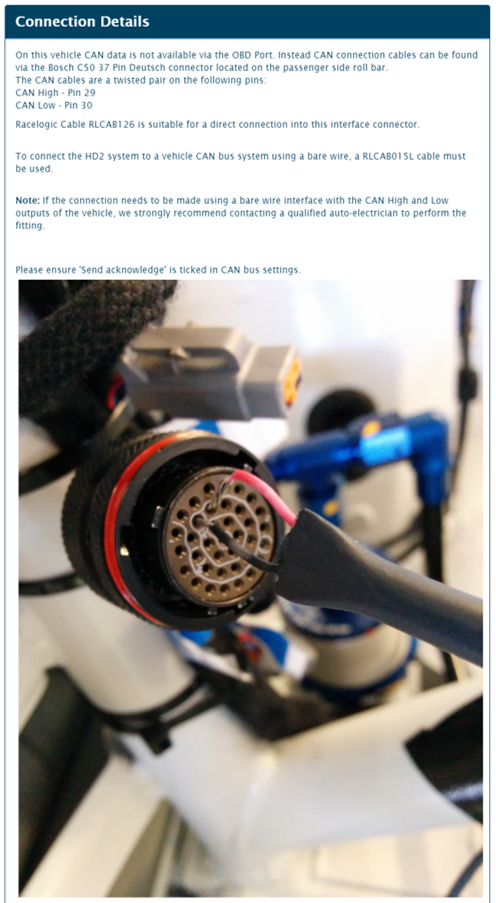
If available, CAN connection information for the vehicle will be presented, describing vehicle connection points including images, descriptions and wire colours.
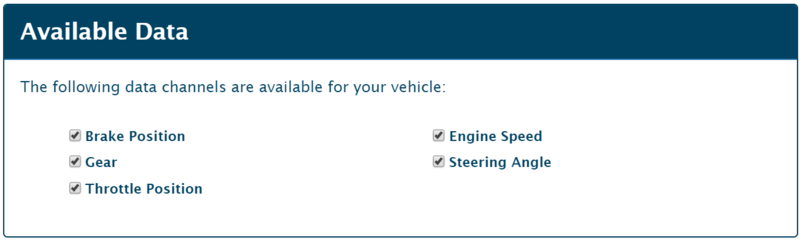
This section lets you to select which vehicle channels will appear within the scene and in the recorded file, the options available will be dependent on the method of connection and your selected vehicle.
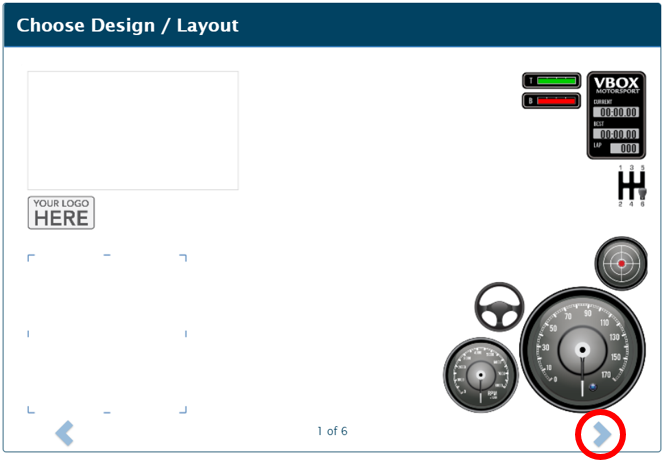
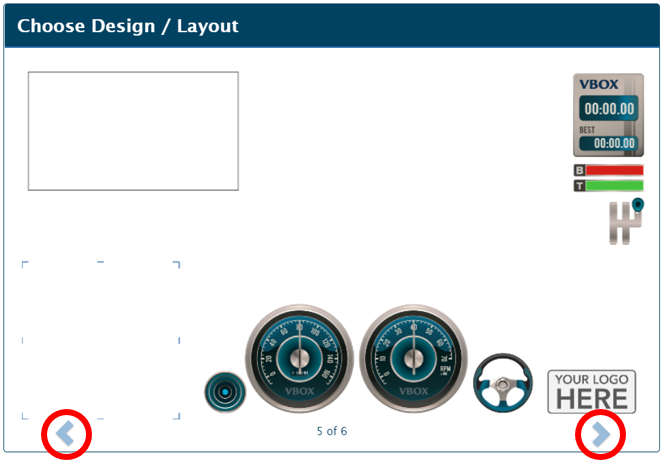
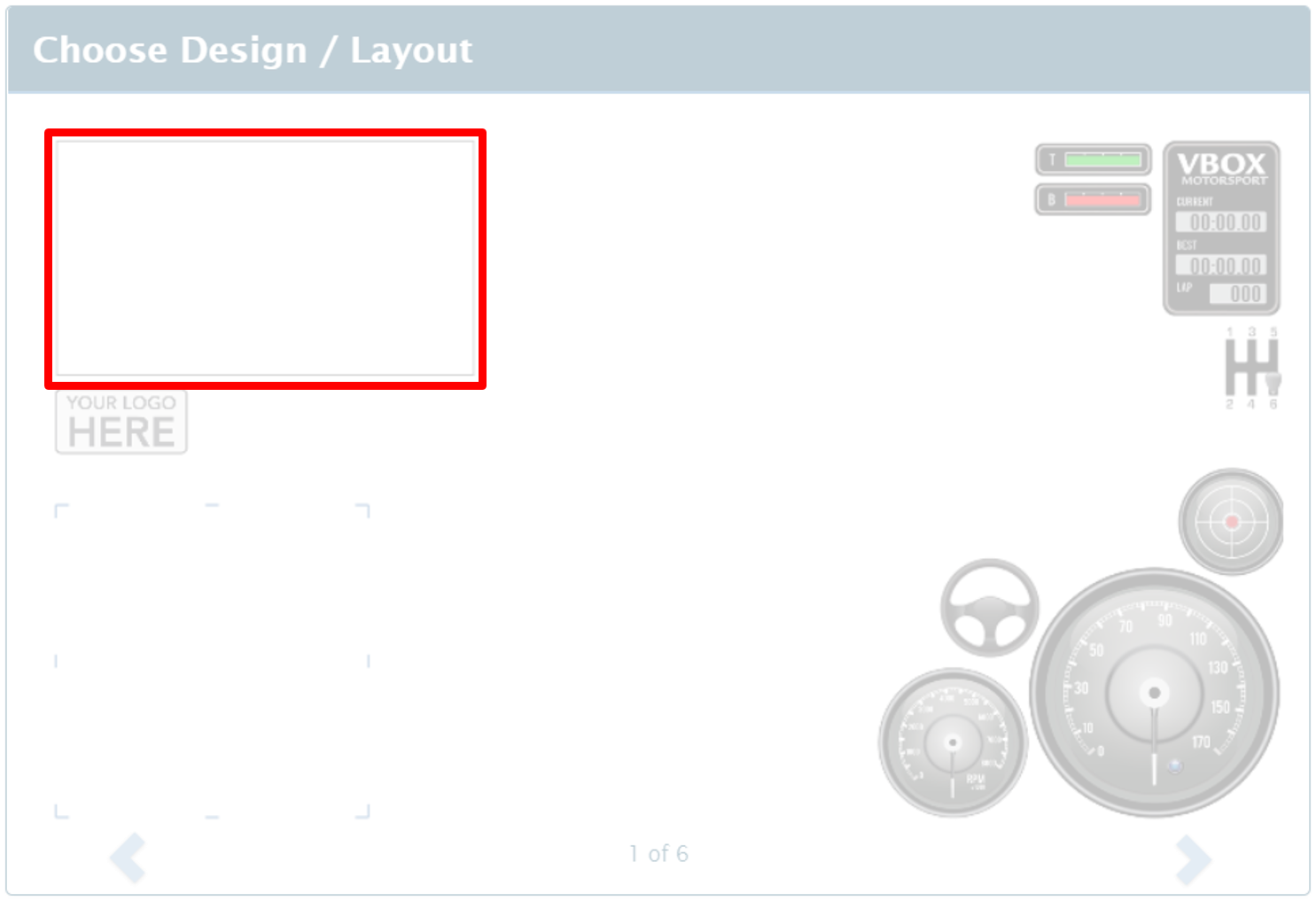
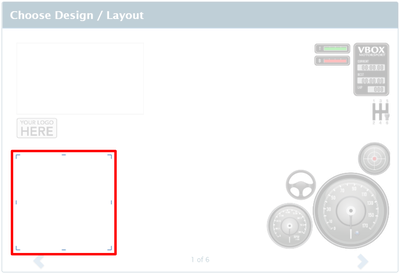
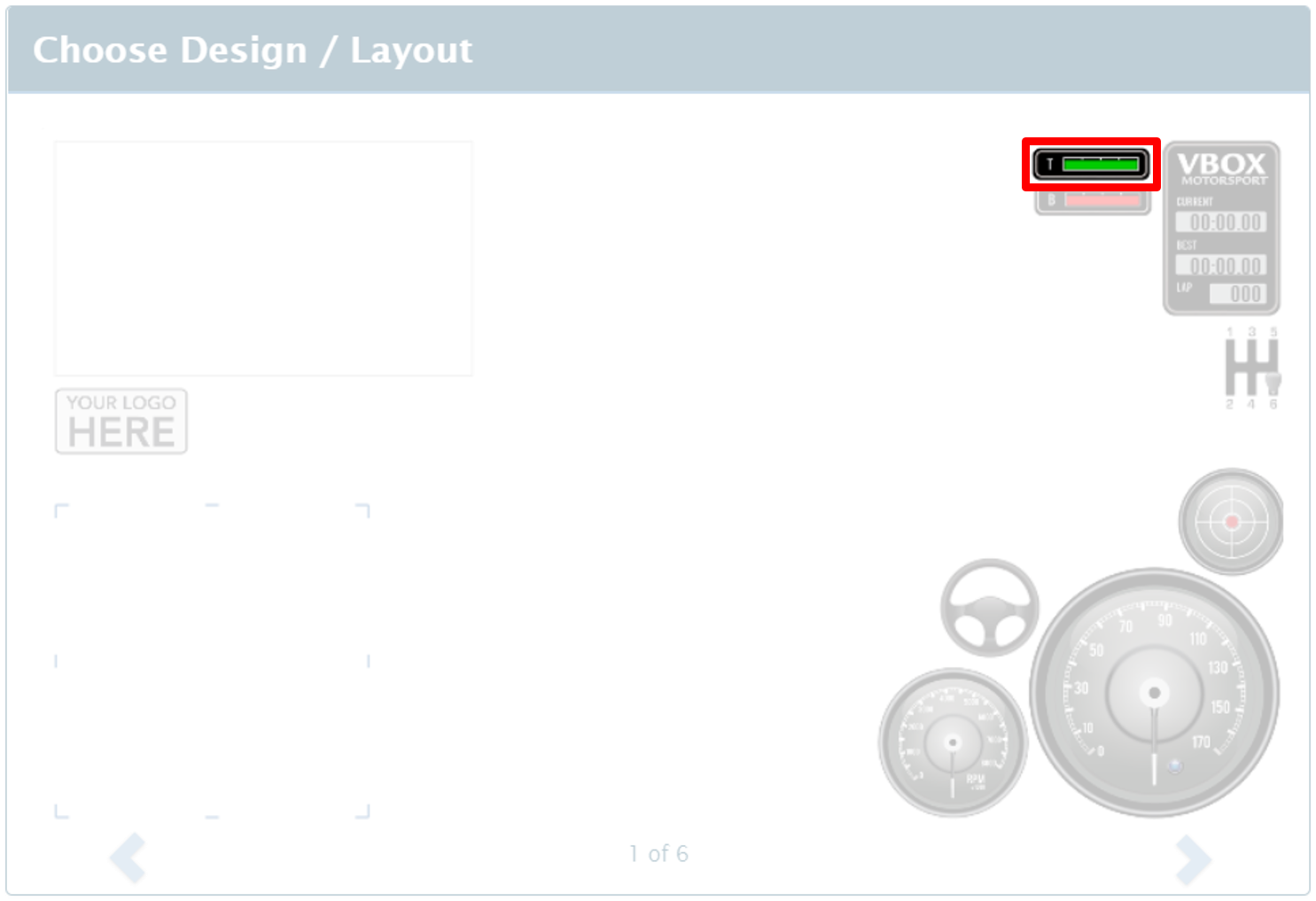
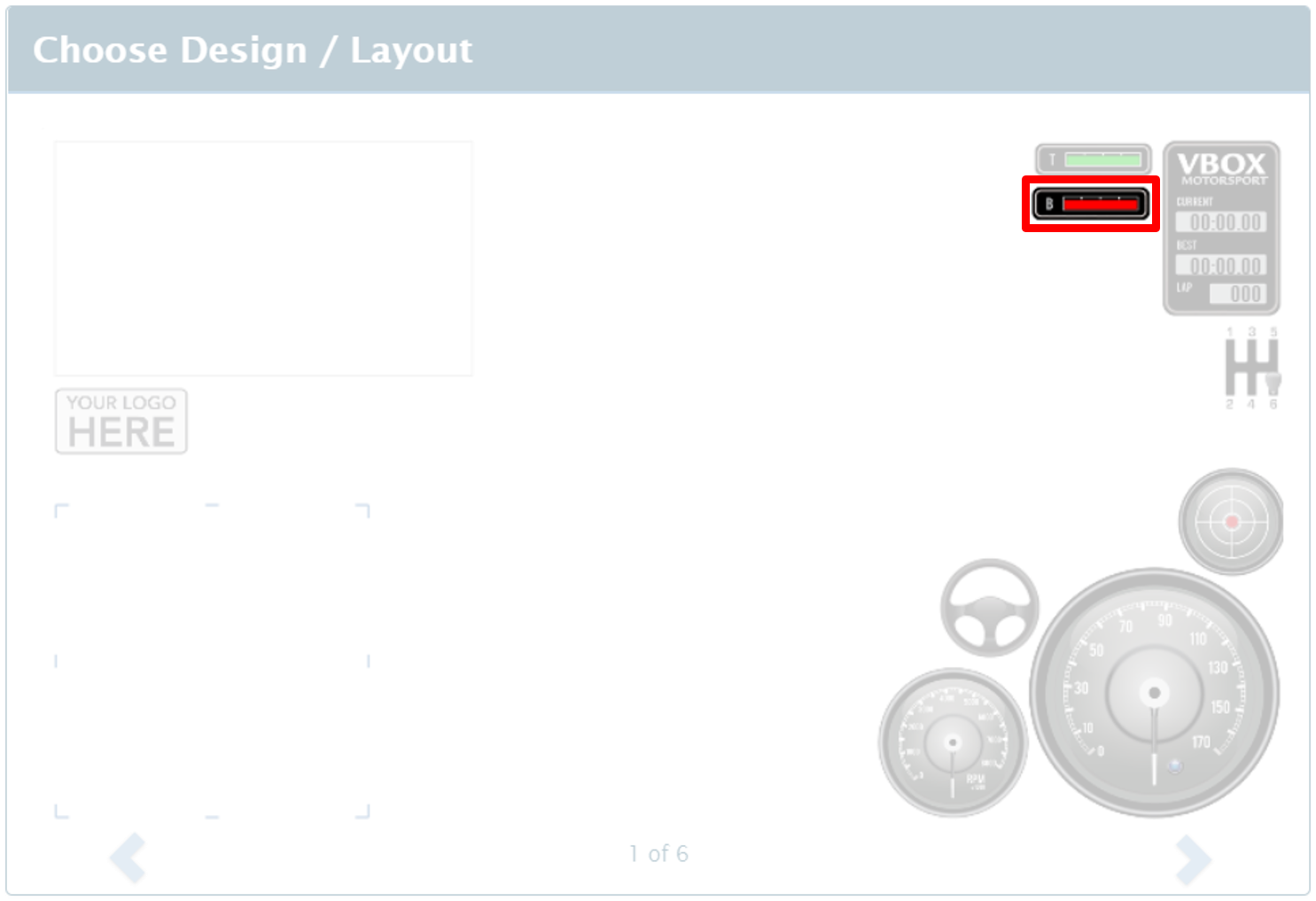
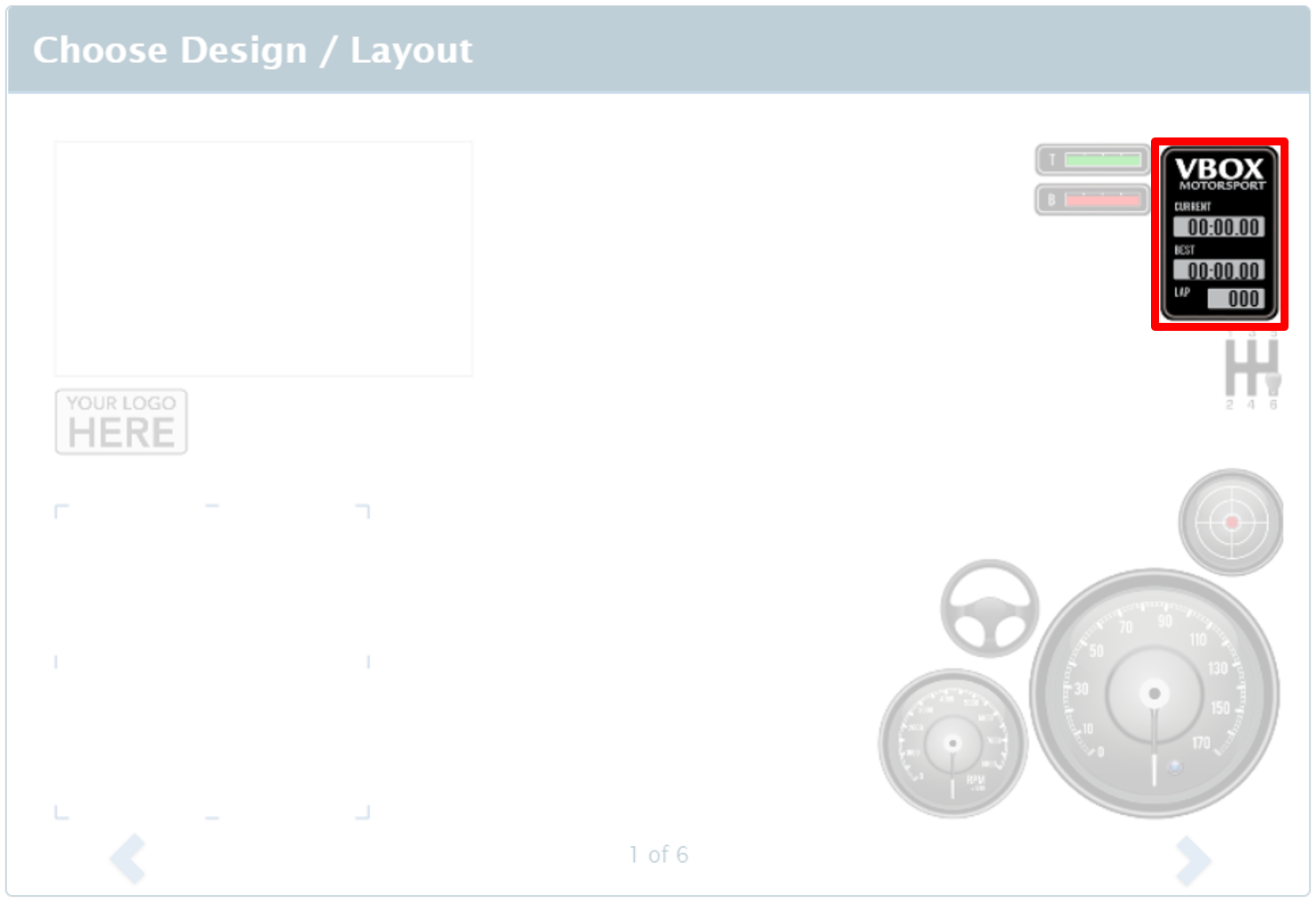
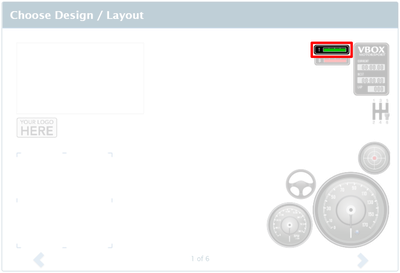
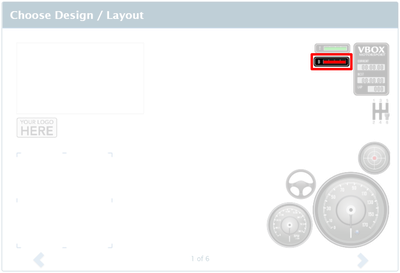
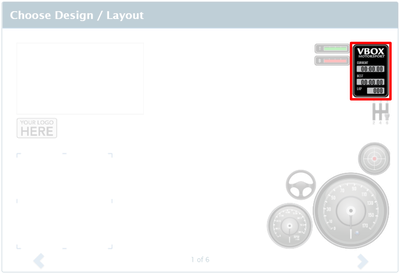
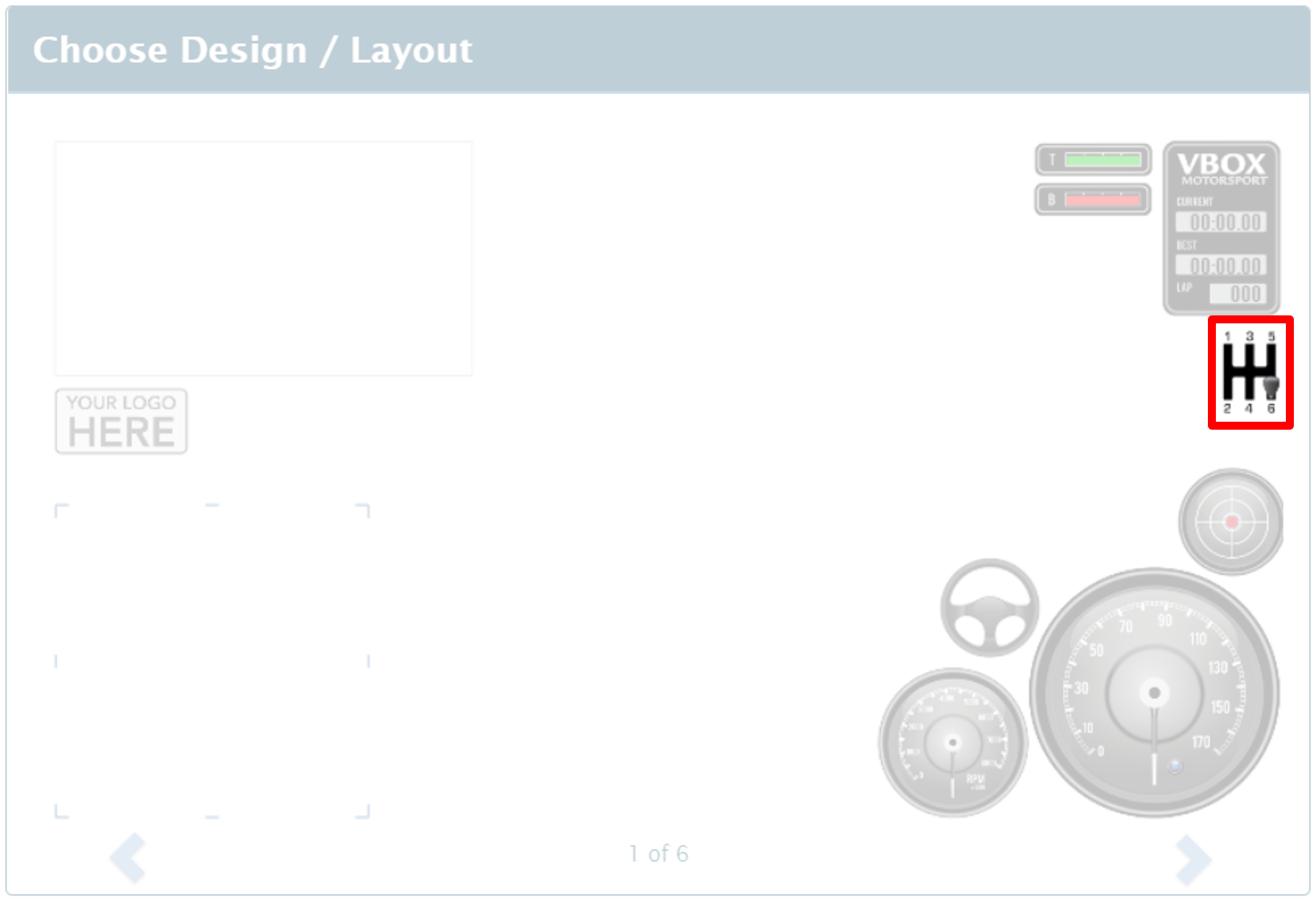
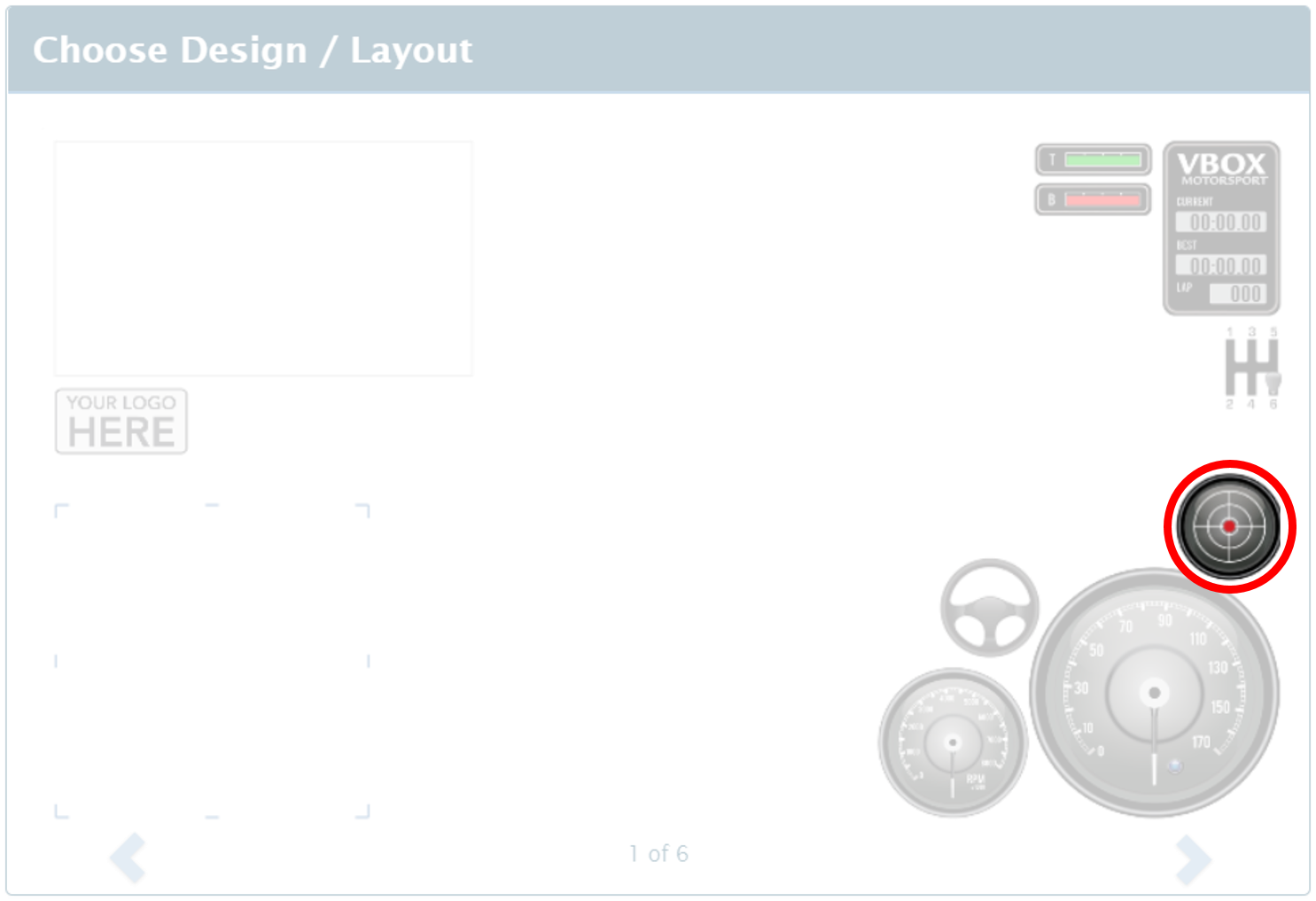
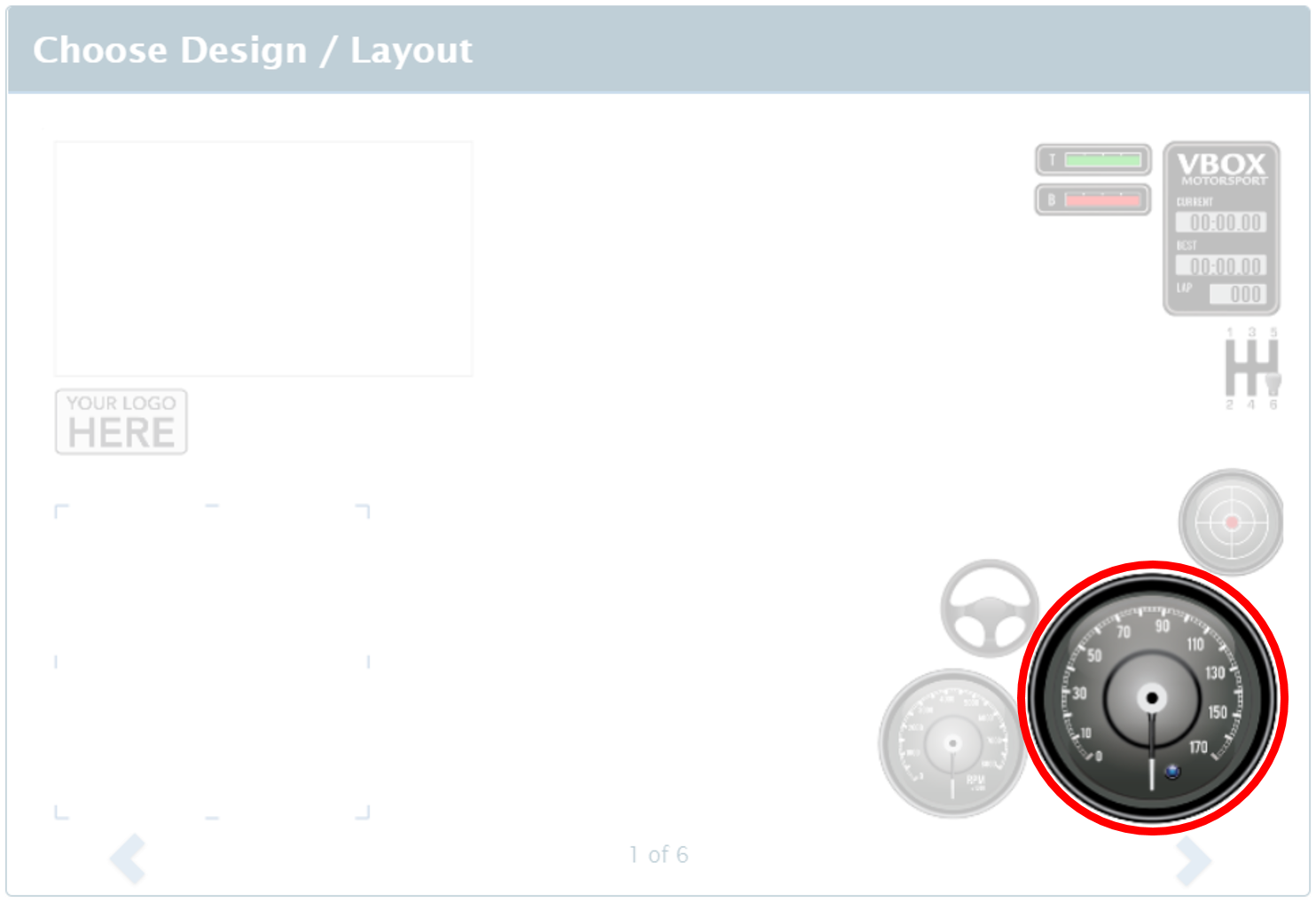
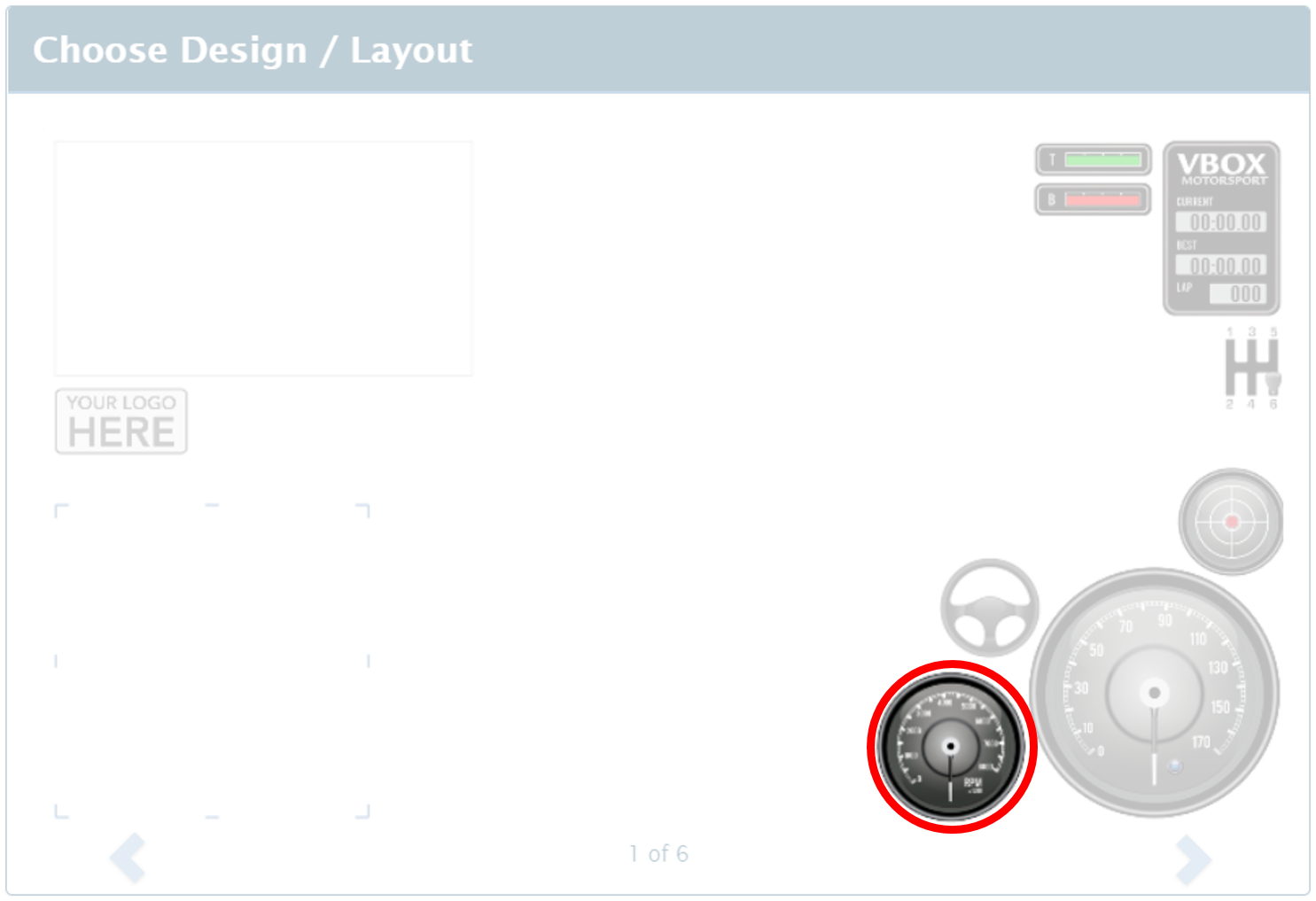
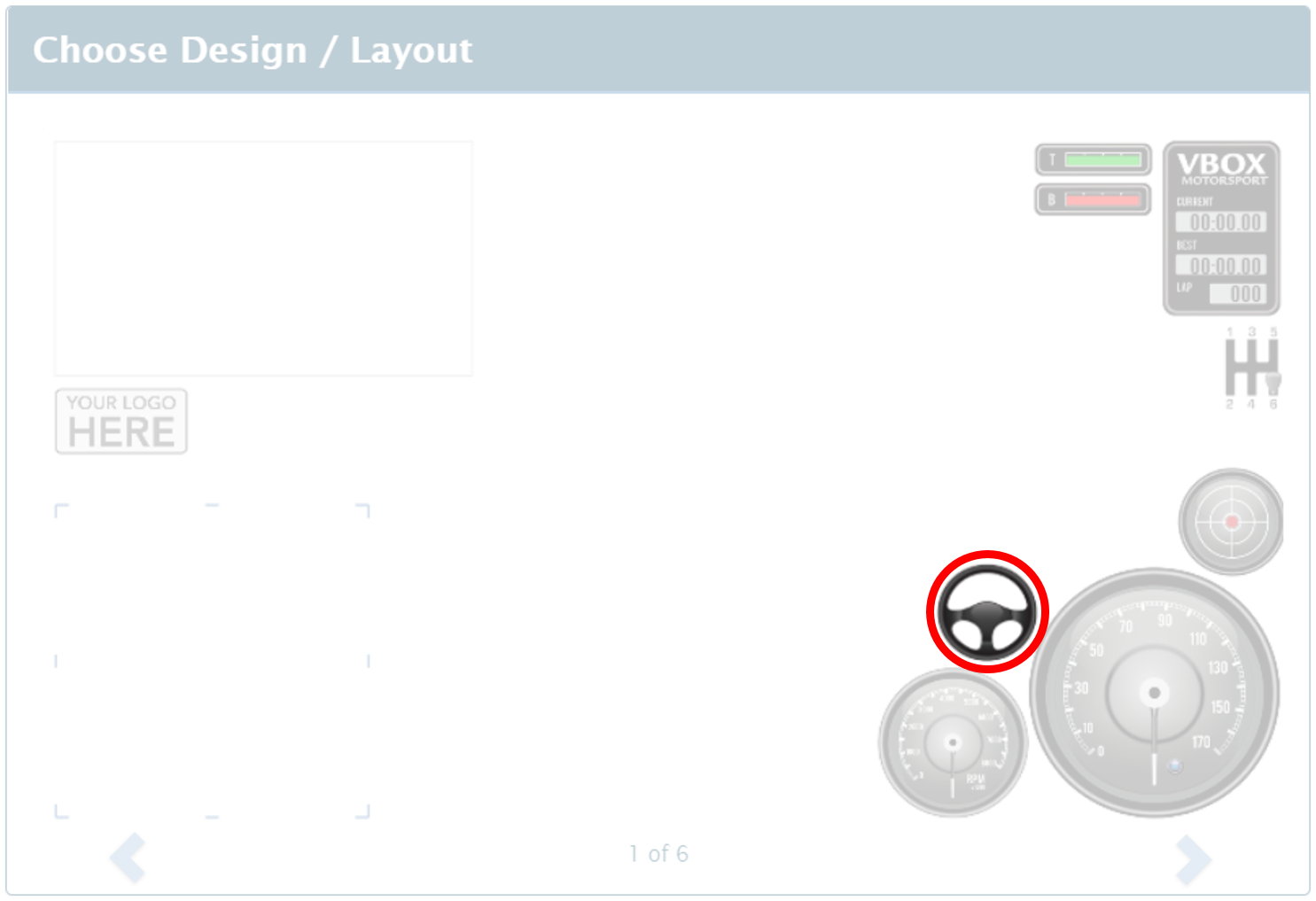
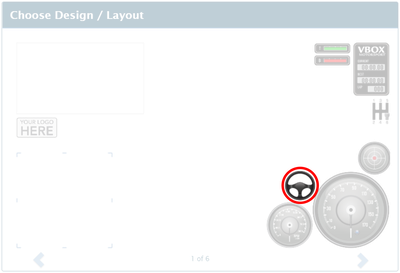
A selection of template designs are available which can be browsed using the forward and back arrows. The elements appearing within the designs will alter depending on the standard, lap timing and vehicle data channels selected.
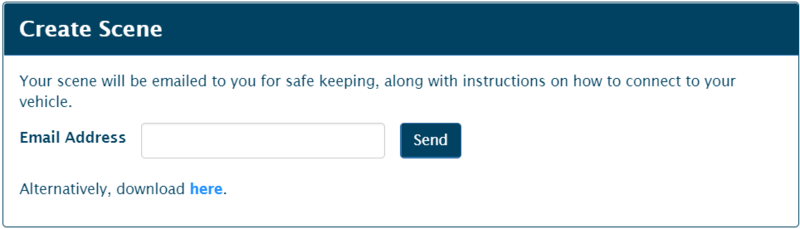
Once the scene has been configured, it can be sent to your email address, or alternatively, downloaded from within the web page.
This scene file can then be uploaded on to the unit by saving to an SD card and inserting into the powered VBOX Video HD2.