
LabSat 3 uses I&Q binary data and runs the FAT32 file format. LabSat 3 files are recorded into a folder with separate 2 GB data files which will run sequentially when replayed. The folder description GPS_000 will contain several files with the name format GPS_000_000.ls3. These will automatically increment.
LabSat 2 (.ls2) and LabSat (.bin) files will need to be converted to this format to play on LabSat 3. The LabSat Scenario Converter Software is supplied on the LabSat 3 Hard Disk Drive (HDD). Please see the section ‘Converting LabSat Scenarios’.
The 32 GB SD card included with the LabSat 3 system includes the following files:
- LabSat 3 sample scenarios
- GPS_000 - Static 5 minute GPS scenario
- GLO_001 - Static 5 minute GLO scenario
- BDS_001 - Static 5 minute BDS scenario
- LabSat 3 quick start video
- SatGen simulation software video
- LabSat 3 quick start guide PDF
The LabSat 3 1 TB hard disk includes the following:
- LabSat 3 scenario library description PDF
- LabSat 3 quick start video
- SatGen simulation software video
- LabSat scenario converter utility
- LabSat 3 scenario library – a worldwide selection of LabSat 3 scenario files with supporting KML and Google Earth jpeg picture files.
The LabSat 3 HDD uses USB3.0 for fast data transfer and is formatted to FAT32.
It is recommended to use good quality Class 10 UHS-3 SD cards or higher spec.
The following list includes SD cards that have been tested and are compatible with LabSat 3.
| Description | LabSat Part number |
|---|---|
| SanDisk Extreme 128 GB | RLACS211 |
| SanDisk Extreme 64 GB | RLACS210 |
| SanDisk Extreme 32 GB | LS03SDCARD |
| SanDisk Ultra 8 GB | - |
The LabSat HDD is the only recommended HDD to use with the LabSat 3 system.
The hard drive is available as an accessory under the part number LS03HDD-1TB. For purchase information contact your local LabSat dealer or Racelogic LabSat department.
To make sure that the card cluster size is set to an optimum level, it is important to format the SD card or HDD when using LabSat 3.
The cluster size is the minimum amount of data that can be written to the card in a single operation. The larger the cluster size, the better the performance of the card (up to a point).
- Insert the card you wish to format into LabSat 3 (or connect the HDD).
- Select the following options on the LCD:
MENU → File → Format SD → Yes
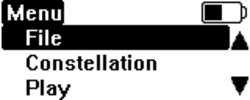
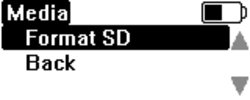
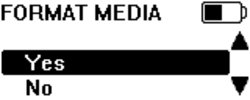
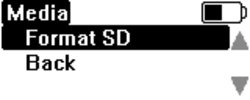
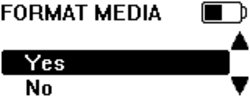
A full format will then be run on the inserted media, followed by a media speed test.
The media speed test is an indication if the inserted media is fast enough and if the speed test does not bring up any warnings, the card's read and write speed should be fast enough to be used with LabSat 3.
NOTE
Note, this is not a guarantee that recording a large amount of data will be successful, as the speed test cannot check if the card is fragmented or has other files stored on it.
If the estimated card performance is too slow, a warning message will show on the LabSat screen. In this case, you need to use caution when using the product - e.g. If using triple constellation box, you may be able to use the card to record a single or dual constellation file without any issues, but a triple constellation file may cause buffer errors.
It is also worth noting that faster transfer rates are possible when recording to HDD than to SD card, so do consider this if recording a long scenario.
TIP
Before recording a scenario, remove all other files from the SD card and format it to ensure it is primed with LabSat 3.
This reduces the risk of buffer errors.