
Below is a guide to how the folder layout works on LabSat 3. This example below shows the folder layout on the HDD provided with LabSat 3.
The LabSat USB HDD is uses multiple folders. When it detects folders LabSat will display them, in a similar fashion to a PC, using the DIR indicator.
When USB media is connected, LabSat 3 will scan for files and display the files/folders containing the .ls3 format.
When recording to USB HDD LabSat will save scenario files to the first folder in the directory.
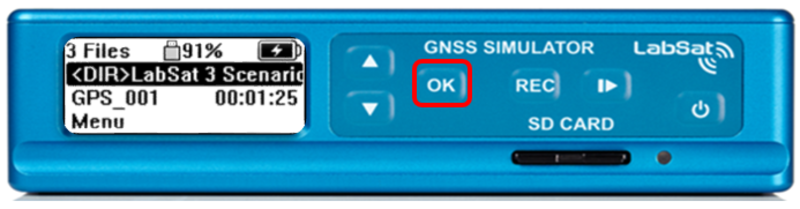
<DIR> indicates a folder and not a scenario. Press ‘OK’ to go to the selected sub-folder in the scenario directory.
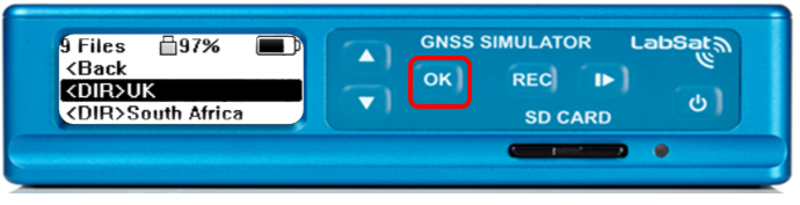
Entries without <DIR> are scenarios and not directories. Continue to navigate through the folder structure until you find the required scenario file(s).
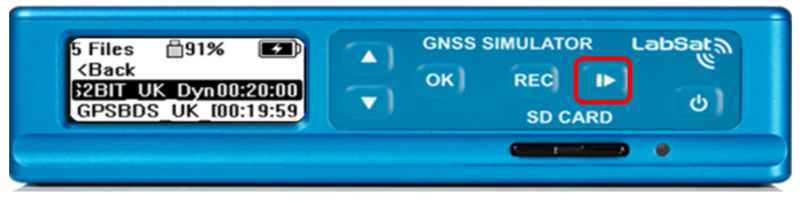
Pressing play will start the individual scenario replay.